
MAKAR Flash - Brain and Speed Challenge! When MR Paper Sumo Meets NPC Battle Mechanism

Brain and Speed Challenge! When MR Paper Sumo Meets NPC Battle Mechanism
With the arrival of the July summer holidays, this month's flash event takes you back to childhood memories with MR paper sumo! This activity upgrades traditional paper sumo to an MR version and adds an NPC battle mechanism, allowing you to experience the excitement of battles anytime, anywhere.
In this course, we will focus on teaching how to use the logic block feature to design game rules and mechanisms. The logic block feature is simple and easy to learn, enabling you to master and apply it to various creative ideas effortlessly. Even if you are a beginner, you can quickly get the hang of it and create your own game content.
We combine paper sumo with an NPC battle mechanism, increasing the game's challenge and fun. By using simple logic blocks to set NPC behaviors, the game becomes richer and more varied.
Through our one-hour course, you can easily create this fun-filled mini-game. Test your hand speed and push your opponent out of the ring with all your might, enjoying the thrill of challenge and victory! Come learn how to make this game and spend a laughter-filled and enjoyable summer holiday with your family. Create your MR toy game and learn how to use the logic block feature to set game mechanisms, enhancing your creative skills!
▌Course Outline
【MAKAR Project Showcase】
1-1. Paper Sumo Showcase
1-2. Case Study Analysis
【MAKAR Project Hands-on Teaching】
2-1. Placing Materials in the MAKAR Project
2-2. Applying Material Ball Effects to 3D Objects
2-3. Creating an NPC Battle Game Using Logic Blocks
3.Q&A Session
▌Course Instructor
Lina Tsai
The course has ended. The complete course video will be available on the MAKAR official YouTube channel on August 29.
MAKAR Flash - 3D Creation Made Easy: Animal Music Box Quick Workshop

3D Creation Made Easy: Animal Music Box Quick Workshop
Have you ever struggled with using 3D materials? This month's flash course theme is here to save you! Inspired by the Muzha Zoo, we present the whimsical "Animal Music Box"! In this course, we'll highlight MAKAR's latest features—materials adjustments and the curve object, making 3D creation easier than ever. Explore MAKAR's online material library and use MAKAR Editor's new features to make 3D creation accessible to beginners and experts alike.
Materials adjustments are simple and intuitive, and the curve object allows easy path settings for movement, with step-by-step teaching making your projects more vibrant. Whether you're a 3D novice or a creative expert, you'll find joy in this activity. This project is more than just a musical box to admire; with added info signboards, it can become an engaging project showcase.
Join us, master 3D creation secrets, and explore more ways to make your XR projects lively and fun!
▌Course Outline
【MAKAR Project Showcase】
1-1, Animal Music Box Showcase
1-2, Case Study Analysis
【MAKAR Project Hands-on Teaching】
2-1, Creating Rolling Axles with Logic Blocks
2-2, Importing Materials from Online Library & Adjusting Material Balls
2-3, Using Track Tool to Adjust Background Dynamics
3, Q&A Time
▌Course Instructor
Lina Tsai
MAKAR Flash-Dragon Boat Festival XR Game Creation Crash Course: Mastering MAKAR's Latest Features with AI-Assisted Extended Reality

Dragon Boat Festival XR Game Creation Crash Course: Mastering MAKAR's Latest Features with AI-Assisted Extended Reality
The special Dragon Boat Festival pop-up event is here! Led by Lina Tsai, we will teach you how to create a fun and easy-to-make XR Dragon Boat Fishing game. The event covers the entire XR interactive project creation process, from concept to implementation, helping you overcome any challenges in your metaverse creation journey. We will also delve into the new features introduced in the MAKAR 3.5.0 update, giving you a clear understanding of different XR project types. Using MAKAR Editor’s Extended Reality features and combining them with AI-generated videos, you'll get hands-on experience in creating a Dragon Boat Fishing game, enhancing the game's immersive experience! Join us and experience the charm of XR creation!
📅 Event Highlights:
- Gain in-depth knowledge of MAKAR Editor's extended reality production techniques
- Create a Dragon Boat Festival fishing mini-game to rescue Qu Yuan
- Master the production techniques for various types of MAKAR projects
▌Course Outline
[MAKAR Project Hands-on Teaching]1-1. Introduction to MAKAR Editor Project Types
1-2. AI-Generated Video Tutorial
1-3. Placing Assets in MAKAR Projects
1-4 Creating a Fishing Game with Logic
2.Bonus: Facebook Check-in Prize Draw
3.Q&A Session
▌Instructor
Lina Tsai
② Guardian Breeder: Guardians of the Plant Kingdom
▍Team Introduction
"Guardians’ Mentors," creators of the project "Guardians of the Plant Kingdom," hail from Yong’an Elementary School in Zhongshan District, Taipei City, and Jieshou Elementary School in Fuxing District, Taoyuan City. They were honored with the 2023 XR Reality Education Creative Award for Teachers: the XR New Media Content Teaching Material Creation Excellence Award and the HTC MVP Special Award.
▍Teaching Plan/Material Design Concept
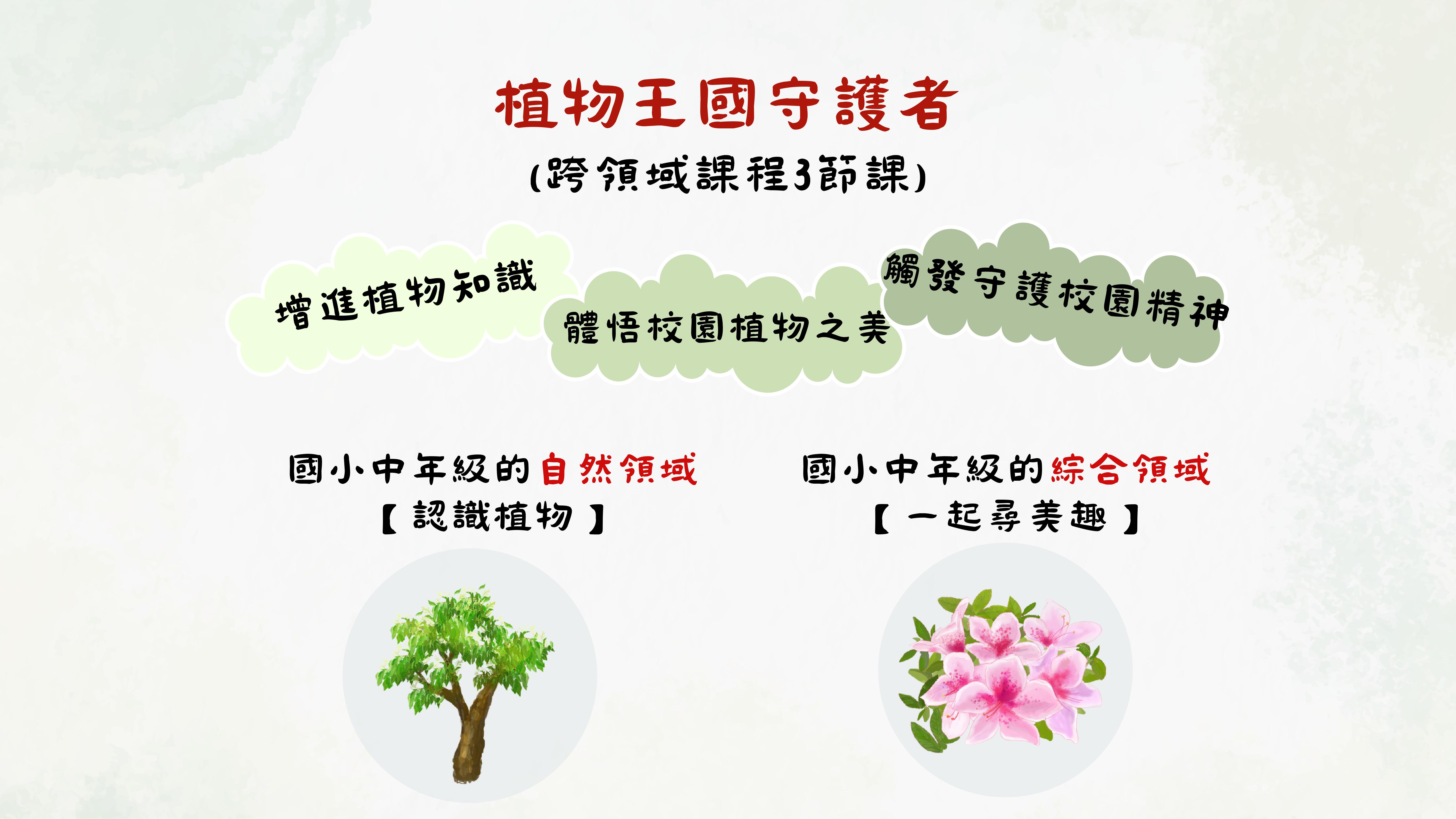
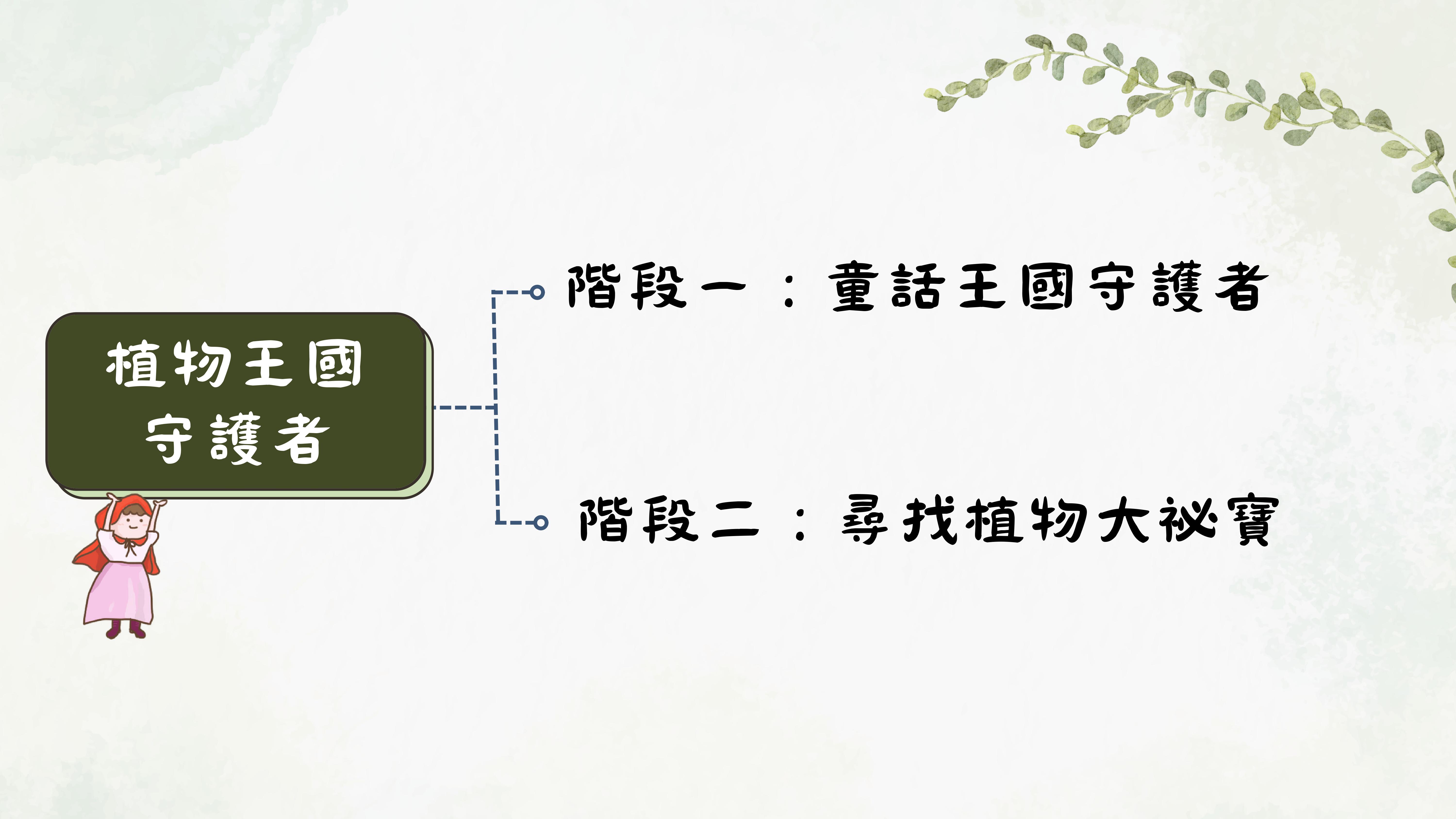
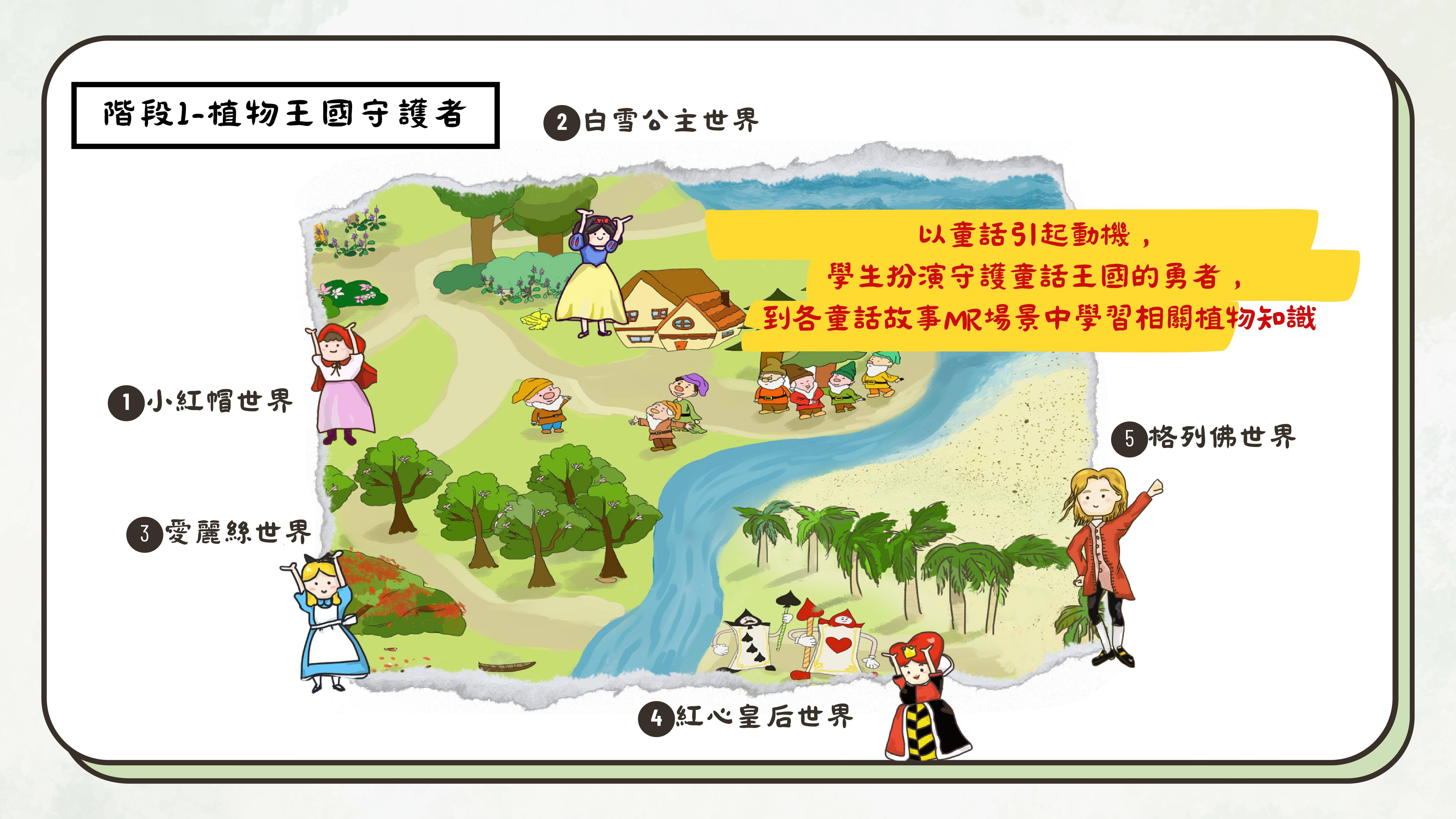
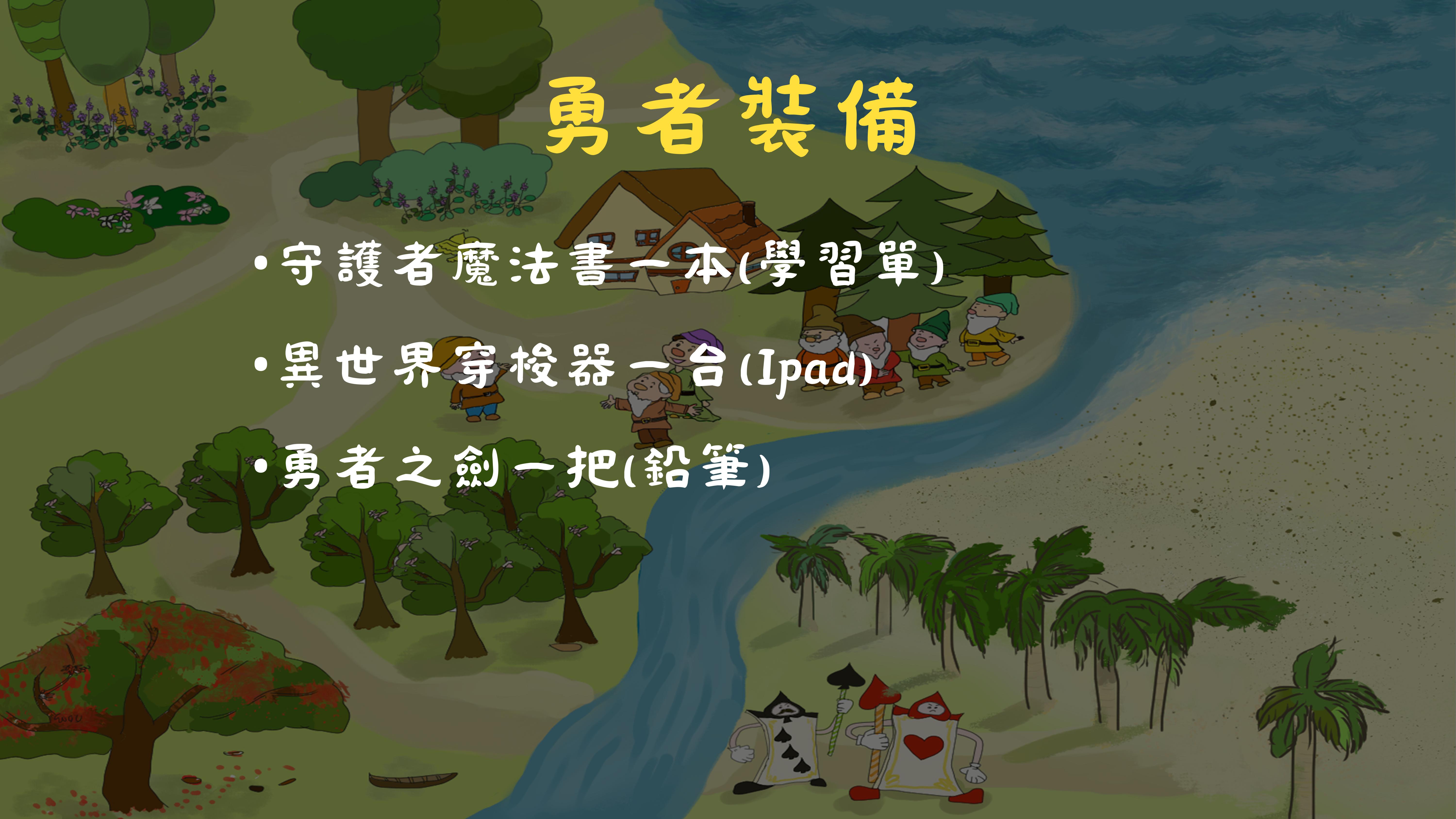
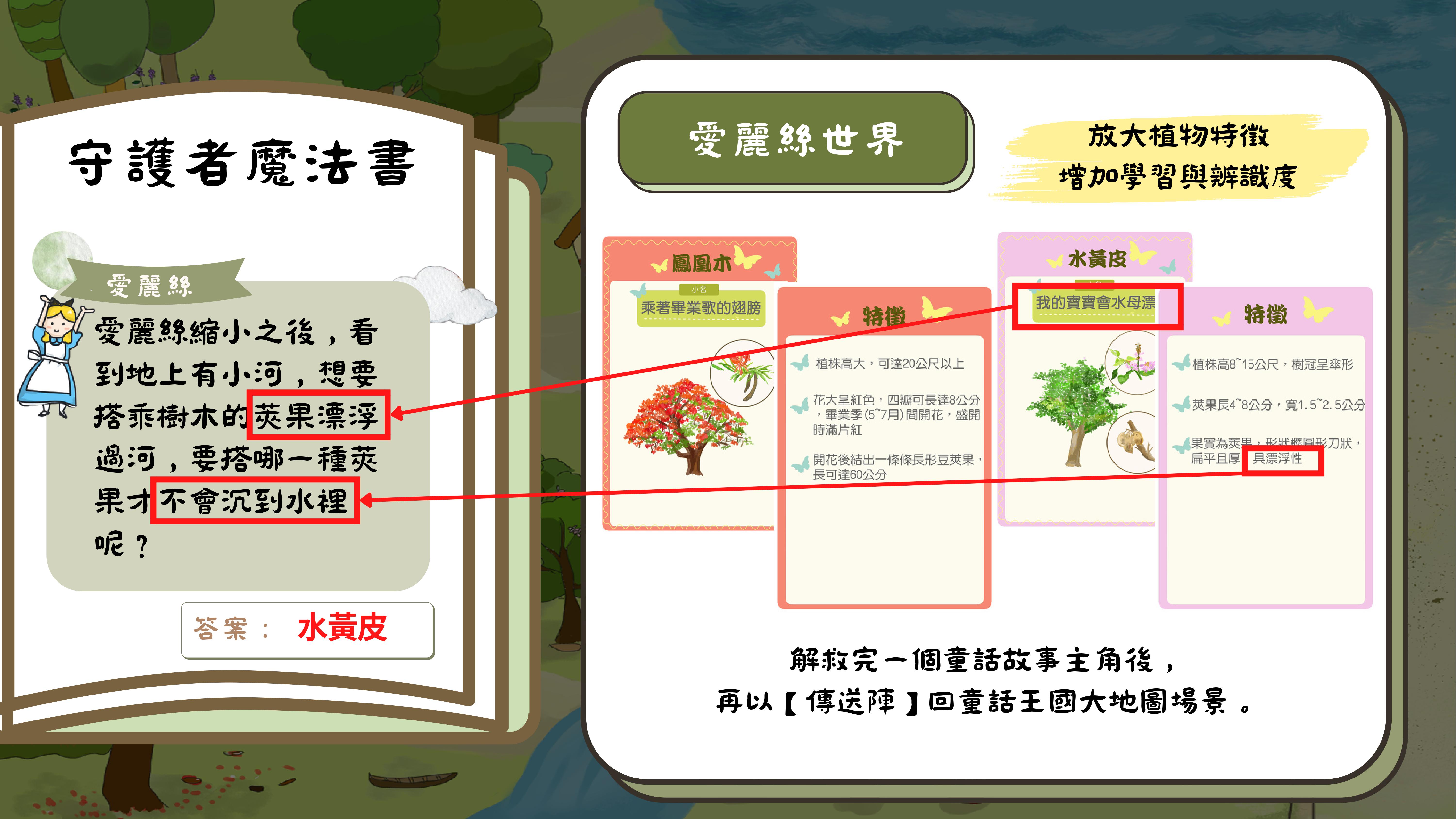
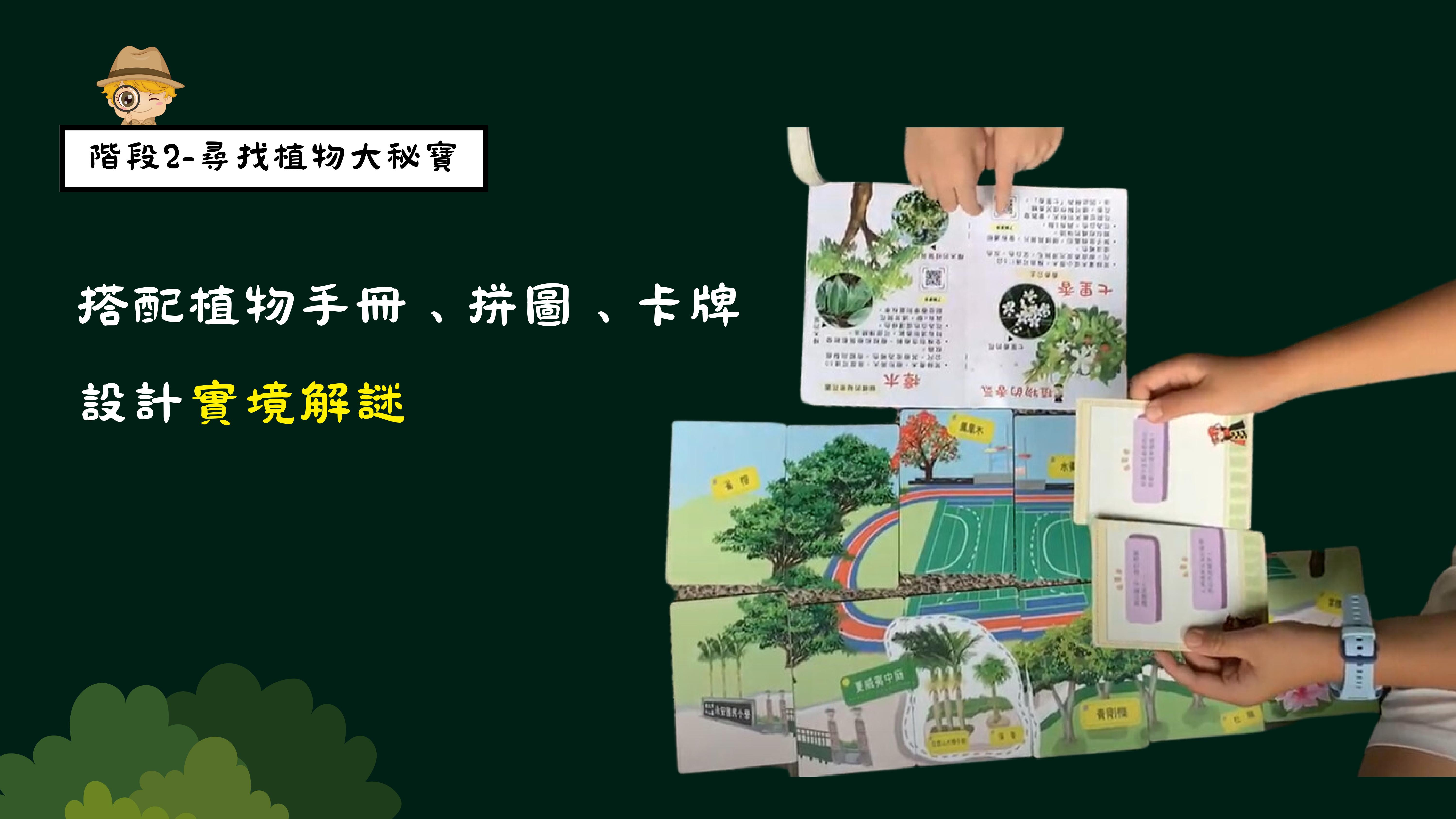
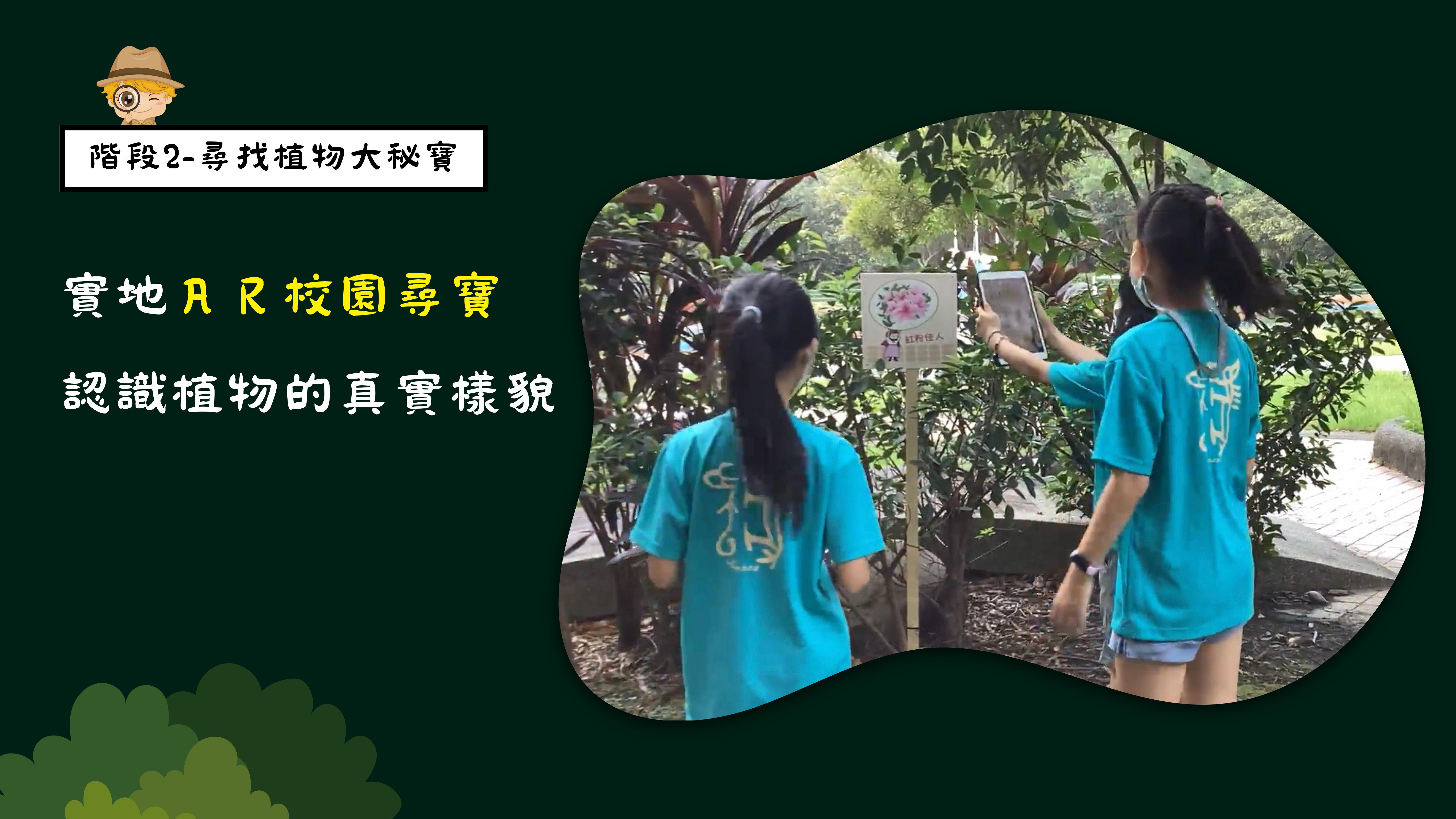
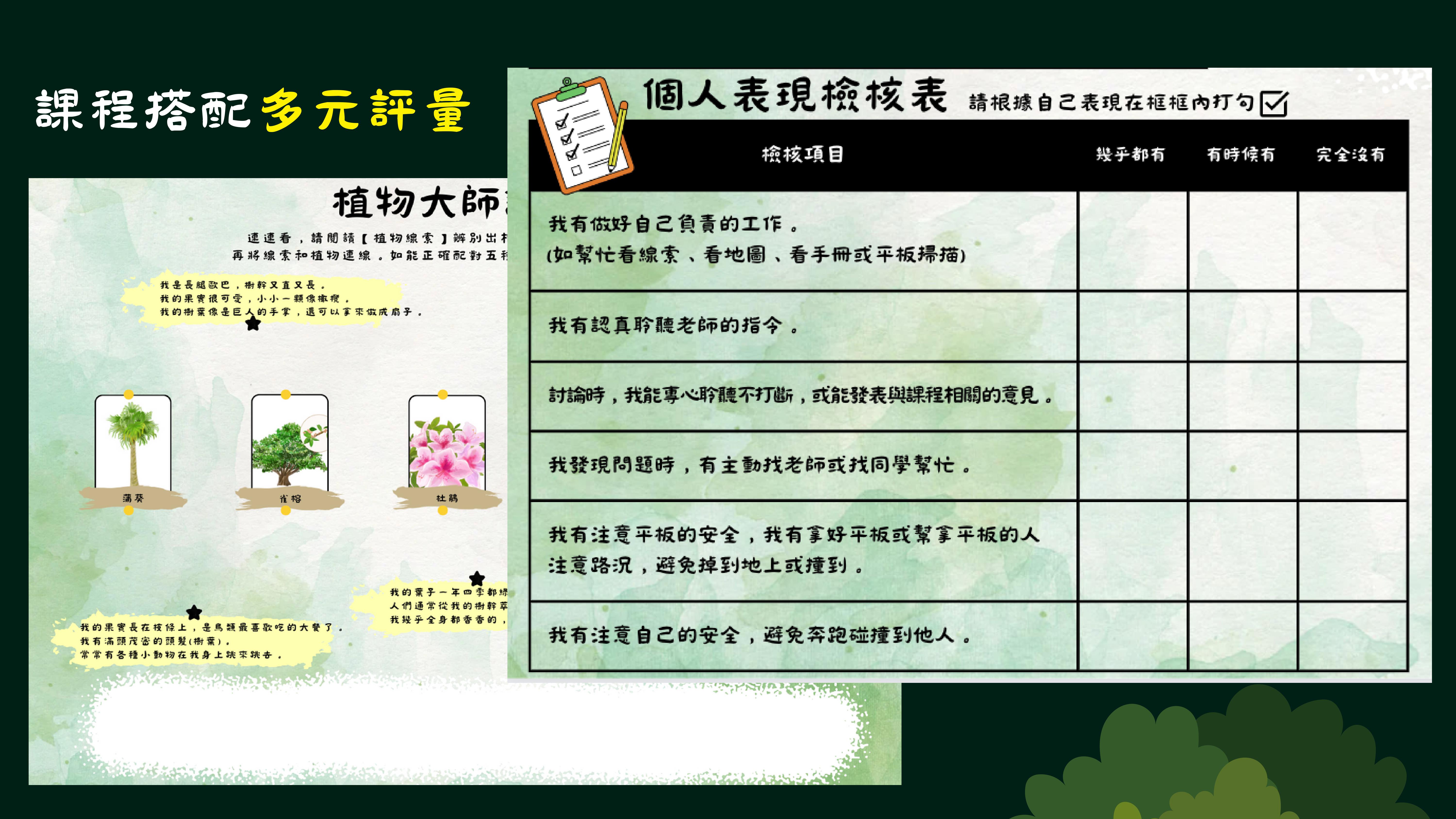
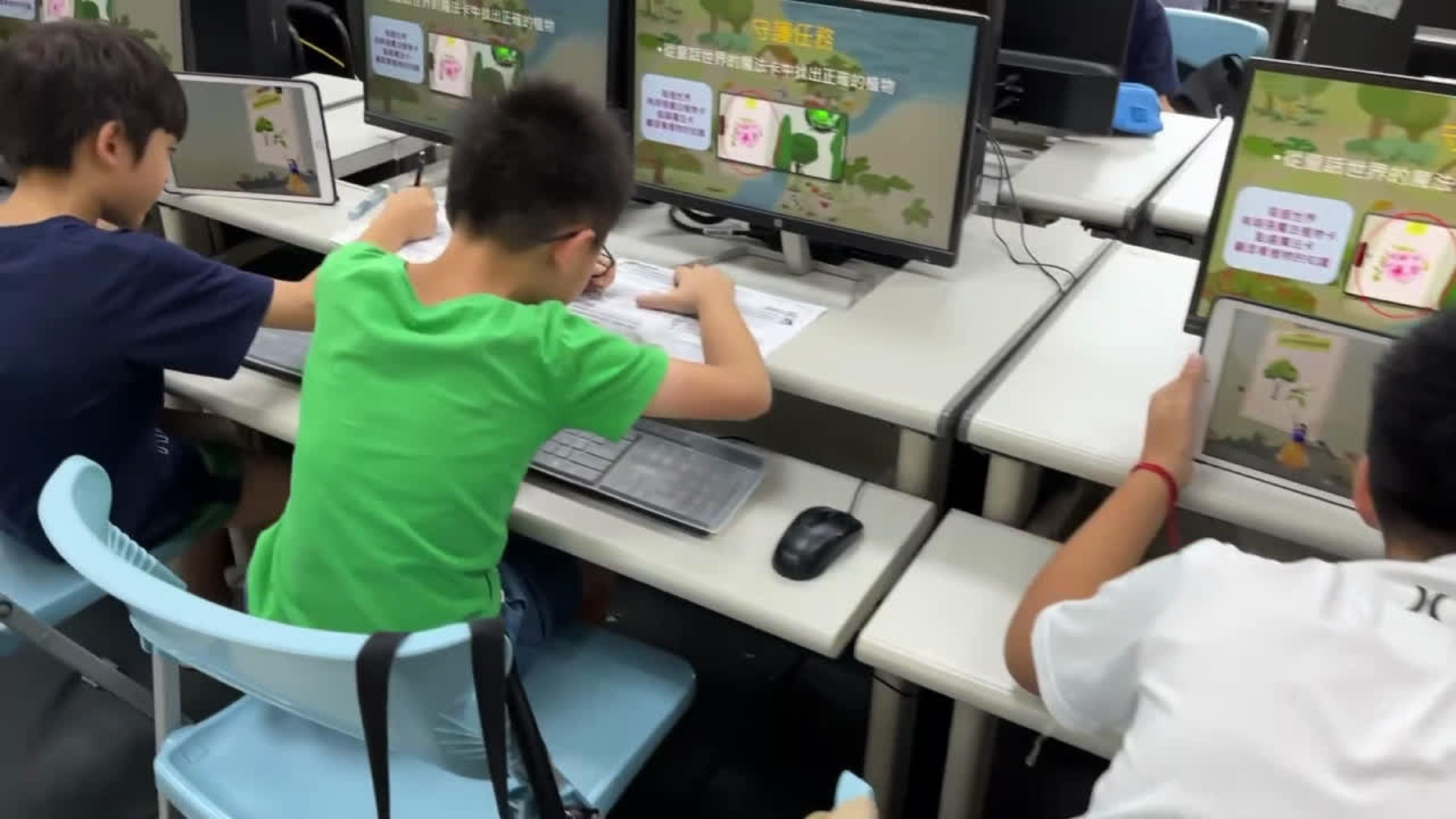
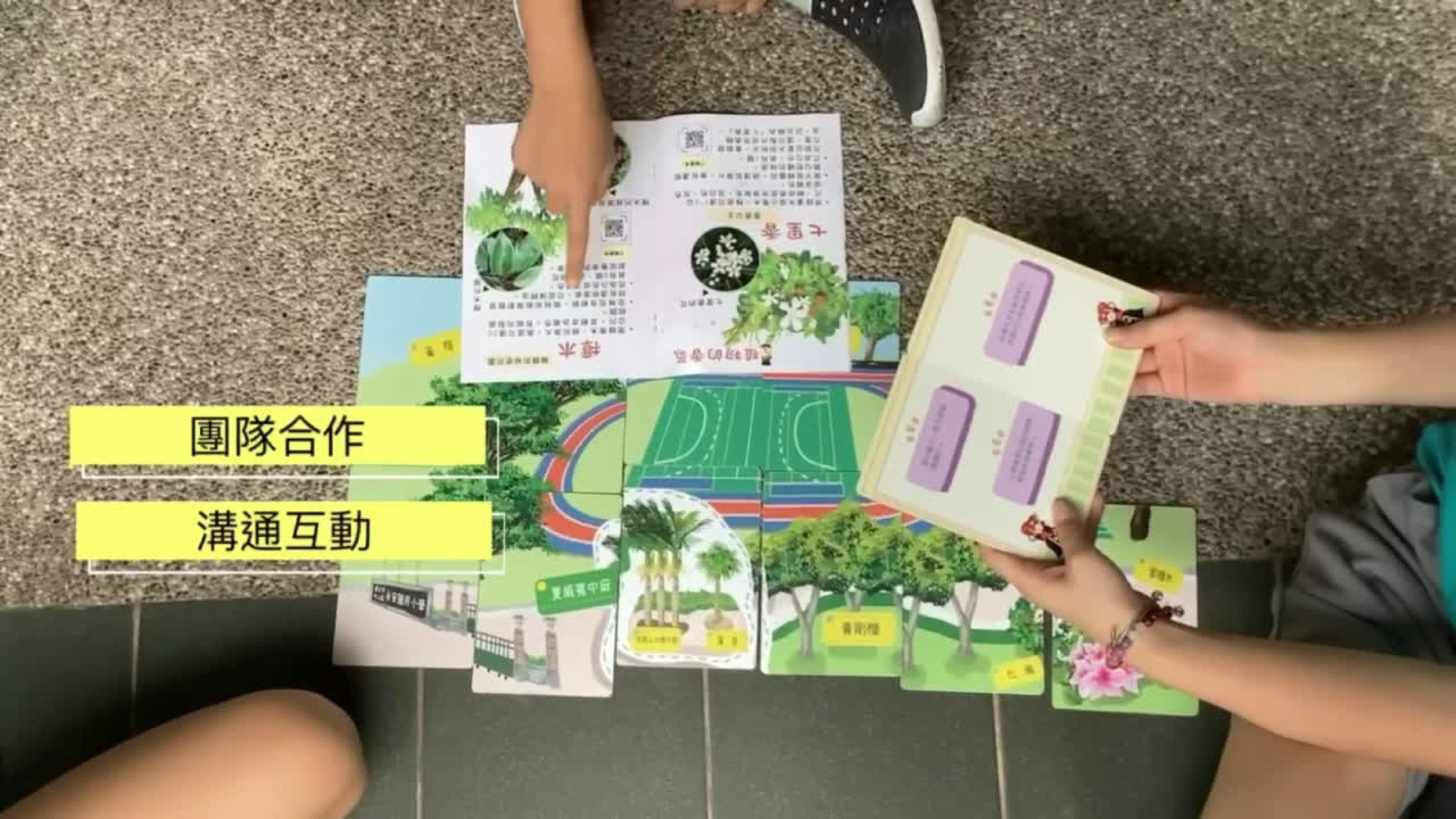
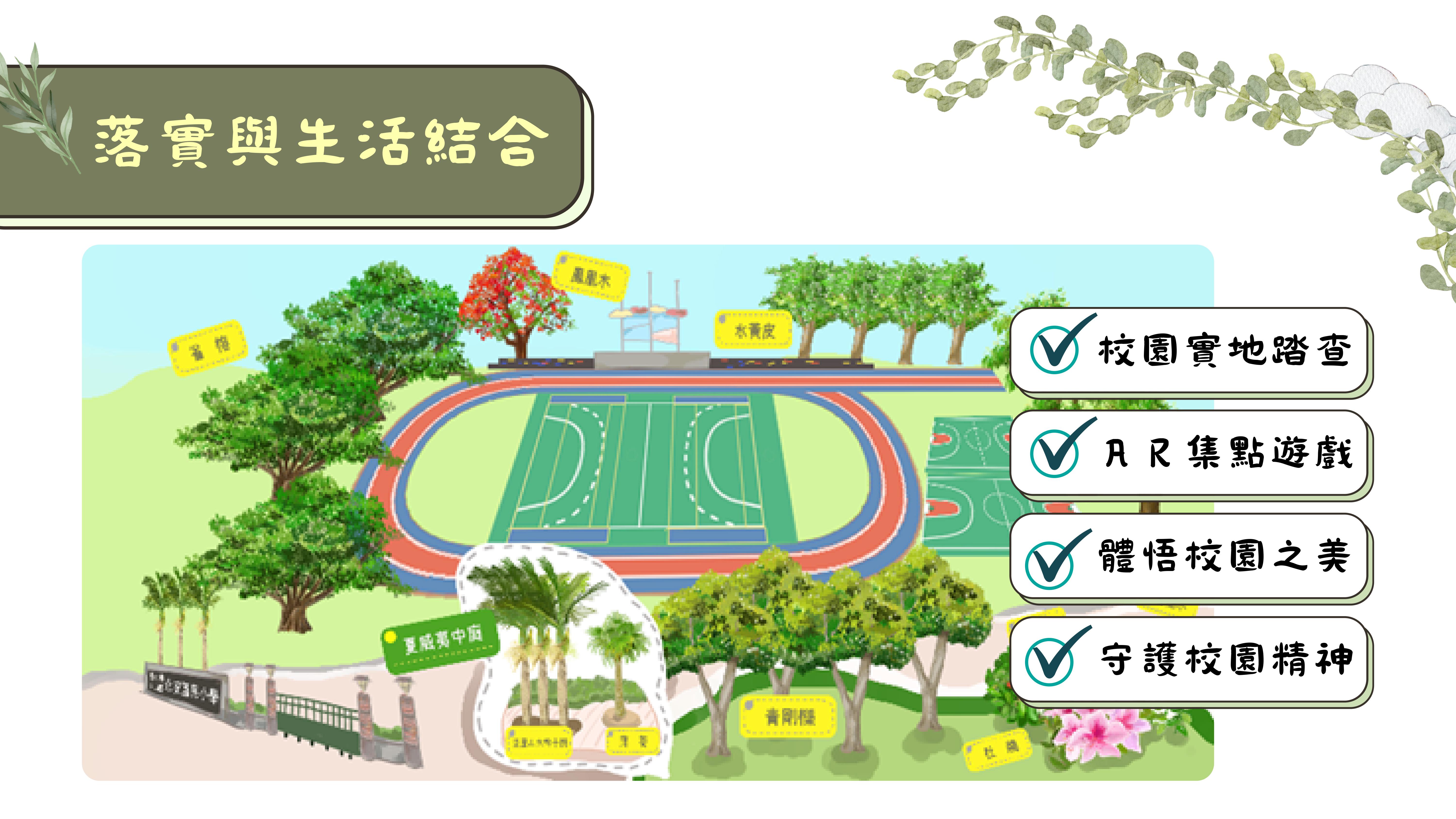
"Guardians of the Plant Kingdom" is an interdisciplinary teaching plan that combines the elementary school mid-grade natural sciences unit "Understanding Plants" with the comprehensive arts unit "Exploring the Joy of Aesthetics," divided into two phases. The first phase uses a fairy tale to spark interest, where students play the role of brave guardians of a fairy tale kingdom, learning about plants in various MR (Mixed Reality) fairy tale scenes and helping fairy tale characters solve problems. The second phase integrates reality-based puzzles with plant handbooks, puzzles, and cards, where after solving the puzzles, students search the campus for corresponding plants. They also use AR point-collection cards to learn about plants and appreciate the beauty of campus flora, effectively combining learning with daily life.
▍Course Teaching Features
1.Interdisciplinary Curriculum: In line with the spirit of the 108 Curriculum Guidelines, this course integrates natural sciences and comprehensive arts. In addition to learning about plants, students also practice teamwork and explore the beauty of campus plants.
2.PBL (Project-Based Learning) Course Design: Students take on roles within a context, solving puzzles to advance the storyline, which enhances their motivation to explore and learn.
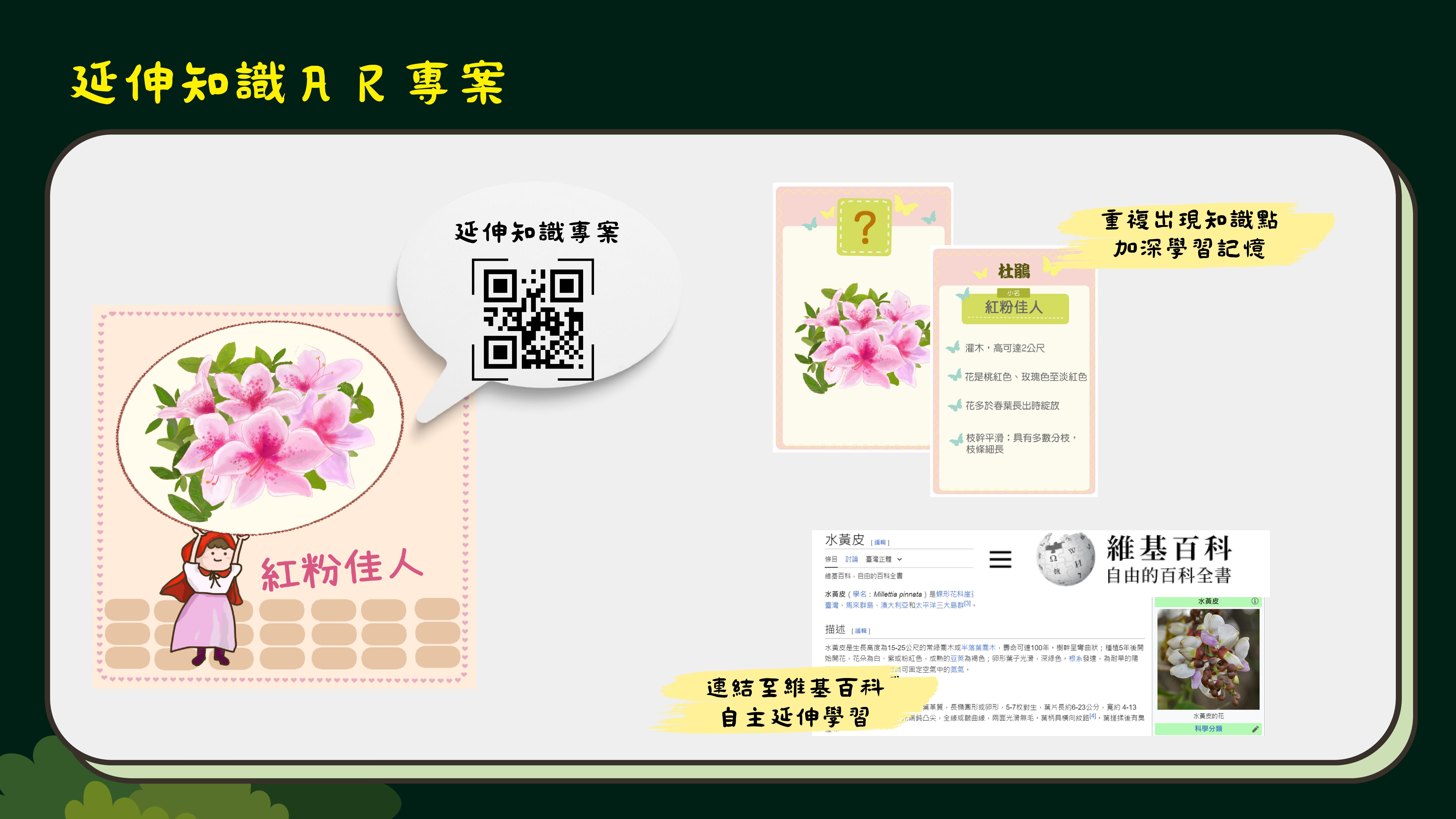
3.Technology Integration: Depending on the learning scenario, appropriate XR projects and technological media are integrated, such as incorporating MR (Mixed Reality) into the fairy tale kingdom, using recognition cards and point-collection cards to explore the beauty of the campus, and attaching AR explanations and extended learning links to campus plants.
▍Project introduction





MAKAR Viewer Hardware Requirements
| GooglePlay(Android) |
|
Android:Supports version 12.0 and above, compatible with iPhone 6s and newer models. |
MAKAR Editor Hardware Requirements
| Recommended Requirements |
|
【Mac】 Supports MacBook Air 2017 or later, Monterey 12.4 or above.
【Windows】 OS: win 7 CPU: intel core i5-6300 GPU: 2GB VRAM MEMORY: 4GB Ram |
| High Efficiency Specifications |
|
【Mac】 MacBook Air M2 or later, Sonoma 14.3 or above.
【Windows】 OS: win 11 CPU: intel core i5-10500 GPU: 4GB VRAM MEMORY: 8GB Ram |
Download and Install MAKAR Editor
Download and Install MAKAR Editor
1. Visit the Download Section of MAKAR Official and choose the appropriate installation file based on your computer system. MAKAR Editor is available in three versions: Windows 32-bit, Windows 64-bit, and iOS.
   |
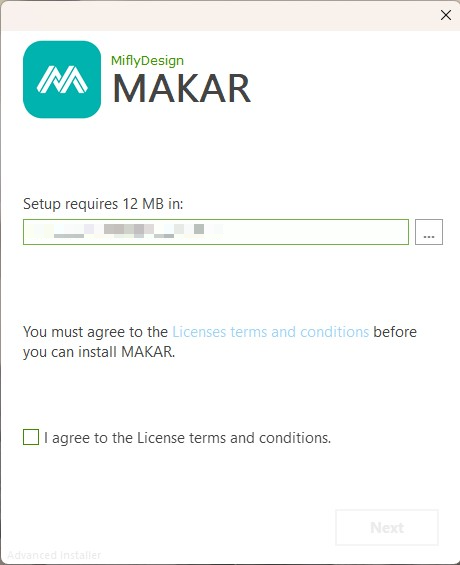 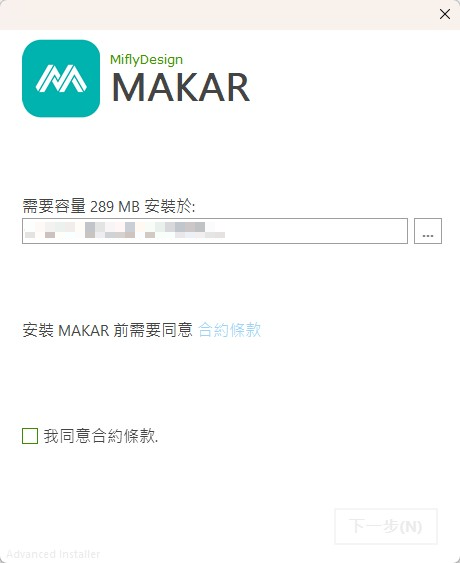  |
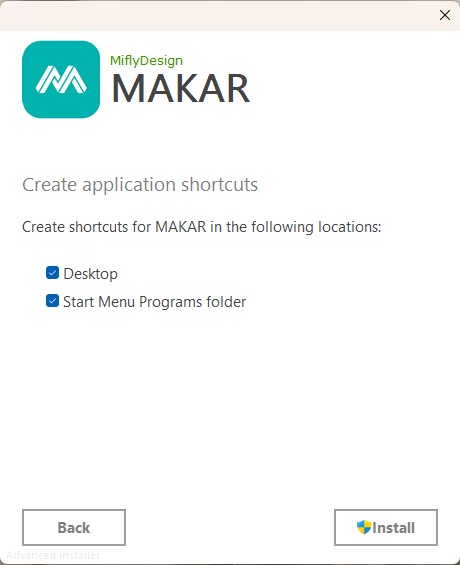
| 1. After opening the installation file, MAKAR installation screen will appear. | 2. Select the installation destination and check "I agree to the License terms and conditions." then click "Next". |
   |
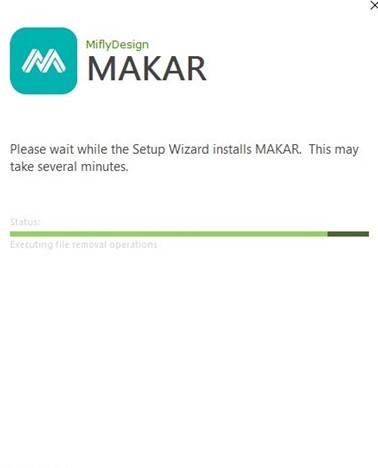 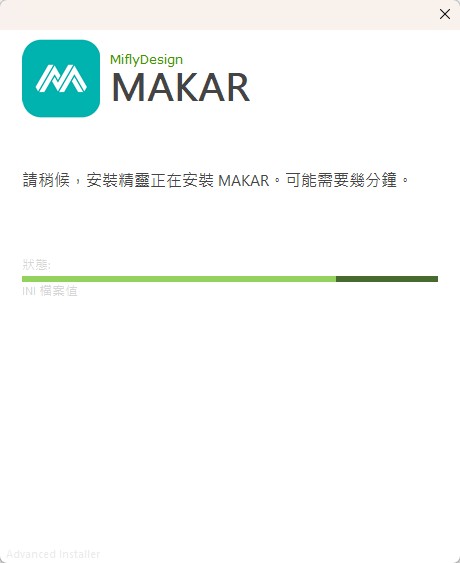  |
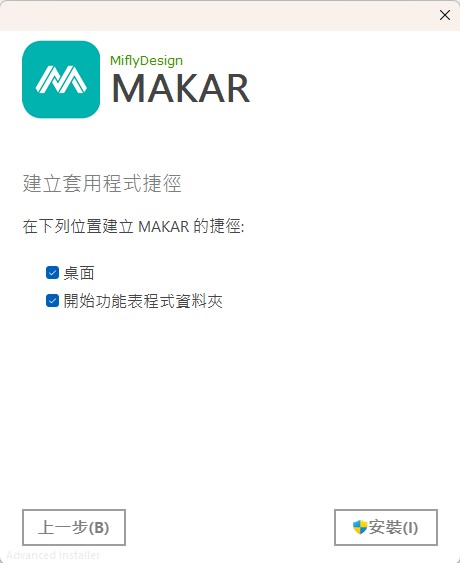
| 3. Check the shortcuts you want, then click "Install". | 4. MAKAR is installing. |
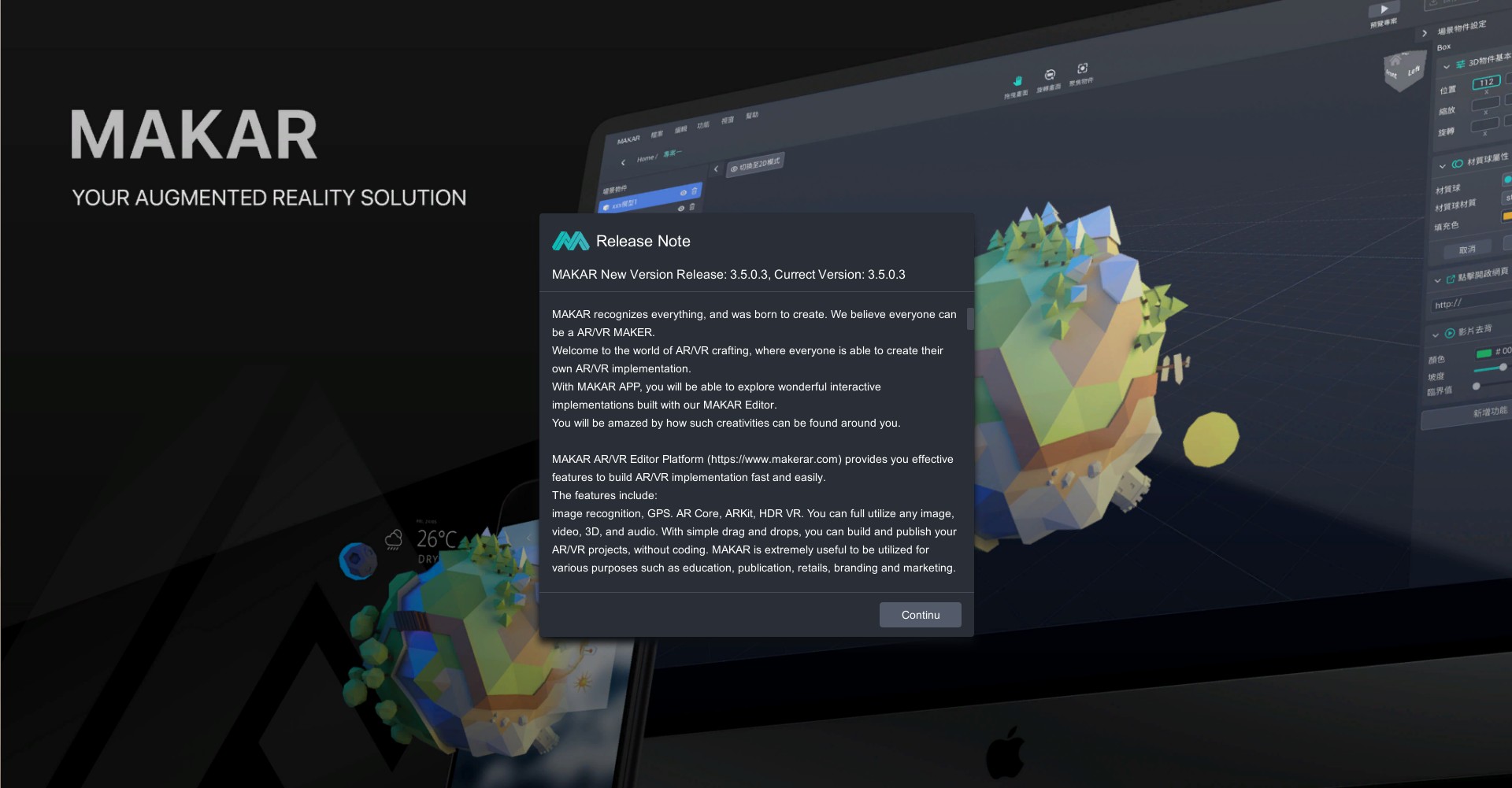
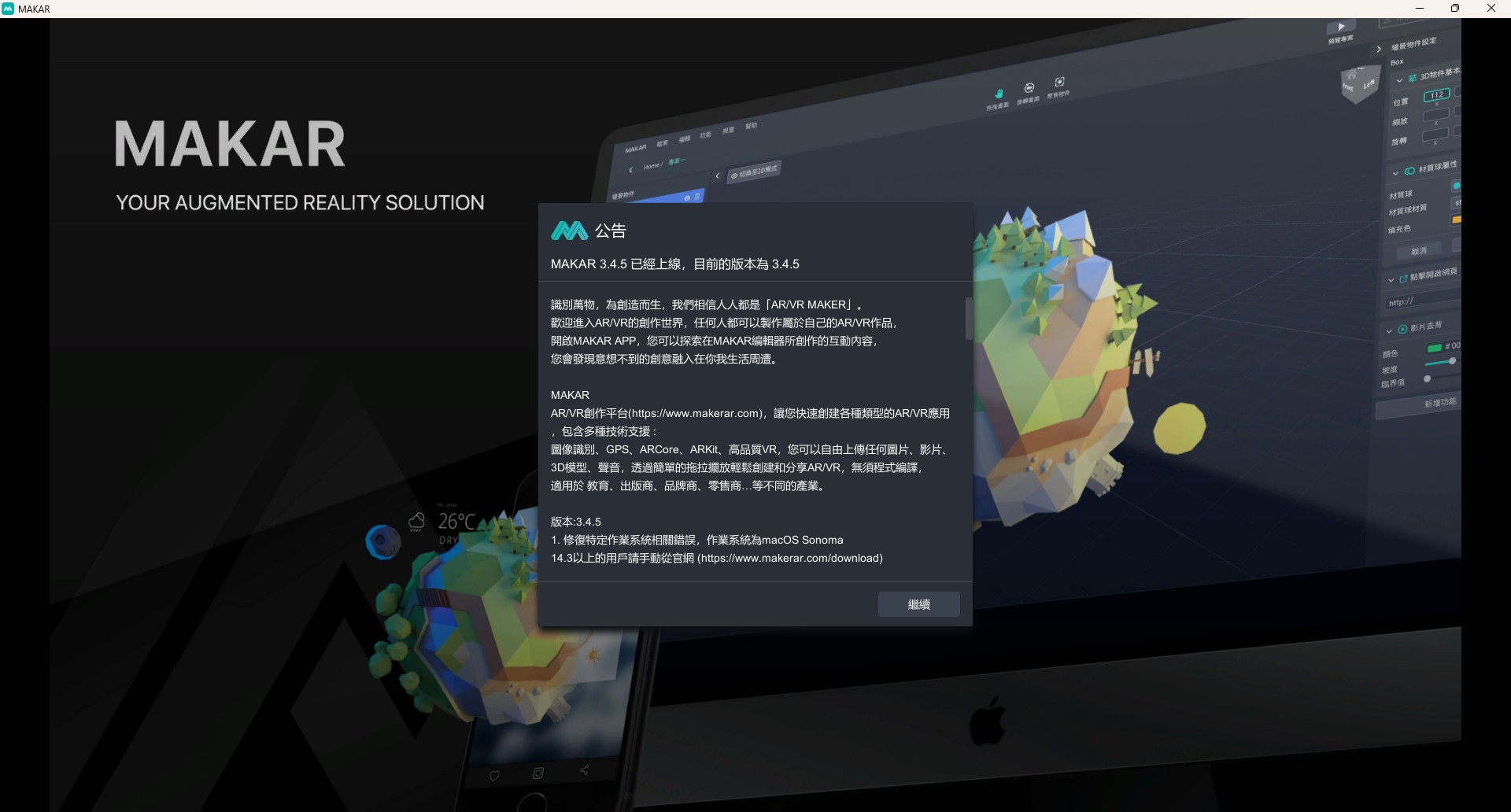
2. After the installation is complete, MAKAR Editor will automatically open. If it does not open automatically, you can click the icon on the desktop to open MAKAR Editor.

Create Your MAKAR ID on the Website
Create Your MAKAR ID on the Website
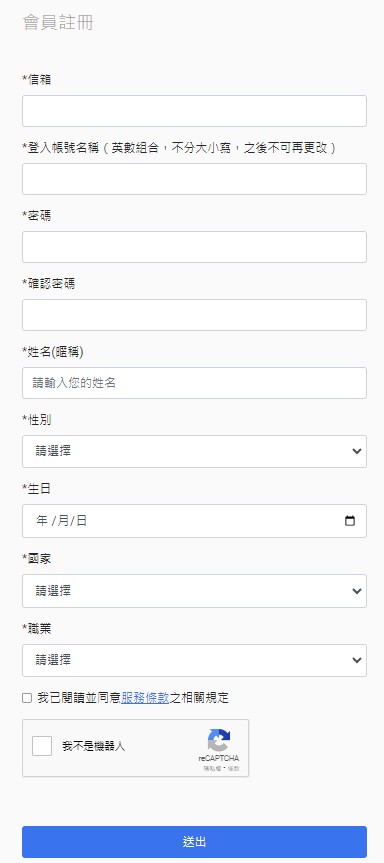
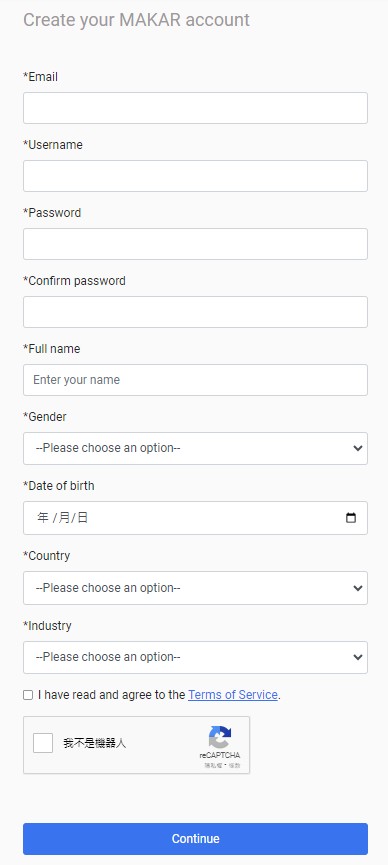
1. Begin your registration by visiting "Sign Up" section on the MAKAR official website. Enter the member registration page, fill in your personal information, and check "I have read and agree to the Terms of Service." and "I am not a robot", then click "Continue".

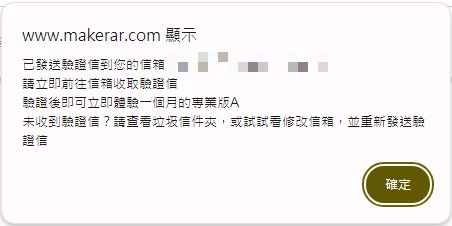
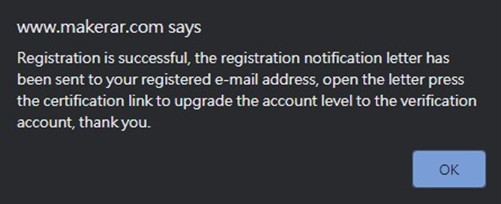
2. A verification email will be sent to the email address you provided. Please check your inbox and click the verification link.

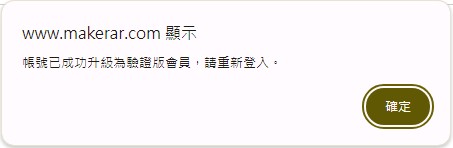
3. Once verified, your registration is successful. You can enjoy a one-month free trial of STANDARD plan.

Related Posts:
Use Third-Party Accounts to create MAKAR ID
Use Third-Party Accounts to Create MAKAR ID
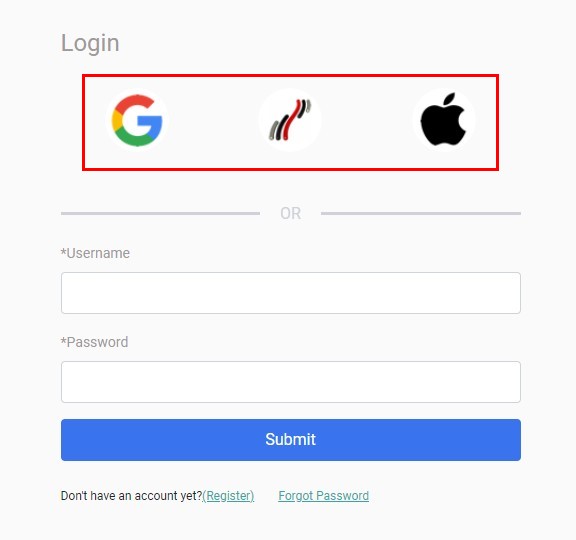
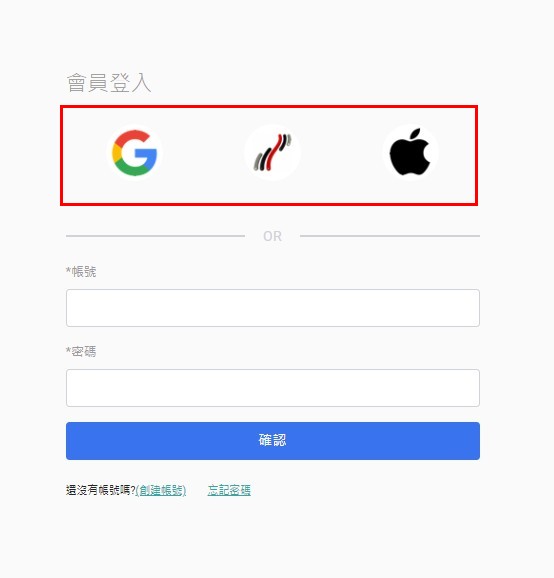
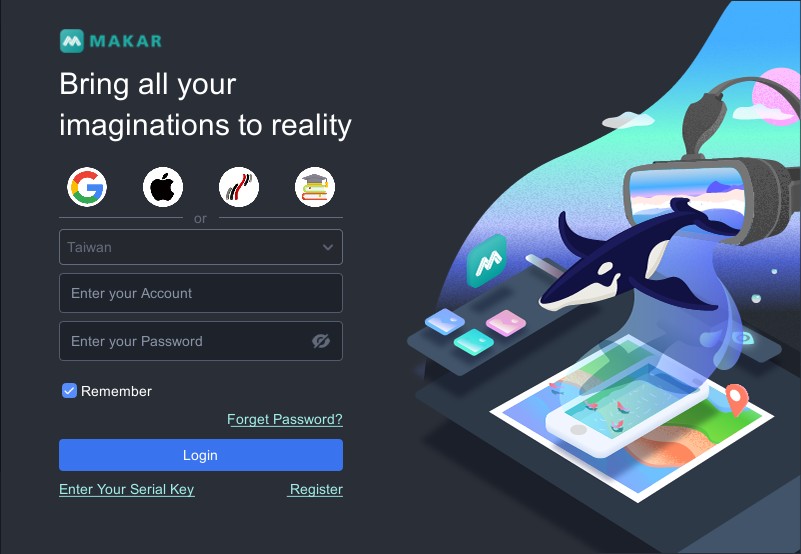
MAKAR offers third-party login options, allowing you to quickly finish signing up by logging in at the same time. You can log in using third-party accounts either from MAKAR Login on the official website or the login screen within the MAKAR Editor.
   |
 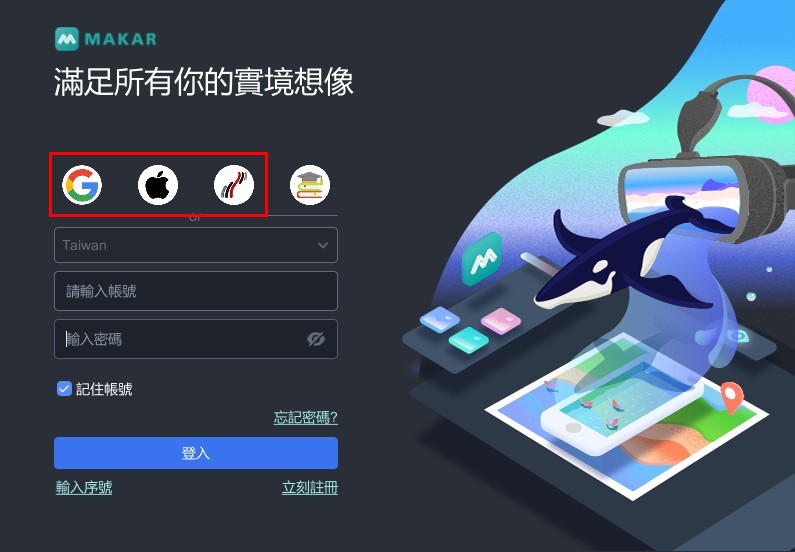  |
| ▲ on the official website | ▲ on MAKAR Editor |
Three Third-Party Login Processes
MAKAR provides three third-party login options: Google, 1Campus, and Apple. Below, we illustrate the login process for each of these options within the MAKAR Editor interface.
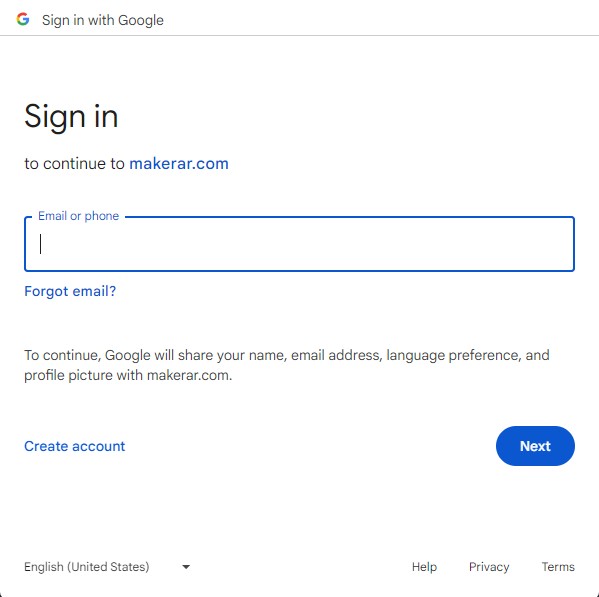
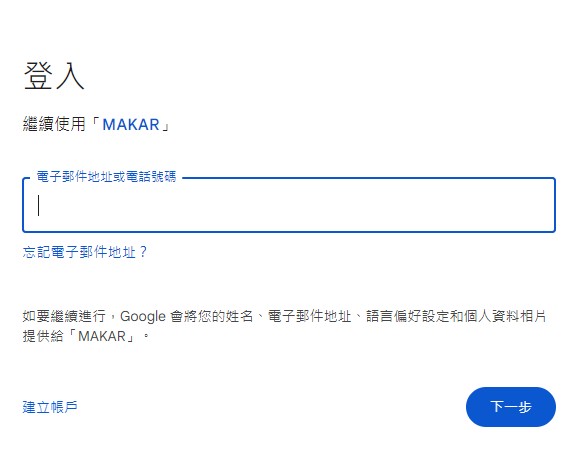
1. Log in with Google Account
   |
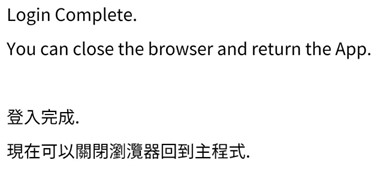   |
| 1. Click Google icon to access the login screen and enter your login information. | 2. A "Login Completed" window will appear. |
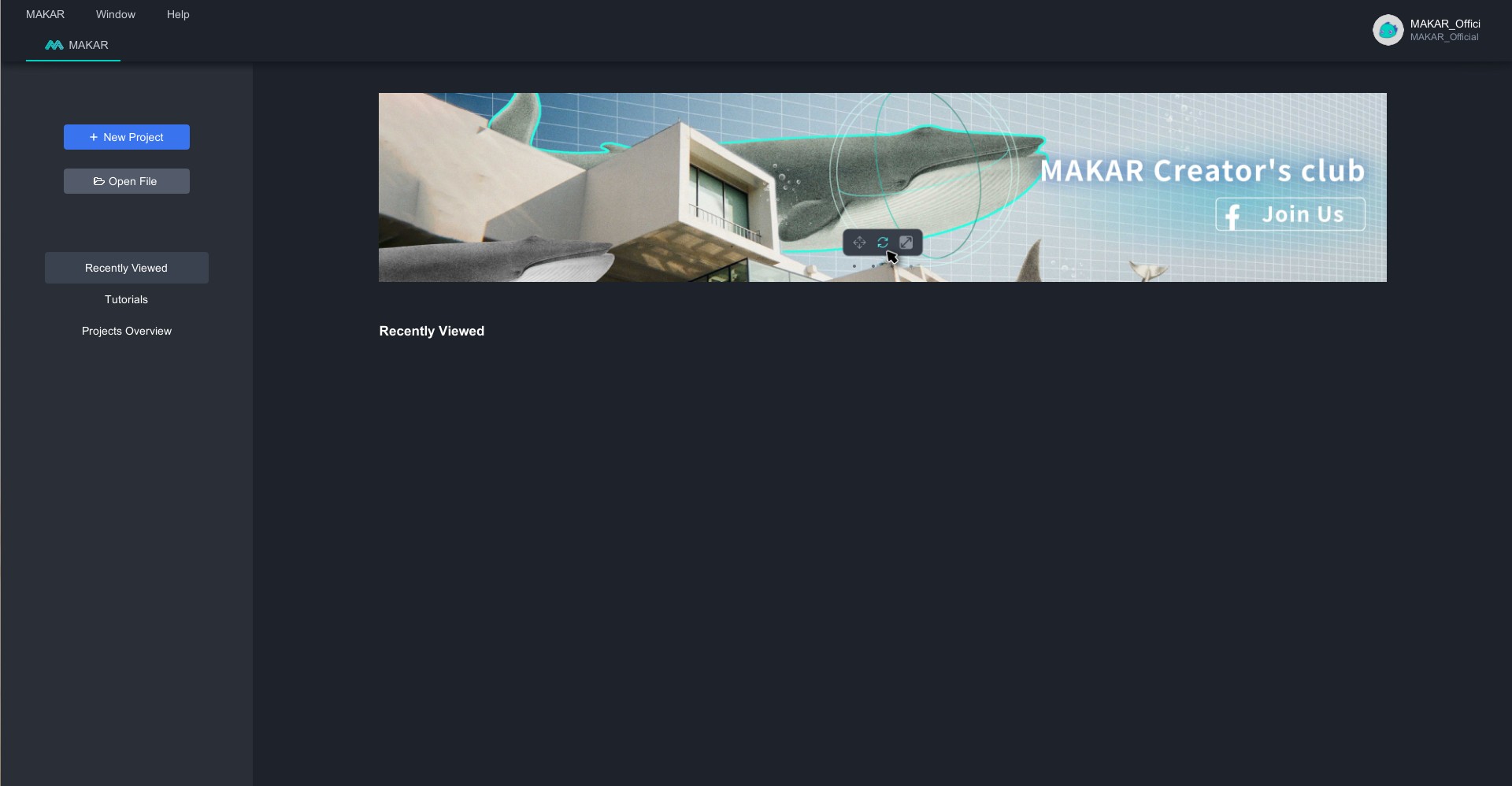 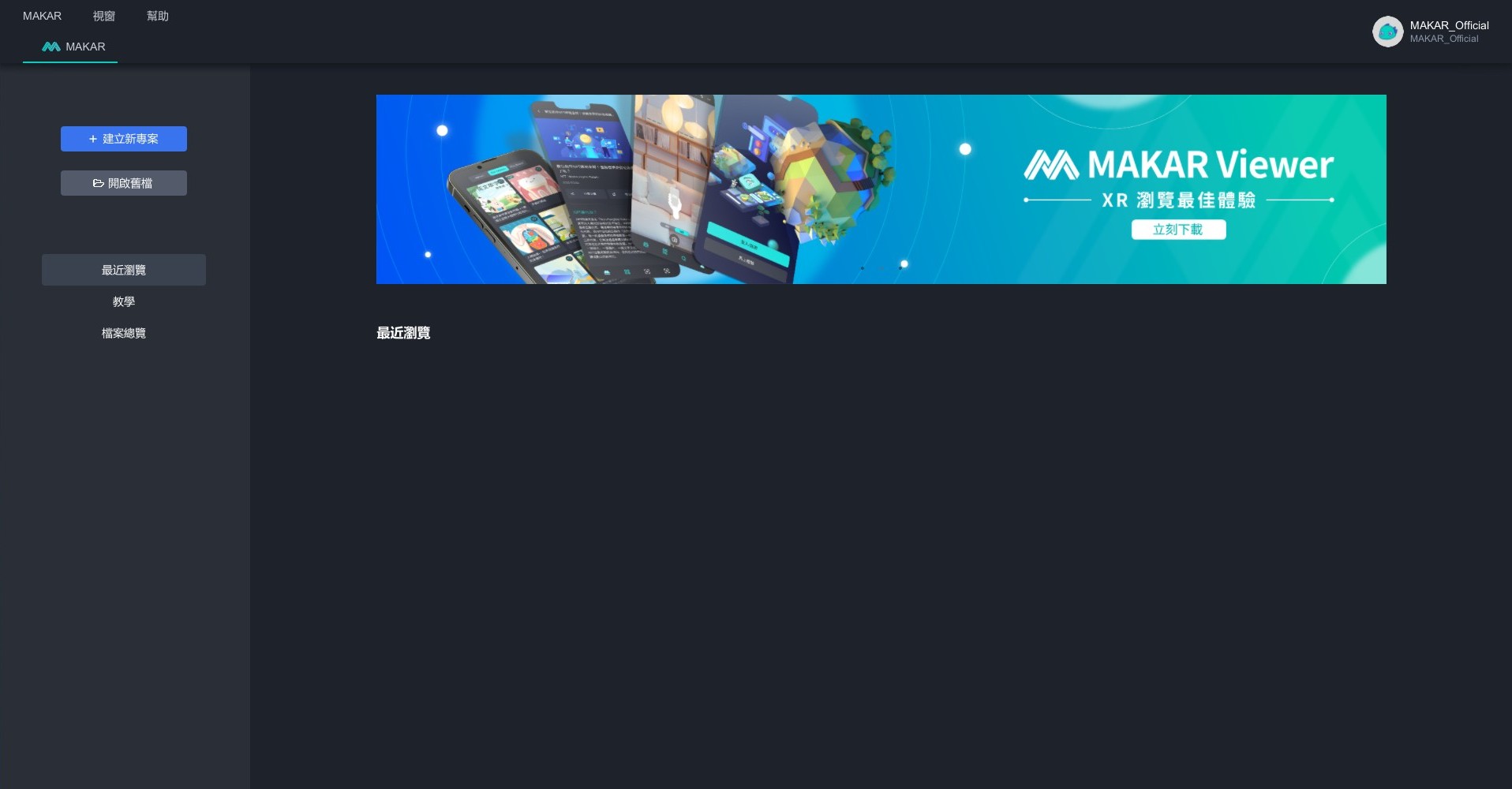  |
| 3. You'll be directed to the editor interface, indicating successful registration. |
2. Log in with 1Campus Account
 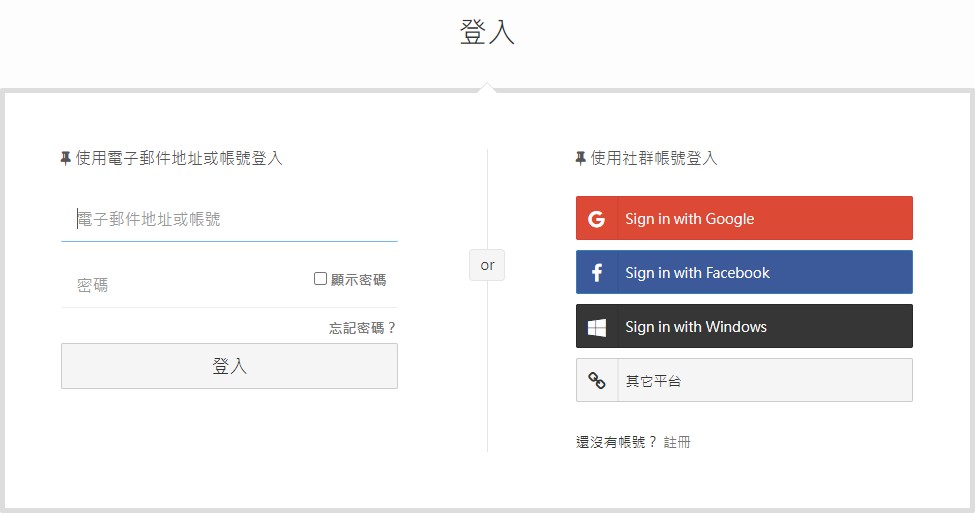  |
   |
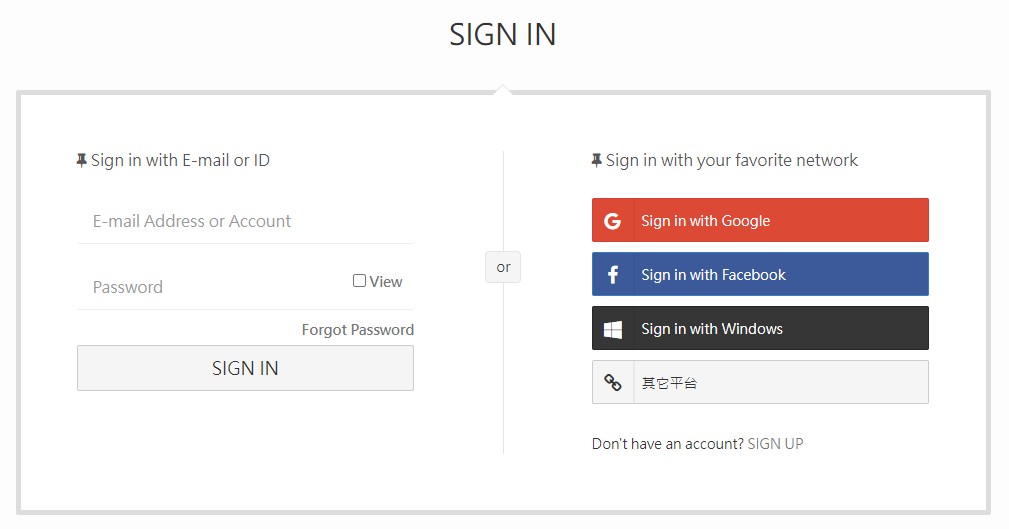
| 1. Click 1Campus icon to access the login screen and enter your login information. | 2. A "Login Completed" window will appear. |
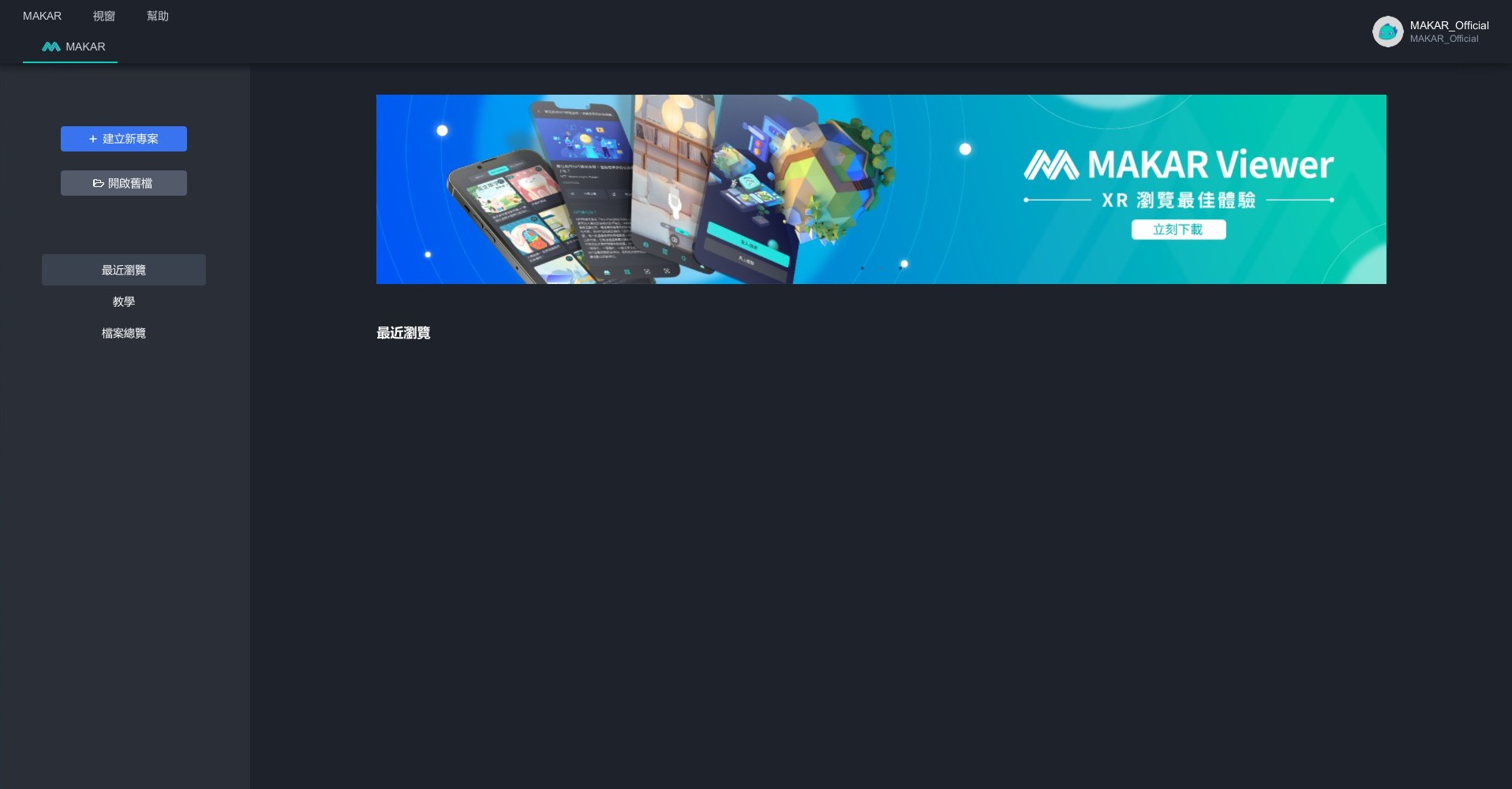 |
| 3. You'll be directed to the editor interface, indicating successful registration. |
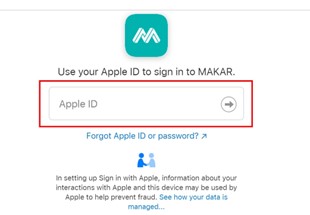
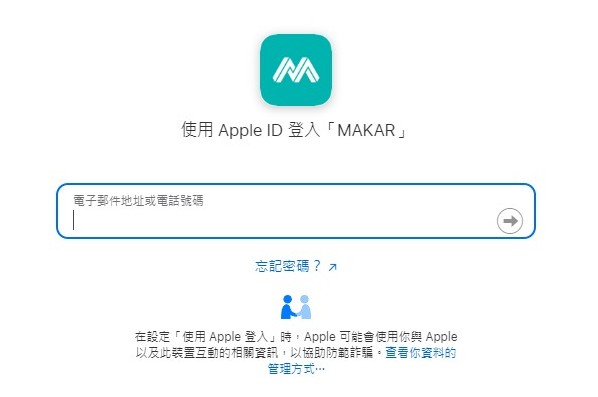
3. Log in with Apple Account
   |
 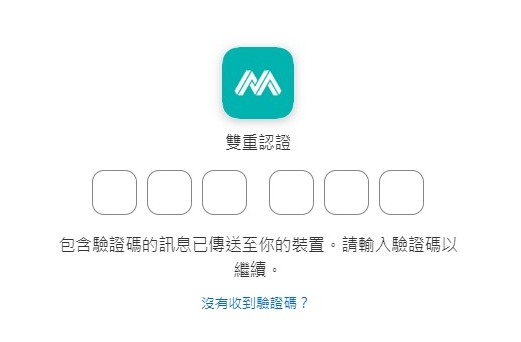  |
| 1. Click Apple icon to access the login screen and enter your login information. | 2. Logging in with Apple requires "Two-Factor Authentication." Please verify and input the authentication code on your Apple device.
*If Two-Factor Authentication has been previously enabled, this page will not appear. |
   |
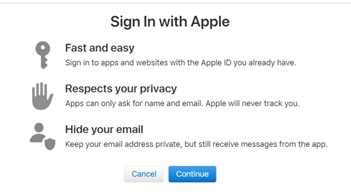   |
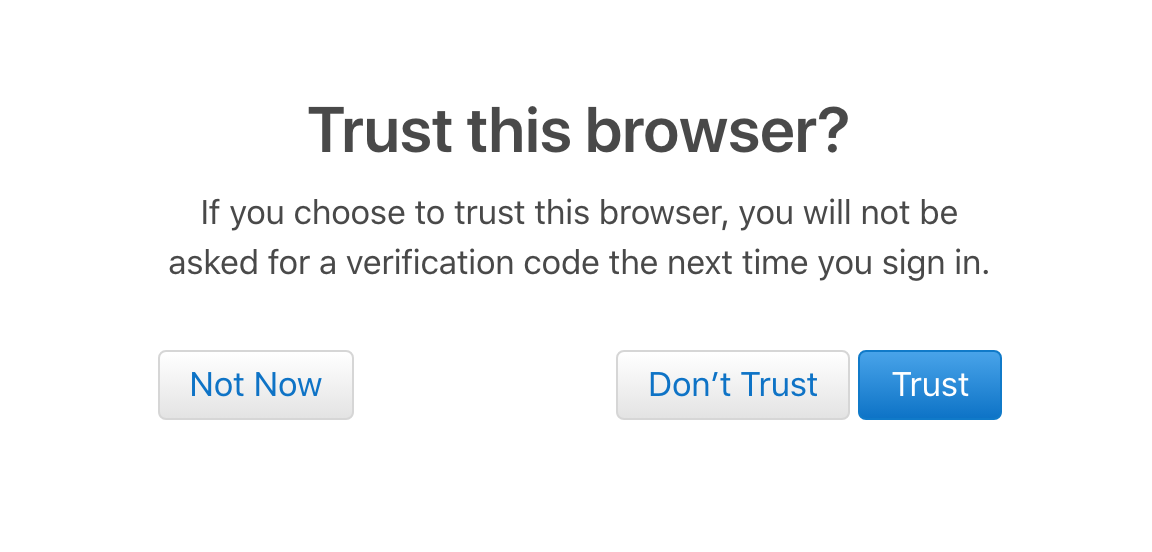
| 3. A "Trust This Browser?" prompt will appear. Click "Trust." | 4. "Sign in with Apple" will appear. Click "Continue." |
   |
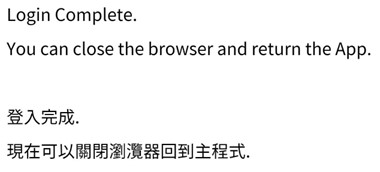 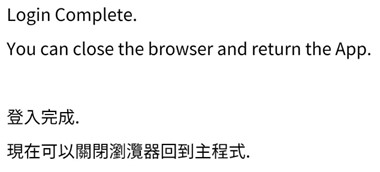  |
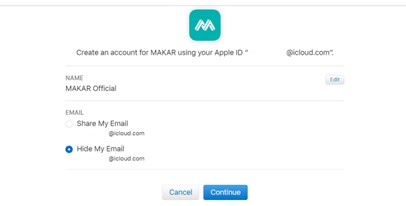
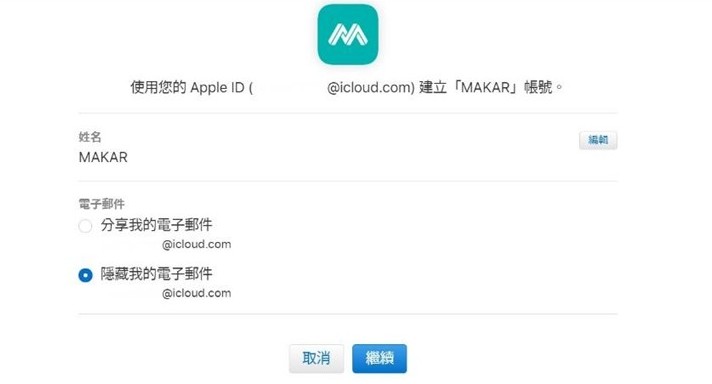
| 5. Verify that your Apple ID details are correct, and optionally modify your name and email sharing settings. Then click "Continue." | 6. A "Login Completed" window will appear. |
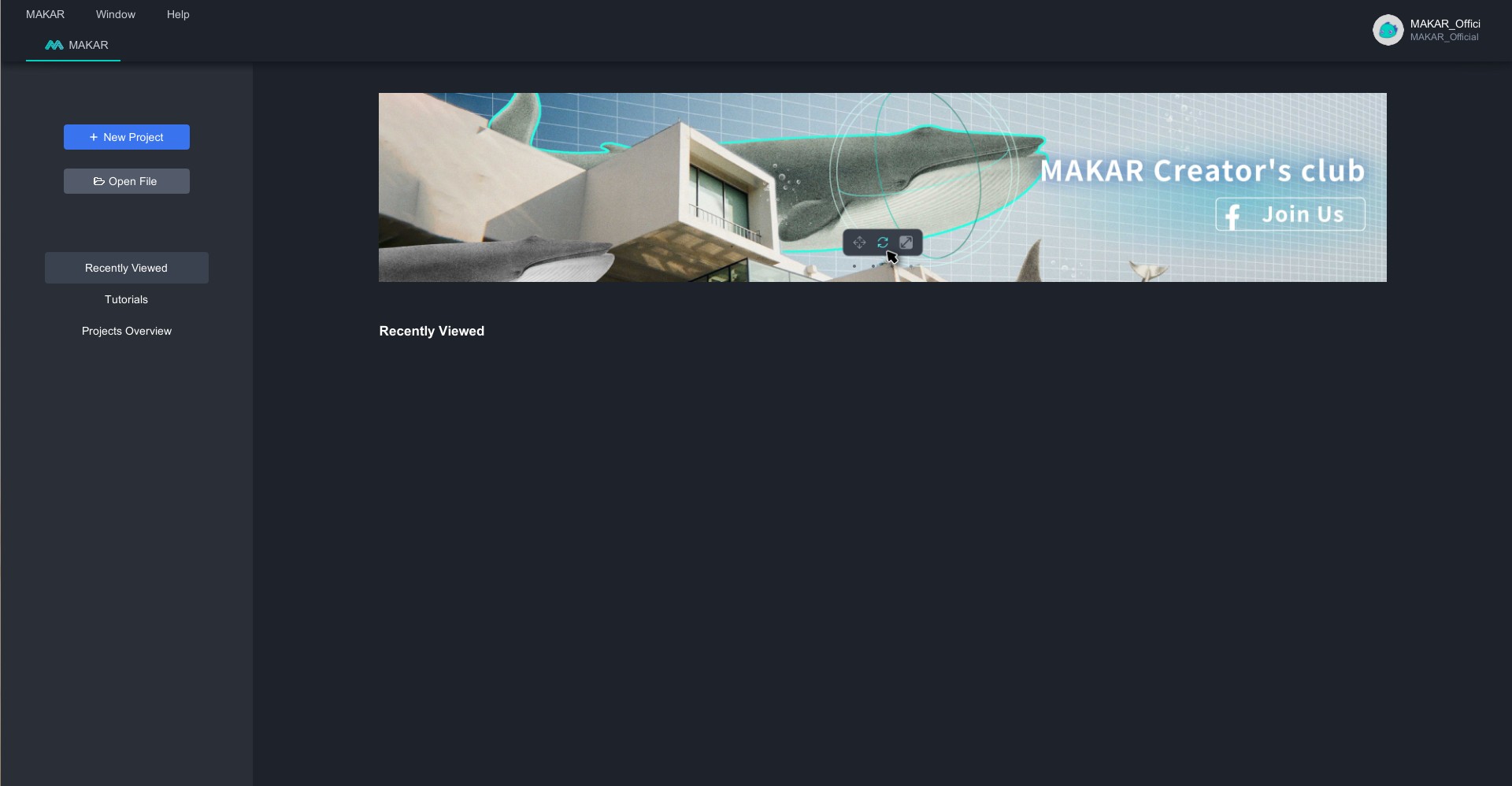 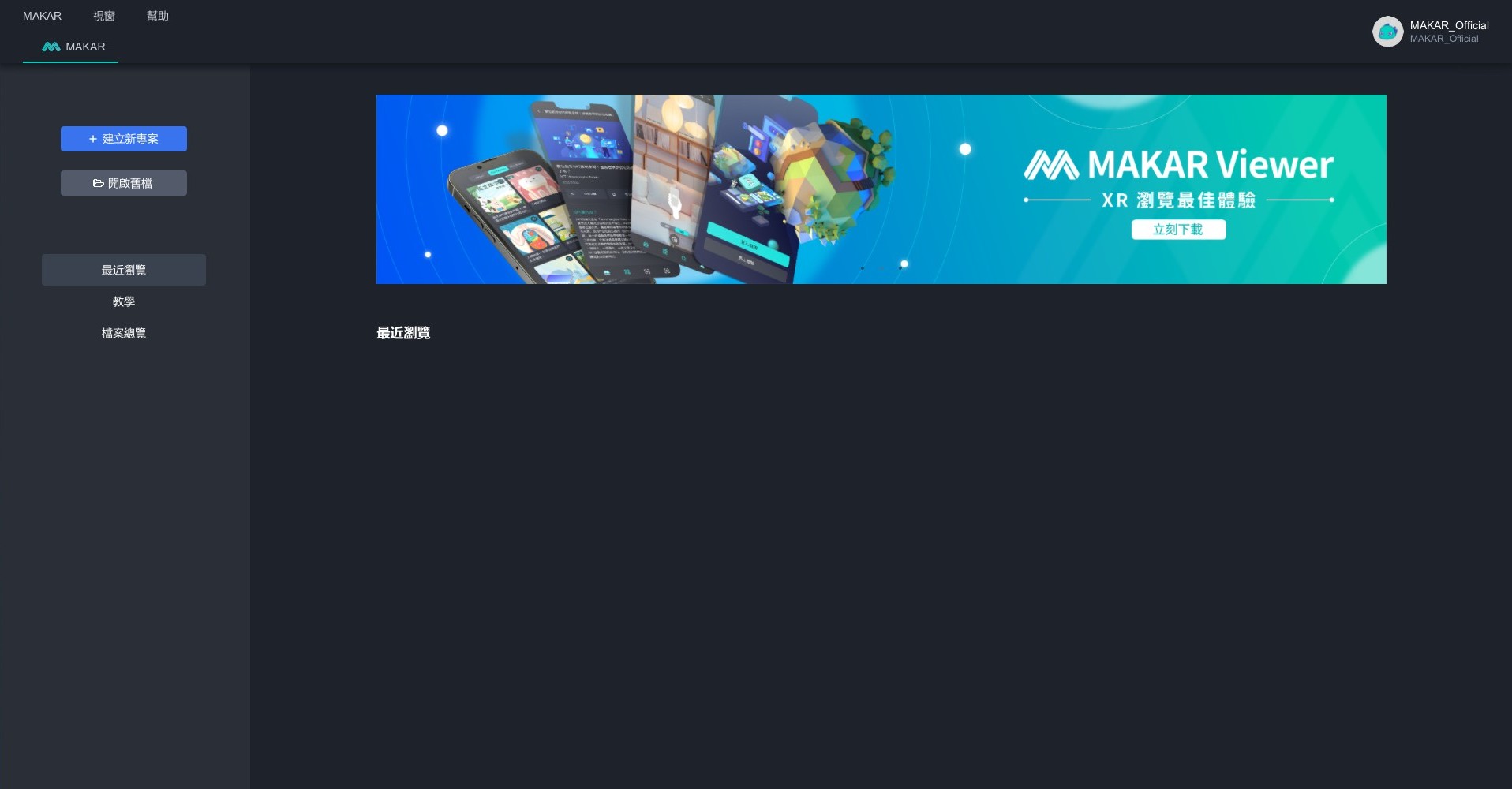 |
| 7. You'll be directed to the editor interface, indicating successful registration. |
Related Posts:
Log in with MAKAR ID
Log in with MAKAR ID
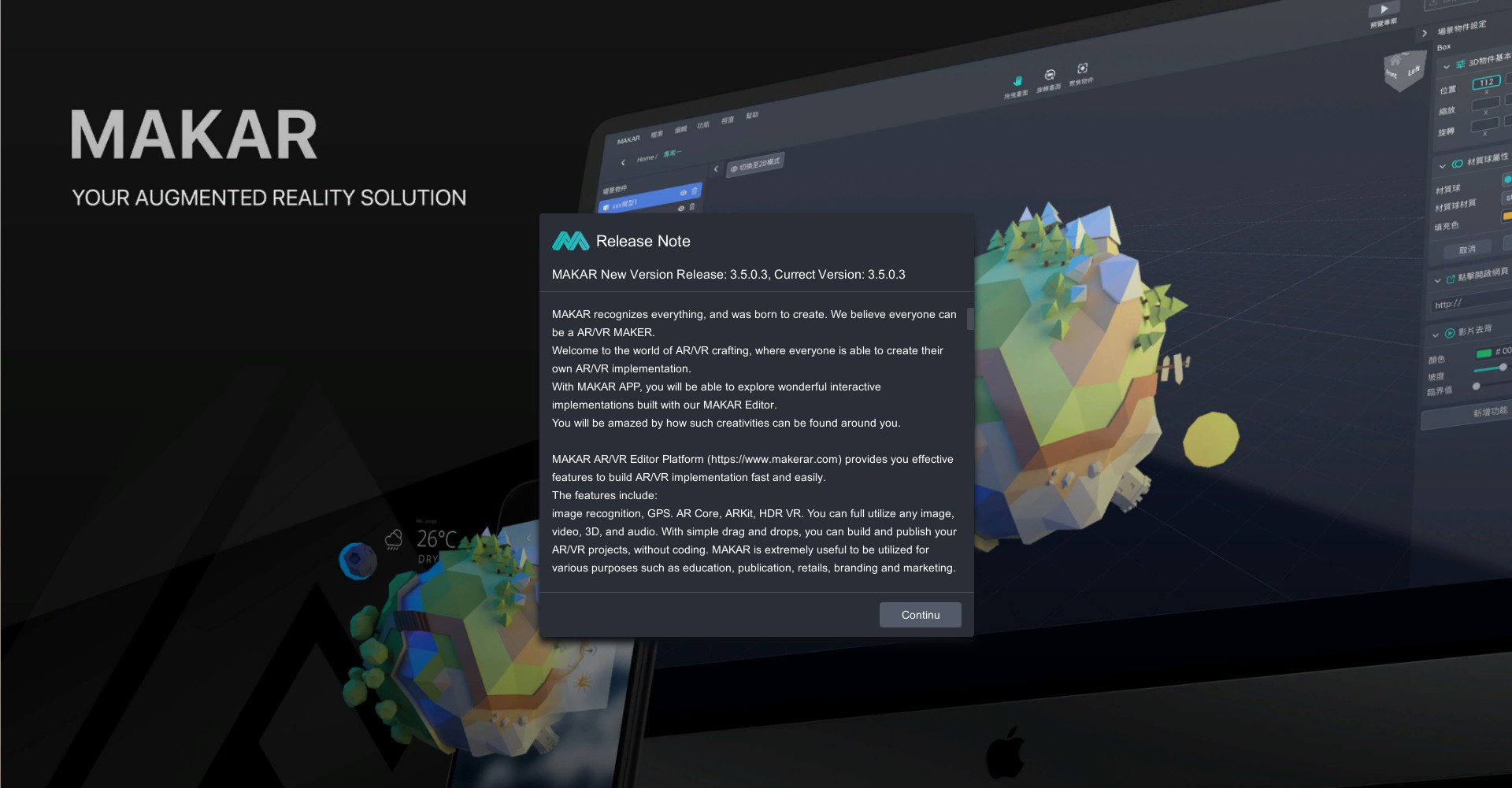
1. Open MAKAR Editor, a notification window will appear where you can confirm the current version. Click 'Continue' to proceed.

2. You will then be directed to the login screen. You can sign in using your registered MAKAR account from the official website, or opt for third-party login options. Once entered, click "Login".
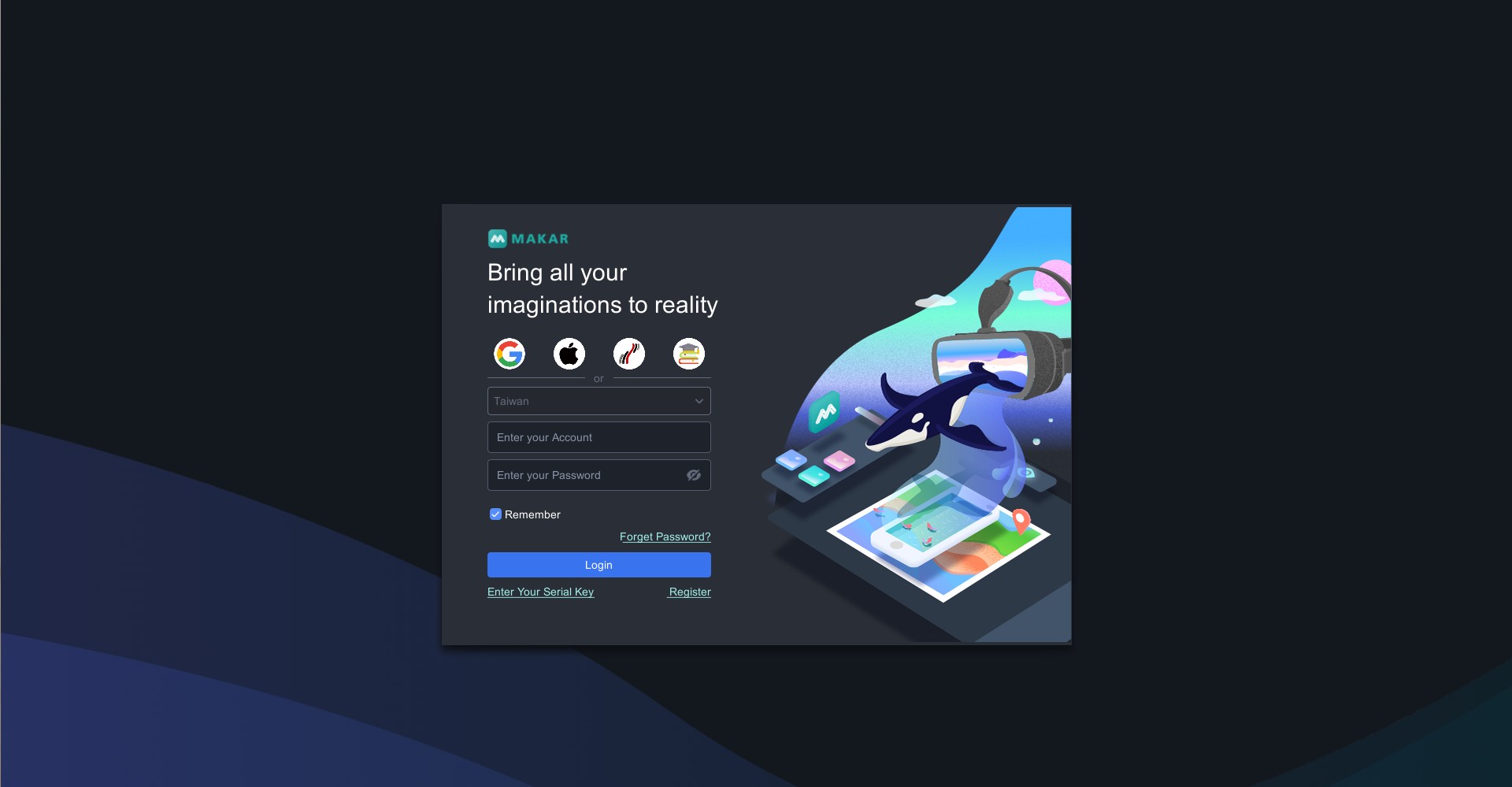
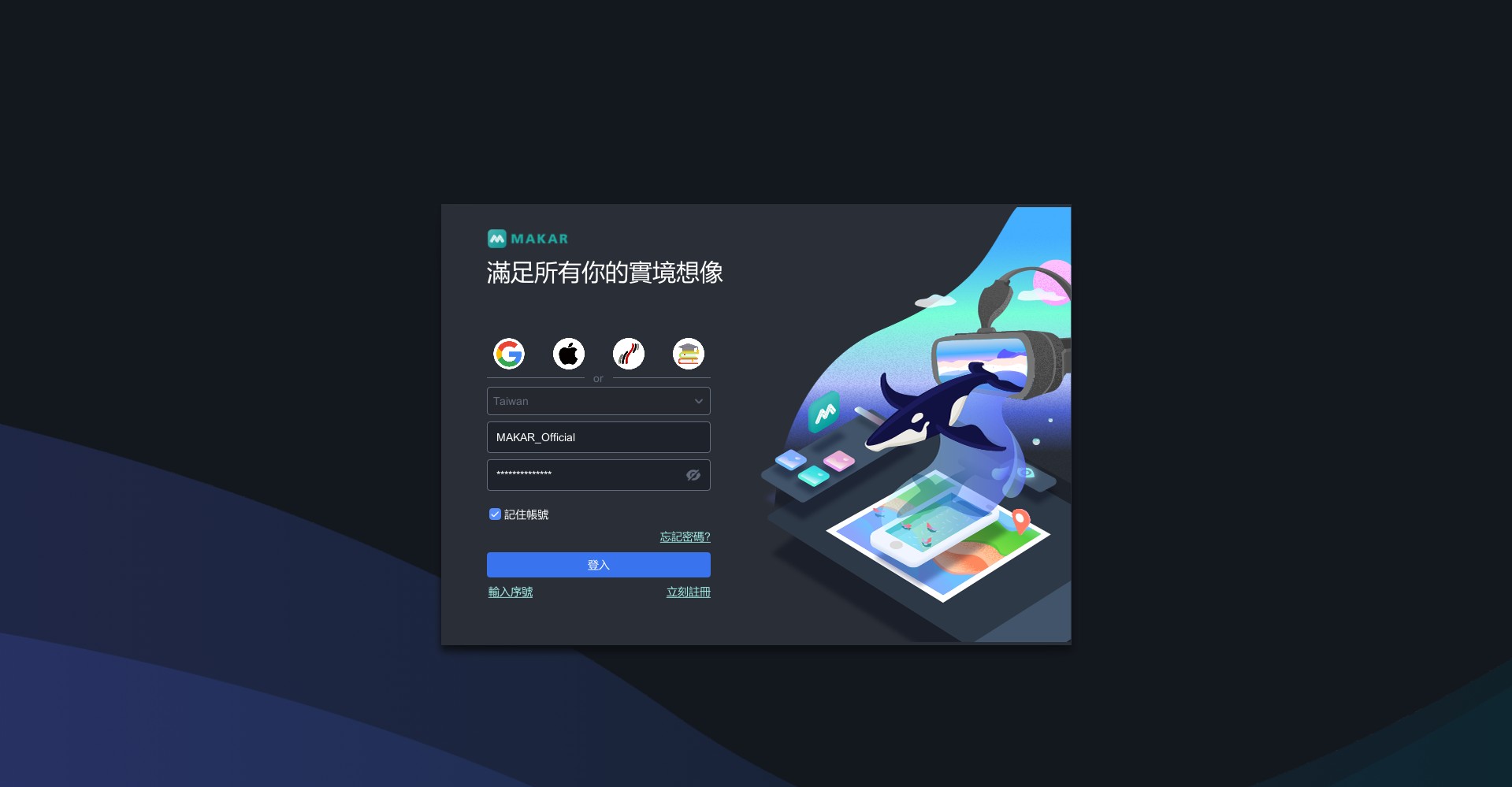
※ Third-party login allows for immediate access upon registration. For the third-party login process, please refer to the tutorial on Use Third-Party Accounts to Create MAKAR ID.

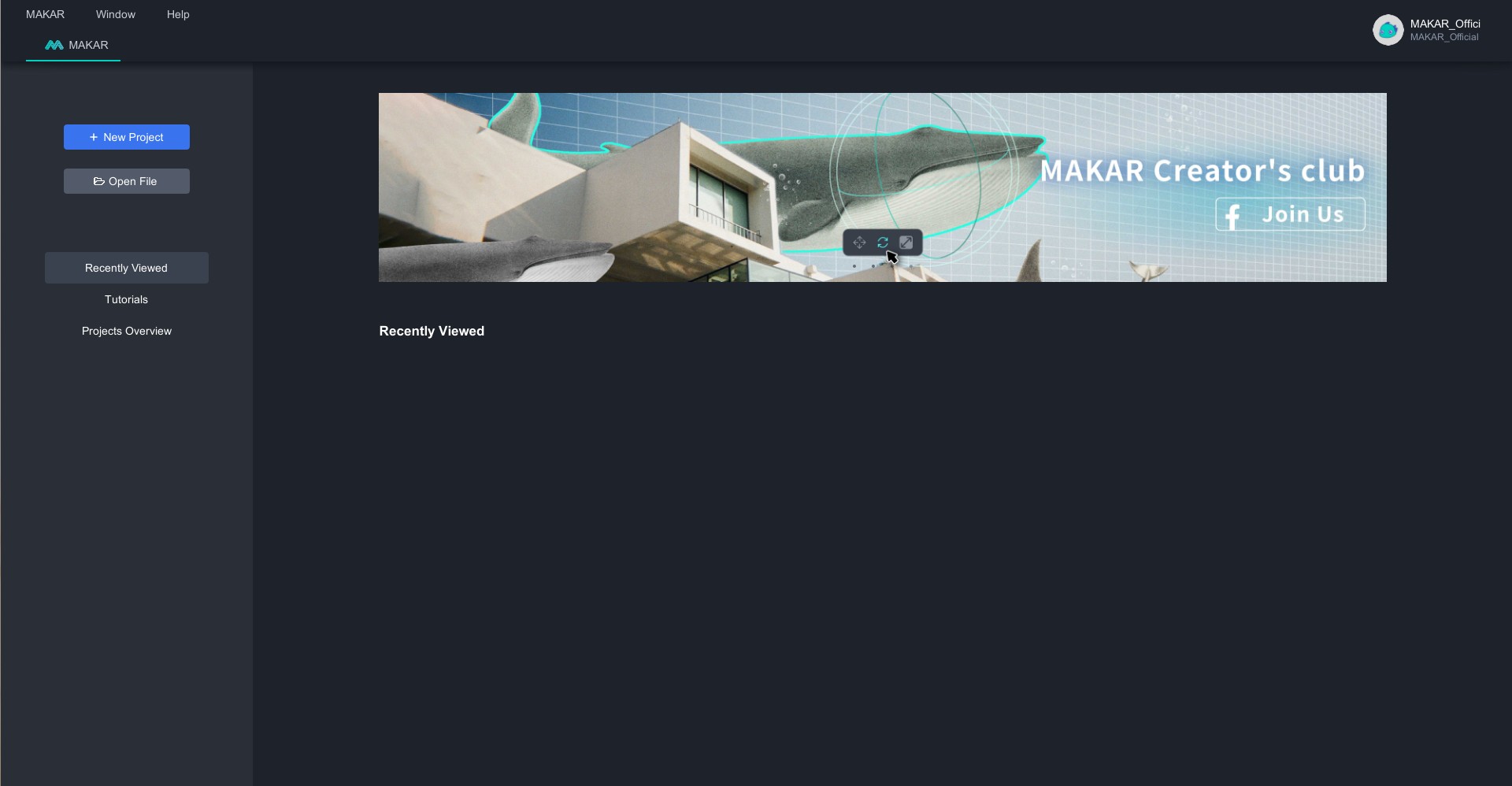
3. Upon successful login, you'll be directed to the MAKAR Editor homepage, ready to start your creative journey!

Related Posts:
Log in with MAKAR EDU
Log in to MAKAR EDU
1. Click the icon on the far right to switch to the MAKAR EDU login screen.
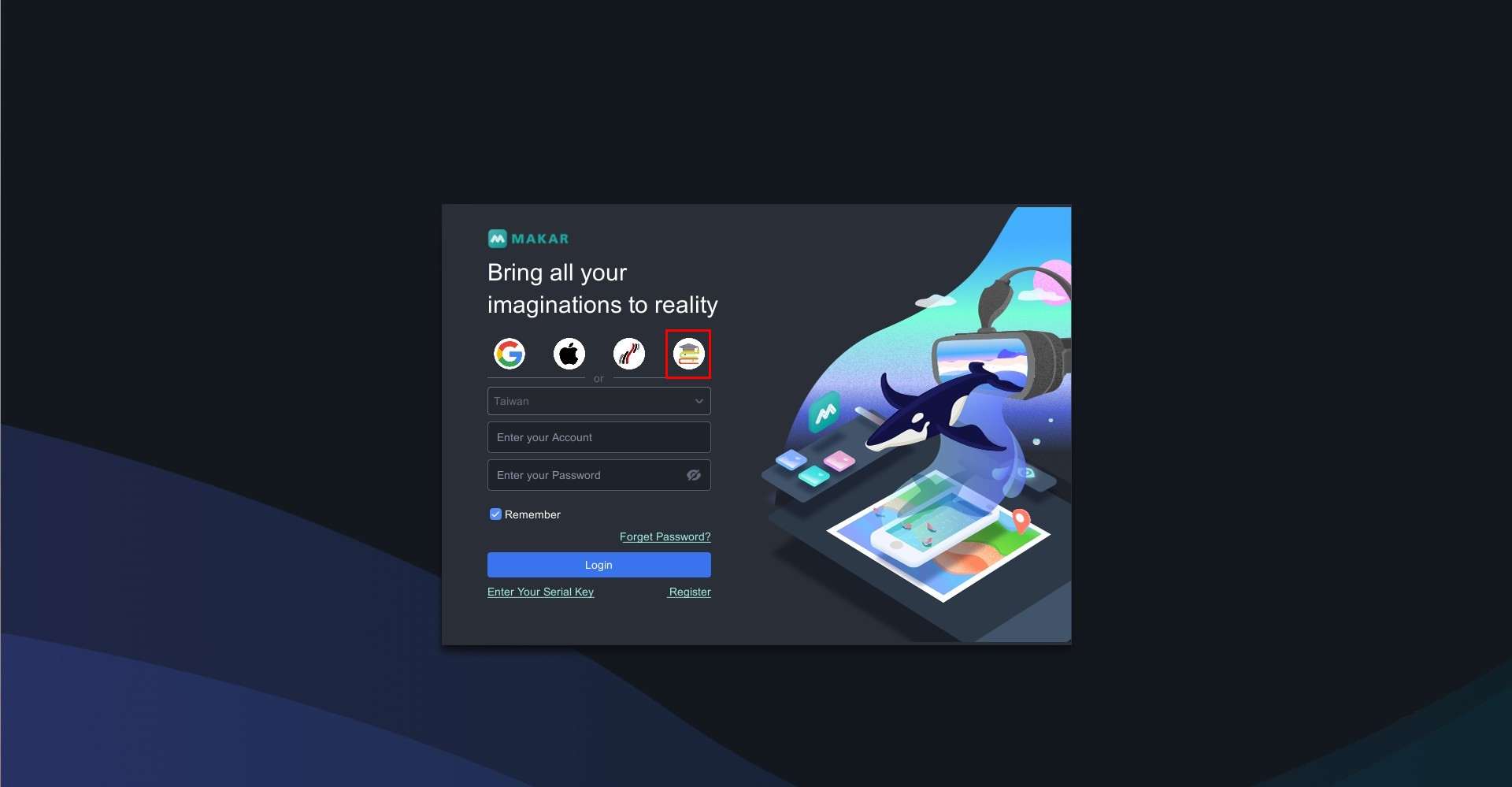
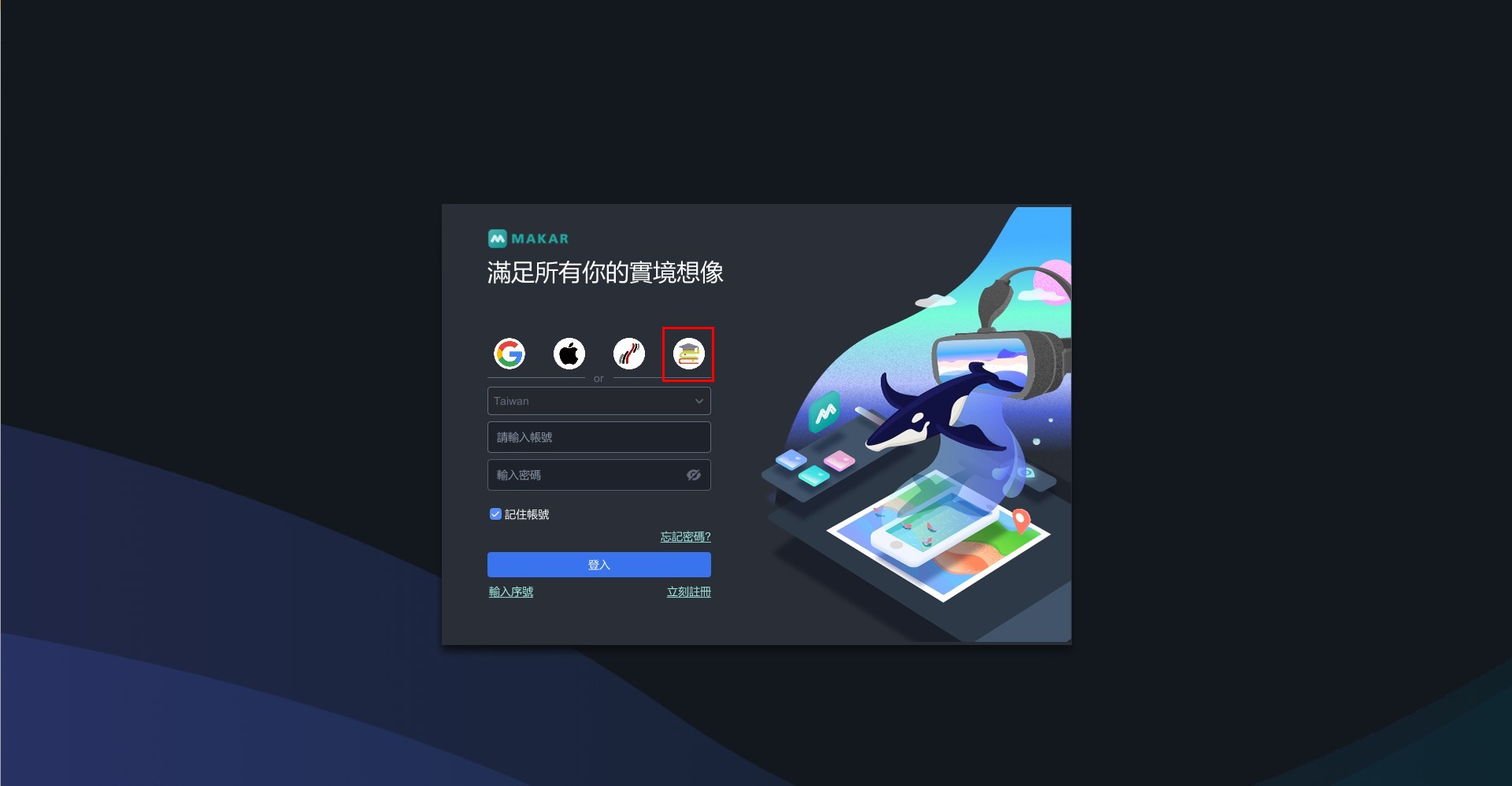

2. Please fill in the school information to log in to MAKAR EDU successfully.
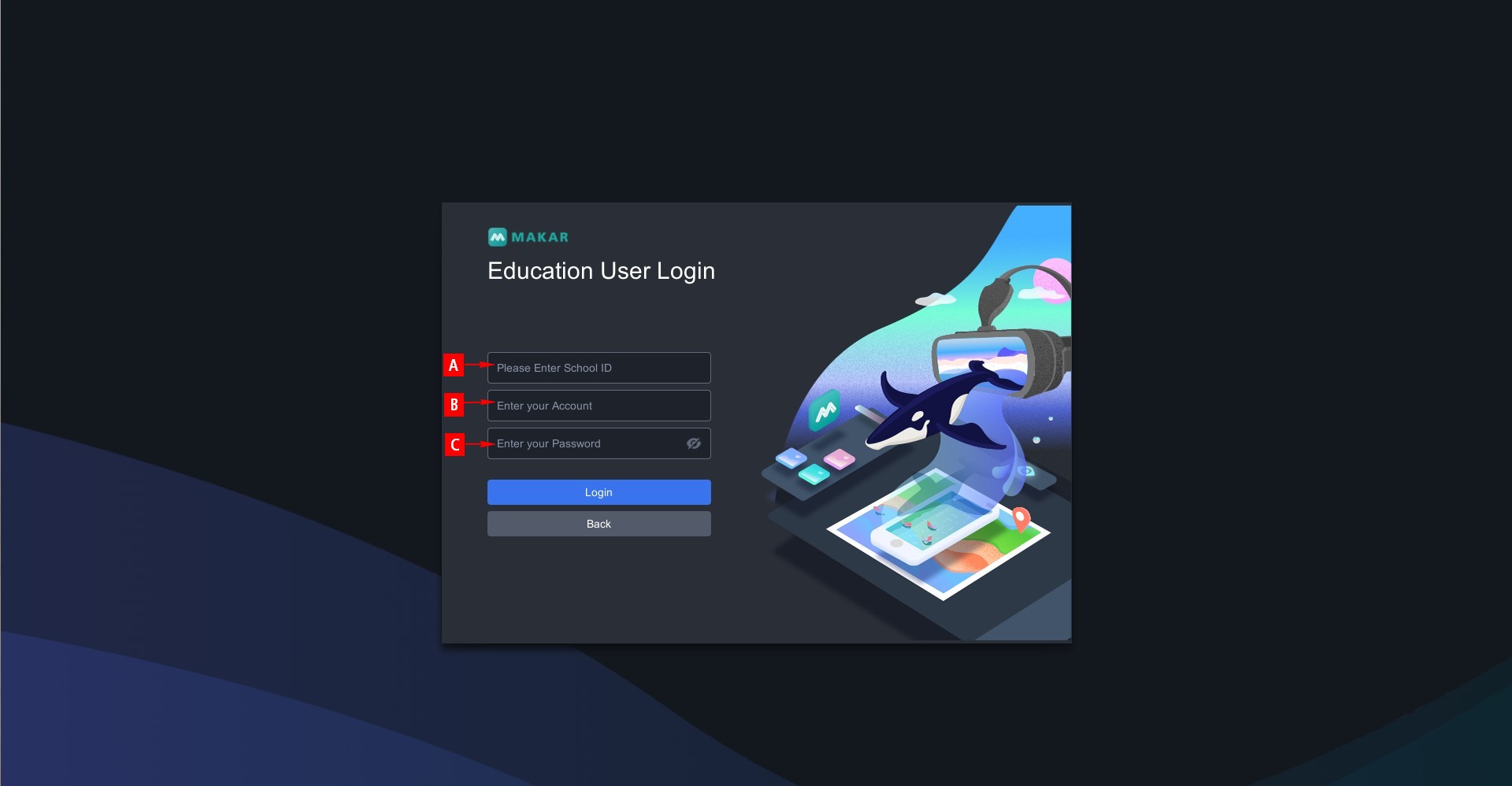
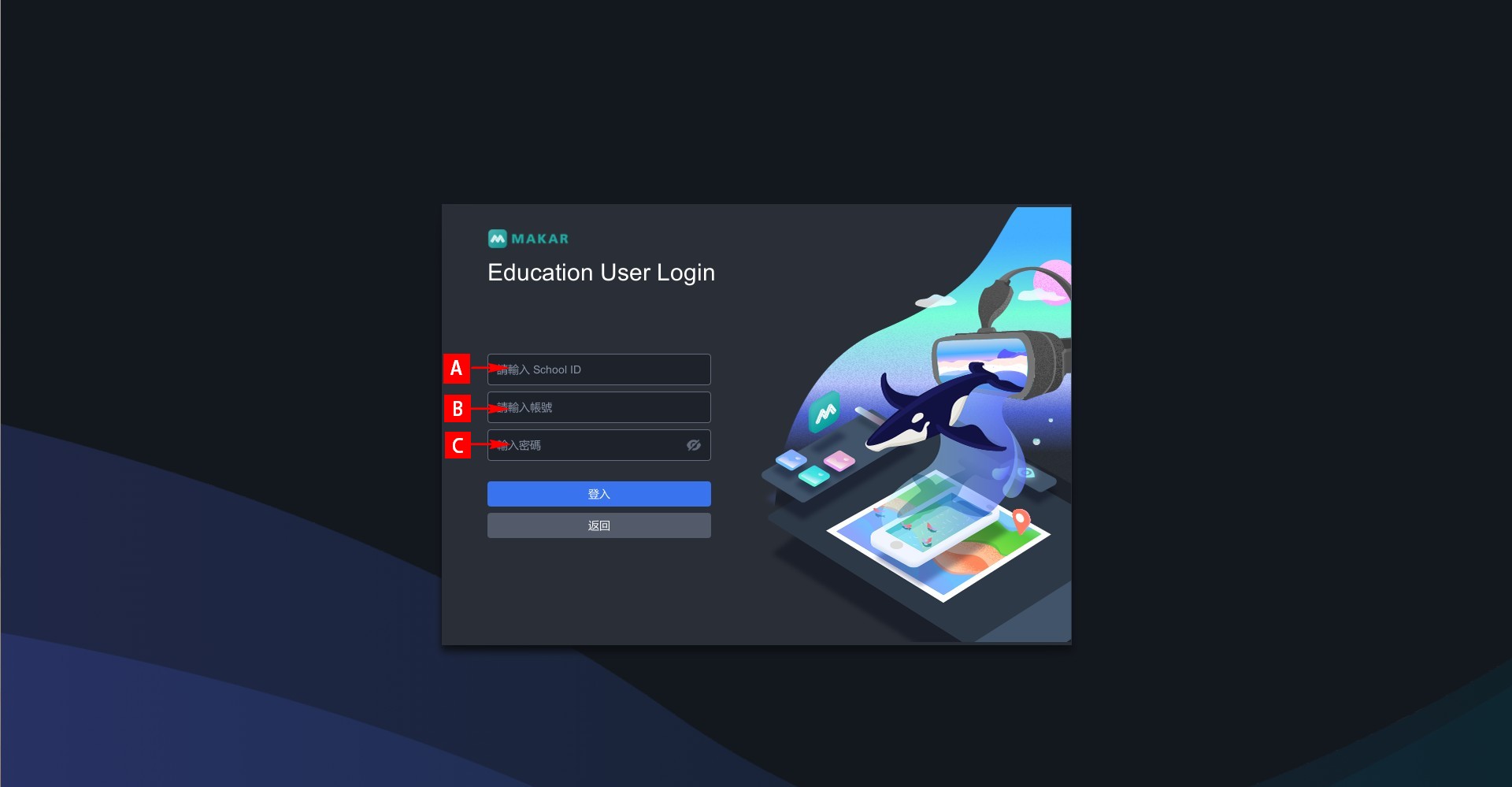
【Input Field Explanation】
A | School ID: School code (Unified Business Number)
B | ID or Email: Account provided in the authorization letter
C | Password: As specified in the authorization letter or set by the school
Related Posts:

Bind Your MAKAR Editor Serial Key
Bind Your MAKAR Editor Serial Key
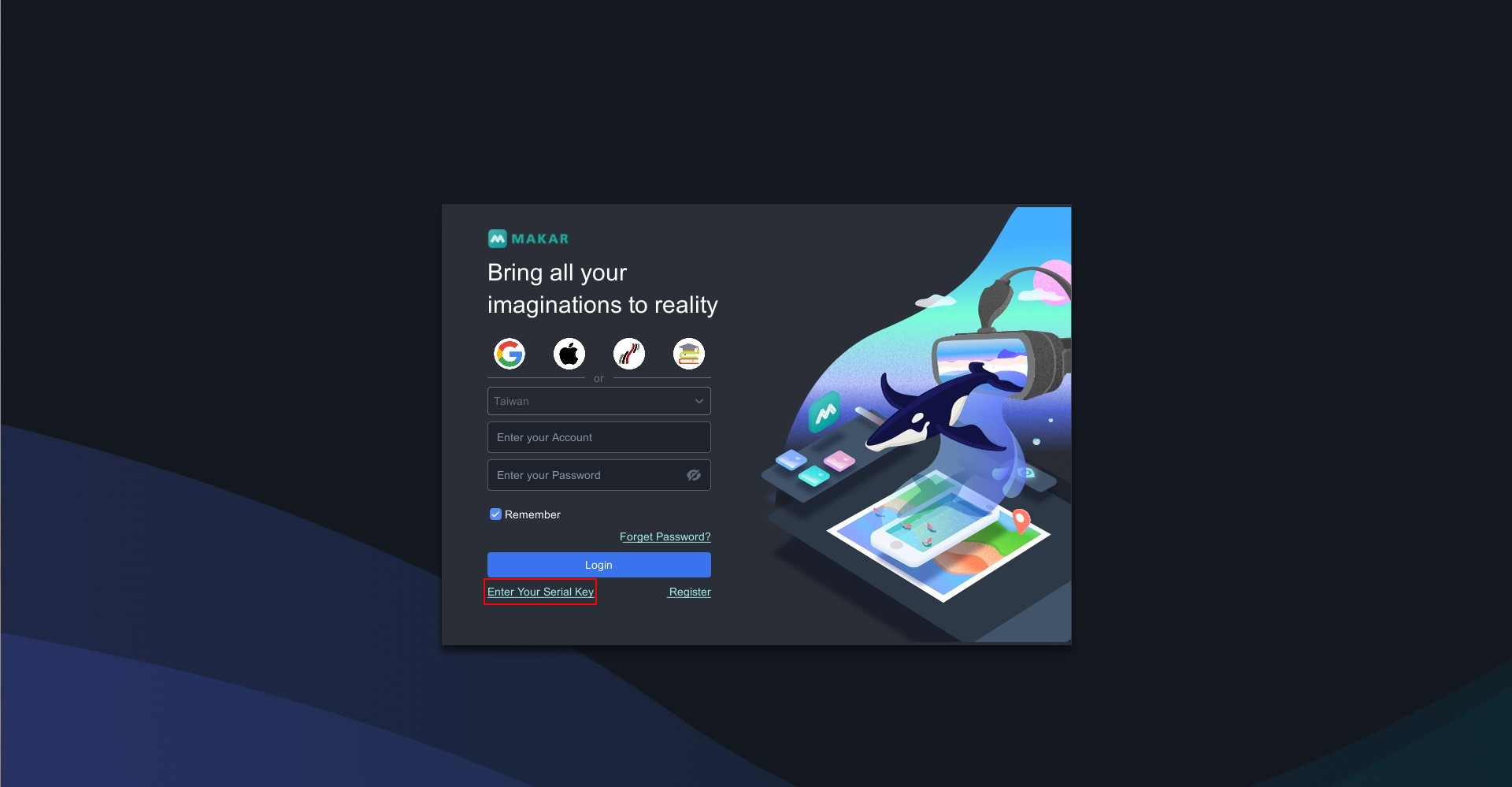
1. Open MAKAR Editor and go to the login page. Click "Enter Your Serial Key" at the bottom left corner.
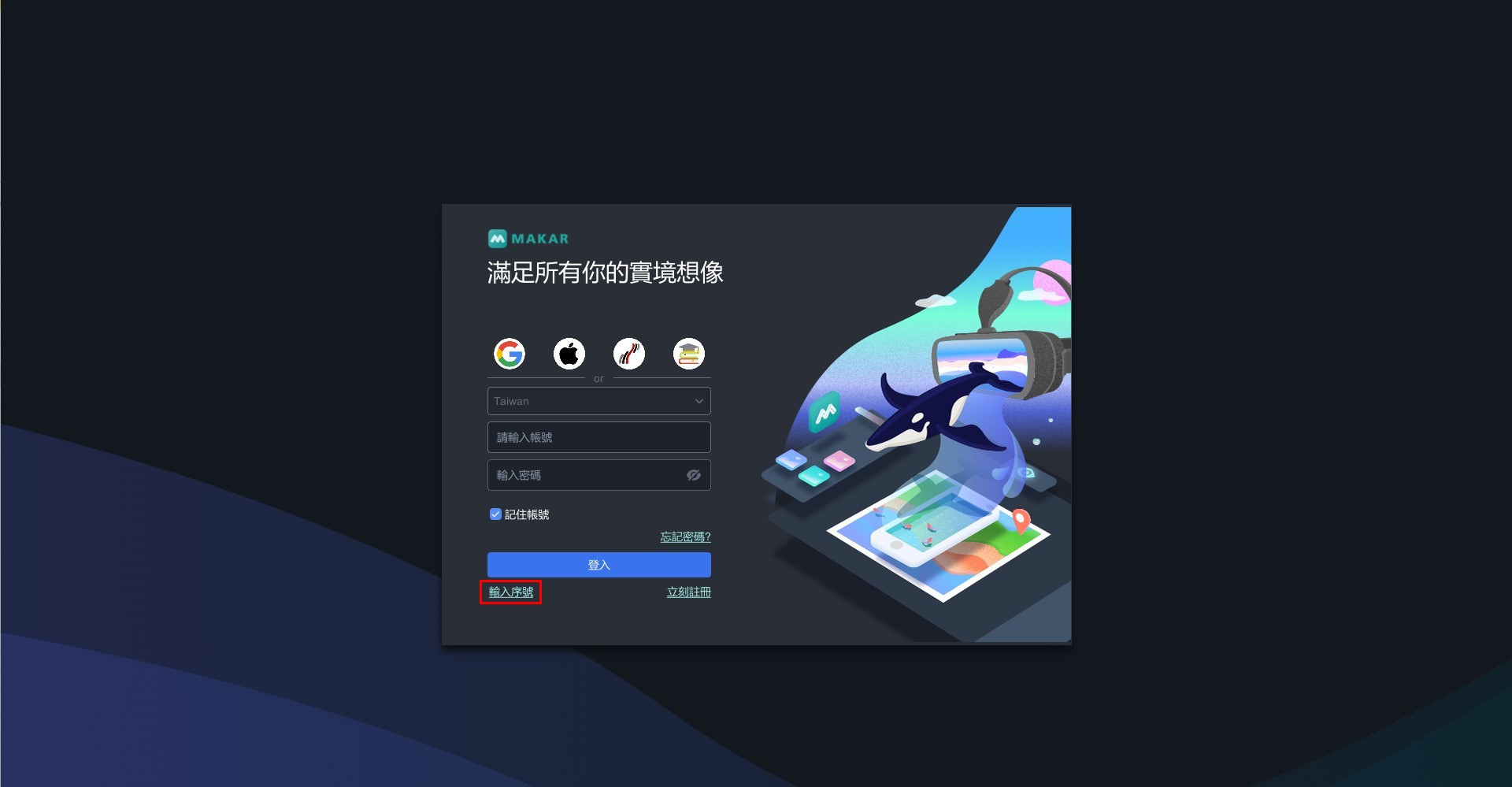

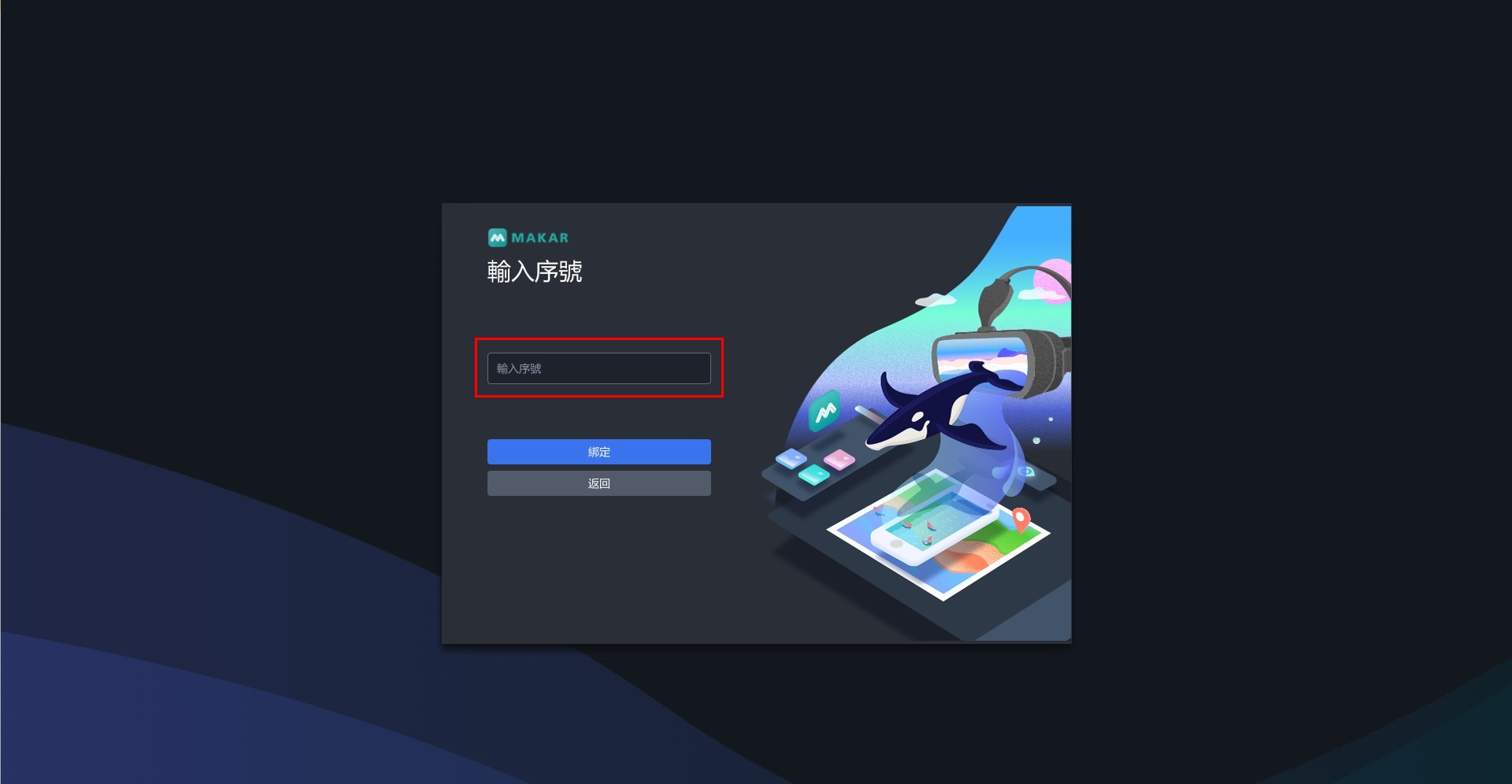
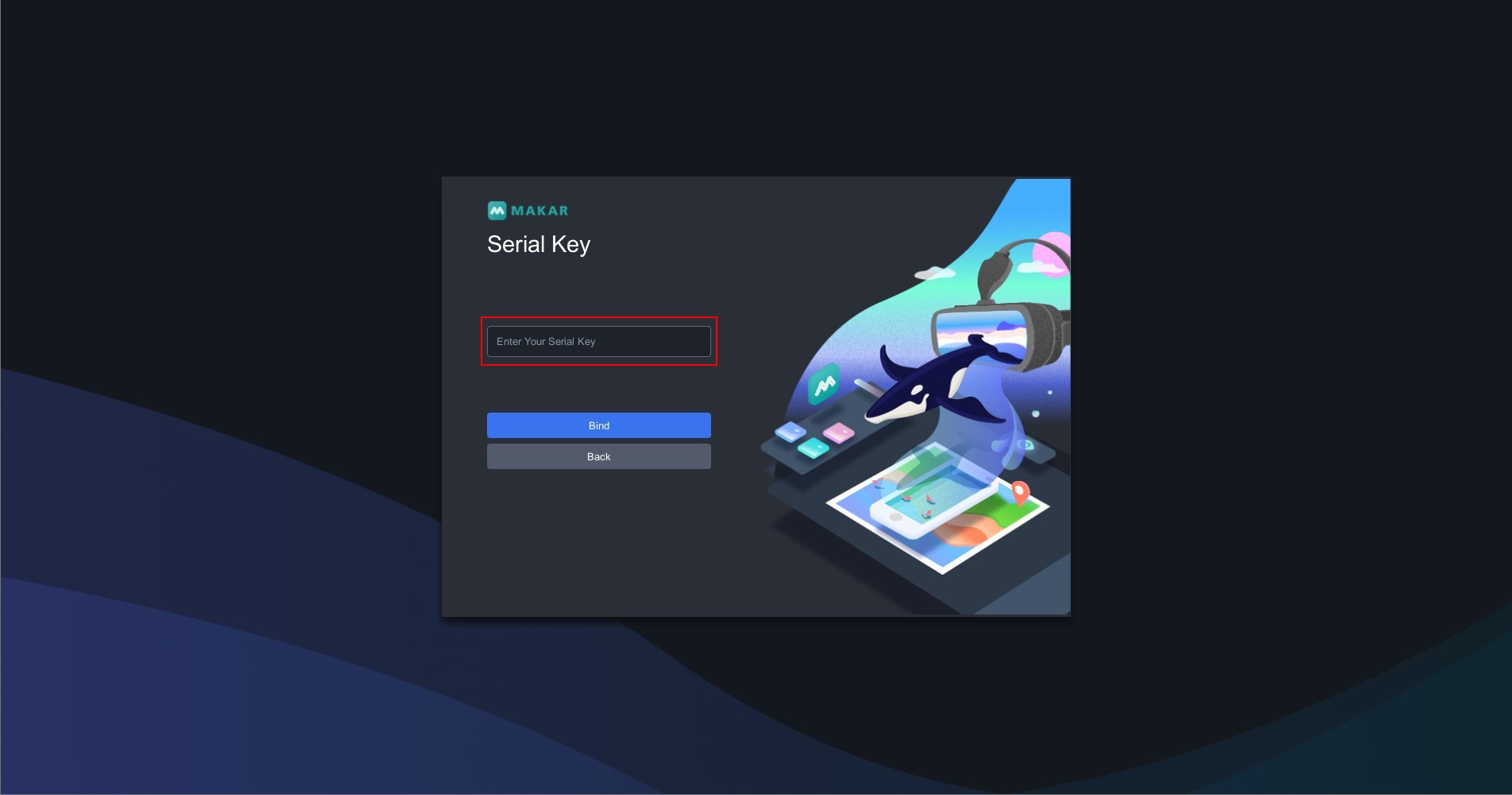
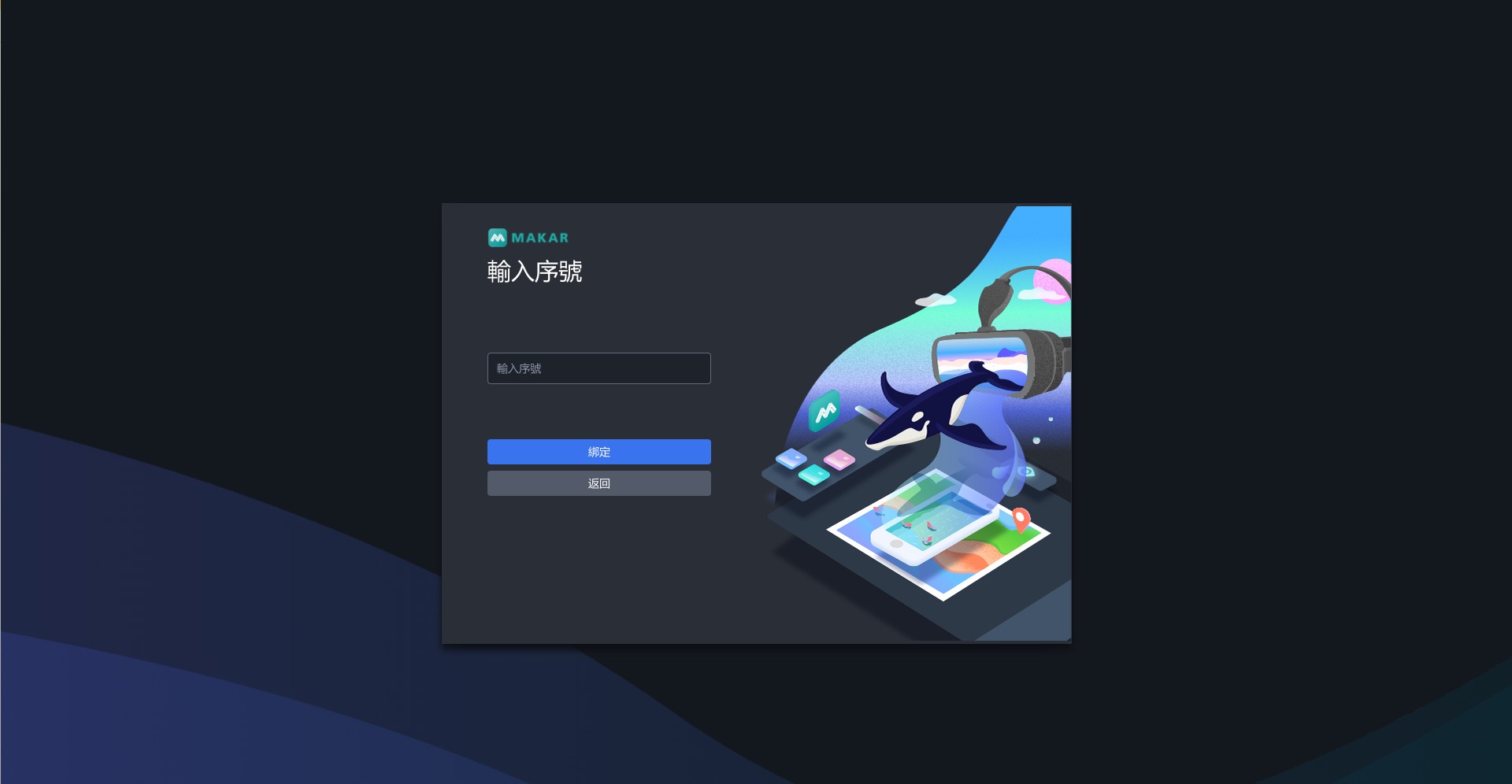
2. Enter your serial key in the designated field on the serial key page. After inputting the serial key, click "Bind".

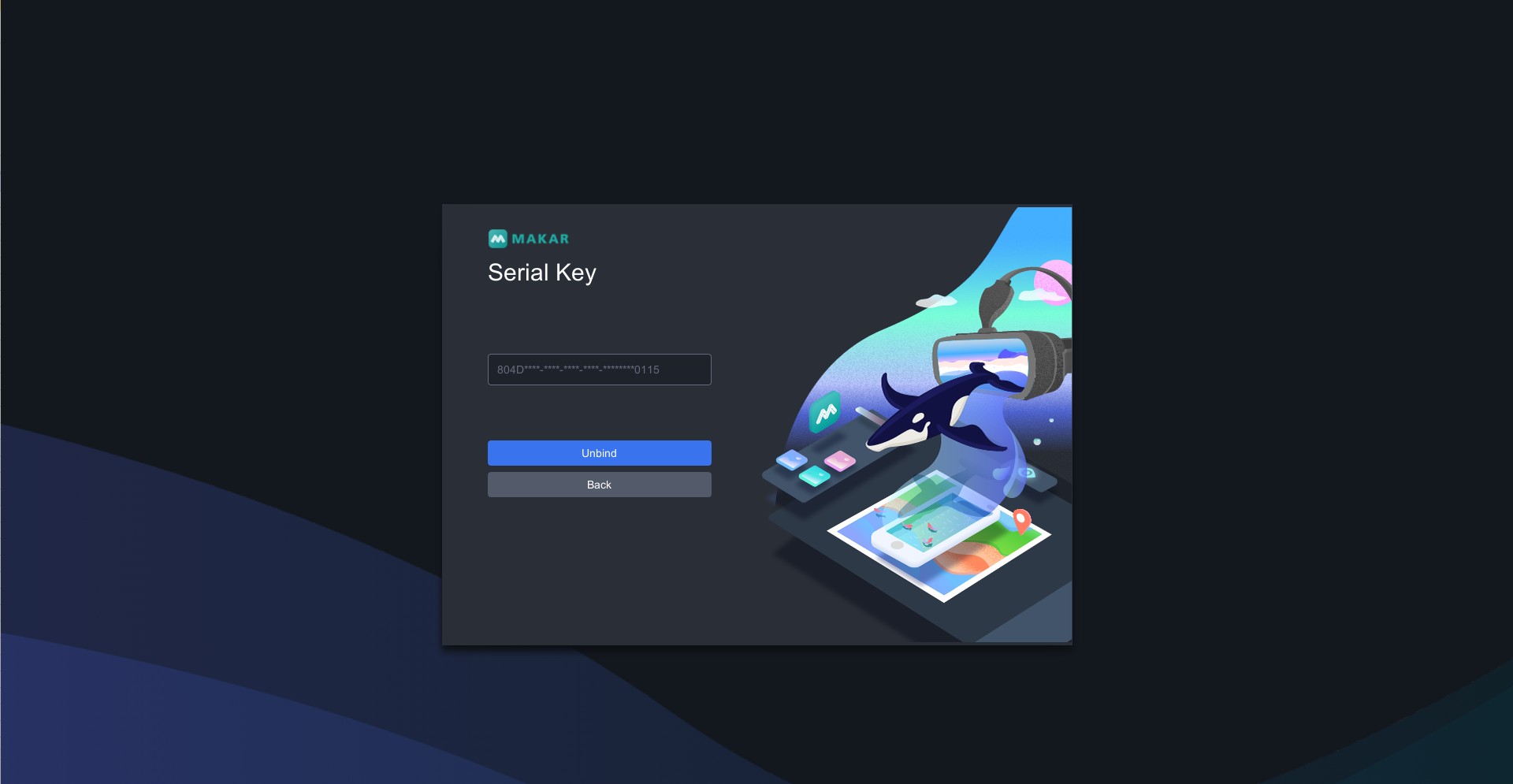
3. When the field is locked, it indicates successful binding. Click "Back" to start using MAKAR according to your plan.


Related Posts:
Release Your Bound MAKAR Editor Serial Key
Release Your Bound MAKAR Editor Serial Key
1. Open the MAKAR Editor and go to the login page. Click "Enter Serial Key" at the bottom left corner.
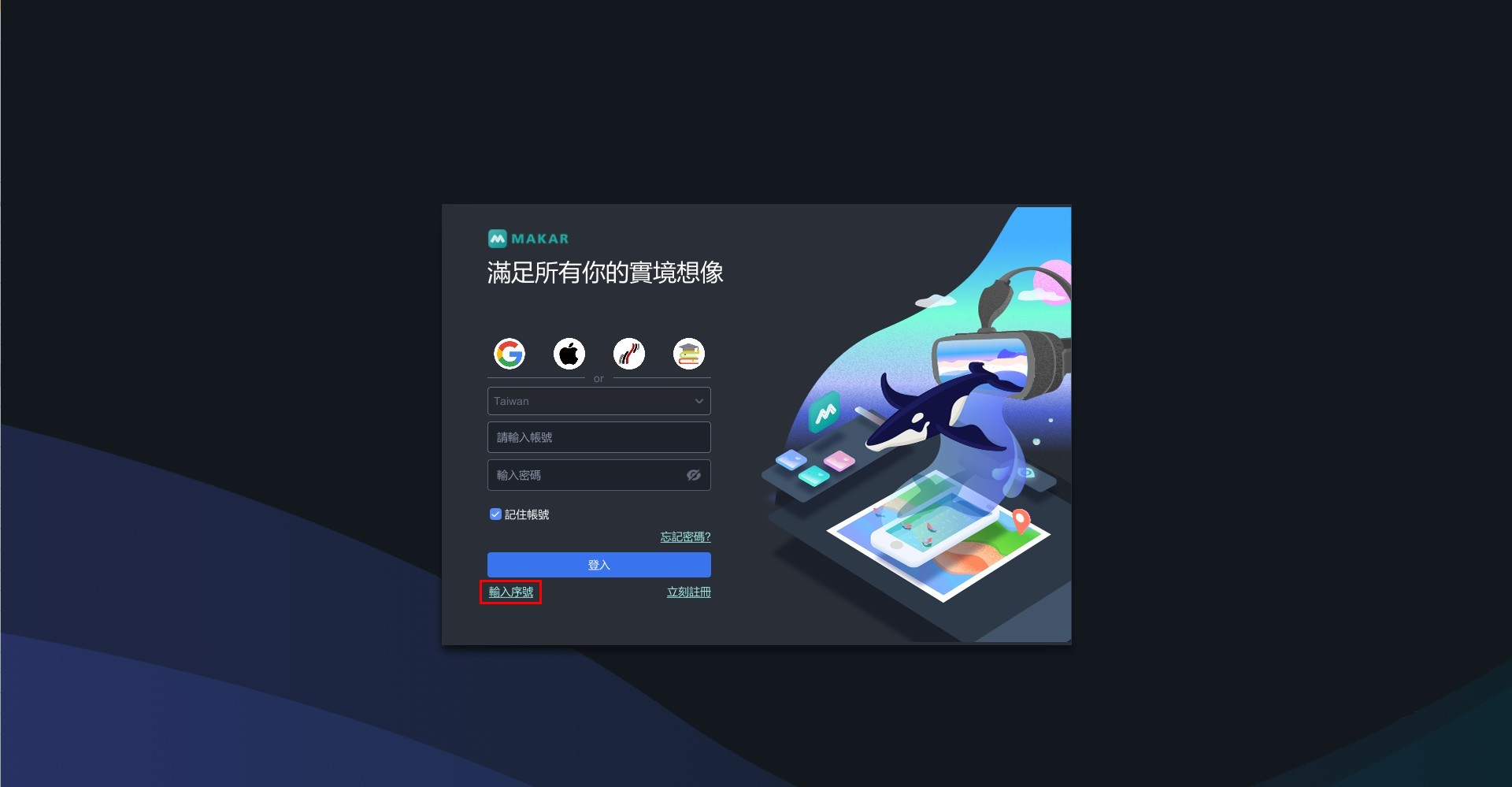
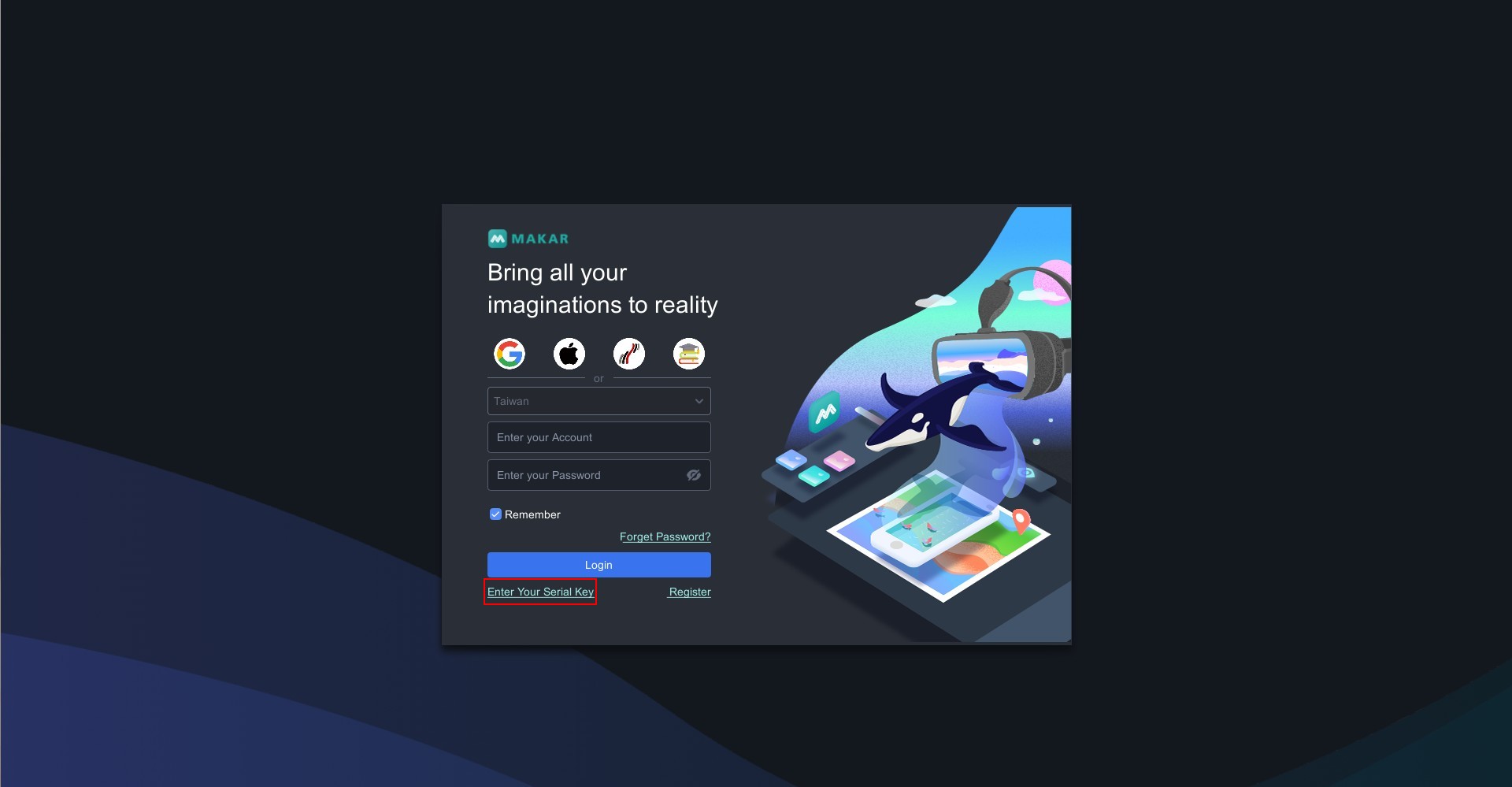

2. On the Serial Key page, the serial key field is locked. Click "Release Unbind".
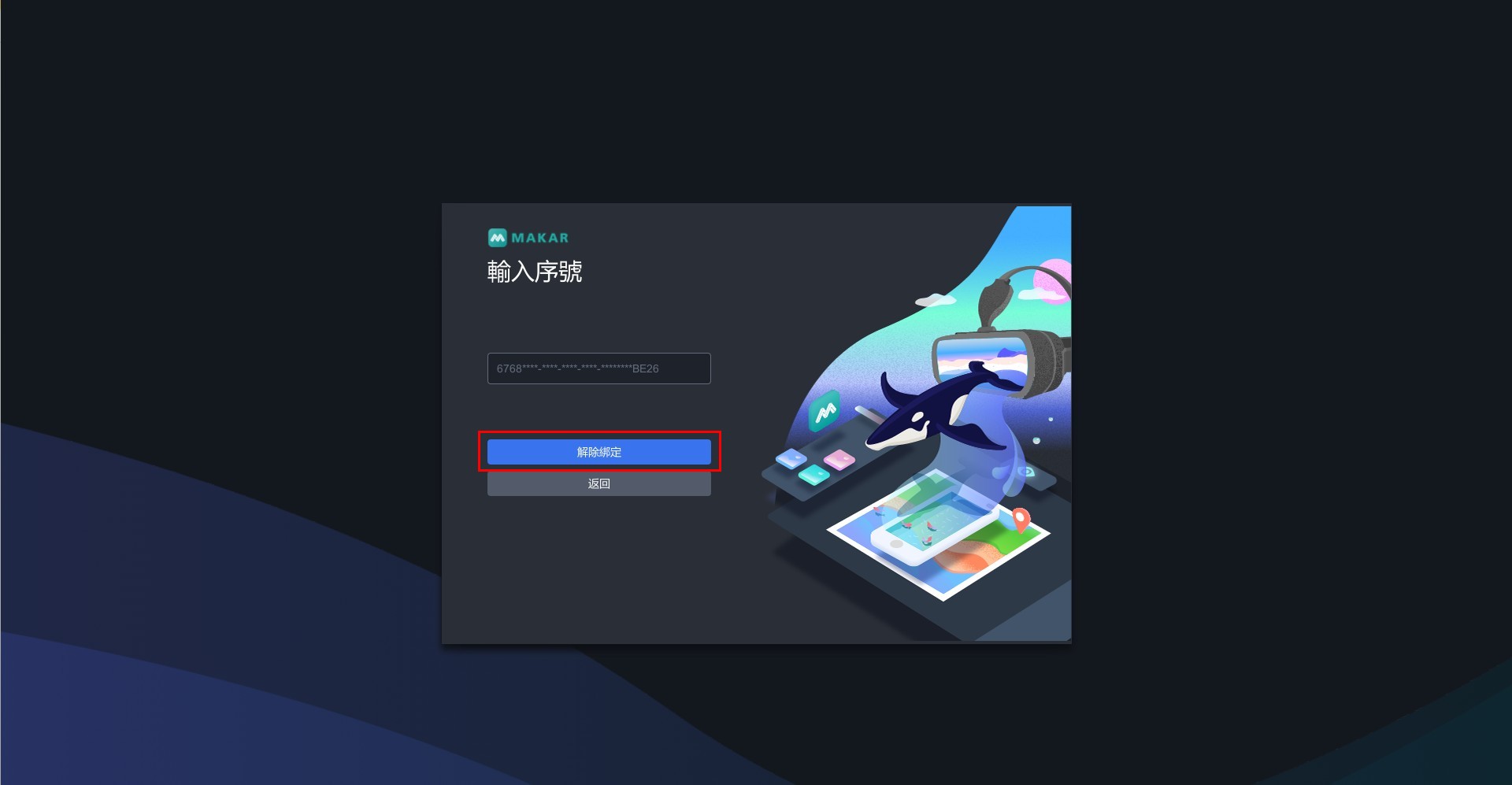
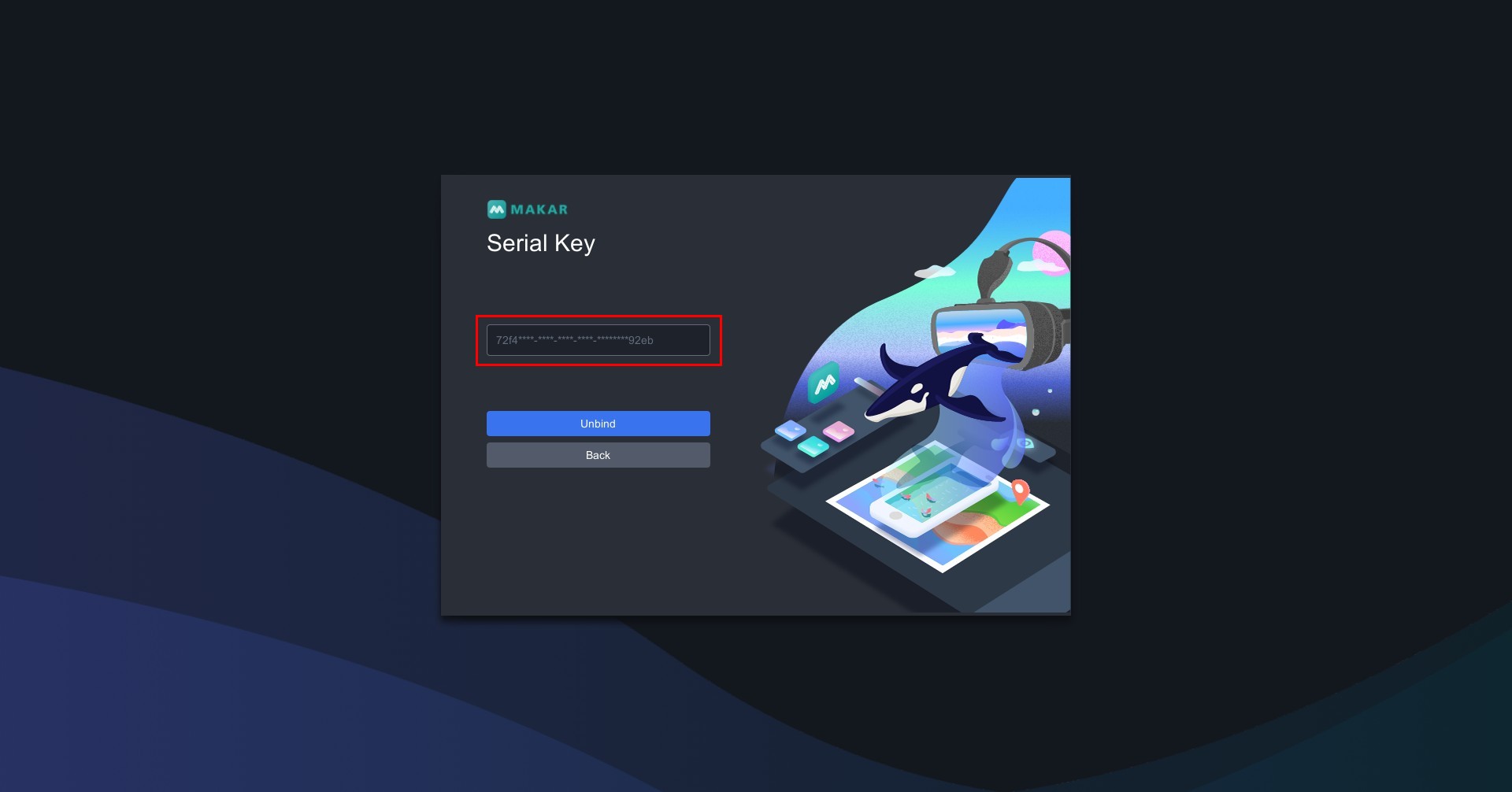

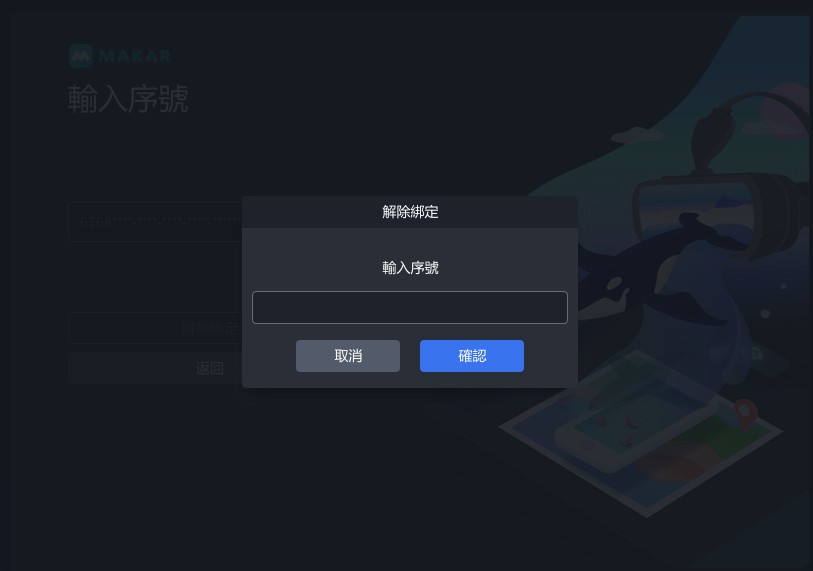
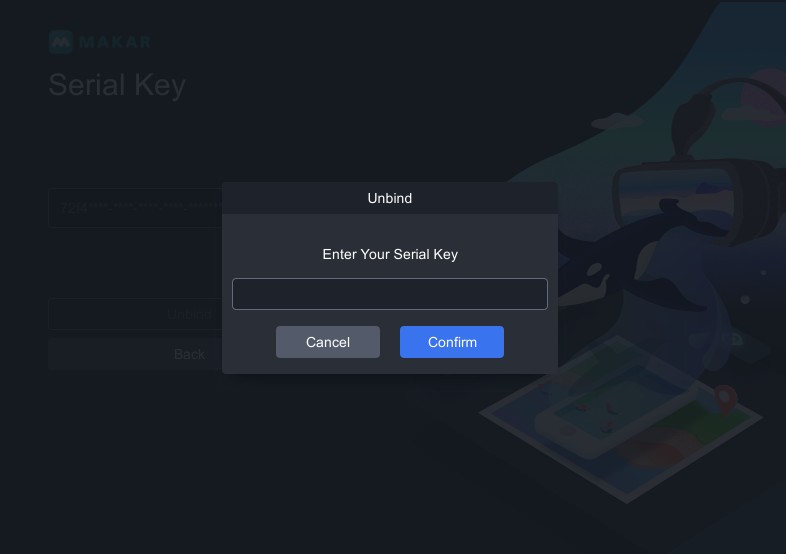
3. A "Unbind" window will appear. Enter the original locked serial key and click "Confirm" to display a window indicating successful release.
   |
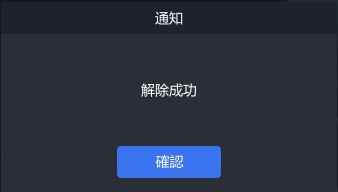 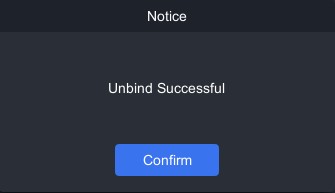  |
| ▲ Input Locked Serial Key | ▲ Release Successful |
4. Return to the serial key page. An empty serial key field indicates successful release of binding.


Related Posts:
Change Language Settings
Change Language Settings
MAKAR Editor provides four languages for users to choose from, including Chinese, English, Japanese, and Korean. Below are the steps to change the language:
1. Enter MAKAR Editor and click "MAKAR" → "Preferences".

2. In the preferences window, click "General" and select your desired language from the "Language Settings" dropdown menu. Click "Confirm" to successfully change the language.

Related Posts:
Adjust Editing Preferences
Adjust Editing Preferences
When using MAKAR Editor, you can customize settings according to your preferences to better suit your workflow. The following explains how to adjust and change the "Object Generate Position" and "Object Controller" settings:
1. Enter MAKAR Editor and click "MAKAR" → "Preferences".
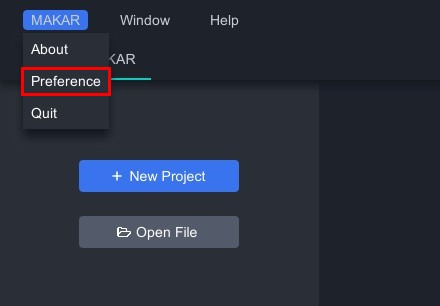
2. In the Preferences window, click "User", where you'll find options for "Object Generate Positiont" and "Object Controller". Simply select your preferred settings from the dropdown menu.
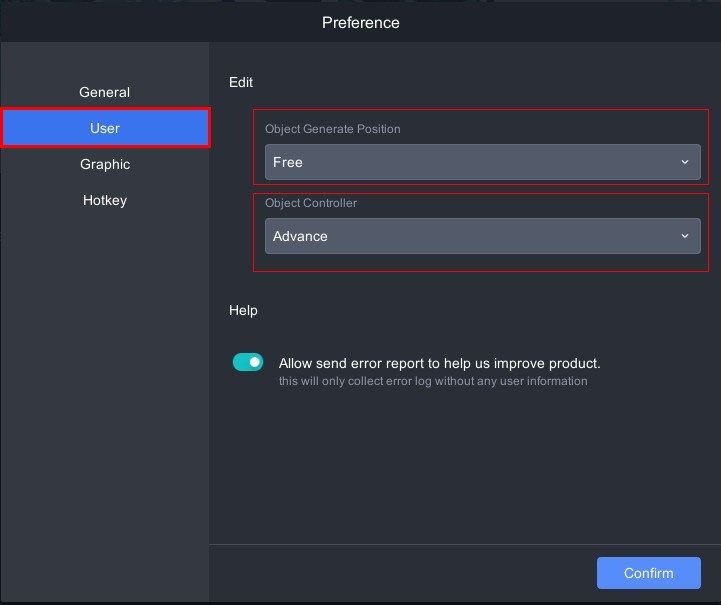
Object Generate Position
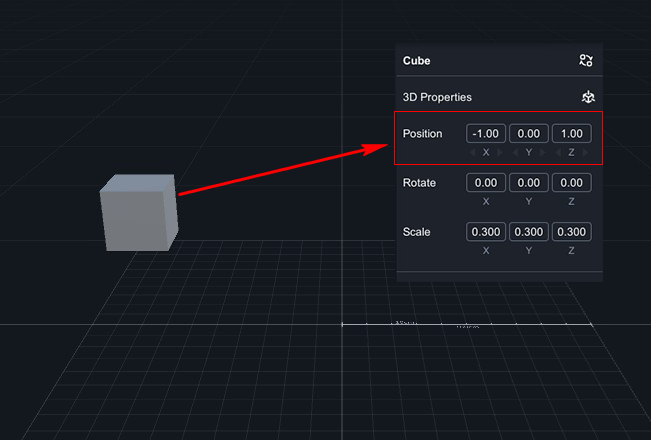
Choose between "Free" and "Center", determining the default position of objects when generated.
 |
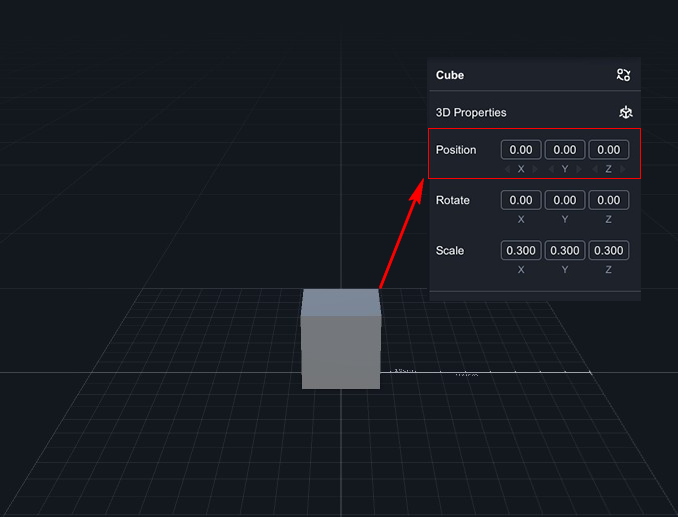 |
| Free:When dragging objects into the editing area, they will be placed in depth and direction according to the user's drag position on the plane. | Center:When dragging objects into the editing area, they will be unconditionally placed at the world origin X: 0, Y: 0, Z: 0. |
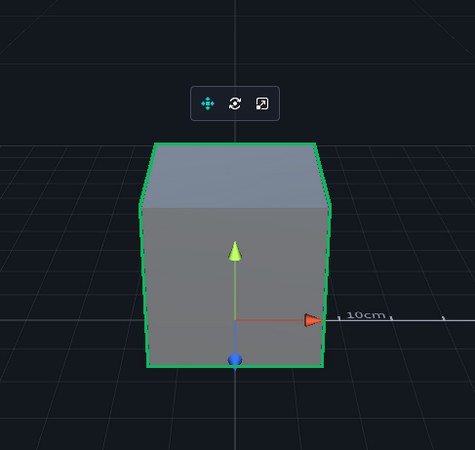
Object Controller
Choose between "Basic" and "Advance" to adjust the axis when controlling object movement.
 |
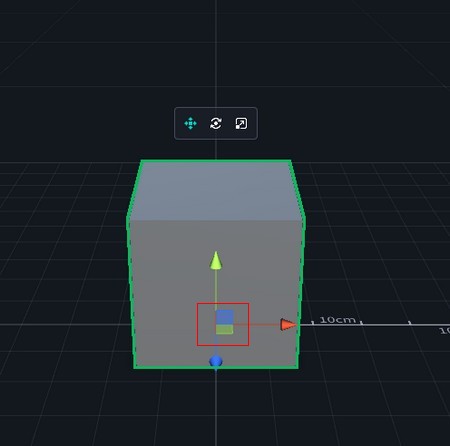 |
| Basic:When moving objects in the editing area, adjustments are made along a single axis. | Advance:When moving objects in the editing area, adjustments are made along all three axes. |
Related Posts:
Adjust Window and Graphics Settings
Adjust Window and Graphics Settings
MAKAR Editor allows you to adjust the image quality, resolution, and window settings, giving you the flexibility to switch according to your preferences. The following instructions and descriptions will guide you through the process.
1. Enter MAKAR Editor and click "MAKAR" → "Preferences".

2. In the preference window, click "Graphic". You will find options for "Quality", "Resolution", and "Window". Simply select your preferred settings from the dropdown menu.

| Quality | Adjust to high, medium, or low quality based on your needs. Higher quality displays maximize detail and showcase changes in object shadows through lighting, while lower quality settings conserve energy by omitting some object shadows and details. |
| Resolution | Choose from various resolutions including 1920 X 1080, 1600 X 900, 1536 X 864, and 1280 X 720. |
| Window | Select between "Windows" and "Full Screen" modes based on your preferences. |
Related Posts:
Change Keyboard Shortcut Settings
Change Keyboard Shortcut Settings
1. Enter MAKAR Editor and click "MAKAR" → "Preferences".

2. In the preference window that appears, click "Hotkey" to set shortcuts for various functions.

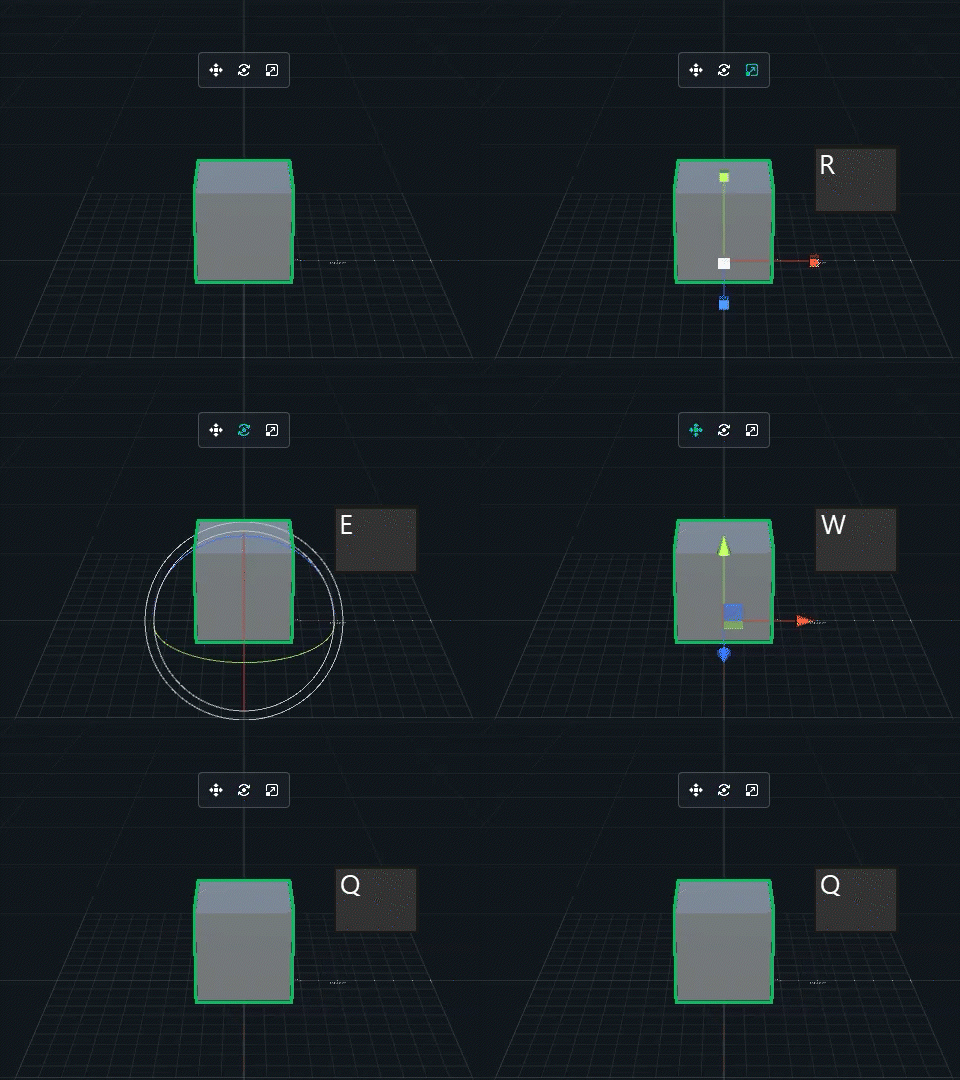
MAKAR Editor Default Hotkeys
| Function | Keys |
| Selection Mode | Q |
| Position Mode | W |
| Orbit | E |
| Scale Mode | R |
| Delete Object | Backspace |
| Back to Initial position | H |
| Focus Object | F |
| Coordinate Switch | Z |
| Undo | Ctrl/Cmd+Z |
| Redo | Ctrl/Cmd+Y |
| Save File | Ctrl/Cmd+S |
| Copy Object | Ctrl/Cmd+C |
| Paste Object | Ctrl/Cmd+V |
| Copy and Paste | Ctrl/Cmd+D |
| Select All | Ctrl/Cmd+A |
| Mutiple Select | Ctrl/Cmd+LB |
| Cancel Mutliple Select | Alt/Option+LB |
| Area Selection | Shift+LB |
| Left Click Select | LB |
| Select item within selection area | LB |
| Zoom Camera | Scroll |
| Orbit | RB |
| Truck and Pedestal | Space+LB/MB |
| Zoom in one step | + |
| Zoom out one step | - |
Related Posts:
Reset Your MAKAR Account
Reset Your MAKAR Account
If you wish to change the MAKAR account you initially registered with, you can reset your MAKAR account following the steps below. Please note that the account can only be changed once, so please consider carefully.
1. Click the account section in the upper right corner, then select "Personal".
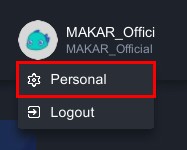
2. In the personal information window that appears, you can reset your MAKAR account under "Account". The account can only be changed once. Before changing, the account area will be blank, and you can enter the new account here.


Remove Your MAKAR Account
Remove Your MAKAR Account
If you wish to delete your registered MAKAR account, you can follow the steps below
In MAKAR Editor
1. Click the account section at the top right corner, then select "Personal".

2. In the profile window that pops up, click "Remove Account".

3. In the delete account window that appears, click "Confirm".

4. Enter your password and click "Confirm" to delete. Deleting will remove all content.

In MAKAR Viewer
You can also remove your MAKAR account on the MAKAR Viewer. Simply click "Account Settings" → "Delete Account".
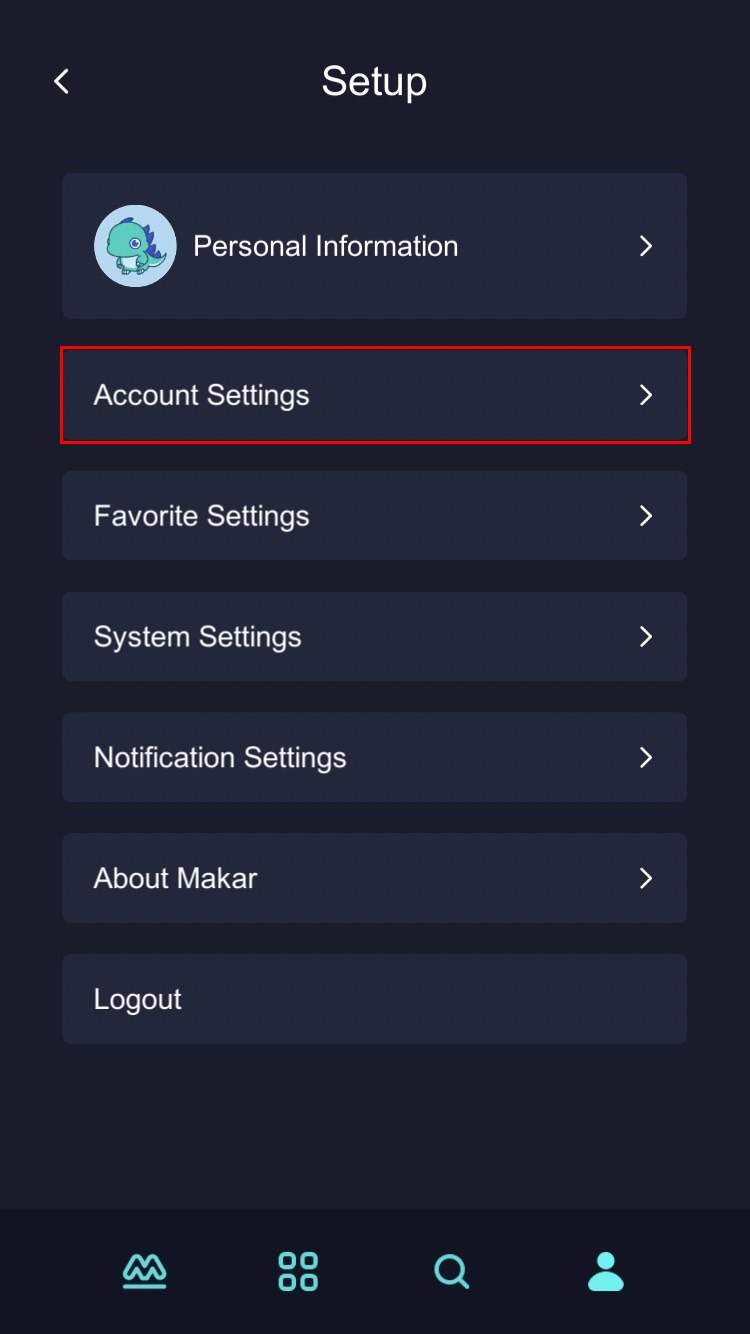 |
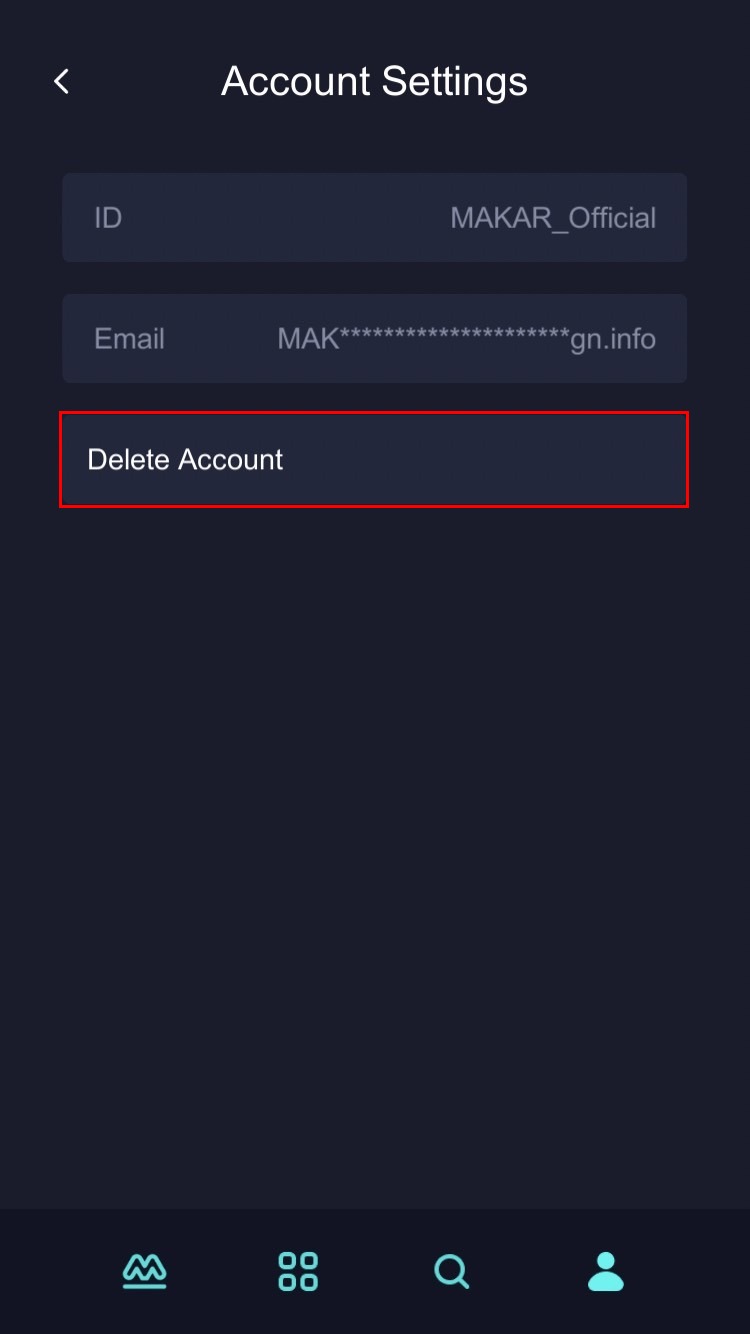 |
| ▲ Account Settings | ▲ Delete Account |
Update Personal Information for Your MAKAR Account
Update Personal Information for Your MAKAR Account
You can adjust the nickname, career, and location of your account according to the following steps.
1. Click the account section in the upper right corner, then click "Personal".

2. In the personal window that pops up, you can see the items for nickname, career, and location. For information about resetting and removing your MAKAR account, please refer to the tutorials on Reset Your MAKAR Account and Remove Your MAKAR Account.

Related Posts:
Check the Status of Your Plan
Check the Status of Your Plan
.MAKAR Editor currently offers four plans: free, standard, advanced, and studio. You can always check your account's plan status while using the editor, including current plan, data usage, published project counts, storage usage, and target images usage. Below is how to view your plan status.
1. Click the account section in the upper right corner, then select "Personal".

2. In the personal information window, click "Data Usage" to see your current plan, project storage quantity, published project counts, storage usage, and target images usage. You can also see your current capacity status based on the bar graph.

Related Posts:
Share Your MAKAR Personal Page
Share Your MAKAR Personal Page
The sharing function of the MAKAR personal page includes QR code and Domain settings. Below are instructions on how to share your MAKAR personal page.
1. Click the account section in the upper right corner, then select "Personal".
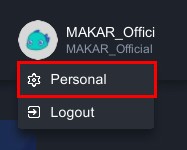
2. In the personal information window, click "Share Settings". You can download the QR code or set up your domain to share your MAKAR personal page.
※ For information on sharing projects using a domain name, please refer to the tutorial on "Share Your Project".

Related Posts:
View Project Data Report
View Project Data Report
If you wish to access the project data report for your MAKAR account, you can do so either by MAKAR login or by navigating through the MAKAR Editor. The following steps will guide you through accessing it via the MAKAR Editor.
1. Click the account section in the upper right corner, then select "Personal".

2. In the profile window that appears, click "Data Analysis."

3. A MAKAR member login page will appear. Enter your account credentials and click "Submit".
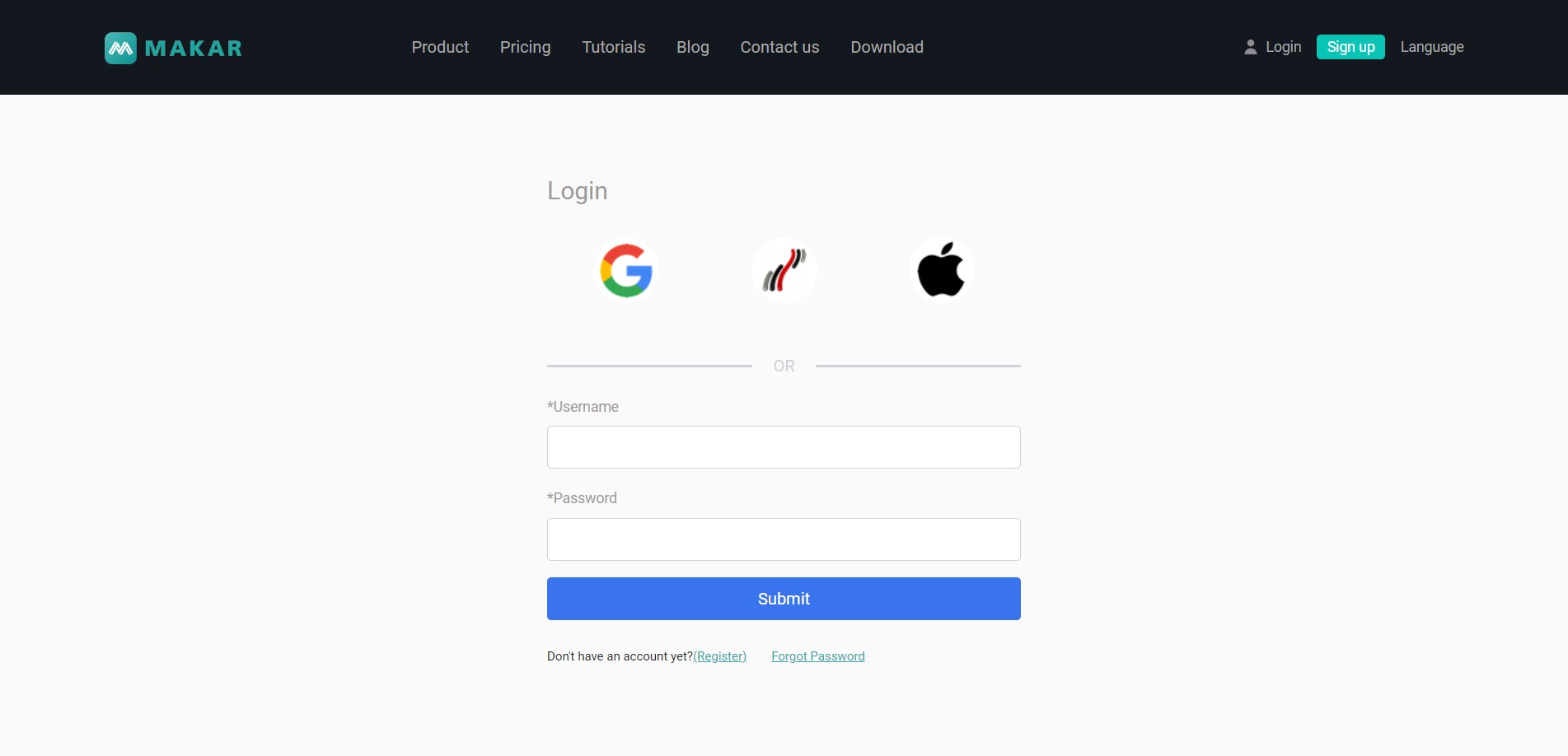
4. Once logged into the member area, click "Data Analysis" on the left sidebar.

5. Another login page for MAKAR data analysis will appear. Enter your account credentials again and click "Login."
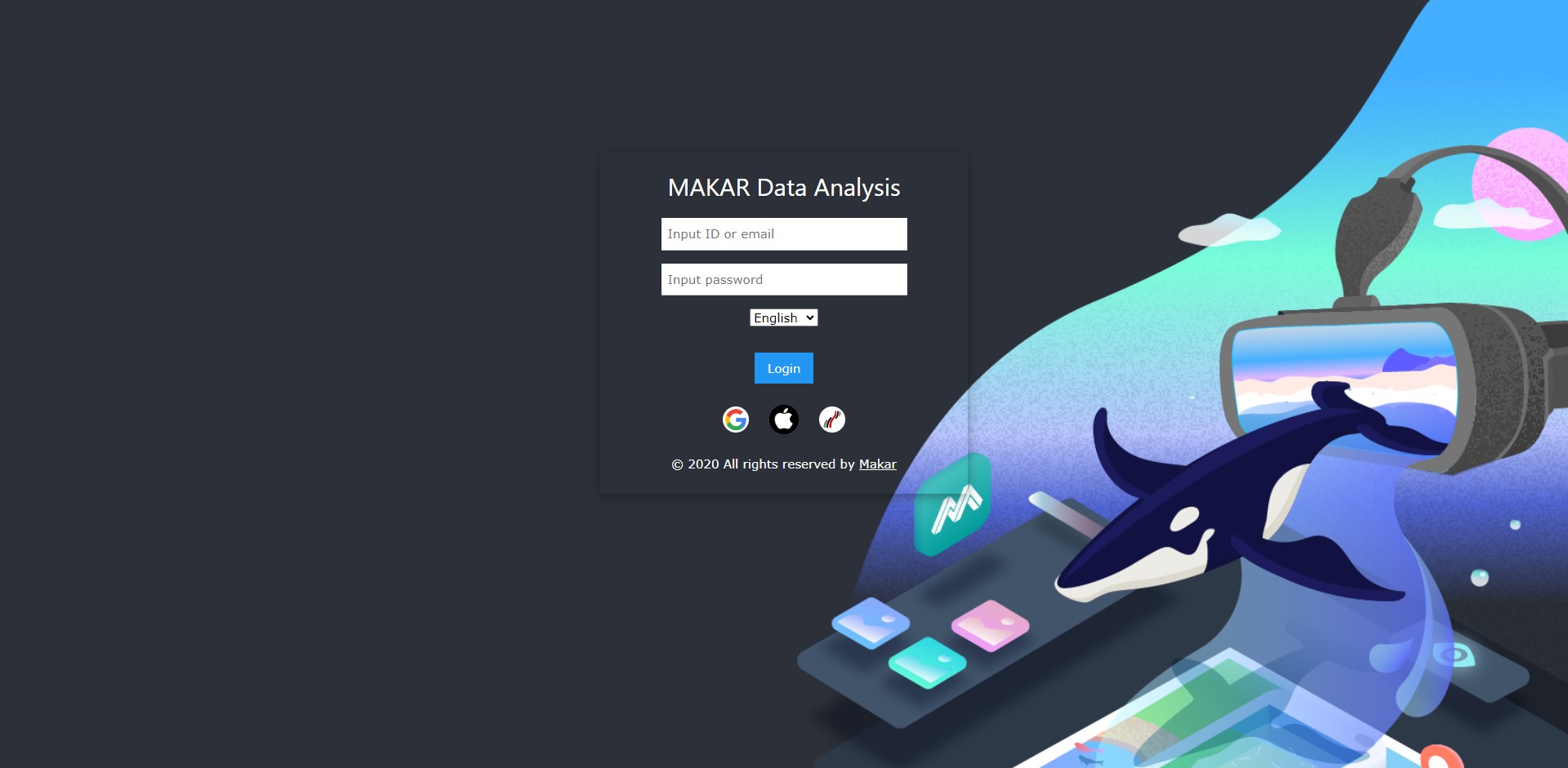
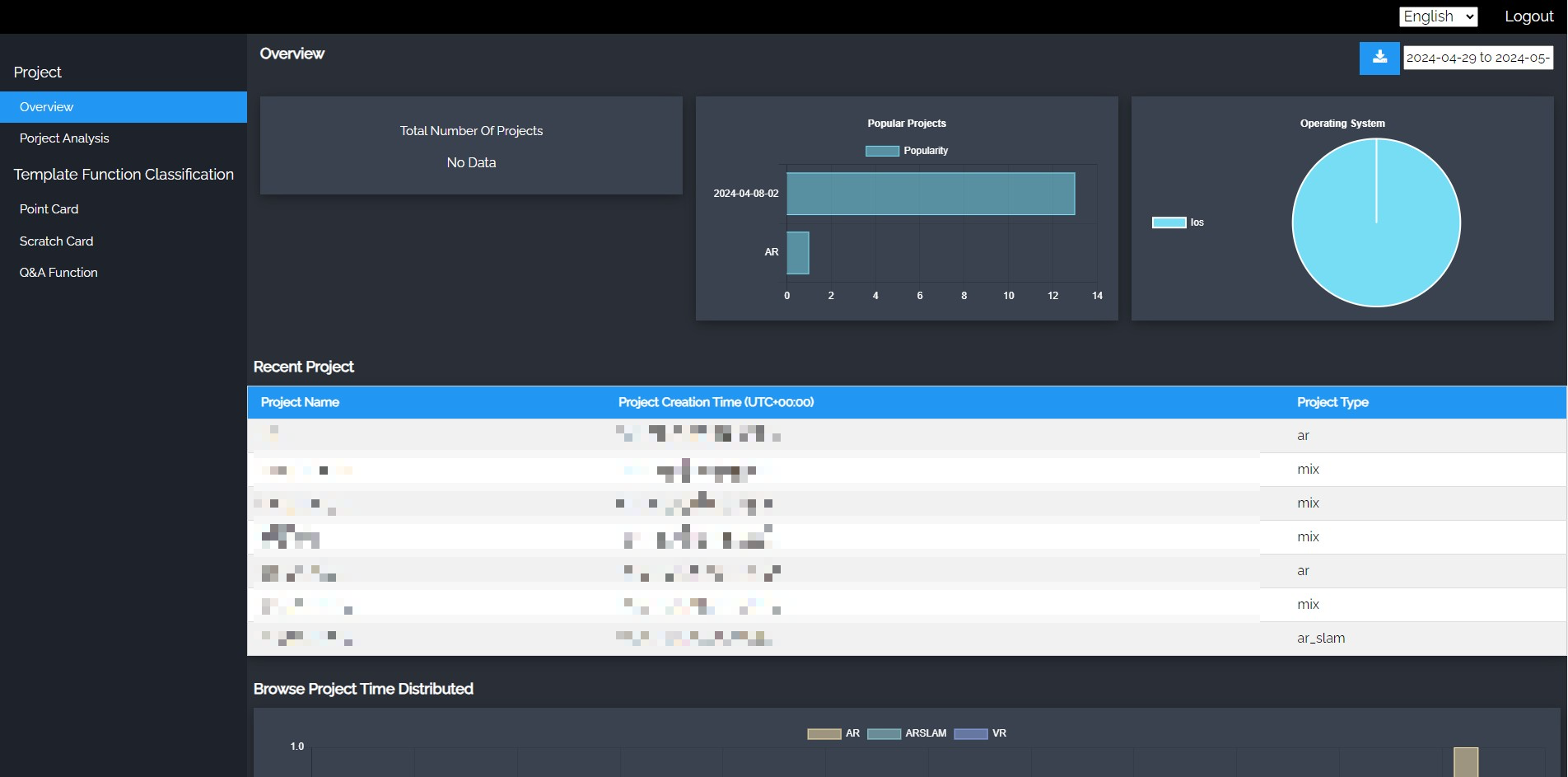
6. You will then enter the data analysis repository, where you can view the analytics for each project.
Related Posts:
Change Your MAKAR Password
Change Your MAKAR Password
If you wish to change your MAKAR account, proceed to log into your account through the MAKAR member login path.
1. After logging in, enter the member area and click "Change Password".

2. Enter your old password and new password, then you can successfully make the modification.

Create Point Card Module
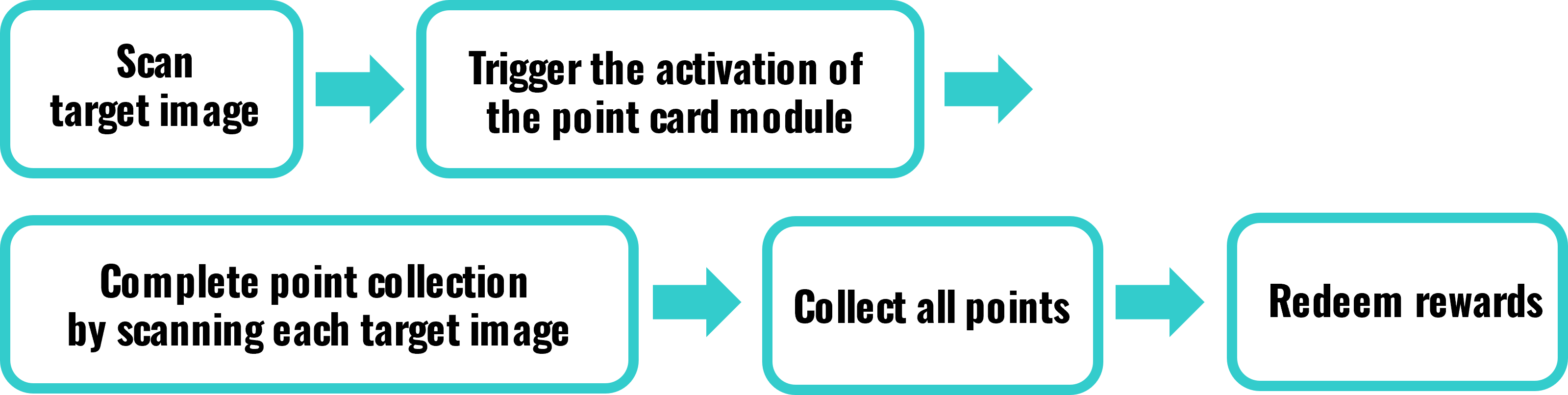
MAKAR Editor offers an interactive point card module, allowing users to collect points by scanning AR target images with their mobile devices. This module is widely used in event marketing, such as offering rewards upon collecting enough points. Additionally, this module can be effectively used in the education sector, such as setting up point collection games for learning tasks to increase engagement and enhance the learning experience. The following instructions will explain how to create a point card module.
|
Contents
|
Play Point Card Process
Create Point Card
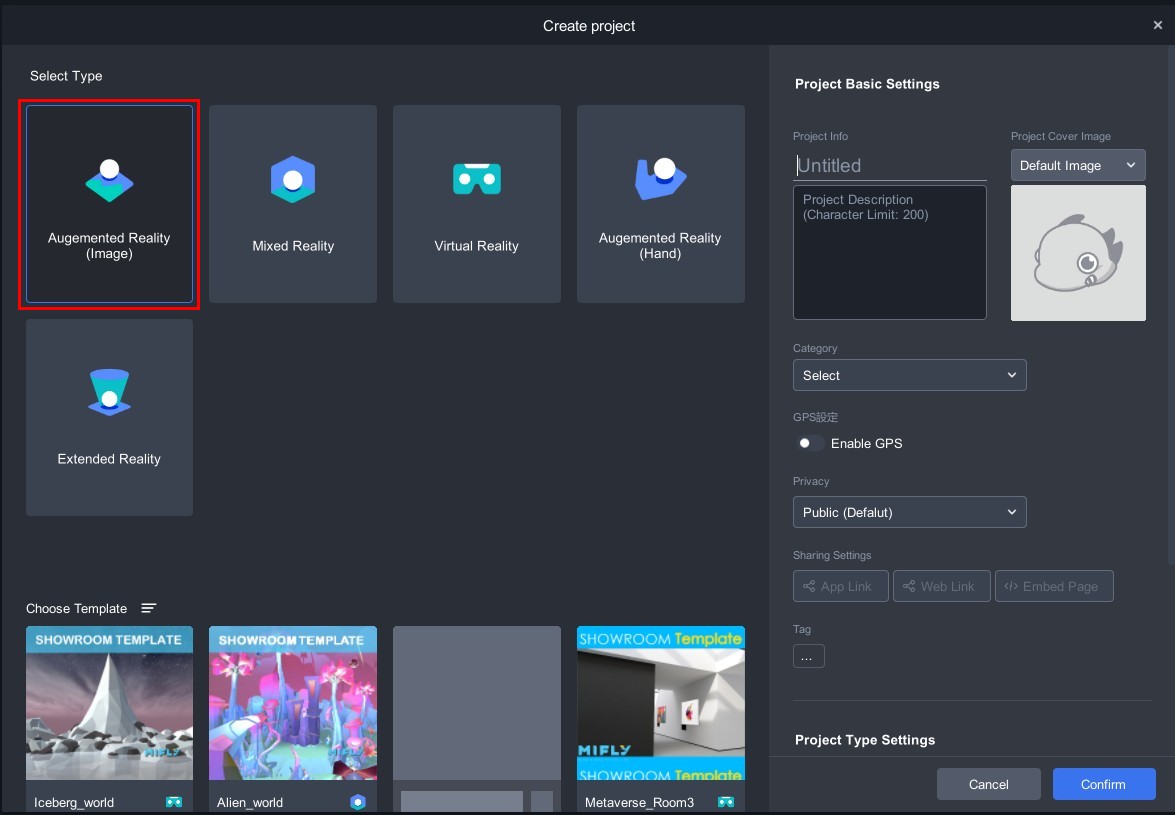
1. The point card module belongs to 2D interactive experience and includes the function of scanning and recognizing images. Therefore, when creating the point card module, you must choose to add a project under "Augmented Reality(Image)".
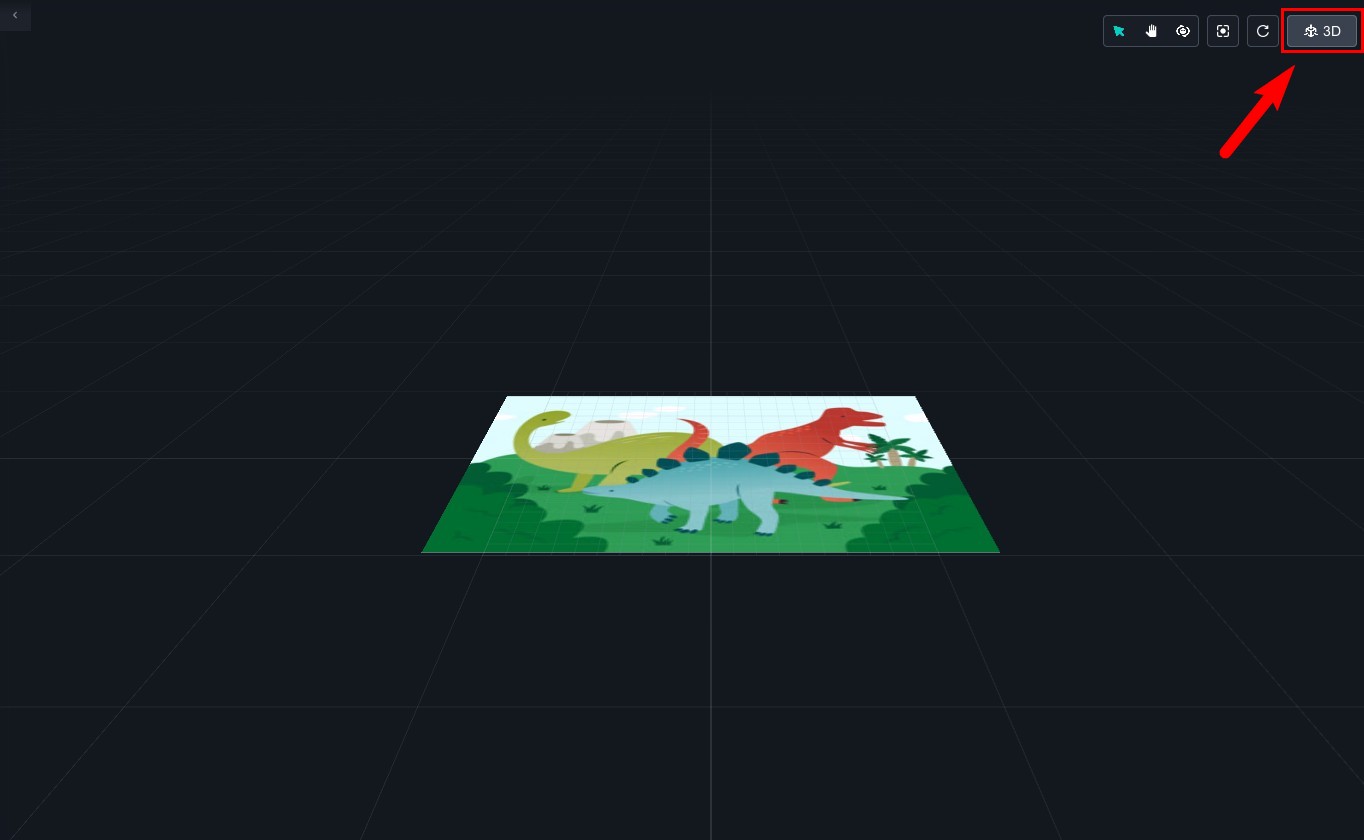
2. Enter the augmented reality image project, click "
 " in the upper right corner of the scene to switch the scene to 2D mode.
 |
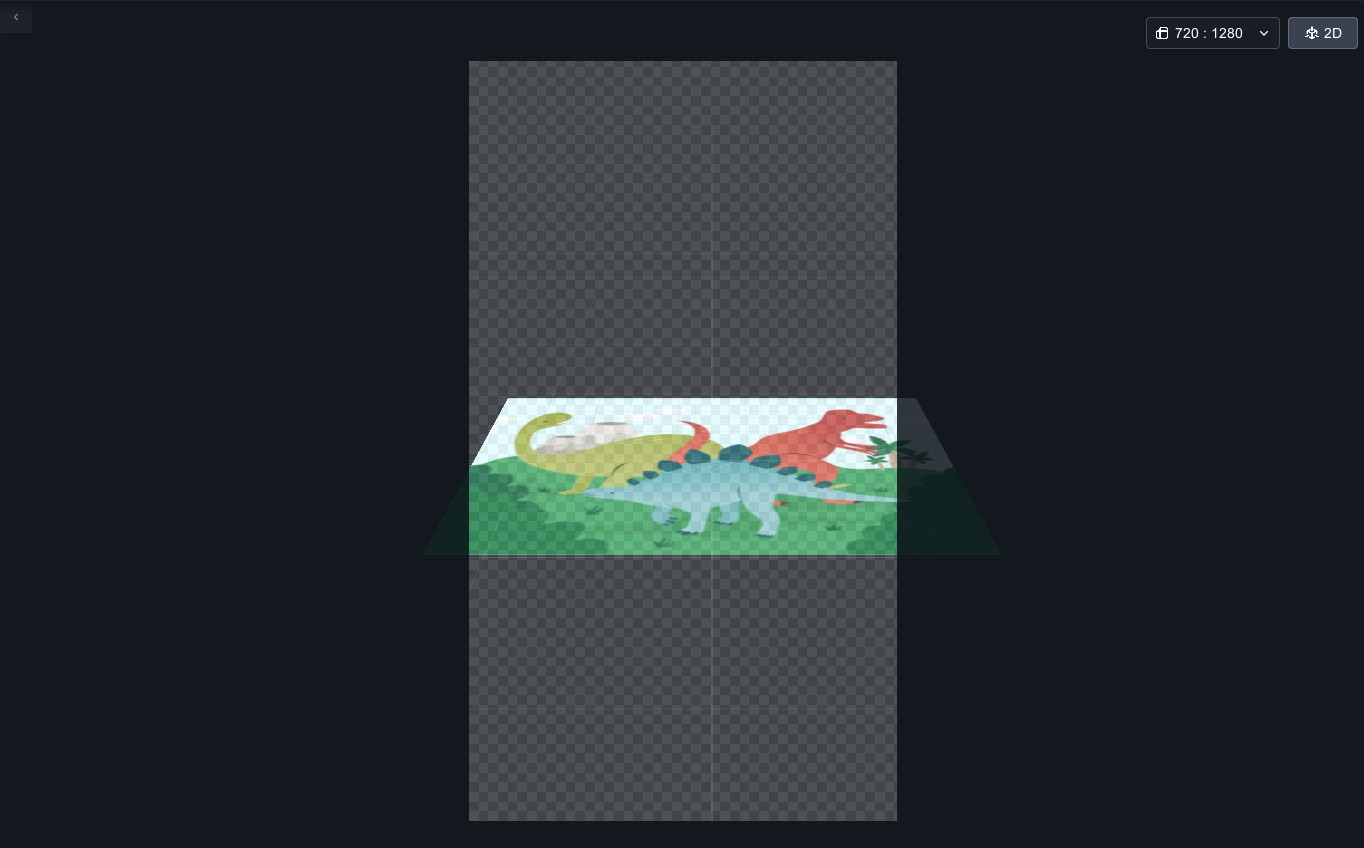 |
| ▲ Before switch | ▲ After switch |
3. Click "Module" on the left side and drag "Point Card" into the scene.
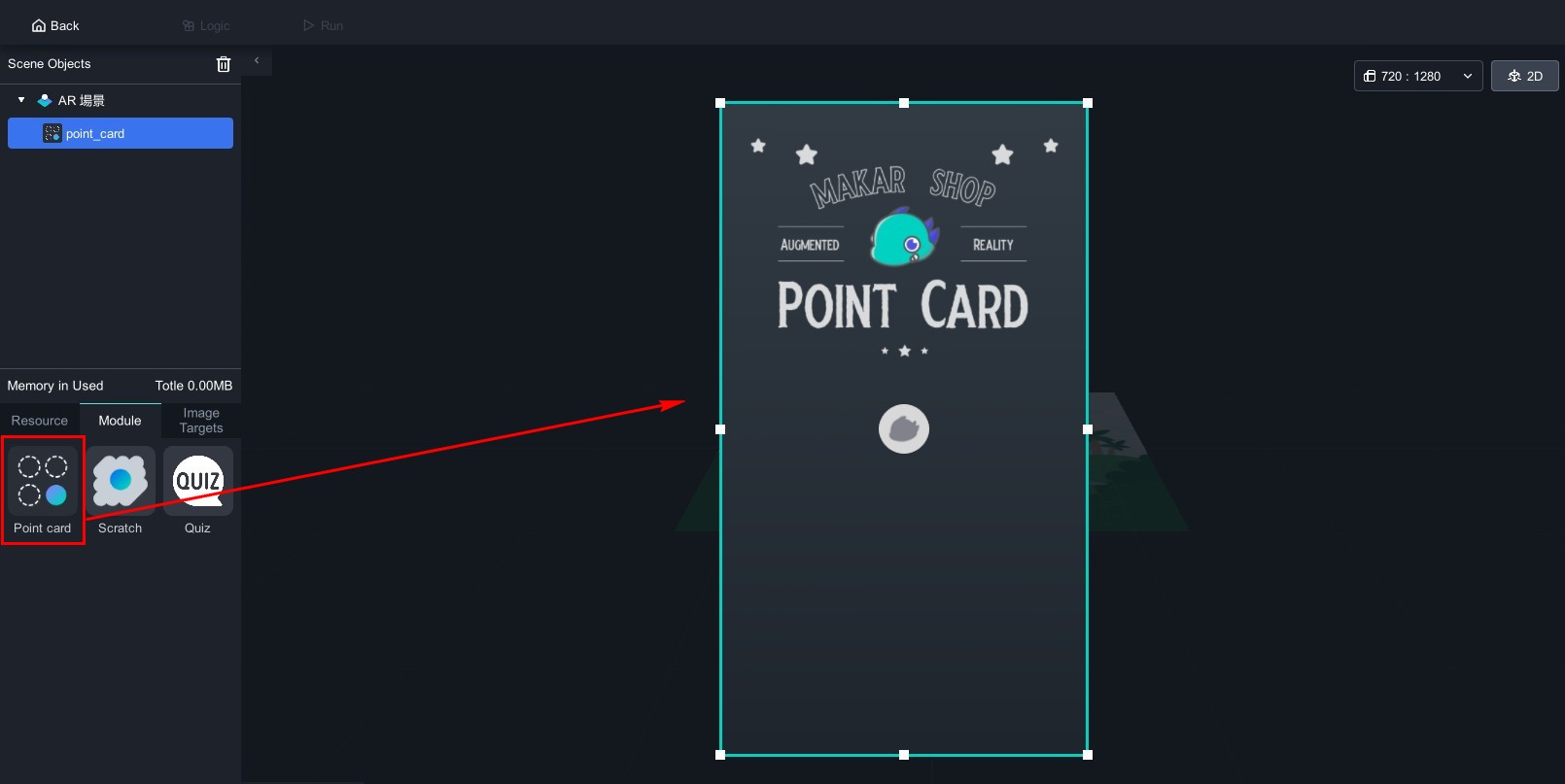
4. Click the module in the scene objects, and the point card function window will appear on the right.
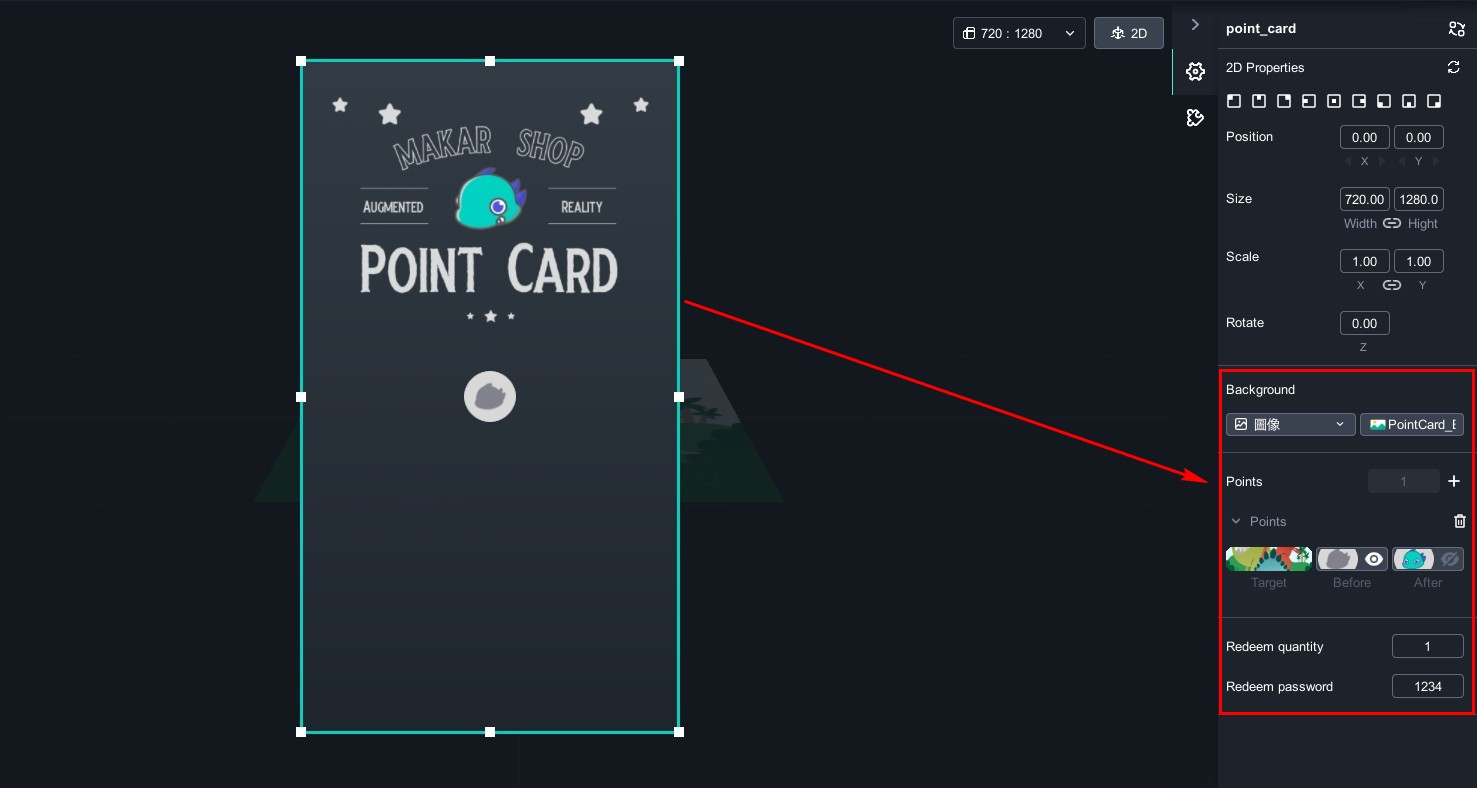
The point card module can be customized according to your needs, such as changing the background image of the point card, changing the backgrounds before and after redemption, and uploading materials to MAKAR for these changes. Due to the large number of images, it is recommended to create folders on your computer in advance and upload them to your resource library for better classification and organization. For the process of uploading images to the material library, please refer to the tutorial "Add Your Resources".
Next, we will explain how to change backgrounds, add points, and target images. For this tutorial, you can click "Point Card Module Materials" to download related materials.
1. In the background section on the right, click the image option on the right, and a window will appear to select the material. Choose the background image you want to replace.
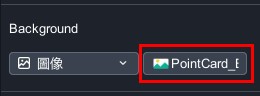
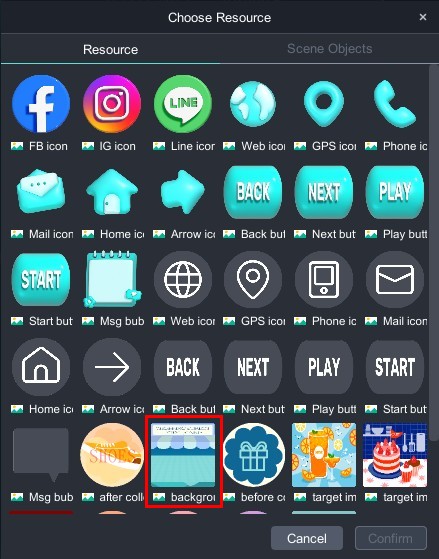
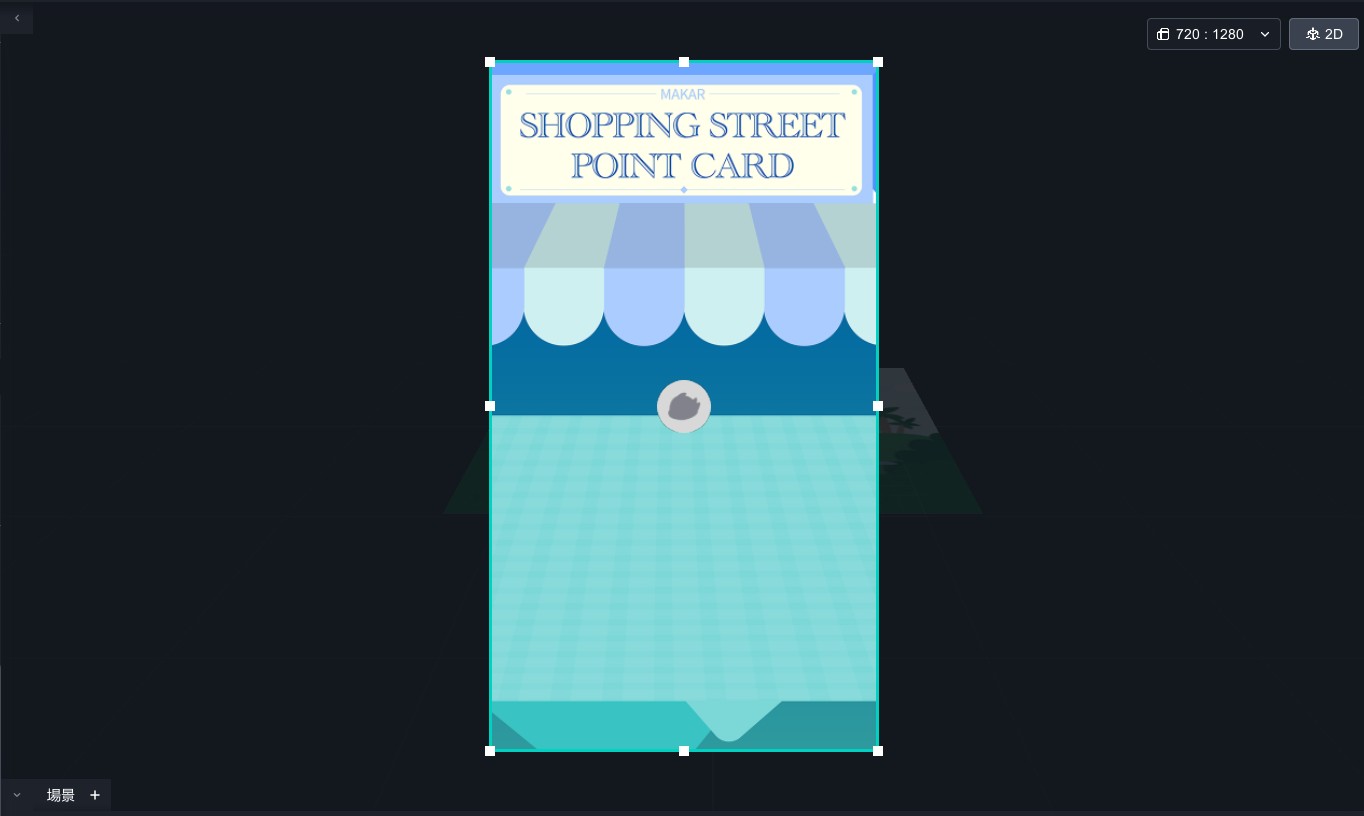
After changing the background:
Add Points / Add Target Images / Change Points Background
1. In the points section on the right, click the "+" to add points.
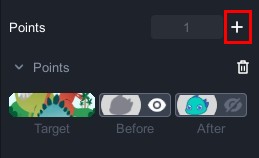
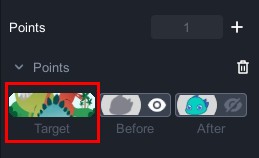
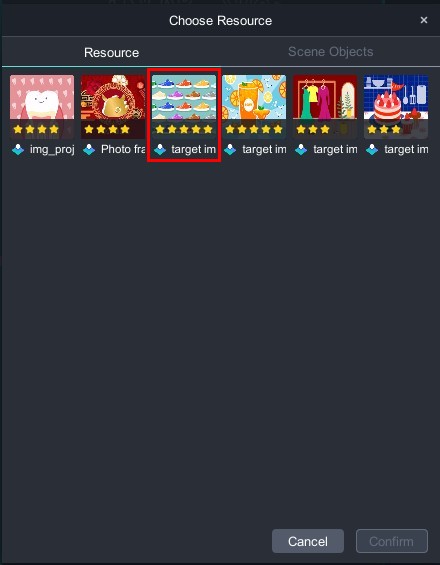
2. Click "Target", and a window will appear to select the material. Choose the target image for this point. If you need to upload a new target image, you can click "Image Target" → "Add Target" on the left to upload directly.
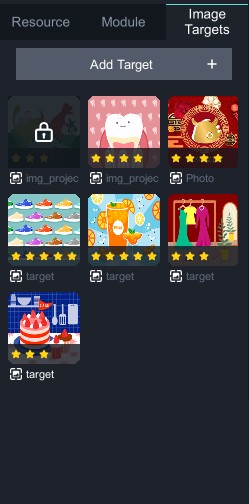
Four target images have been added:
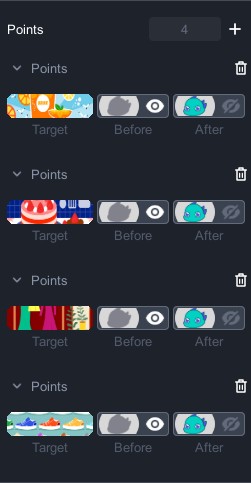
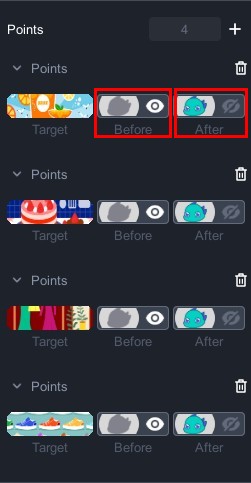
3. Click "Before" and "After" respectively, and a window will appear to select the material. Choose the background you want to replace.
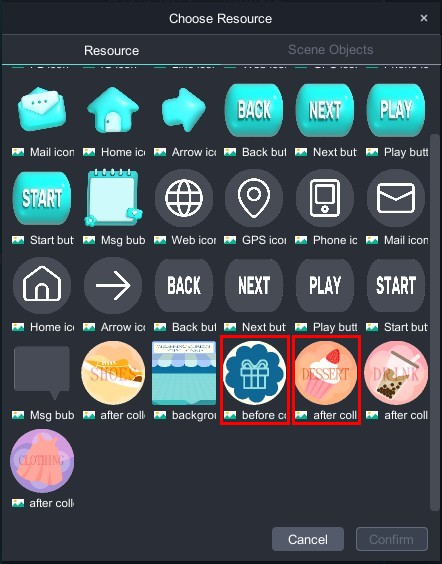
4. Add points according to your needs and use the mouse to drag and scale in the editing scene to easily arrange the layout.
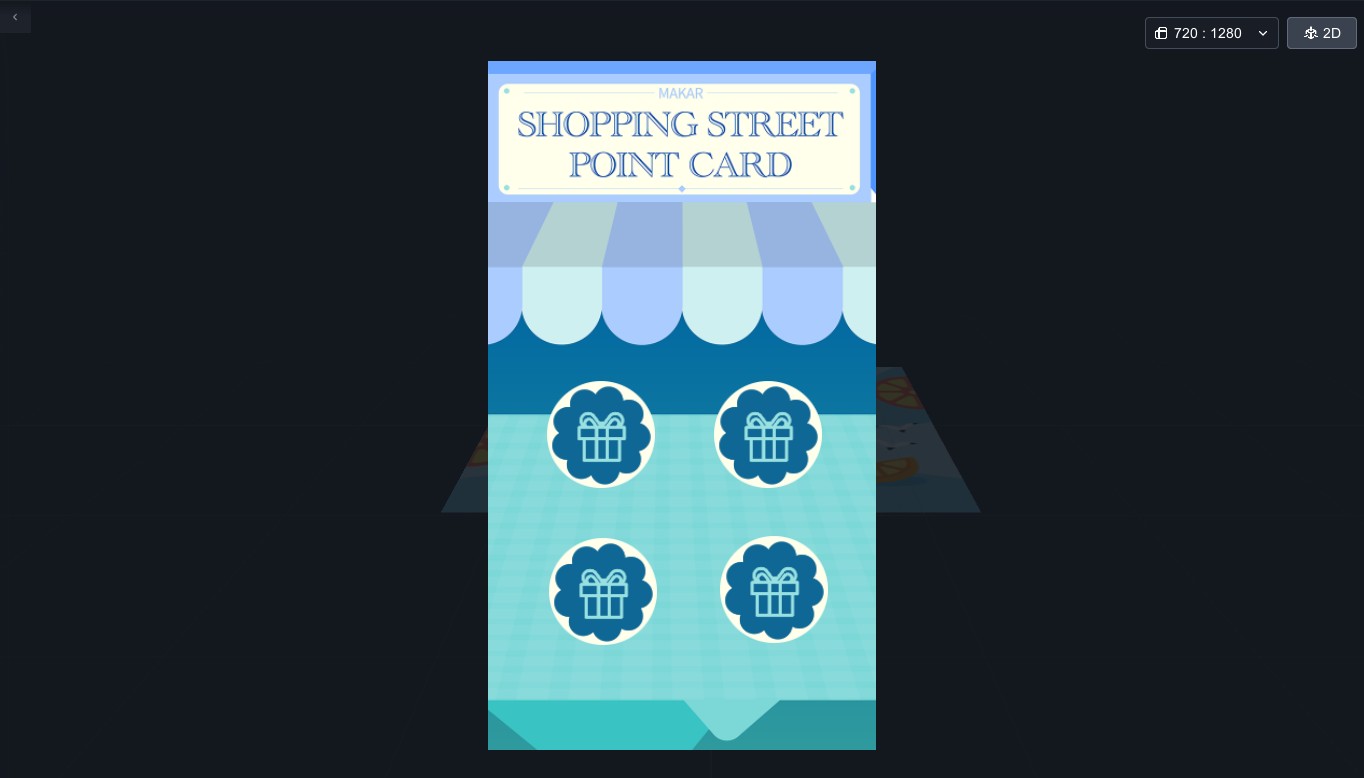
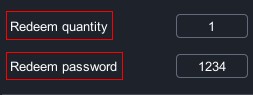
- Redeem quantity:Set the number of points needed to trigger the reward redemption function according to your needs, with a minimum of one point.
- Redeem password:Set a redemption password that triggers when the user collects enough points. If the number is deleted, there will be no password required.
1. Each account can only play the point card module once.
2. MAKAR Project Version of STANDARD/ADVANCED/STUDIO allow you to log in to the backend to view the project's redemption status.
3. If the user plays without logging in, they can play again after deleting and reinstalling MAKAR Viewer. If you have further feature requirements, we recommend contacting our specialists to discuss customized services.
Create Scratch Module
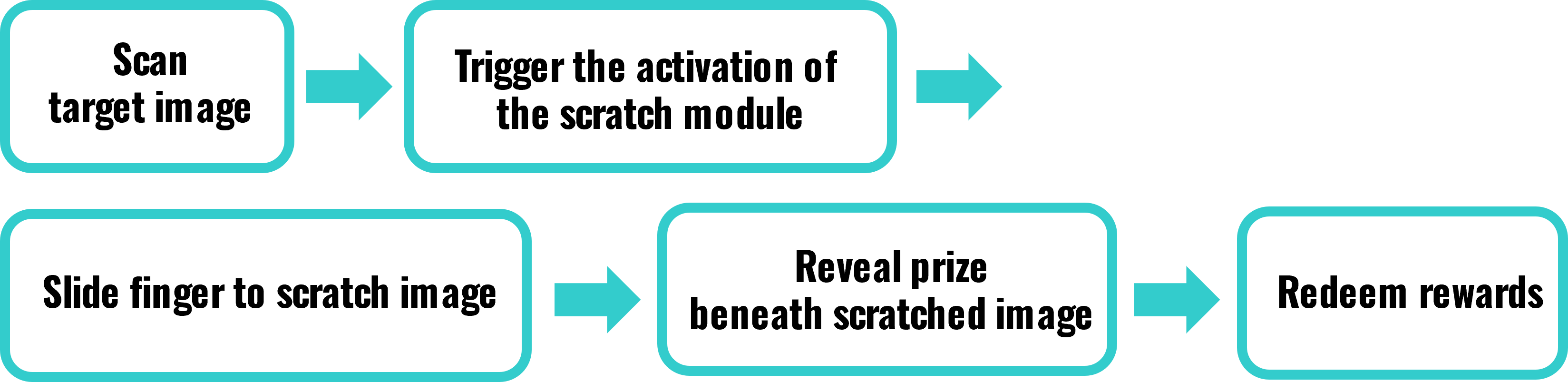
MAKAR Editor provides an interactive scratch module where users can scan a target image and use their finger to scratch open a picture. Scratching reveals the prize hidden underneath the image. This module is often used in marketing campaigns where scratched contents could include discount codes or other interactive content, providing users with an engaging experience. Below are the steps to create a scratch module.
|
Contents
|
Play Scratch Process
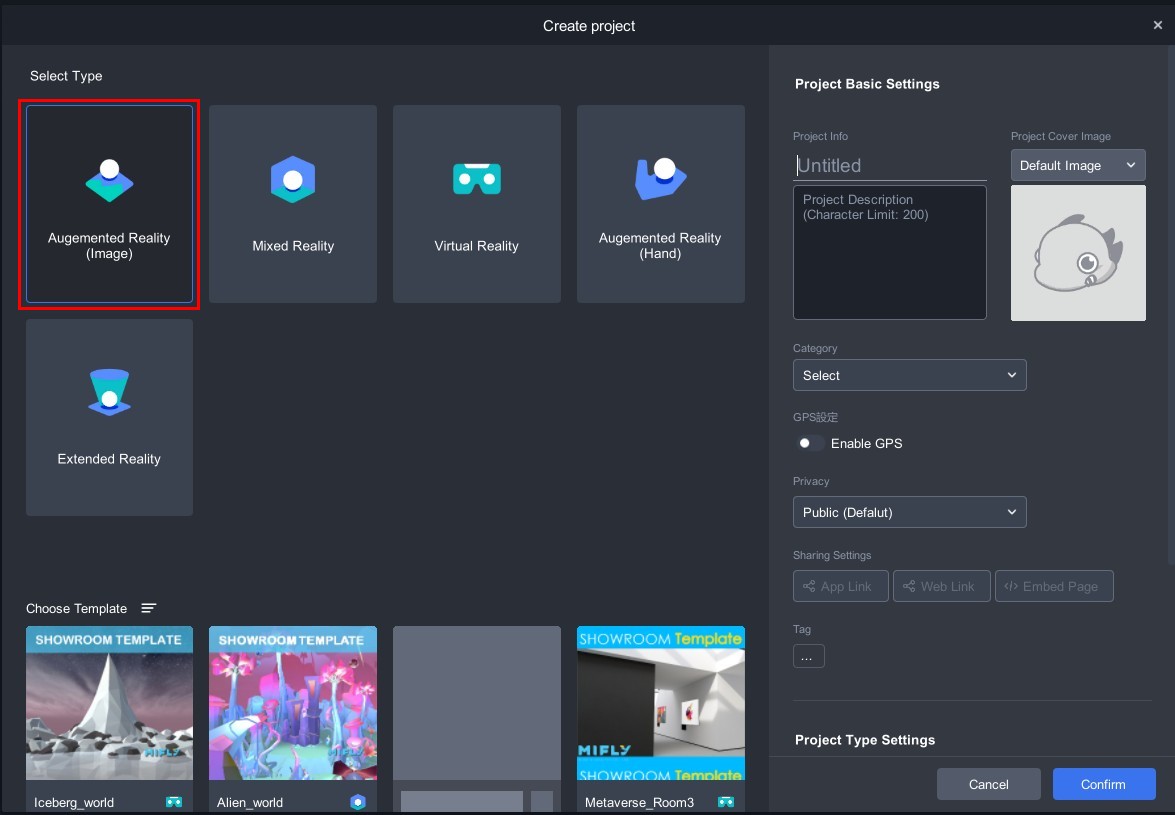
The scratch module is part of a 2D interactive experience, including the feature of scanning target images. Therefore, when creating the scratch module, choose to add a project under "Augmented Reality (Image)".
2. Enter the augmented reality image project, click " " in the upper right corner of the scene to switch the scene to 2D mode.
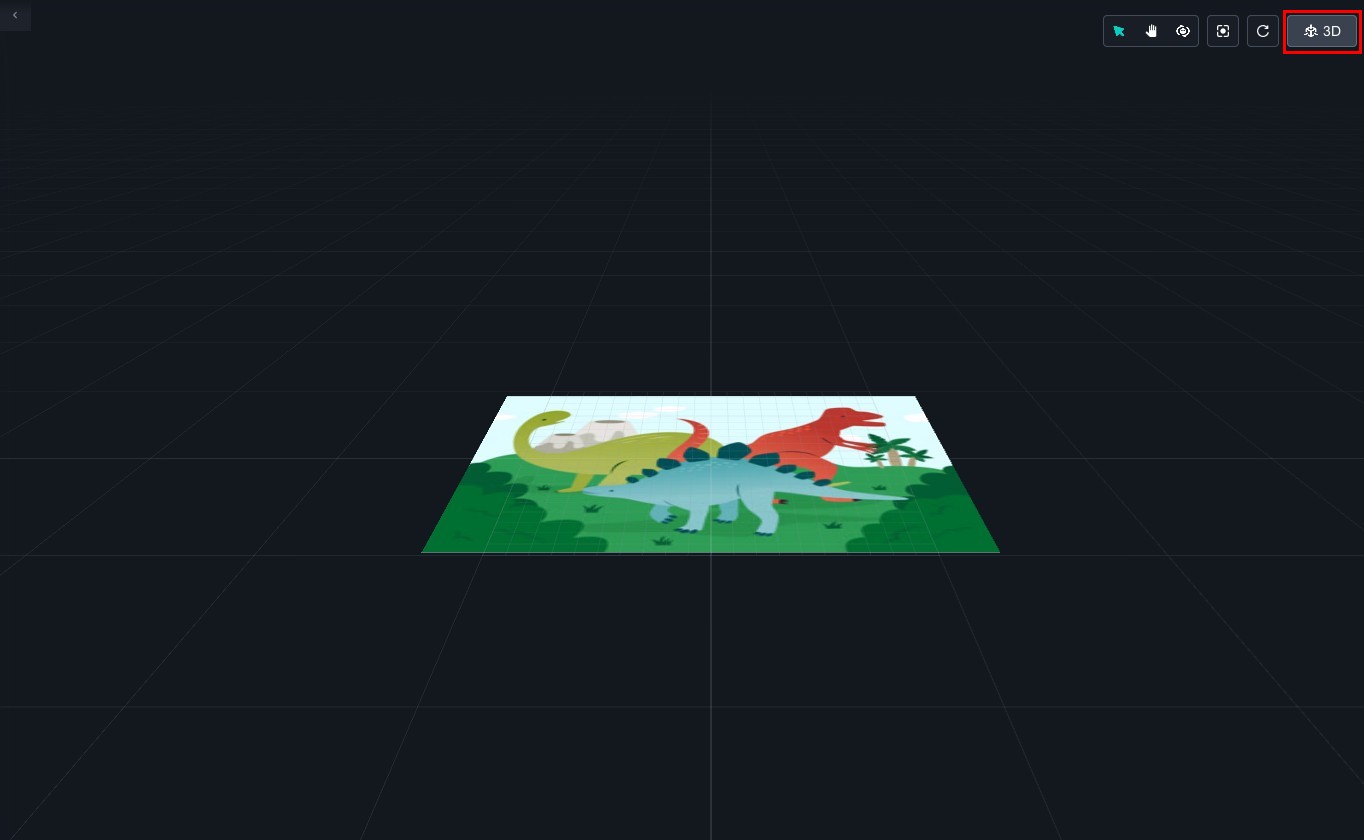 |
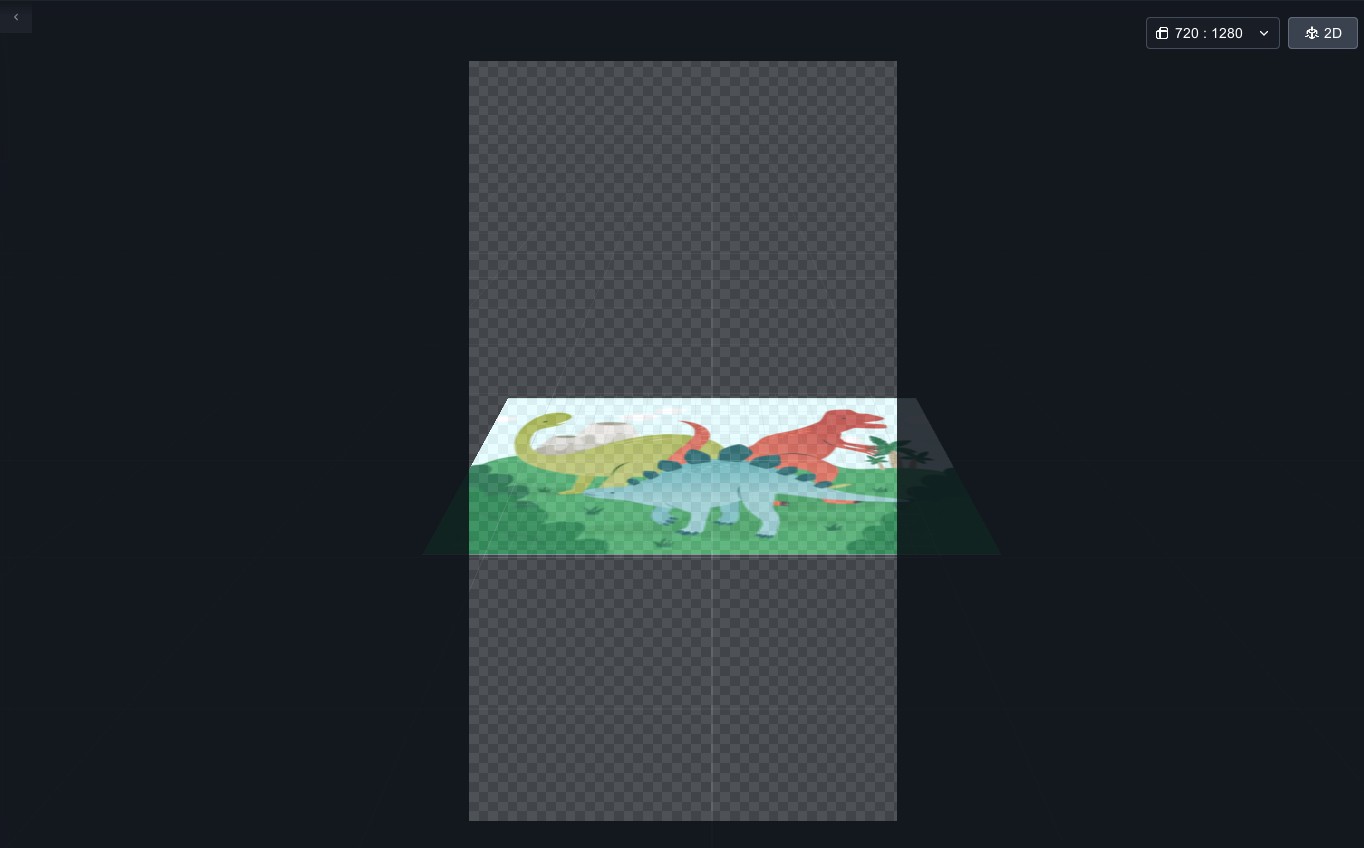 |
| ▲ Before switch | ▲ After switch |
3. Click "Module" on the left side and drag "Scratch" into the scene.
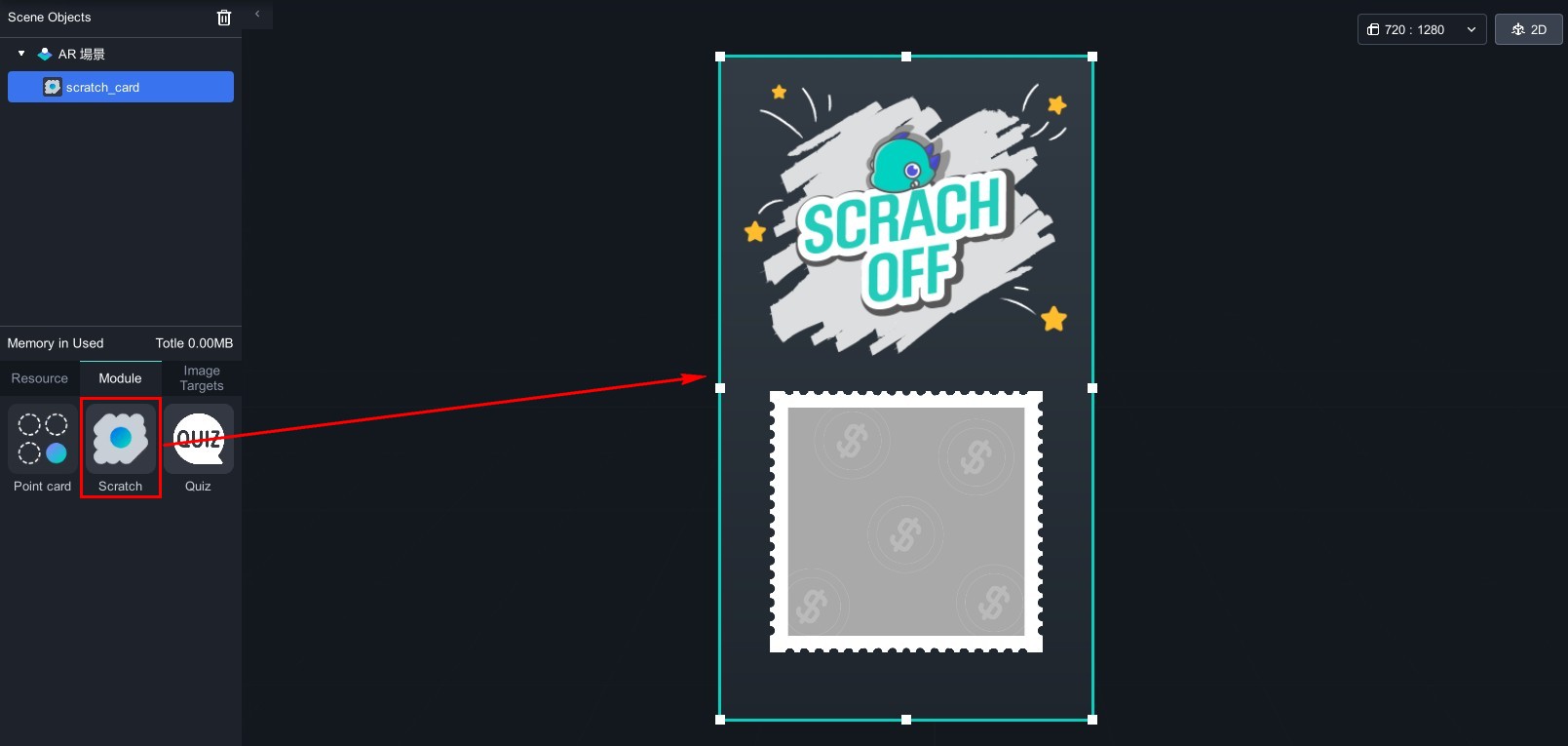
4. Click the module in the scene objects, and Scratch Module function window will appear on the right.
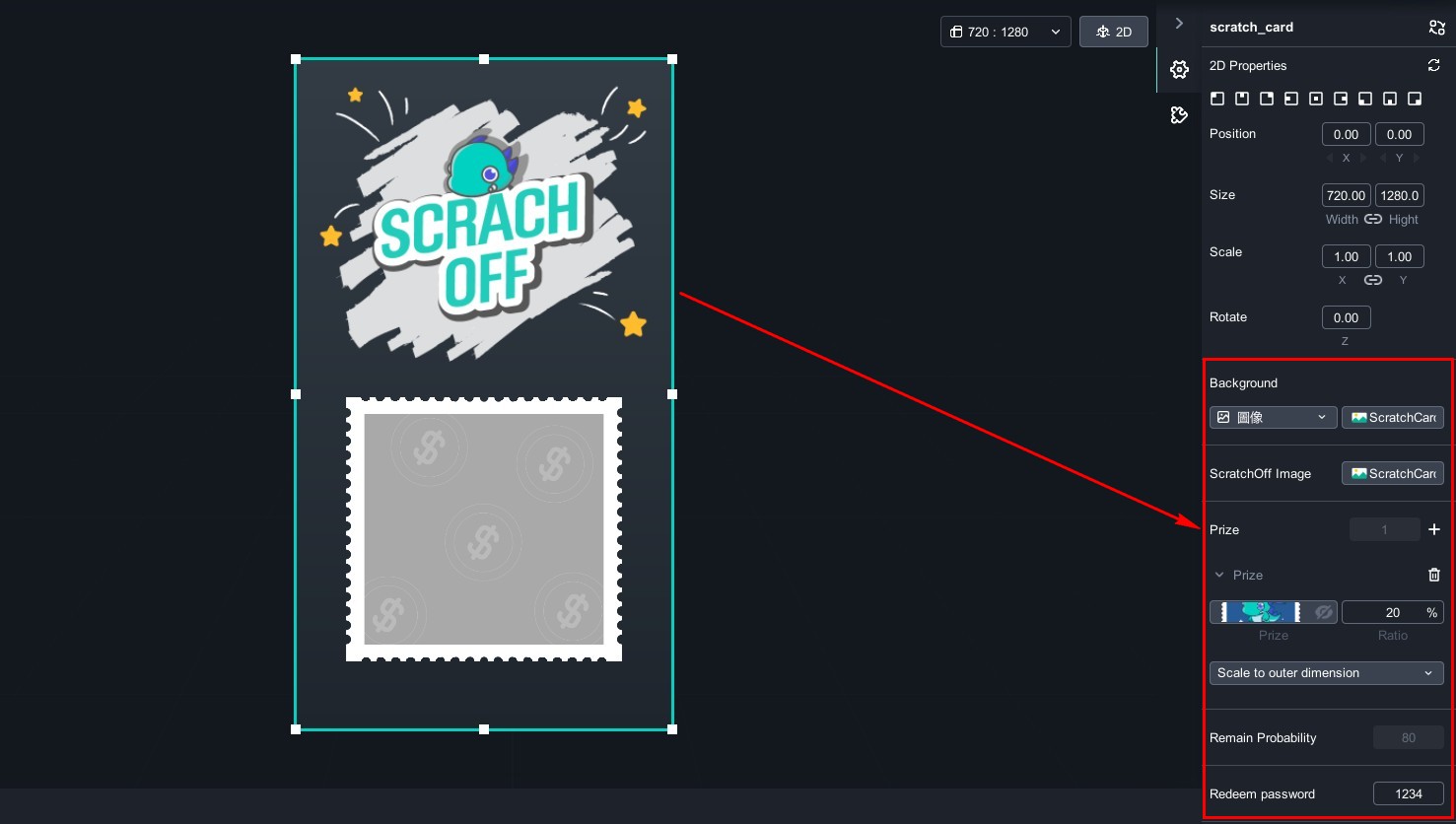
The Scratch Module can be customized according to your needs, such as changing the background image of the scratch module, the image to be scratched, and the prize image. You need to upload materials to MAKAR to make these changes. At the same time, you can adjust the winning probability of each prize. Due to the large number of images, we recommend creating folders on your computer in advance and uploading them to your resource library for better categorization and organization. For the process of uploading images to the material library, please refer to the tutorial "Add Your Resources".
Next, we will explain how to change backgrounds, add prizes, and adjust probabilities. You can click on "Scratch Module Materials" to download related instructional materials.
Change Scratch Module Backgrounds and Images
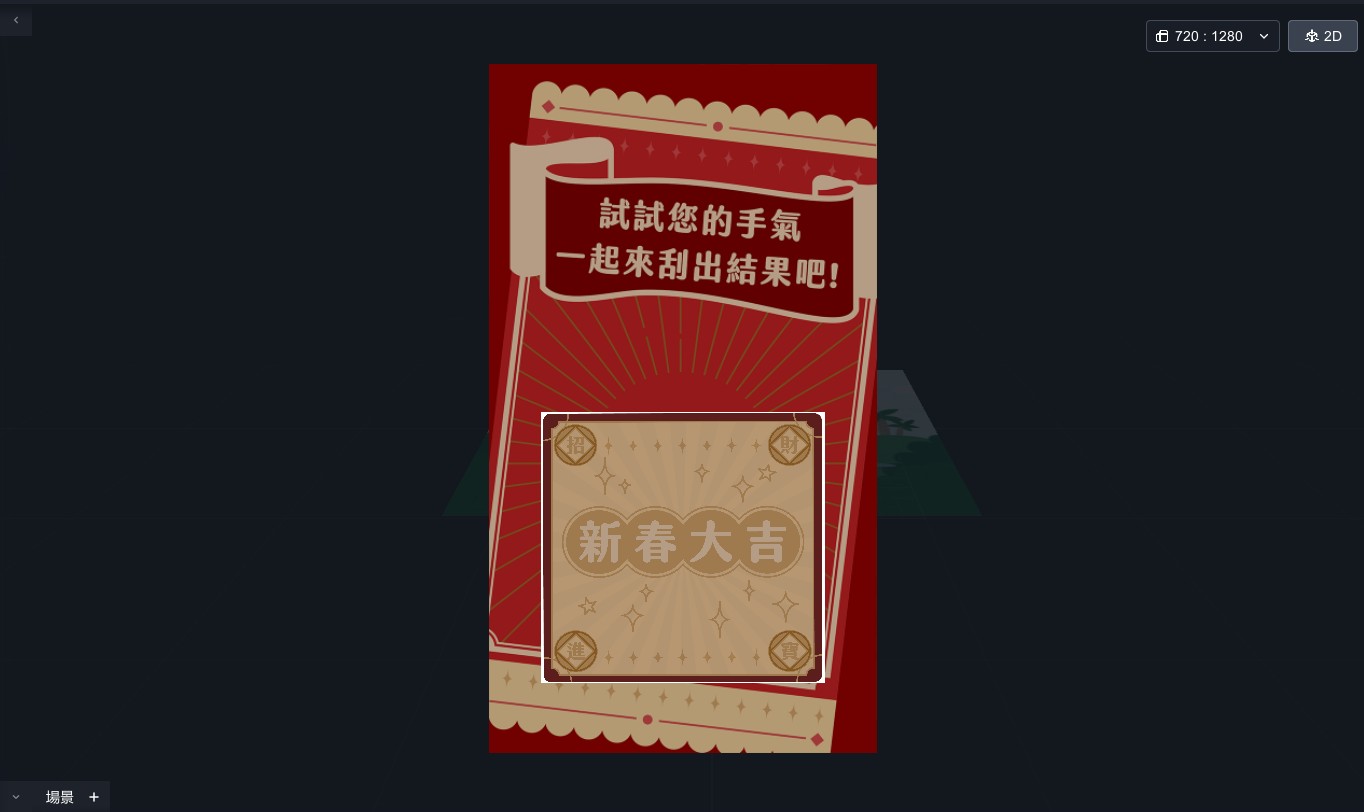
1. In the right-side "Background" column and the "ScratchOff Image" (before scratching) column, click the image option, and a window will appear to select the material. Choose the image you want to replace.
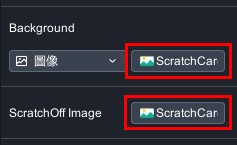
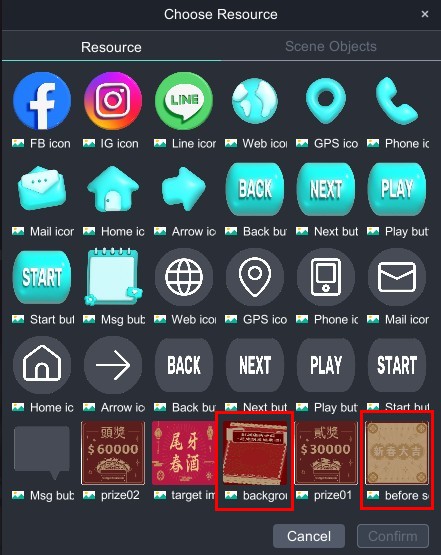
After changing the background and scratchoff image:
Add Prizes / Change Prize Images / Adjust Probabilities
1. In the prize section on the right, click the "+" to add prizes.
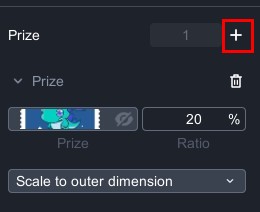
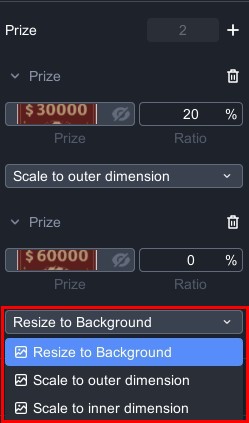
2. Click the prize image to bring up the material selection window and choose the result image of the prize. You can choose "Resize to Background" ,"Scale to outer dimension" ,"Scale to inner dimension" to adjust the image size.
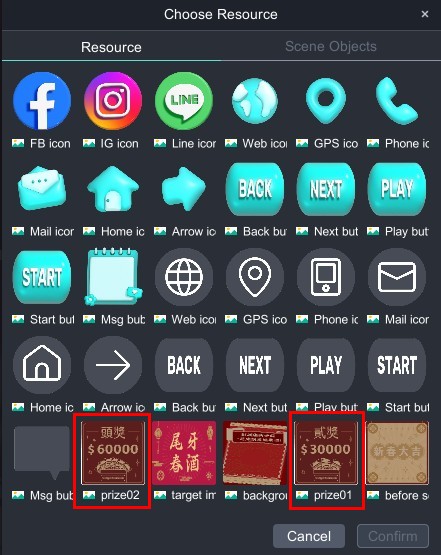
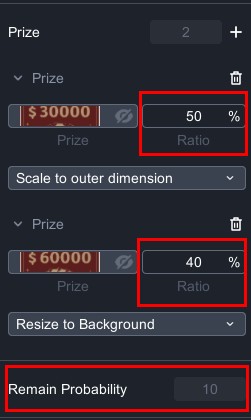
3. According to your needs, add prizes and set the winning probability for each prize. You can also see the ratio that remaining probability ratio below.
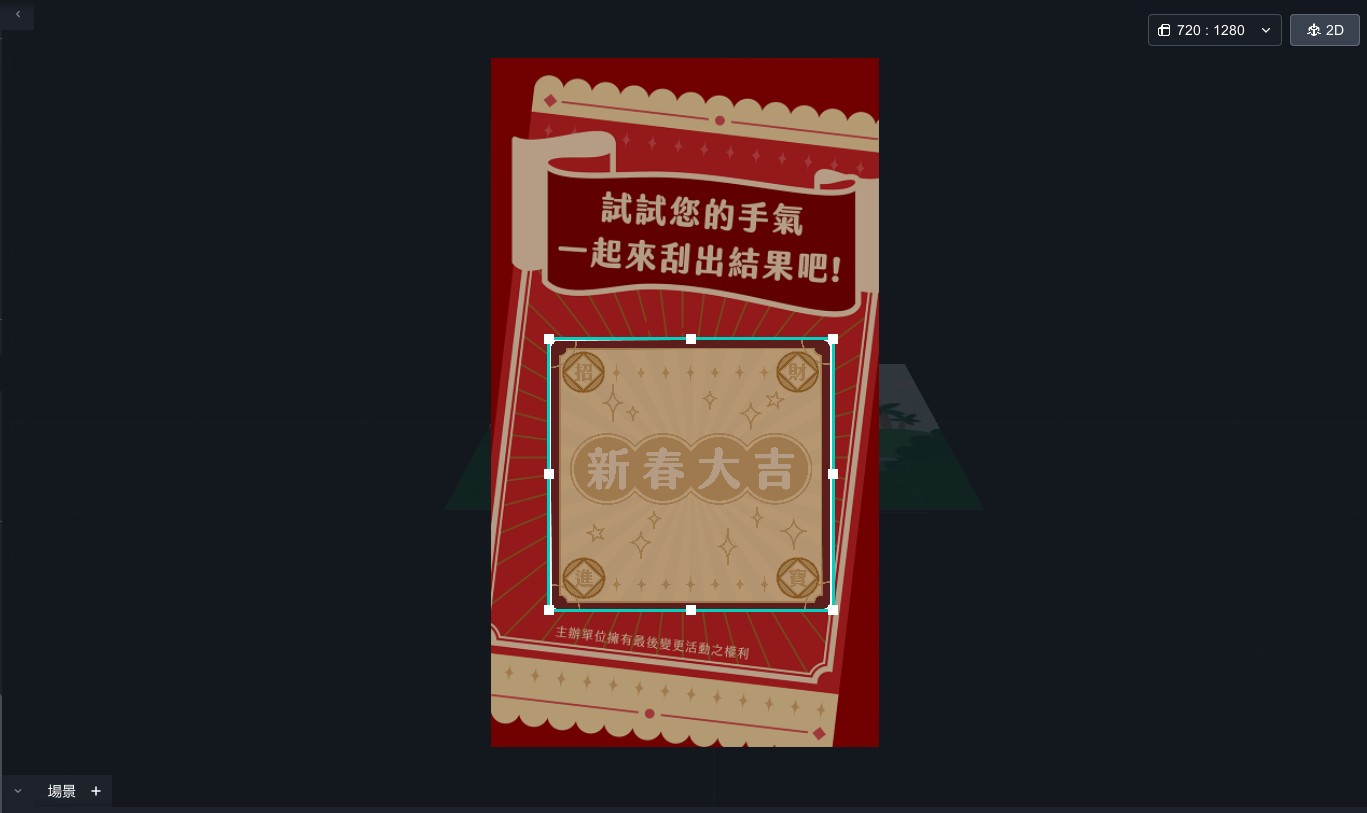
4. Use the mouse to drag and zoom in the editing scene to easily arrange the layout.
-
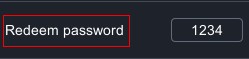
Redeem password:According to your needs, trigger the redemption password after the user scratches the prize. If you delete the numbers, it will be in password-free status.
1. Each account can only play the scratch module once.
2. MAKAR Version of STANDARD/ADVANCED/STUDIO allow you to log in to the backend to view the project's redemption status.
3. If the user plays without logging in, they can play again after deleting and reinstalling MAKAR Viewer. If you have further feature requirements, we recommend contacting our specialists to discuss customized services.
4. It is recommended that developers manage the number of prizes redeemed. Once the prizes are redeemed, they can directly access the project to delete and remove the winning image. For further additional feature requirements, it is recommended to contact our professionals to discuss customized services.
MAKAR Flash -One-hour 3D Material Specialization Class, the philosophy that must be grasped for XR creation
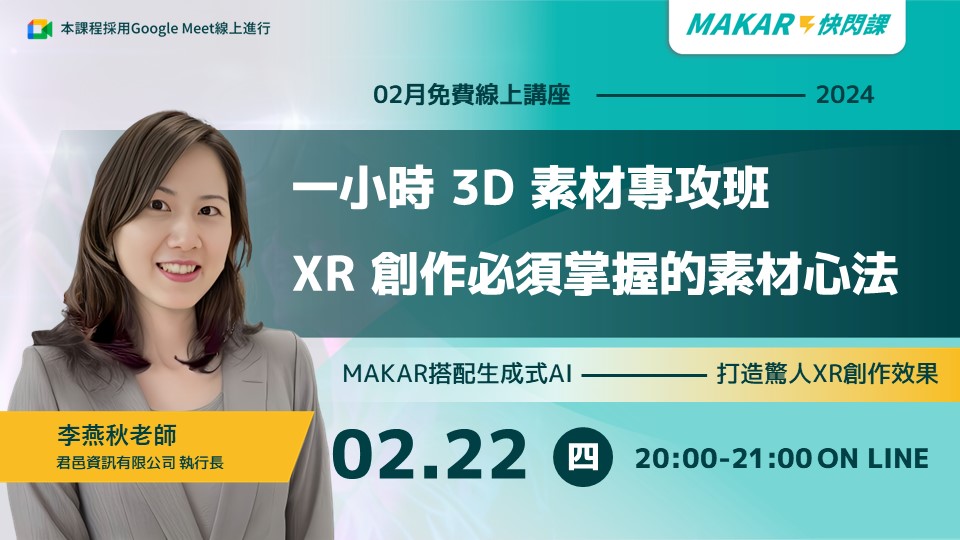
One-hour 3D Material Specialization Class, the philosophy that must be grasped for XR creation
No longer be limited to filming or hand-drawing to obtain materials! This month's MAKAR Flash course invites Teacher Li Yanqiu to share how to use generative AI to create materials within an hour, combined with the MAKAR XR Platform, to add endless possibilities to your XR creation. From AR to VR, delve into the techniques for creating materials. Besides, the teacher will also generously share about the logic functions in MAKAR. You absolutely shouldn't miss this if you want to catch the metaverse wave! Come and experience the amazing effects of AI-generated materials paired with XR creation!▌Course Outline
1、AR Material Production Techniques2、VR Material Production Techniques
3、Bonus: Basic Logic function in MAKAR and Material Integration with MAKAR
4、Q&A Session
▌Instructor Introduction
Teacher Yanqiu's teaching style combines aesthetic editing, lively creativity, and editing skills, making her a frequently invited lecturer for official seminars, schools of all levels, teacher training, corporate organizations, and government departments. She is also the author of the official Chinese CyberLink PowerDirector tutorial book and videos. Additionally, she is a full-time professor at the National Taiwan Normal University Extension School, teaching practical EXCEL courses, which are consistently full and highly acclaimed.▸CEO of Junyi Information Co., Ltd.
▸Founder of Teacher Yanqiu's Teaching Team
▸Over 20 years of experience in information software teaching
MAKAR Flash-How to integrate AR/VR into teaching with 5G? Quickly build your exclusive XR teaching materials!

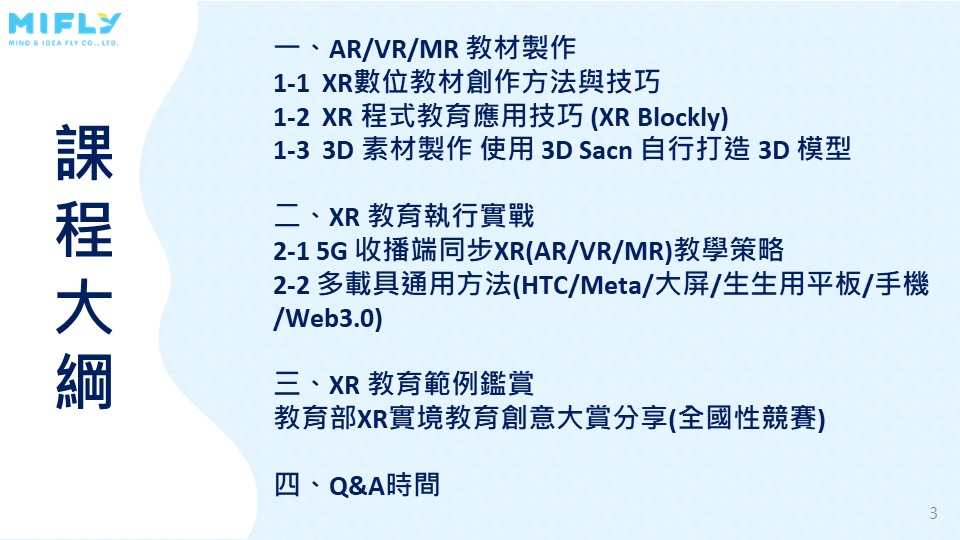
How to integrate AR/VR into teaching with 5G? Quickly build your exclusive XR teaching materials!
How to integrate AR/VR into teaching with 5G? Quickly build your exclusive XR teaching materials! Welcome to the new era of 5GVR education! This month's MAKAR Flash course covers everything from AR/MR/VR teaching material development to 3D material production, and to actual teaching application, solving all your problems in the Ministry of Education's digital content enhancement plan and the 5GVR teaching integration M1,M2 plan. This course provides suitable solutions for any type of device used in schools, ensuring the best teaching outcomes. Teachers and students executing related projects and the broadcasting partners from schools definitely should not miss this! Join the forefront of XR educational applications and achieve new heights in teaching!▌ Course Outline
【AR/VR/MR Teaching Material Production】1-1、XR Digital Teaching Material Creation Methods and Techniques
1-2、XR Programming Education Application Techniques (XR Blockly)
1-3、3D Material Production Using 3D Scan to create your own 3D models
【XR Education Execution in Practice】
2-1、5G Broadcasting End Synchronized XR(AR/VR/MR) Teaching Strategies
2-2、Universal Methods for Multiple Devices (HTC / Meta / TVScreen / Tablets / Phones / Web3.0)
【XR Education Example Appreciation】
3、XR EDU Reality Creativity Competition Sharing (National)
4、Q&A Session
▌Course Date
January 25, 2024 (Thursday)▌ Course Time
20:00-21:30 (1.5 hours)▌ Course Instructor
Lina TsaiMAKAR Flash-Creating Your Own 3D Material Library with Your Phone? MAKAR 3D Scan New Application Analysis!
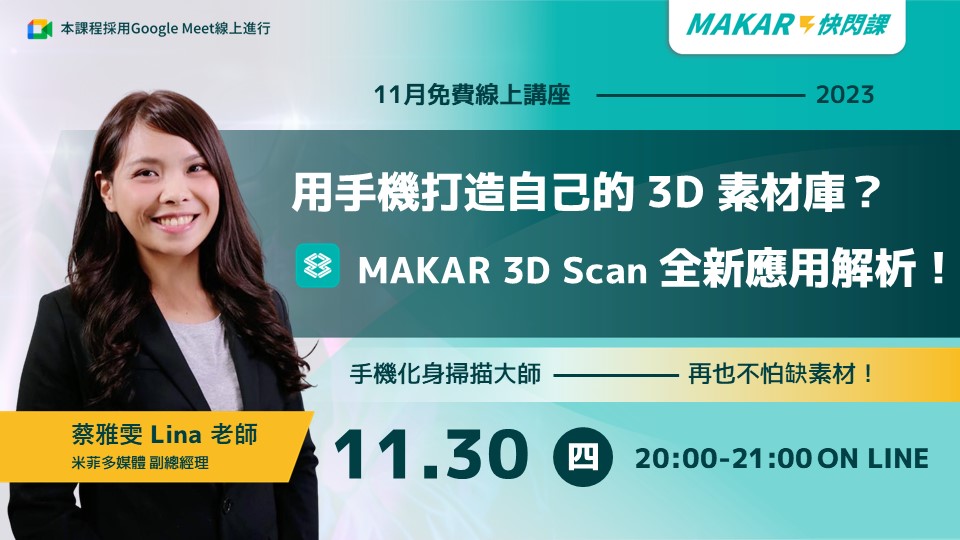
Creating Your Own 3D Material Library with Your Phone? MAKAR 3D Scan New Application Analysis!
Lina Tsai will guide you through exploring the diverse applications of MAKAR 3D Scan and teach you how to swiftly import scanned 3D model assets into the MAKAR Editor software to create engaging XR projects. With just a smartphone or tablet, you can easily build your own 3D asset library, bidding farewell to the frustration of limited resources! The course will demonstrate how to create scene models through spatial scanning and scan objects using the new feature of the latest 3D Scan, enhancing your scanning experience and effortlessly creating personalized 3D models!
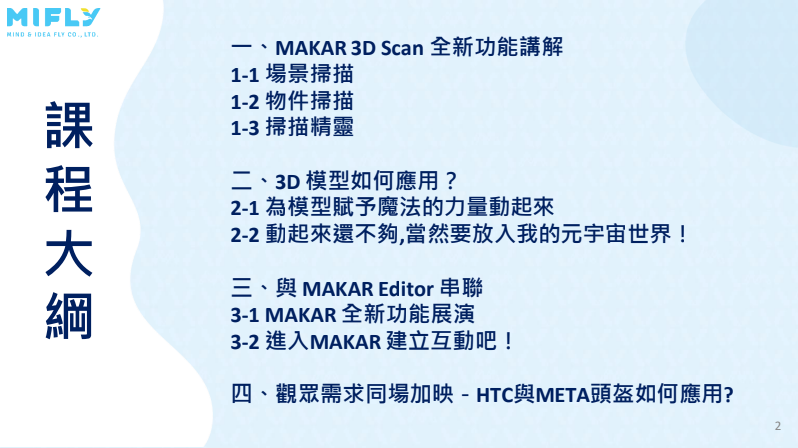
▌Course Outline
Section 1: Introduction to New Features of MAKAR 3D Scan1-1 Scene scanning
1-2 Object scanning
1-3 the new feature of the latest 3D Scan
Section 2: Application of 3D Models
2-1 Adding magical motion to models
2-2 Placing them into my metaverse world!
Section 3: Integration with MAKAR Editor
3-1 Showcase of new MAKAR features
3-2 Engaging with MAKAR for interactive experiences!
Section 4: Q&A Session
▌Course Details:
Date: November 30, 2023 (Thursday)
Time: 20:00-21:00 (1 hour)
Instructor: Lina Tsai
▌Important Notes:
To enhance the efficiency of the flash course experience, please prepare two devices:Device1: For attending the online Meet session, you can use a computer or tablet.
Device2: For experiencing MAKAR 3D Scan, please have a smartphone or tablet (preferably a tablet).
Ensure you have downloaded the MAKAR App beforehand ➡ https://www.makerar.com/app#download
MAKAR Flash-How Can Beginners Quickly Recreate Unity AR/VR Projects?

Here comes the MAKAR Flash XR Free Lecture for September, bringing you abundant knowledge about Metaverse applications!
How Can Beginners Quickly Replicate Unity AR/VR Projects?
Generally, the AR/VR applications we see today are created using Unity, a game engine tool. However, for those without an IT development background, it’s challenging to create your own AR/VR applications with Unity without knowing programming languages like C#. The high learning curve deters many enthusiasts interested in XR applications.
But today, we are going to break down the Unity XR project creation process and replicate it using MAKAR Editor! We’ll start with understanding AR/VR logic and structure, walk you through the XR creation process, demonstrate the application of MAKAR's Blockly design, and guide you in creating and exporting a complete project! Even without writing a single line of code, you can create your own AR/VR content!
Are you ready? Join this exciting course that blends practice with creativity!
● Course Outline
1. Sharing and Recommendations of AR/VR Teaching Materials
2. Steps to Deconstruct AR/VR Teaching Materials
2-1. Understanding AR/VR Logic
2-2. Clarifying the Material Structure
2-3. Planning the Material Workflow
2-4. Creating and Exporting Materials
3. Practical Creation of AR/VR Teaching Materials
4. Q&A Session
● Course Date
Thursday, September 28, 2023
● Course Time
8:00 PM ~ 9:30 PM (1.5 hours)
● Course Instructor
Lina Tsai
iPhone/iPad MAKAR 3D Scan User Guide
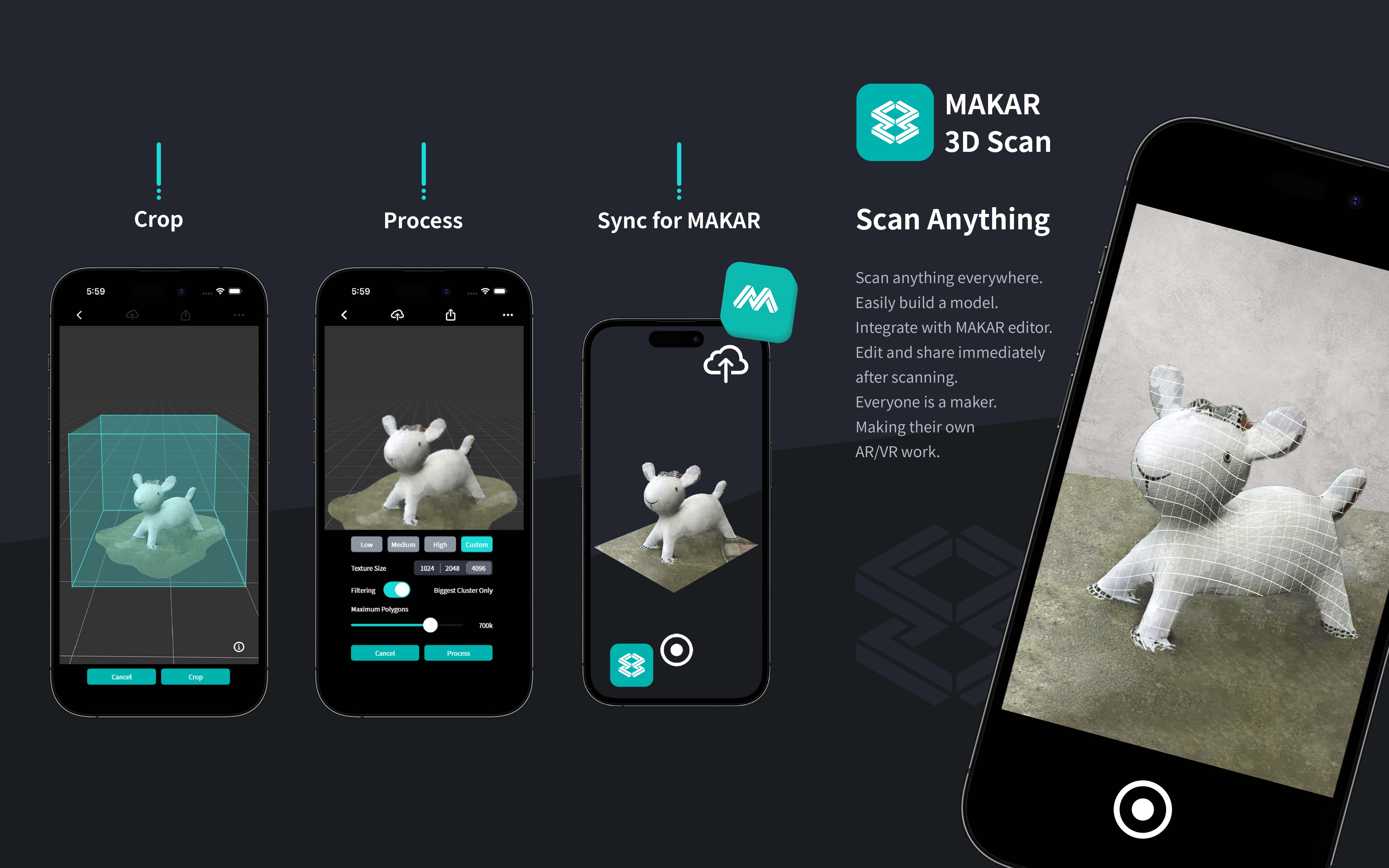
MAKAR introduces the iPhone/iPad version of the "MAKAR 3D Scan" app. Without any additional equipment, you can scan and create 3D models with just an iPhone or iPad, transforming your favorite spaces or objects into models quickly and easily, making it a powerful tool for XR creators. This guide will detail how to use the iPhone/iPad version of the MAKAR 3D Scan app.
Table of Contents |
|---|
iPhone/iPad MAKAR 3D Scan Features Introduction
No additional equipment is needed—creating 3D models is that simple! In the future of the metaverse, everyone should be able to quickly enter the XR world, and MAKAR 3D Scan is the gateway from reality to virtuality, and the most powerful 3D modeling tool for every XR creator.
Here are the detailed features of the MAKAR 3D Scan app for iPhone/iPad:
1.Scan Everything with Your Phone and Computer: Take photos around the object you want to turn into a 3D model, import the photos into MAKAR 3D Scan, and with just a phone and a computer, you can quickly scan and produce a 3D model.
2.Customizable Scan Precision: Worried that your scanned 3D model might be too large or not detailed enough? MAKAR 3D Scan offers options for model precision and background removal, allowing you to adjust the 3D model according to your needs.
3.Supports Various 3D Format Outputs: The 3D models created with MAKAR 3D Scan can be exported in USDZ, OBJ, GLB, and STL formats, making it easy to apply them across different platforms.
4.Direct Integration with MAKAR Editor Library: Log in to your MAKAR account, and the 3D models scanned with MAKAR 3D Scan will automatically be imported into your MAKAR Editor library, allowing you to quickly start editing in the metaverse XR without any additional steps.
5.Unlock the Chains of the XR Metaverse: Easily enter the infinite XR world. MAKAR 3D Scan builds a bridge between reality and virtuality for you!
Minimum Hardware Requirements and Download Instructions for iPhone/iPad MAKAR 3D Scan
【Software Name】: MAKAR 3D Scan for iPhone/iPad
【Language】: Traditional Chinese, English
【Minimum Requirements】: Space scanning requires a LiDAR camera; object scanning (Scan Wizard) requires LiDAR functionality and an A14 Bionic chip or later, running on iOS or iPadOS 17 or higher.
【Download Location】: iOS Download
iPhone/iPad MAKAR 3D Scan Tutorial
【Basic Features Introduction】
➤ Scan Settings
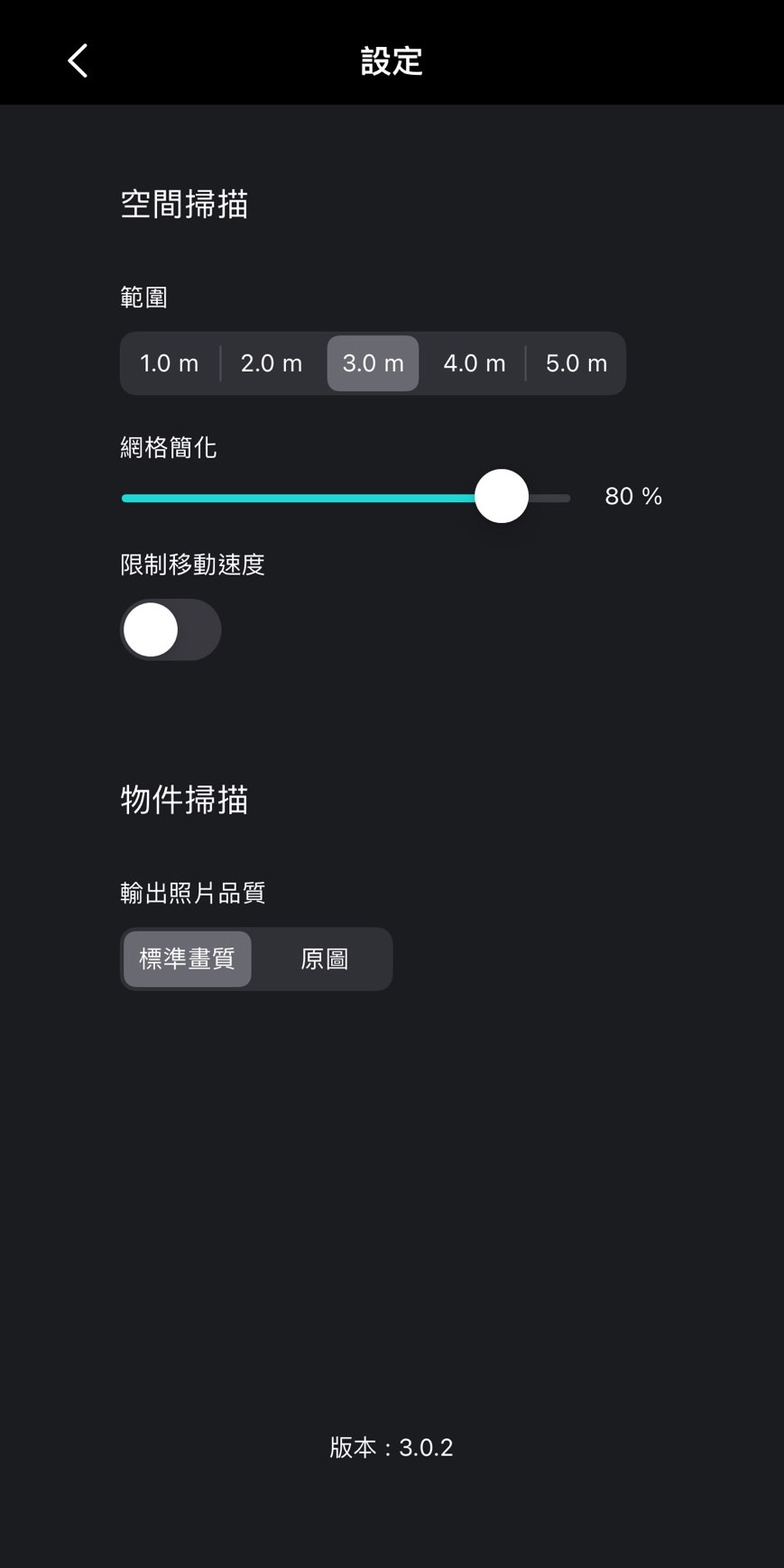
1. Click the menu icon in the upper left corner, then select "Settings".
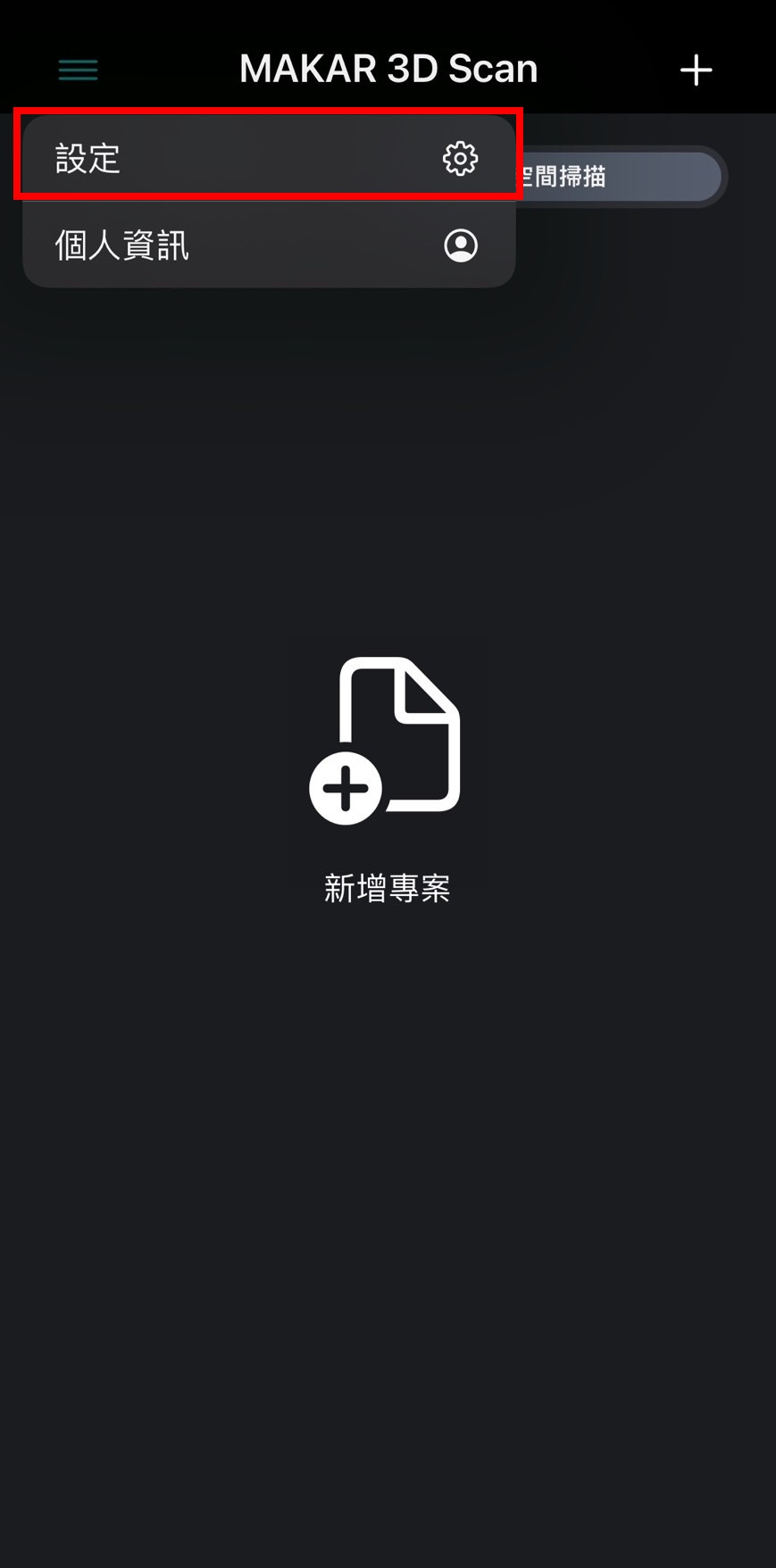
2. You can set the range and mesh simplification for space scans, and the photo quality for object scans.
➤ Logging into MAKAR Account
1. Click the menu icon in the upper left corner, then select "Personal Information".
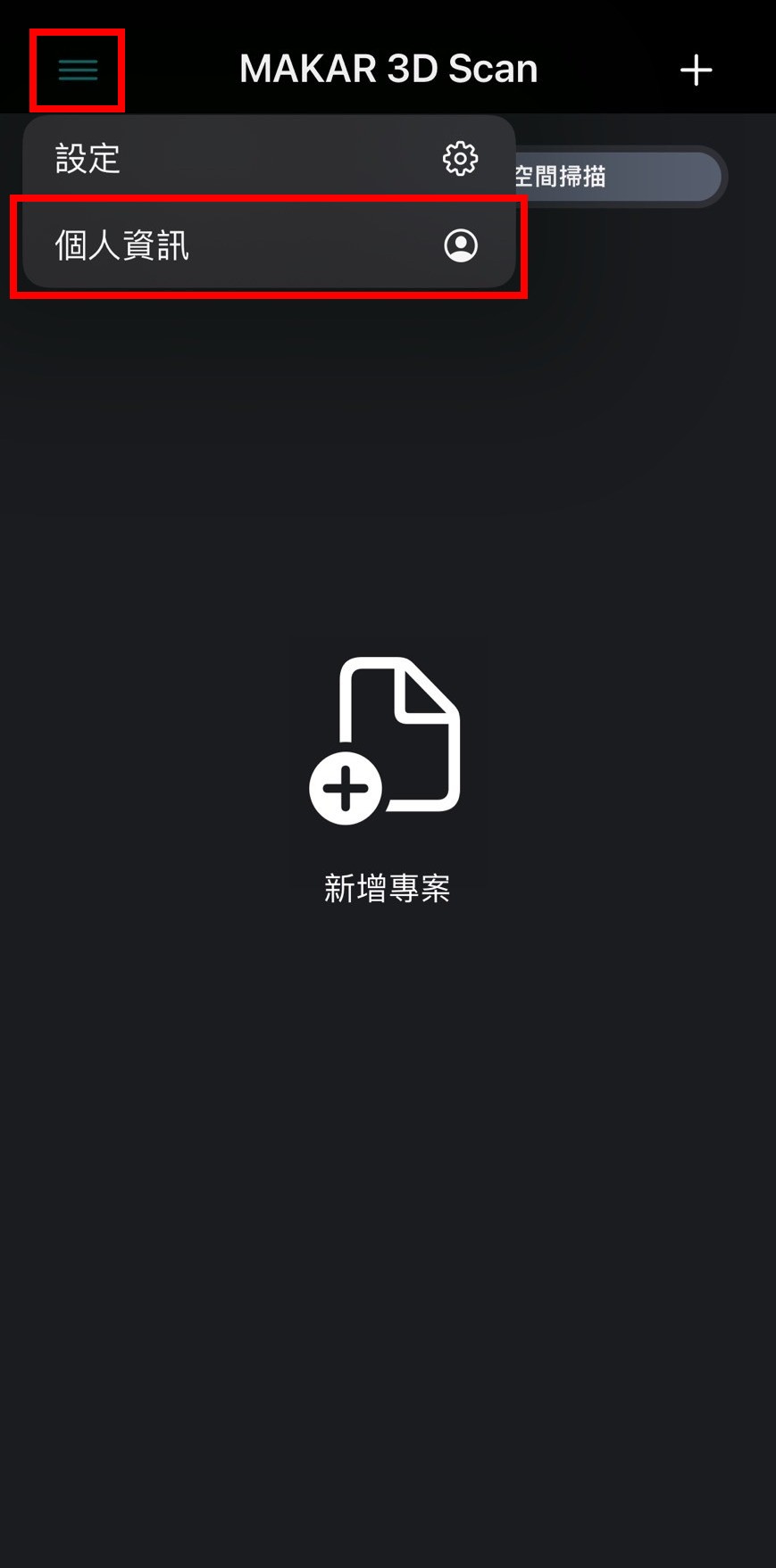
2. After logging into your MAKAR account, the created 3D objects can be directly uploaded to the MAKAR Editor.
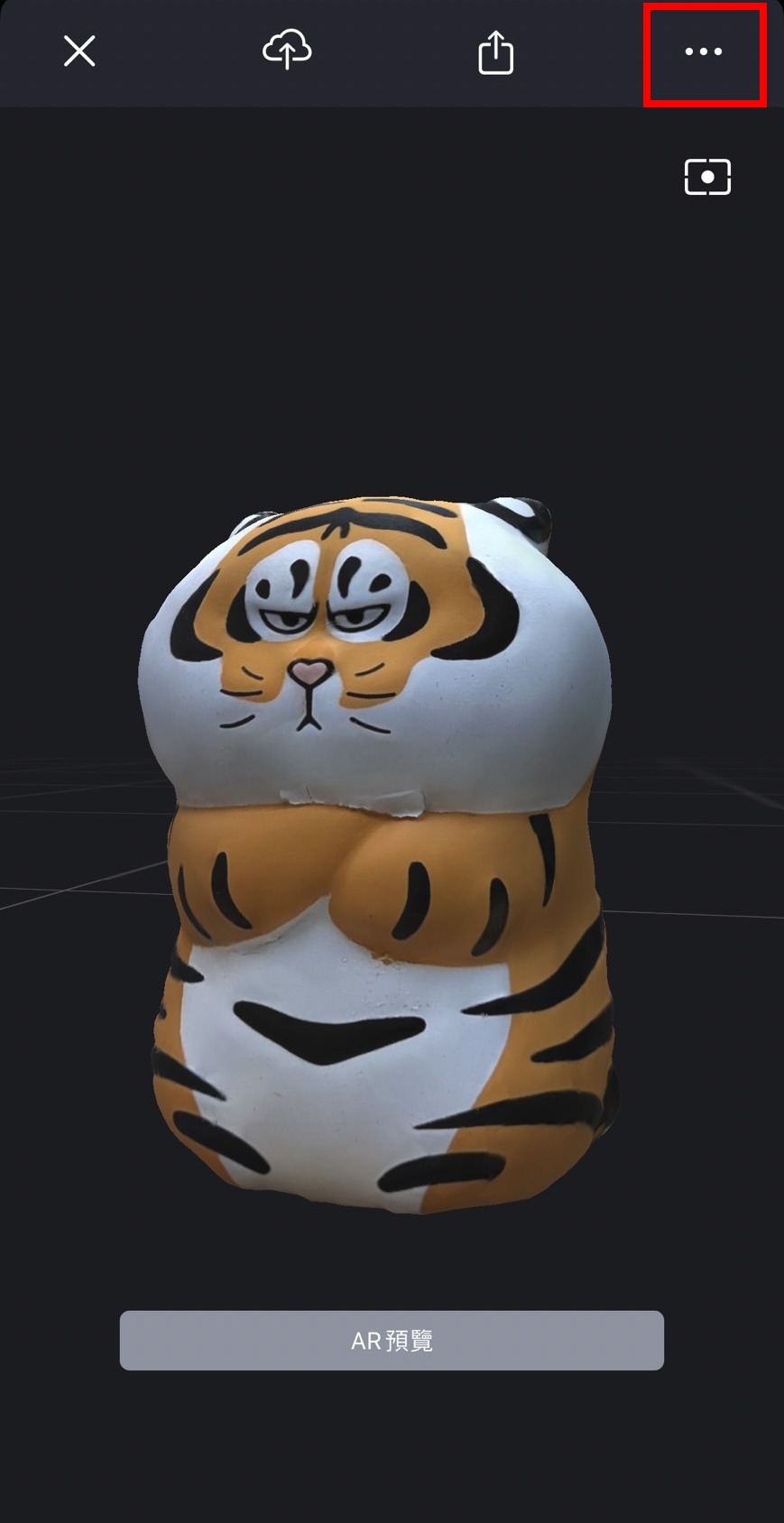
➤ Renaming Projects
1. After the 3D object is created, click the icon with three white dots.
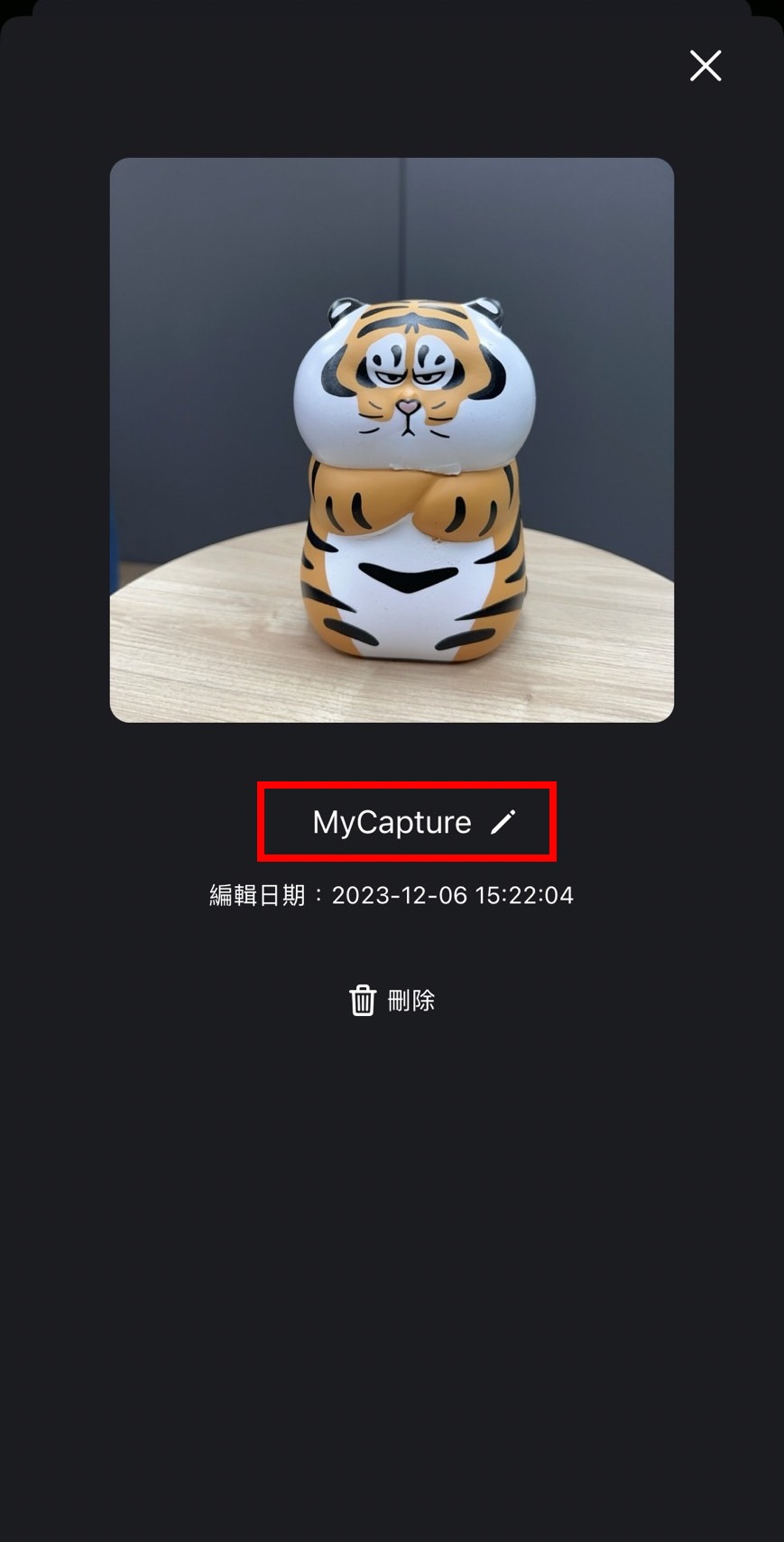
2. Click the project name to rename the project.
【Room Scan】
1. Open the MAKAR 3D Scan app on your iPhone or iPad, and tap the "+" icon in the upper right corner.
.jpg)
2. Select "Room Scan" on the right.
.jpg)
3. Enter the scanning space, align with the scene to be created, and press the red button to start scanning. Once the data is successfully captured, the scene will gradually be constructed with a grid while the red area disappears. It is recommended to move around and let the system capture the space until it is fully captured, then press the white button.
.jpg)
.jpg)
4. Then enter the "Post-Processing" step. The screen will display resolution options. You can choose low, medium, high, or custom for automatic post-processing by the system.
.jpg)
.jpg)
5. Next, click "Crop" to enter the cropping step.
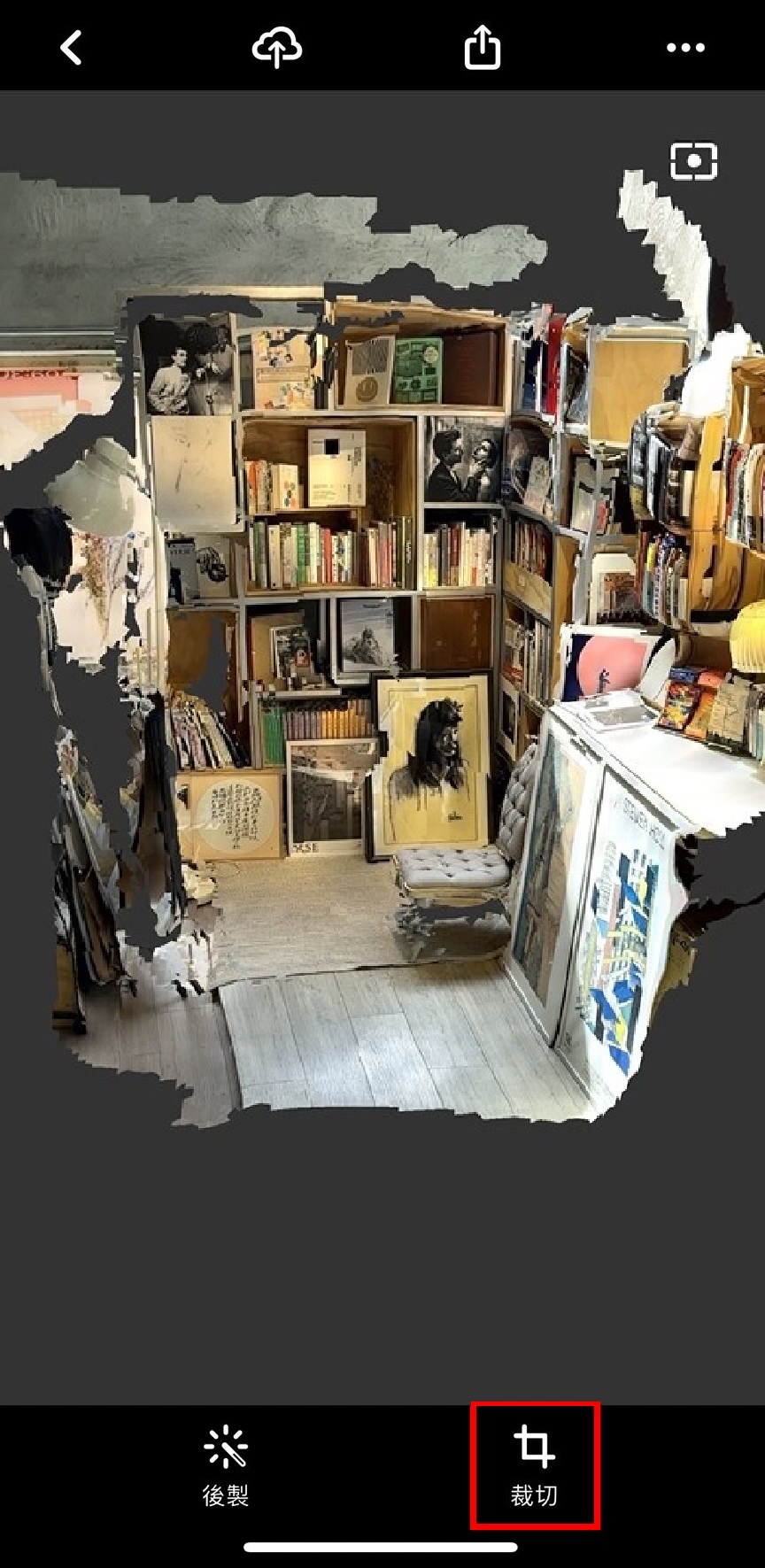
6. Follow the instructions to trim the scene to the appropriate size, then press "Crop" to complete. If you need to reprocess the resolution or recrop the scene, you can click "Post-Processing" and "Crop" to adjust.
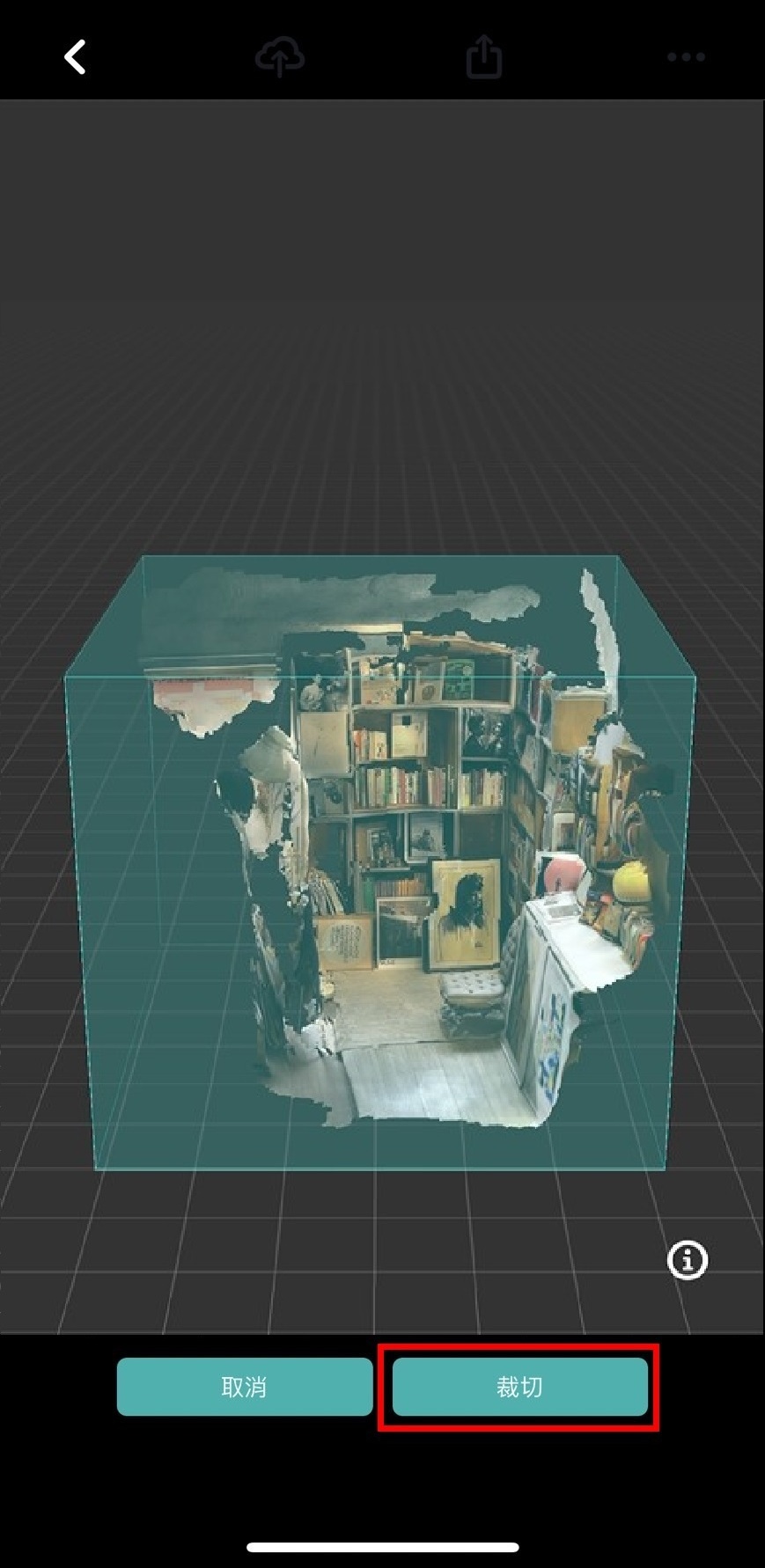
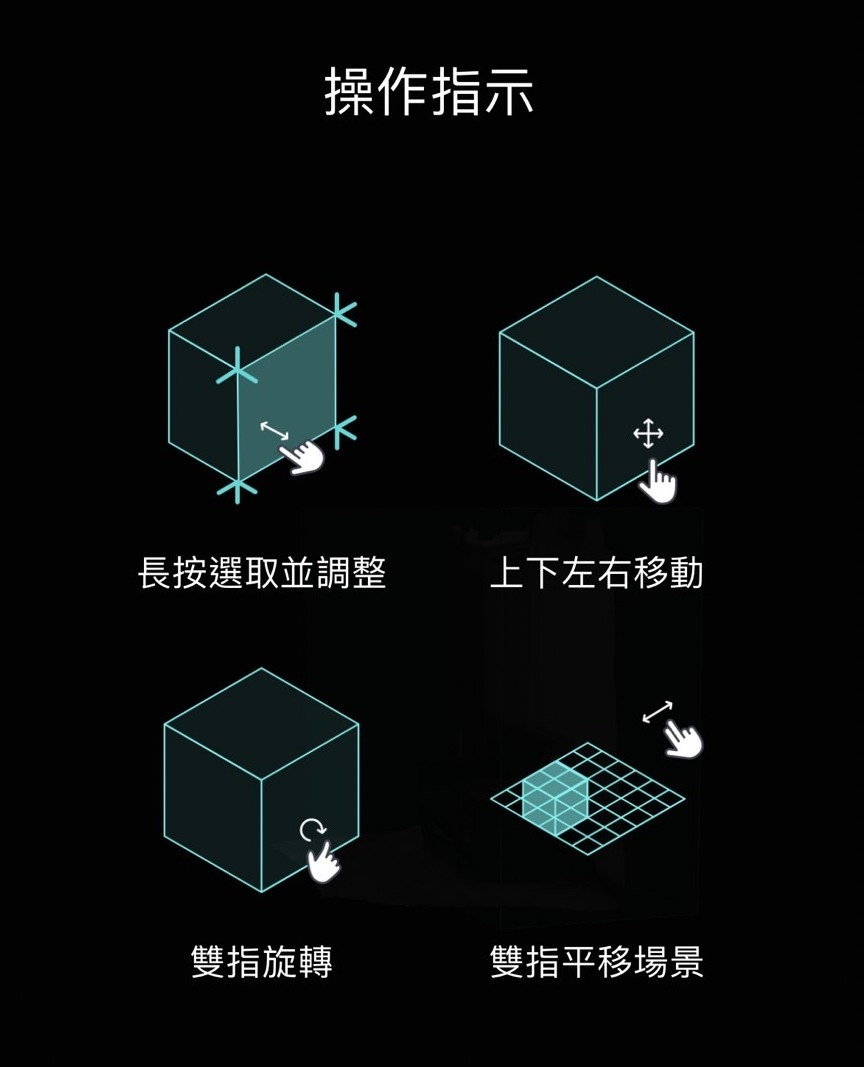
7. Once the scene is created, if reprocessing or recropping is needed, you can adjust it again.
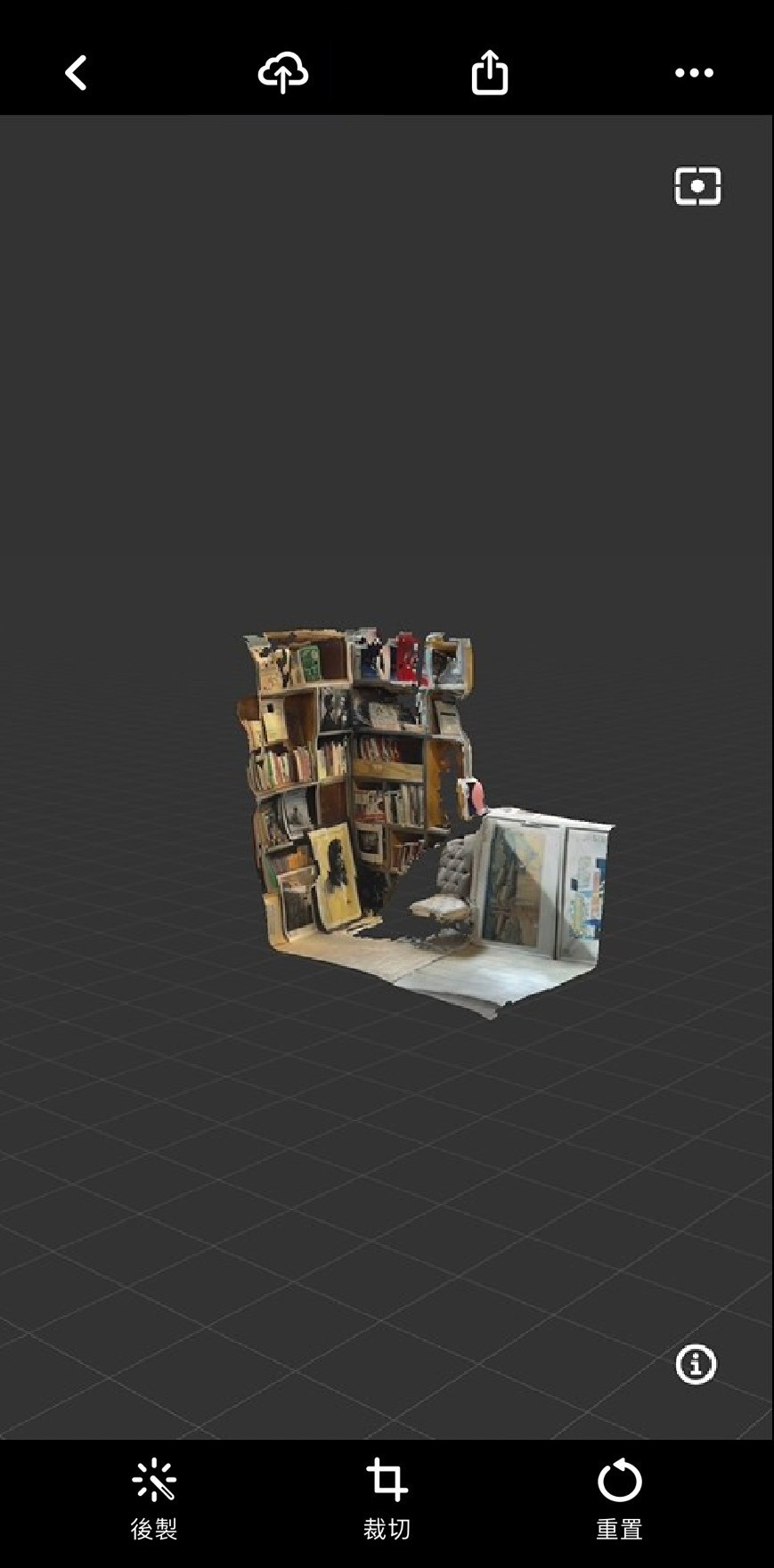
【Object Scan】
MAKAR 3D Scan's object scanning is divided into "Scan Assistant" and "Manual Capture" functions. Scan Assistant requires devices with LiDAR functionality and A14 Bionic chip or higher, and iOS or iPadOS 17 or higher; Manual Capture only requires a camera to create models. Manual Capture tutorials have also been introduced in the MAC version of MAKAR 3D Scan.
Using Scan Assistant provides more depth information, making the model almost identical to the real object. Manual Capture allows for simple photo scanning, which is more convenient. The following explains how to use both "Scan Assistant" and "Manual Capture".
➤ Scan Assistant
1. Open the MAKAR 3D Scan app on your iPhone or iPad, and tap the "+" icon in the upper right corner.
2. Select "Object Scan" on the left.
.jpg)
3. Select "Scan Assistant" on the left.
.jpg)
4. Approach the target and center it, then click lock.
.jpg)
5. A white frame appears around the object. You can adjust the lock size with your finger. Once confirmed, press "Start Scan".
.jpg)
6. Enter the scanning page. The white dot serves as the scanning center. Move around the object to scan and fill the scale track. The screen bottom synchronizes the scanning status, with white representing the filled scale. Once the scale is filled, proceed to the next step.
.jpg)
.jpg)
7. Aim to maintain distance and fill the scale while scanning the object, requiring at least 20 scans. If distance is too far or movement is too fast, small prompts will appear above the object to remind the user.
.jpg)
.jpg)
8. Once the scale is filled, the screen automatically enters the second scanning step. Click "Continue" to scan parallel to the object again.
.jpg)
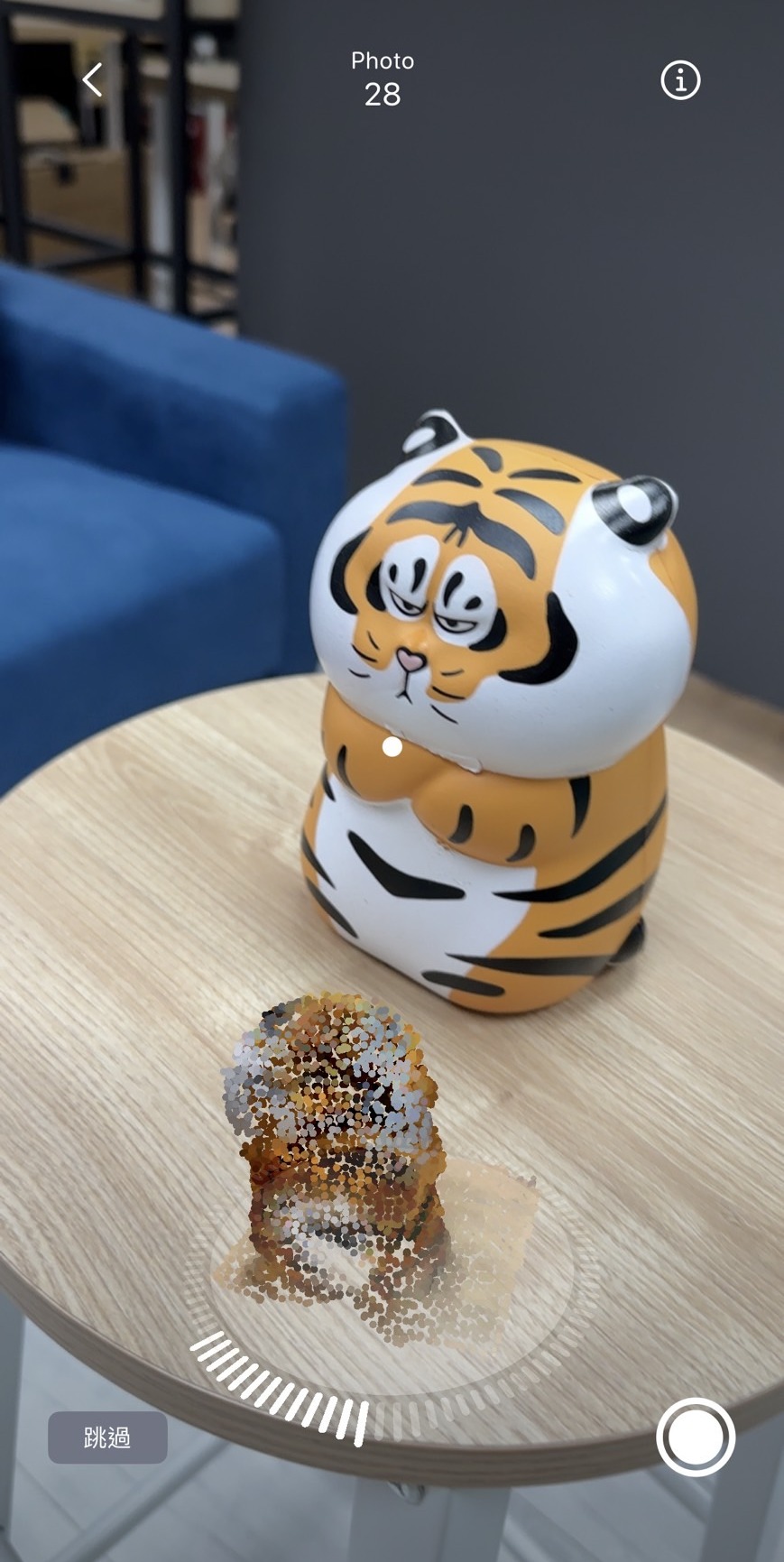
9. Once the scale is filled, the screen automatically enters the third scanning step. Click "Continue" to scan from above the object again.
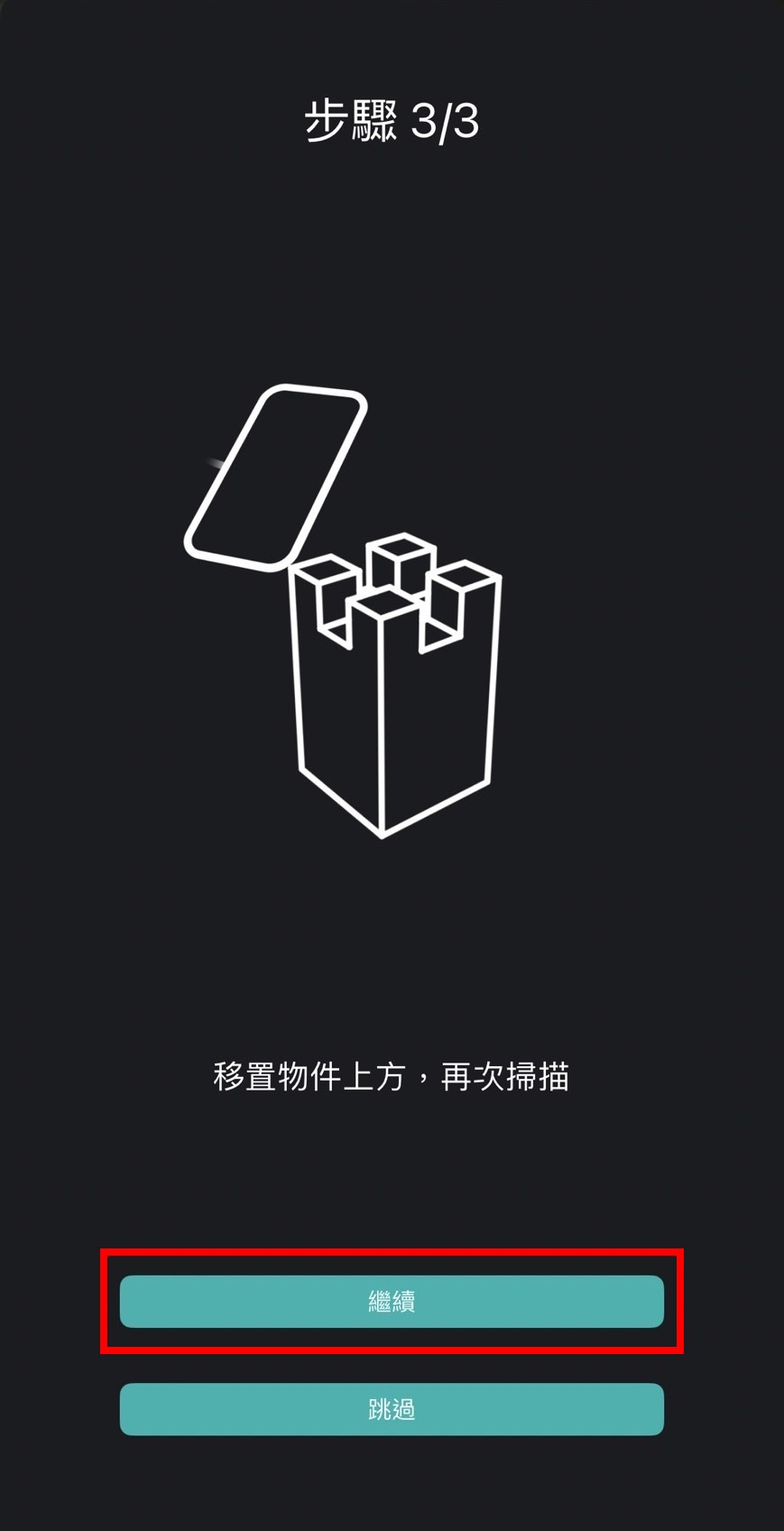
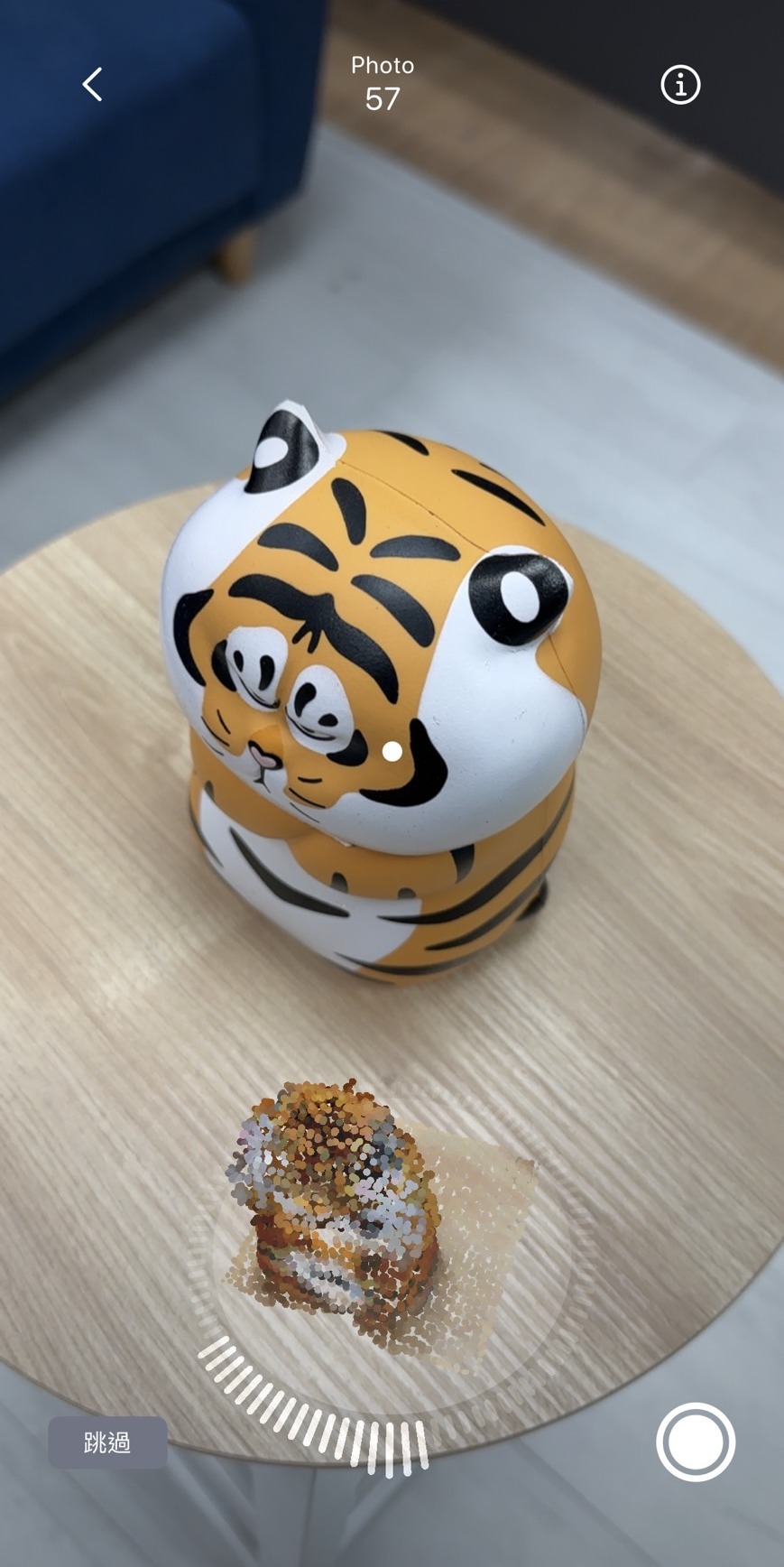
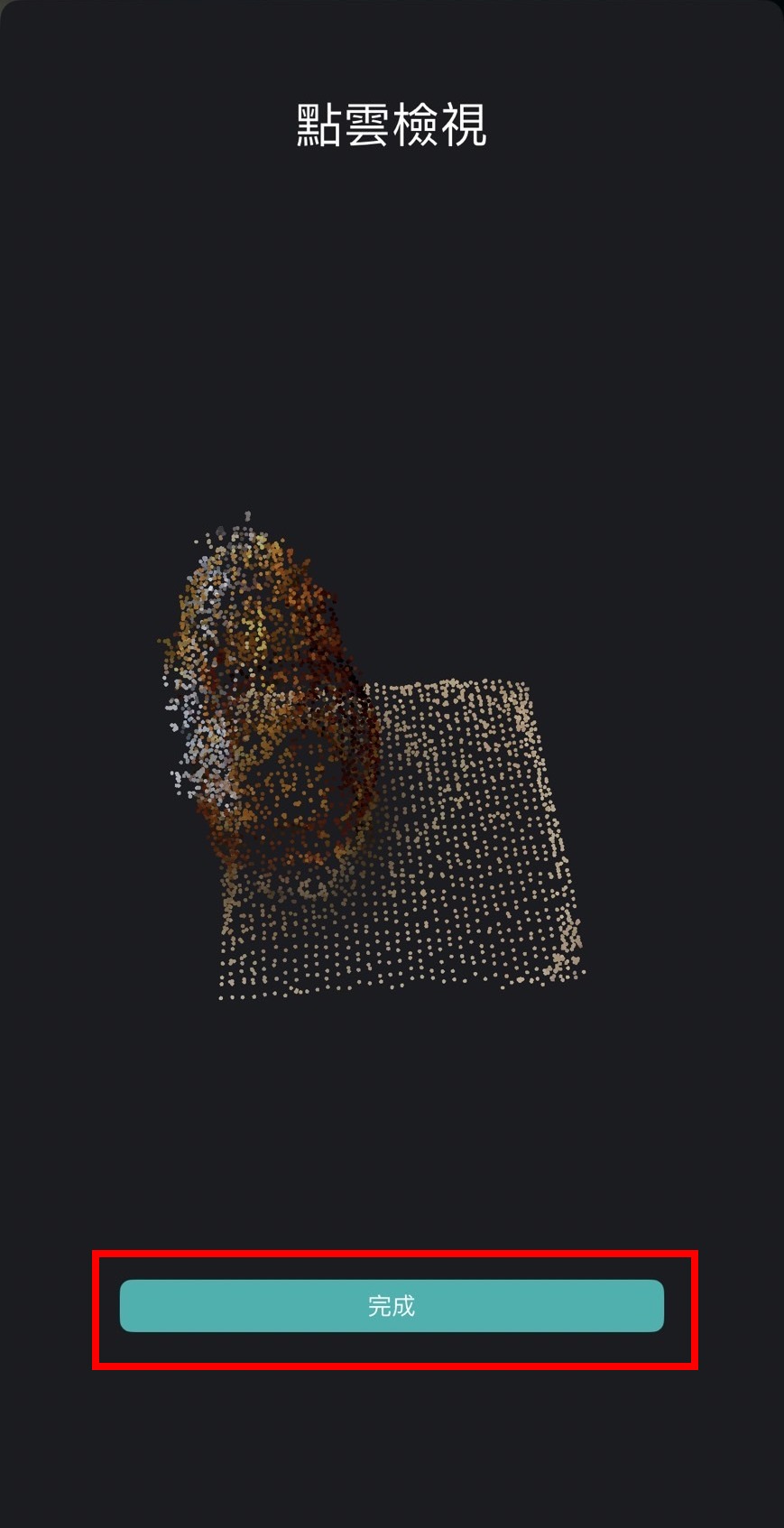
10. After completion, a preview of the object point cloud appears. Click "Finish".
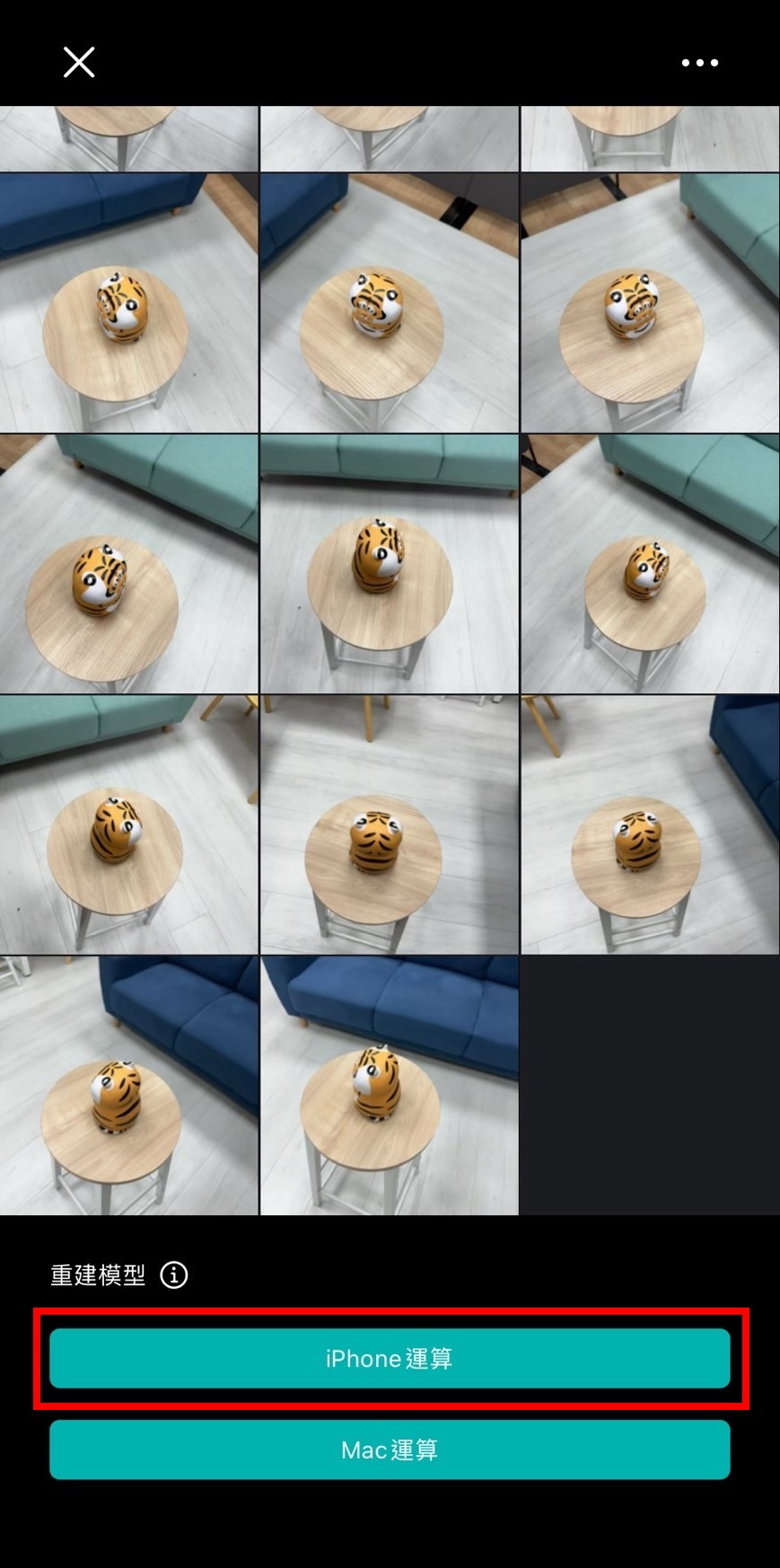
11. Click "iPhone Computing" to create the model.
12. Once the object is created, click "AR Preview" to view the object in augmented reality on your phone.
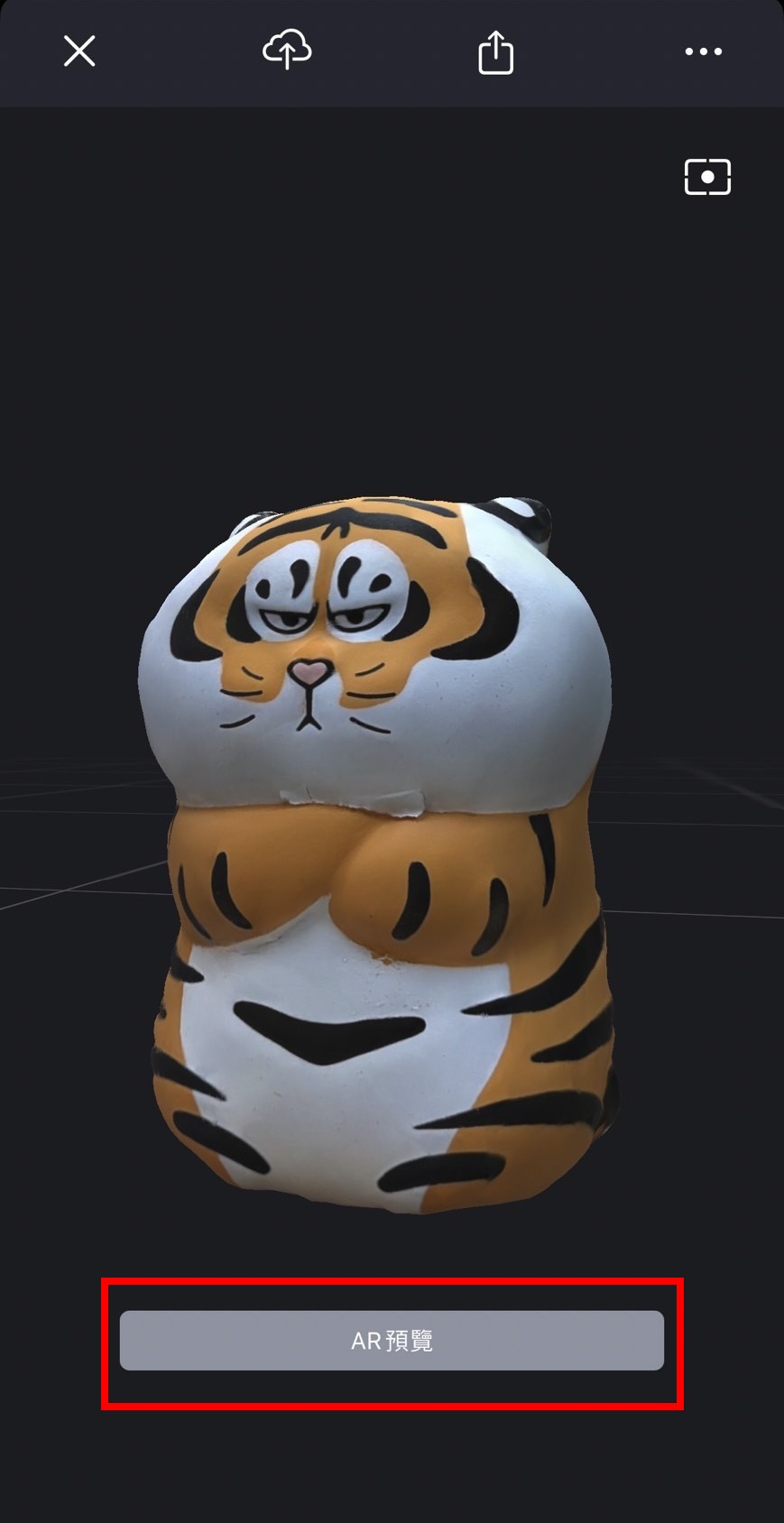
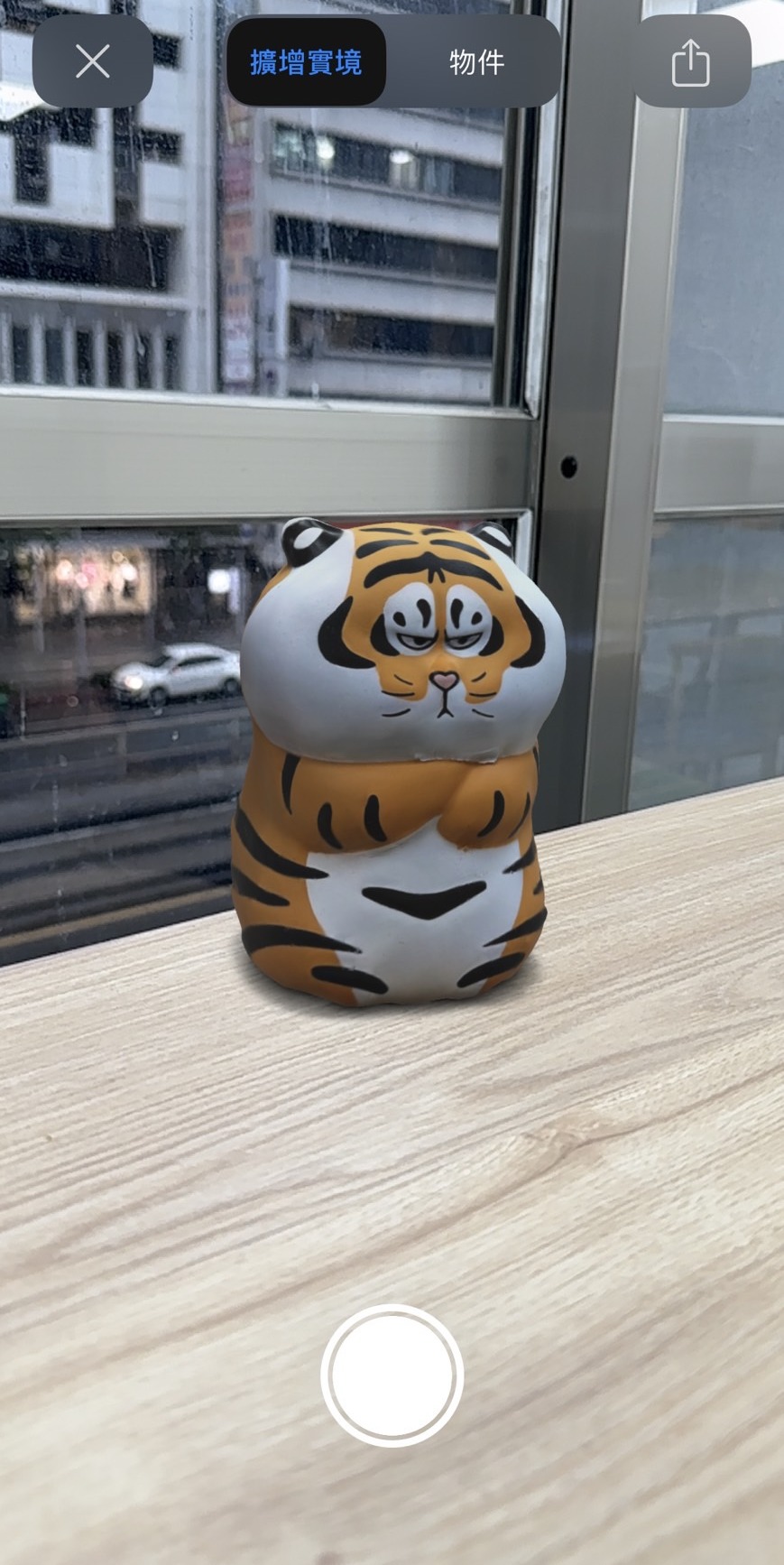
➤ Manual Cpature
1. Open the MAKAR 3D Scan app on your iPhone or iPad, and tap the "+" icon in the upper right corner.
.jpg)
2. Select "Object Scan" on the left.
.jpg)
3. Select "Manual Capture" on the right.
.jpg)
4. Aim for clear shots, filling the frame, and maintaining 70% overlap. Use the white button to take pictures around the object. It is recommended to take at least 20 shots each from the front, top, and bottom for the next step.
※ The more shots taken, the better the modeling details. Up to 200 shots can be taken.
.jpg)
.jpg)
5. Click "iPhone Computing" to create the model.
.jpg)
6. Once the object is created, click "AR Preview" to view the object in augmented reality on your phone.
.jpg)
.jpg)
【Uploading 3D Models to MAKAR Editor】
1.Click the red frame icon to directly upload the scanned object to the MAKAR Editor.
※ Requires logging into a MAKAR account.
.jpg)
.jpg)
2. After uploading to the MAKAR software, the model will appear in the asset library.
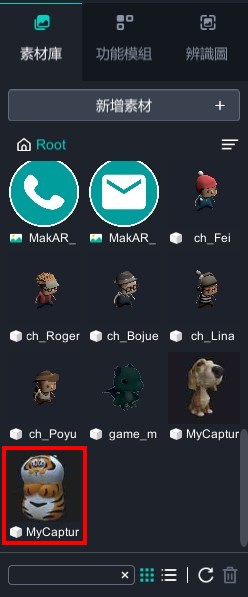
【Exporting 3D Model Files】
The iPhone/iPad version of MAKAR 3D Scan supports exporting the completed 3D models, facilitating XR project creation. To learn more about the differences and conversion methods of 3D file formats, refer to the guide on Understanding GLB, OBJ, STL, and Other Common 3D File Formats, with Blender Conversion Tutorial Included!
1. Click the red frame icon to support exporting 3D formats: USDZ, OBJ, GLB, STL.
※ Exporting models is exclusive to MAKAR professional account users.
.jpg)
.jpg)
2. If the account is not upgraded but wants to export 3D models, you can first upload the 3D model to the MAKAR Editor. Click "Window" → "My Resources", select the created 3D model, and finally click the red icon to download it to the computer.
※ This function only supports downloading in GLB format.
.jpg)
.jpg)
Understanding GLB, OBJ, STL, and Other Common 3D File Formats, with Blender Conversion Tutorial Included!
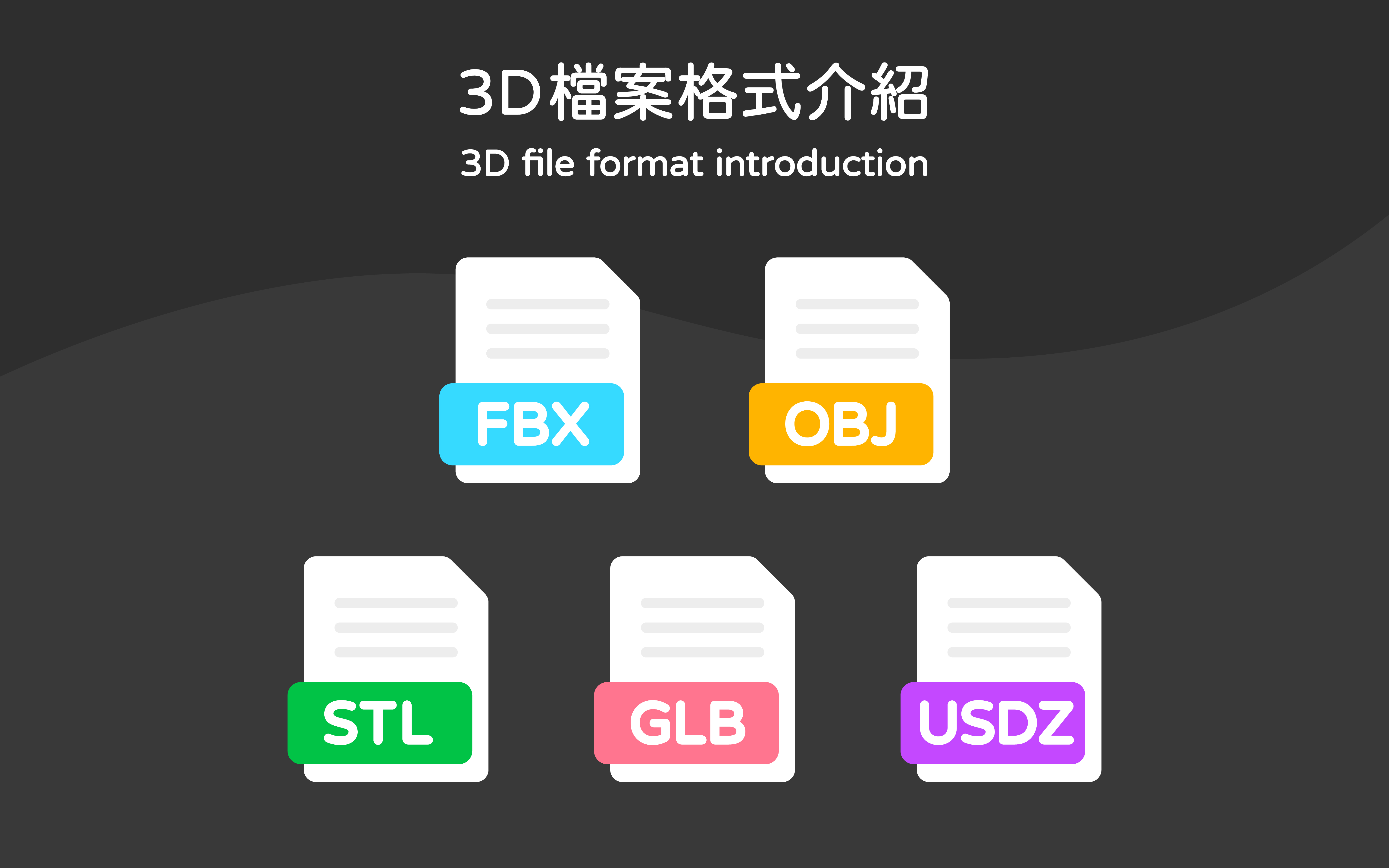
When working with 3D models, you may have encountered file formats like FBX, OBJ, GLB, etc. Each file format has its own usage and applicable scenarios. This tutorial will guide you through understanding common 3D formats, which formats MAKAR supports, and how to convert them into suitable formats to save time when handling models.
Content Overview |
|---|
Introduction to Various 3D File Formats
【 FBX、OBJ、STL、GLB、USDZ 】
FBX|A 3D file format released by AutoDesk.
The file supports 3D geometry, textures, skeletons, and also supports music and video elements.
If you need to export dynamic 3D models, it is recommended to use FBX.
OBJ|A 3D file format released by Wavefront Technology.
The file supports 3D geometry and texture data but does not support animation, music, or video elements.
Since it can record fewer types of data compared to FBX, the data volume is relatively smaller.
If you need to export static 3D models, it is recommended to use OBJ.
STL|A 3D file format released by 3D Systems.
Mainly used for 3D printing and computer-aided design (CAD), it does not support 3D texture data.
Typically, STL data is loaded into 3D printers for printing, assisting designers in producing prototype parts.
GLB|A 3D file format released by Khronos Group.
An optimized model format that can merge model materials, textures, and animation information into a single file.
It can easily display 3D content on the web and is sometimes referred to as the JPEG of 3D.
The file supports simple animations and is usually smaller in size.
USDZ|A 3D file format released by Pixar Animation Studios and Apple.
Specifically used for storing AR images, including playing music. iPhone and iPad can use AR Quick Look to browse USDZ, but it is limited to iOS products.
【3D File Format Comparison Table】
|
File Format |
Purpose |
Texture |
Animation |
Media |
File Size |
|---|---|---|---|---|---|
|
FBX |
3D Modeling |
External Texture |
Supports Animation |
Supports Music, Video |
Larger |
|
OBJ |
3D Modeling |
External Texture |
Static |
Not Supported |
Moderate |
|
STL |
3D Printing |
Not Supported |
Static |
Not Supported |
Smaller |
|
GLB |
Display 3D Models on the Web |
Texture included in one file |
Supports Animation |
Not Supported |
Smaller |
|
USDZ |
Display 3D Models on Apple Devices |
External Texture |
Supports Animation |
Not Supported |
Smaller |
3D File Formats Supported by MAKAR
【 Supported Types in MAKAR Editor 】
The MAKAR Editor now supports uploading both FBX and GLB 3D file formats. You can upload your own 3D models or download free objects from 3D asset websites like Sketchfab. Simply search for the desired object, select the downloadable option, and choose either FBX or GLB format to download.
※Although the MAKAR Editor's online asset library provides direct access to Sketchfab models for easy one-click downloads, these models often have their file sizes maximized by default, leading to larger project files. To make your files more lightweight, it’s recommended to download models from the Sketchfab website directly.

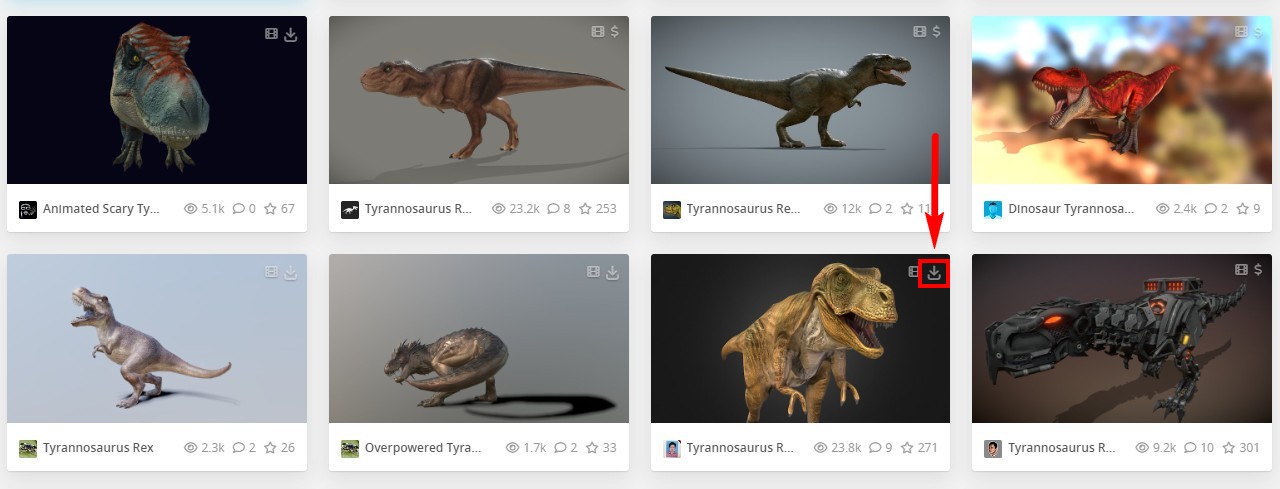
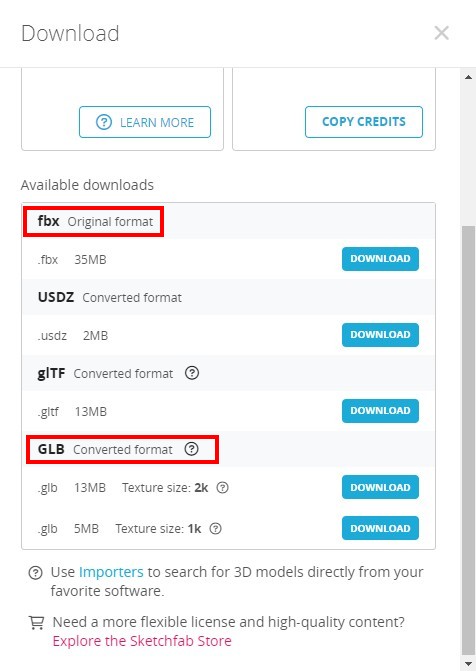
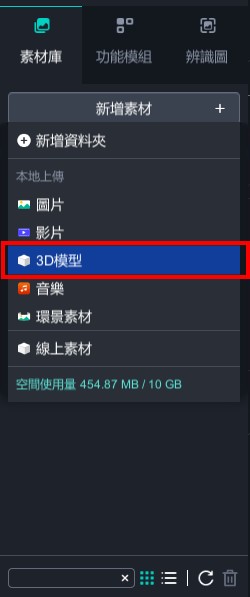
Open the MAKAR Editor, click "Add Asset" ➔ "3D Model" and upload the GLB or FBX file. Once uploaded, the model will appear in your asset library, ready to be dragged to the center for editing. It is recommended to upload GLB files for smaller size and faster processing.
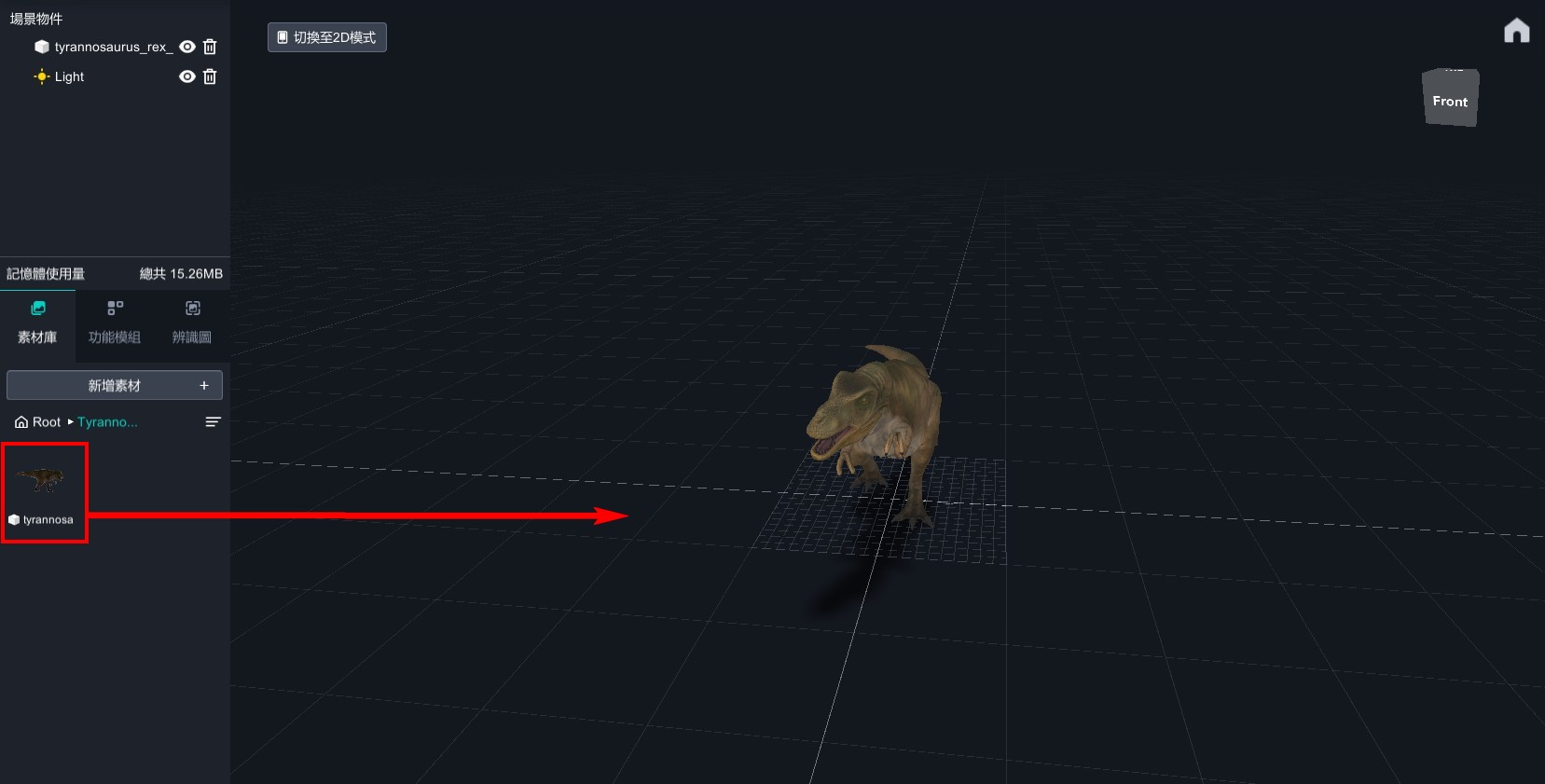
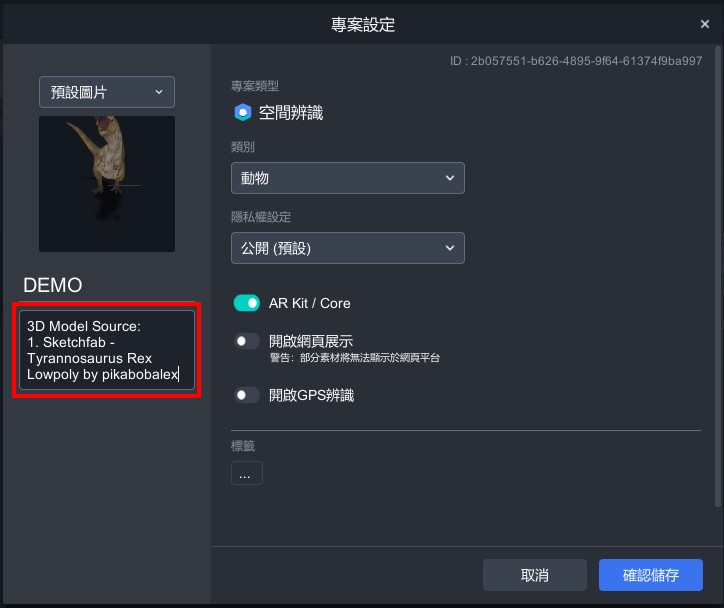
For any free models downloaded from external websites, please credit the author in the "Project Settings" description field.
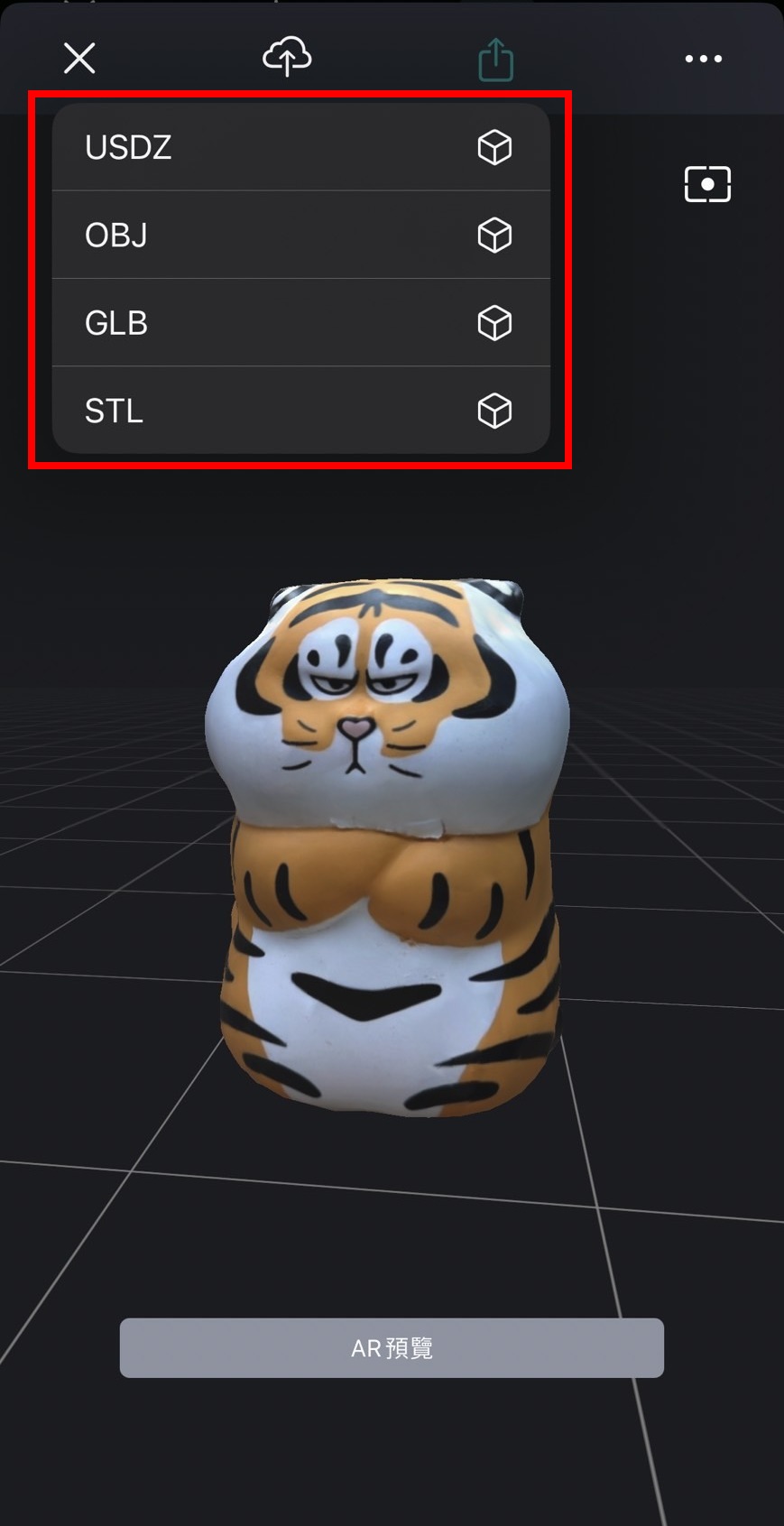
【 3D Model File Export in MAKAR 3D Scan 】
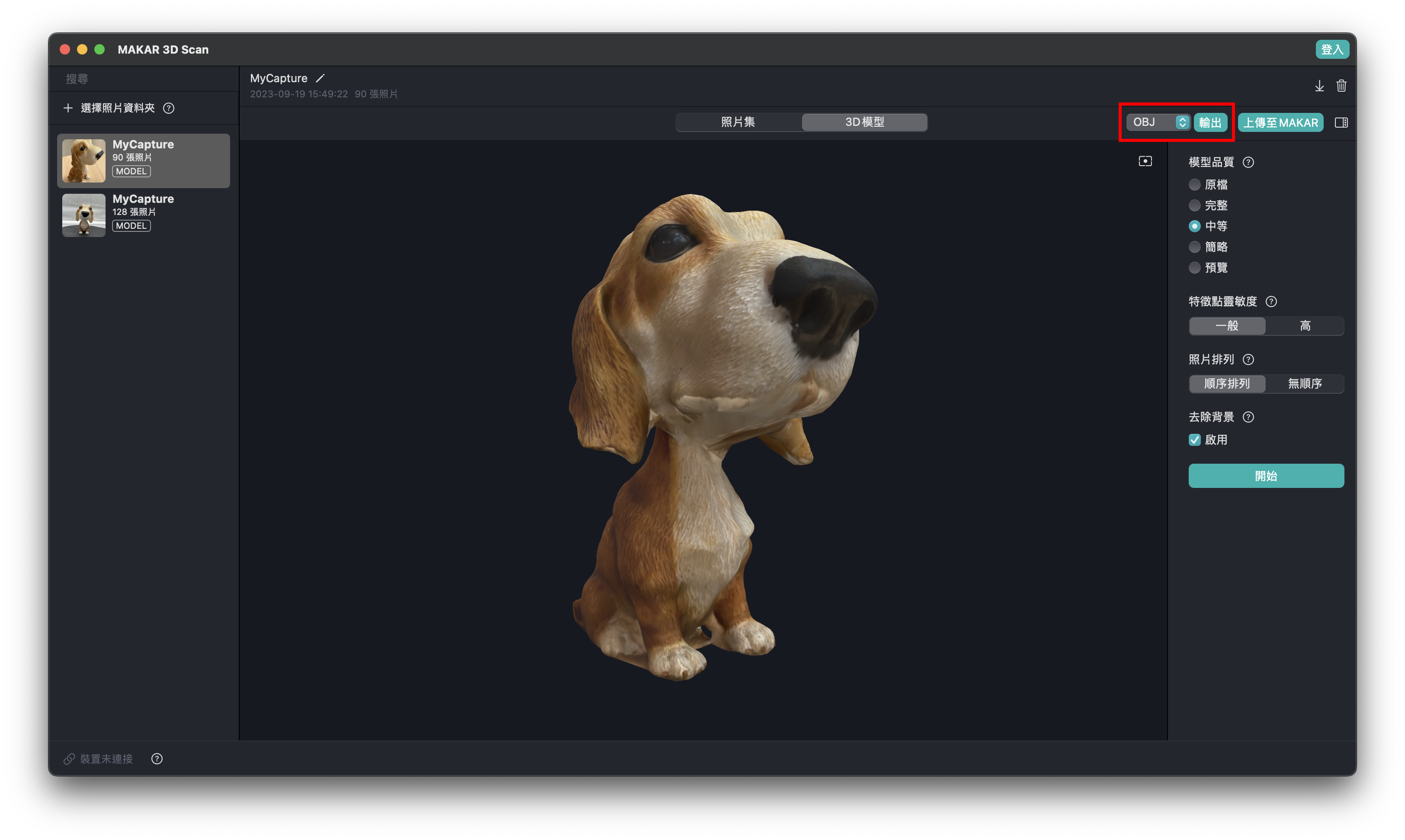
Whether using the iPhone/iPad version or the MAC version of MAKAR 3D Scan, upon completing a scan and model, MAKAR professional account users can export 3D files in USDZ, OBJ, GLB, and STL formats.
▼ iPhone/iPad MAKAR 3D Scan Export Location
▼ MAC MAKAR 3D Scan Export Location
Blender Conversion Tutorial
現今雖有許多線上 3D 轉檔的網站,方便了 XR 創作者使用,但線上轉檔往往有很多不確定性,造成模型毀損、動態失效等狀況時有所聞,若是想要洽當處理 3D 模型,使用 3D 軟體是最佳的選擇,而 Blender 是一個強大且免費的 3D 軟體,任何你在網路上得到的 3D 模型都可以用 Blender 檢查並轉檔,下列將以 Sketchfab 的 恐龍模型(created by pikabobalex) 為範例,敘述如何使用 Blender 軟體轉檔,讓 XR 創作更加輕鬆上手。
【 Converting GLB to FBX 】
▌ Check the File
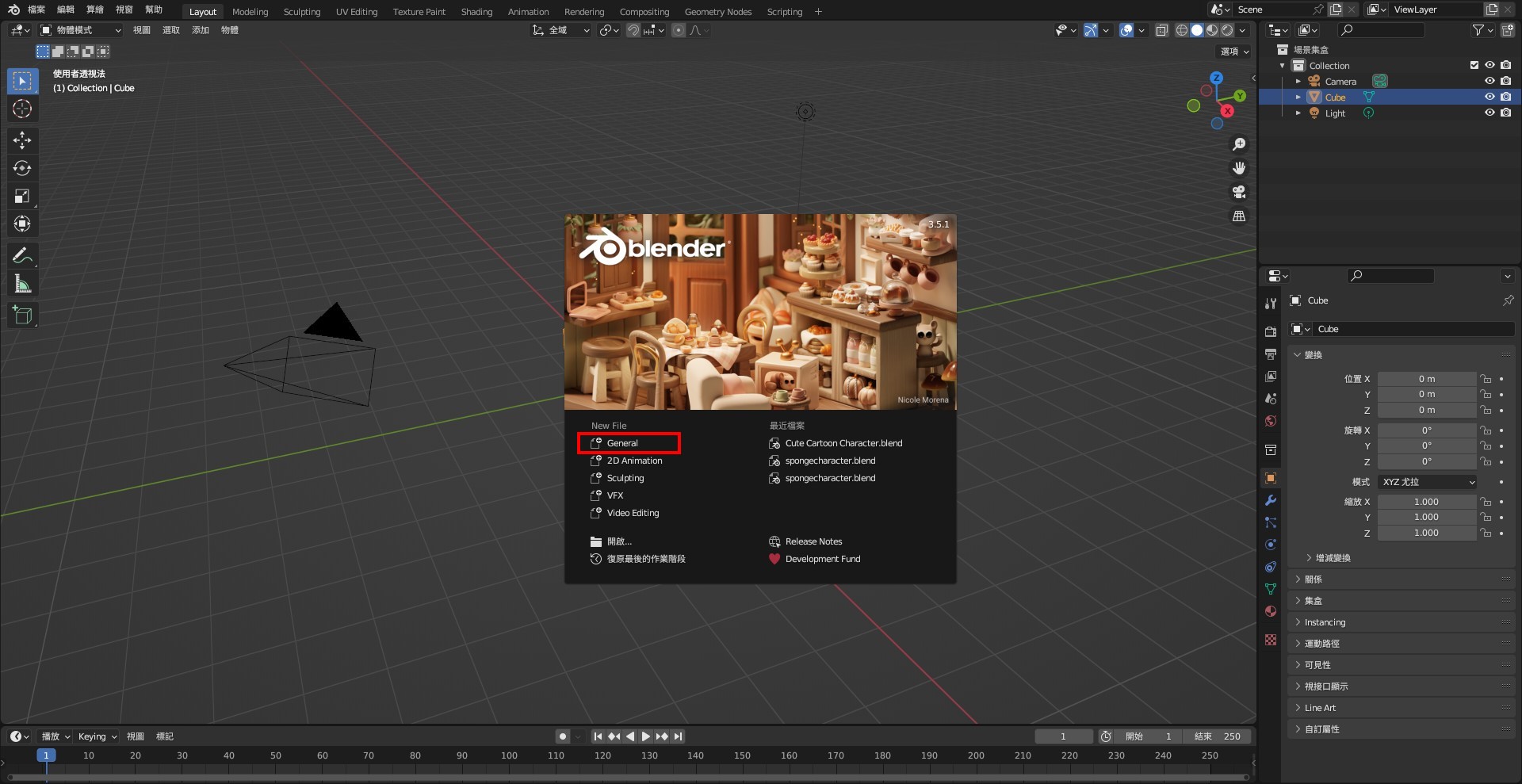
1. Open Blender and select "General."
2. Delete the default cube by selecting it and pressing delete.
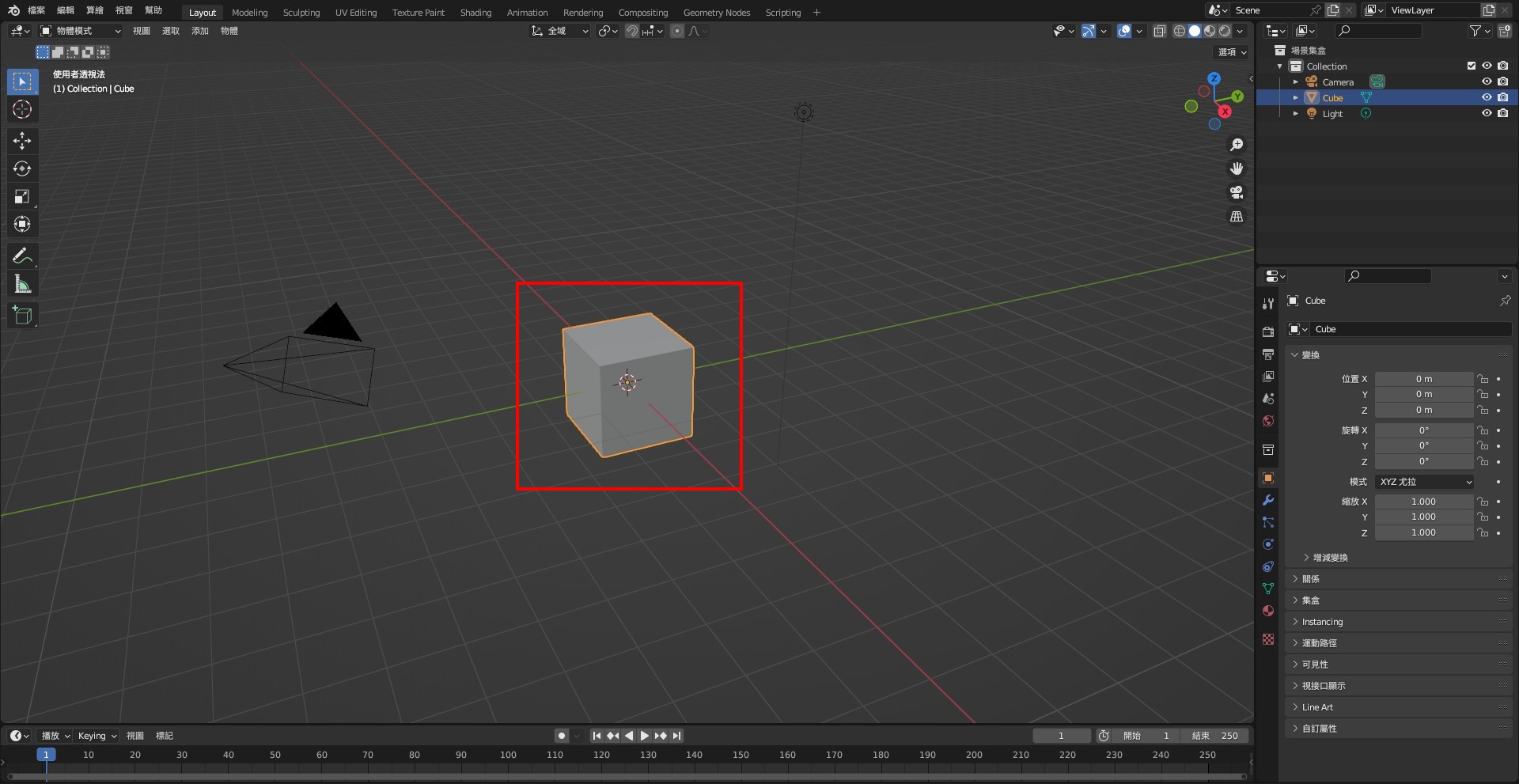
3. Select "File" ➔ "Import" ➔ "glTF 2.0" to import the 3D model you want to convert.
※ Model names must be in English; Chinese filenames cannot be imported.
.jpg)
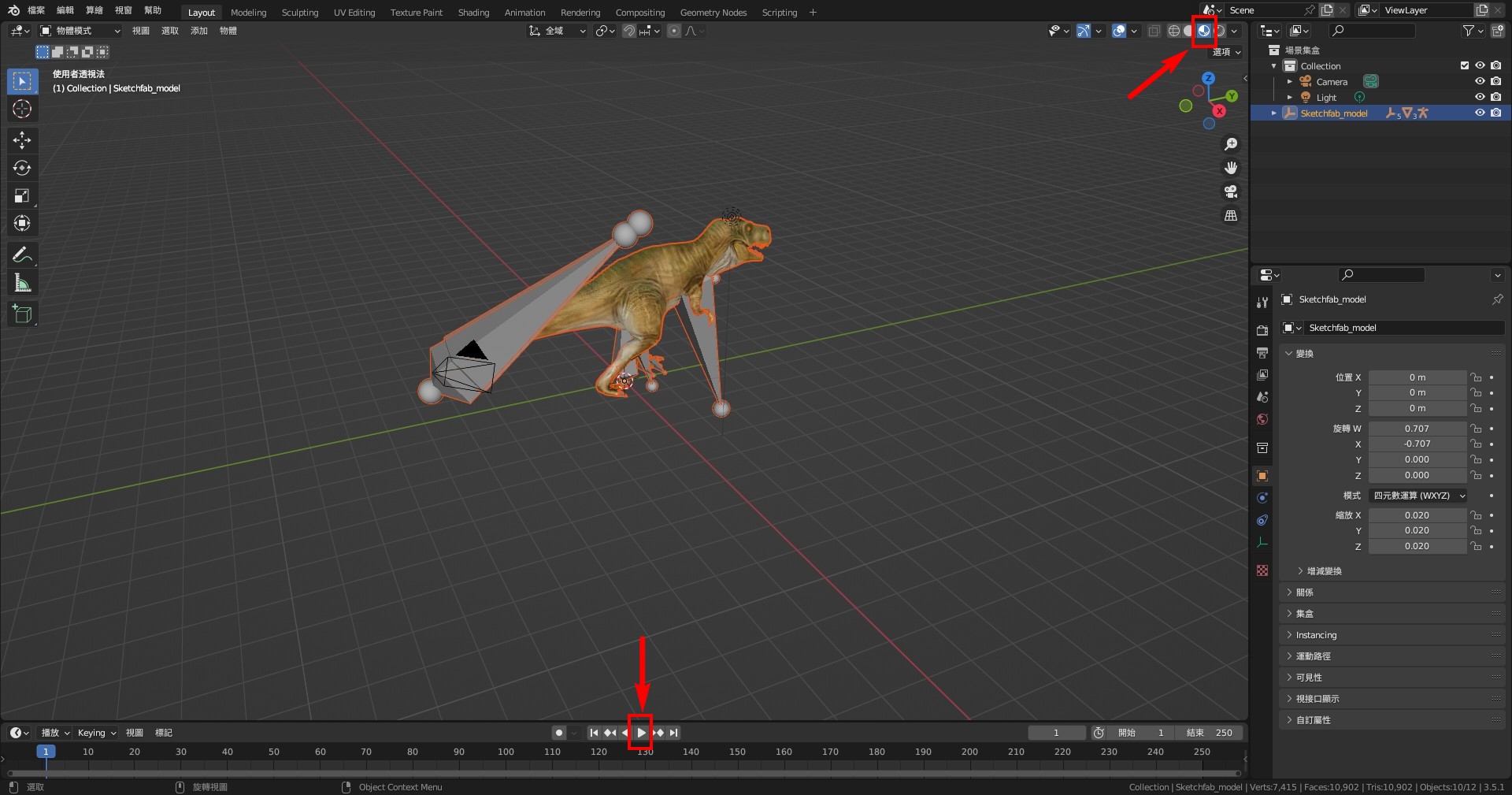
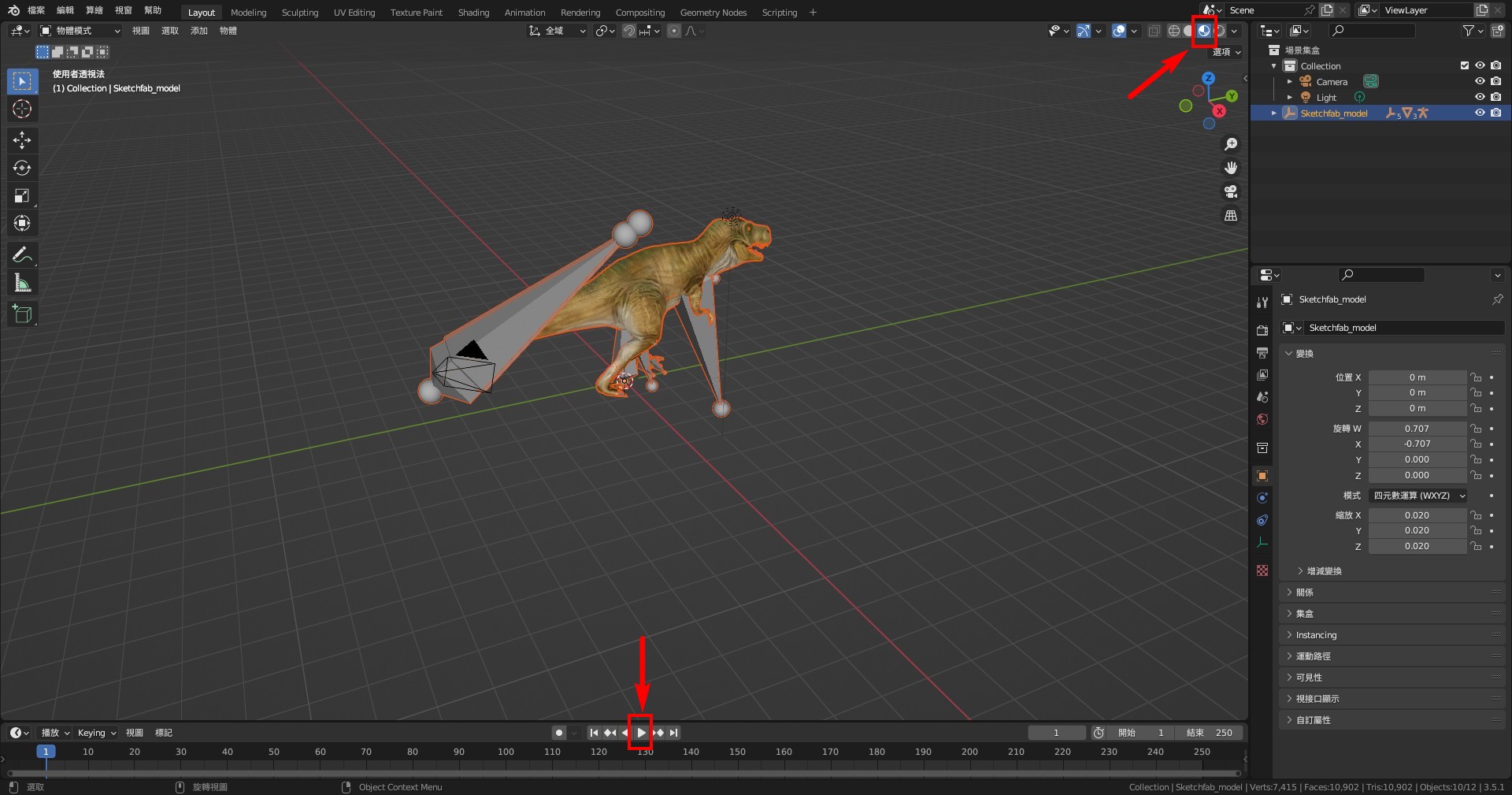
4. Click "Viewport Shading" to check if textures are applied correctly and play the animation to ensure it's working.
▌ Rearrange Nodes
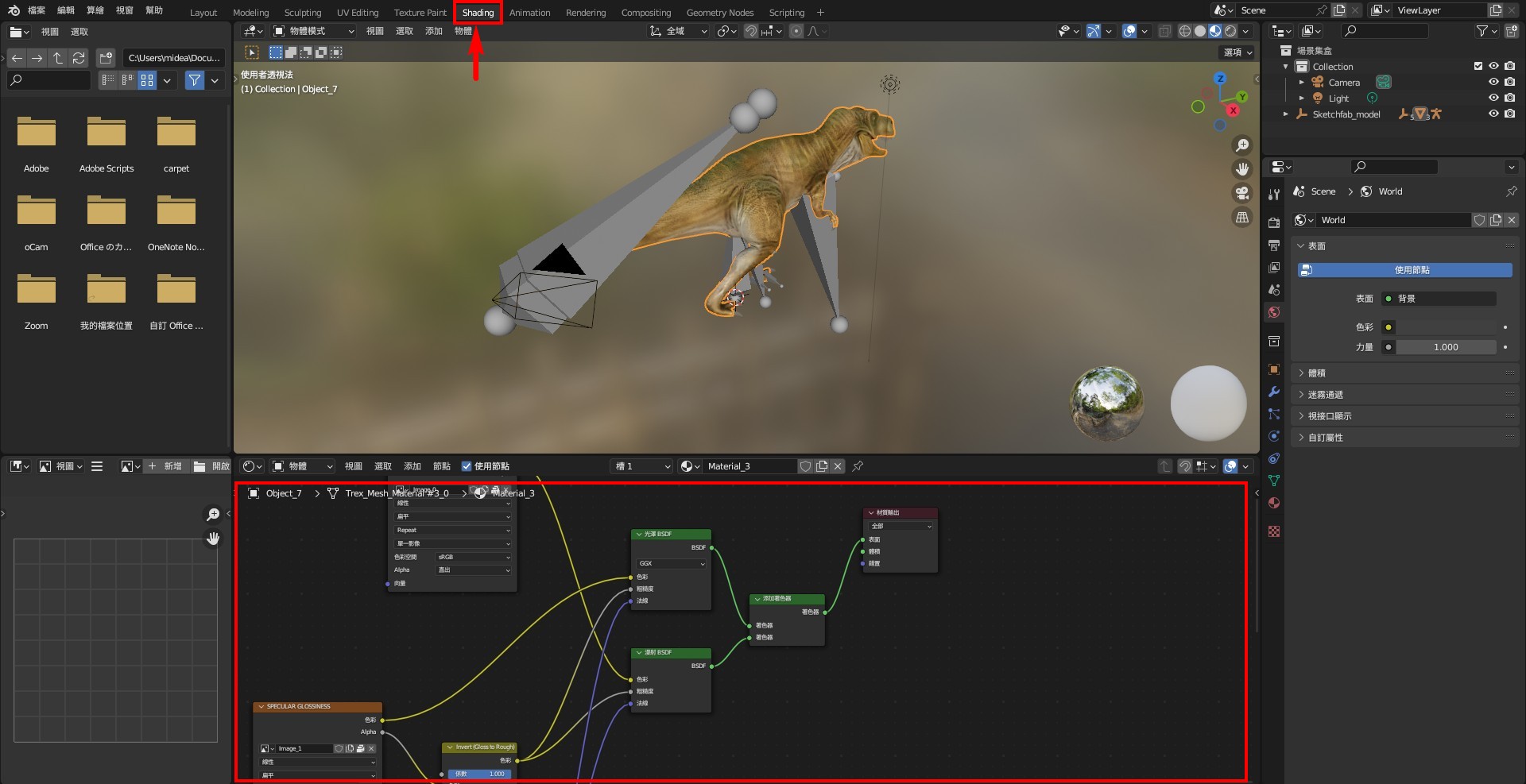
Due to FBX handling fewer effects compared to GLB, converting directly may cause texture issues. Therefore, it's necessary to reduce the effect nodes before conversion.
1. Switch to the "Shading" workspace, select the model, and check the nodes connected.
2. Retain the "Material Output" and "Image Texture" nodes, and delete the other effect nodes. If multiple "Image Texture" nodes are present, keep the main one and delete the others.
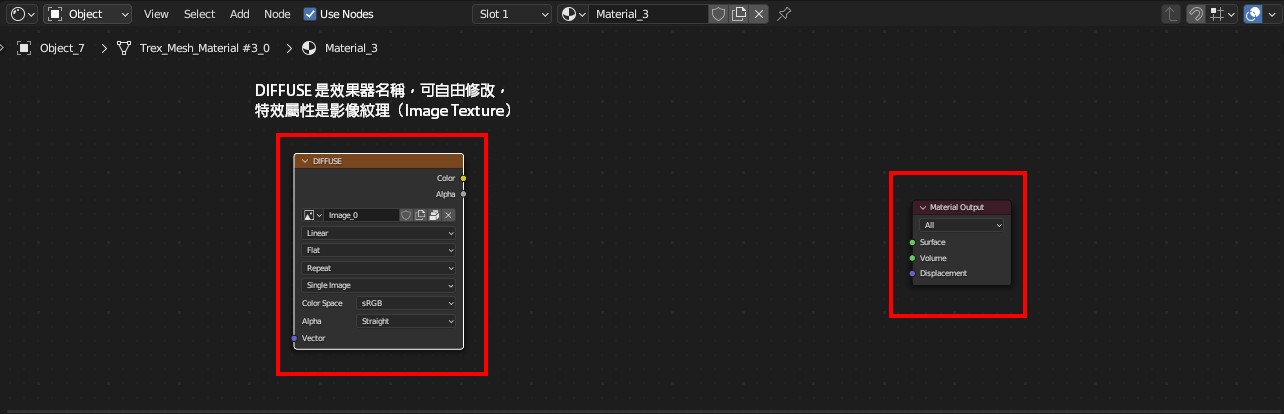
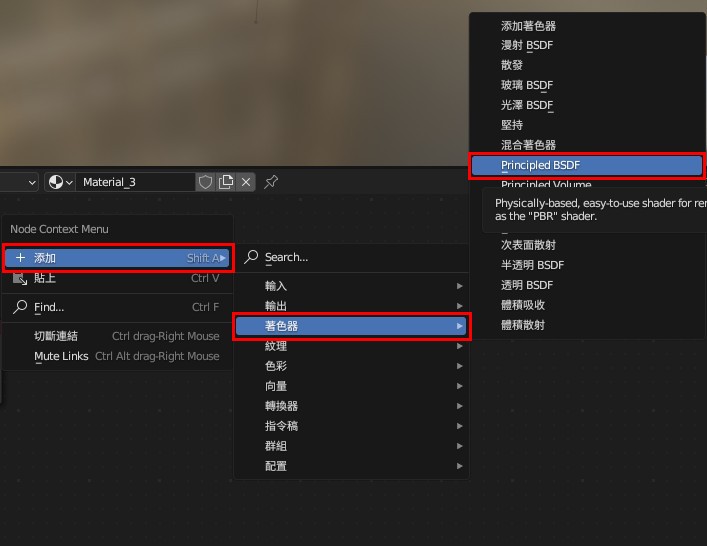
3. Right-click on the black area, select "Add/Add" ➔ "Shader/Shader" ➔ "Principled BSDF", and place it in the middle.
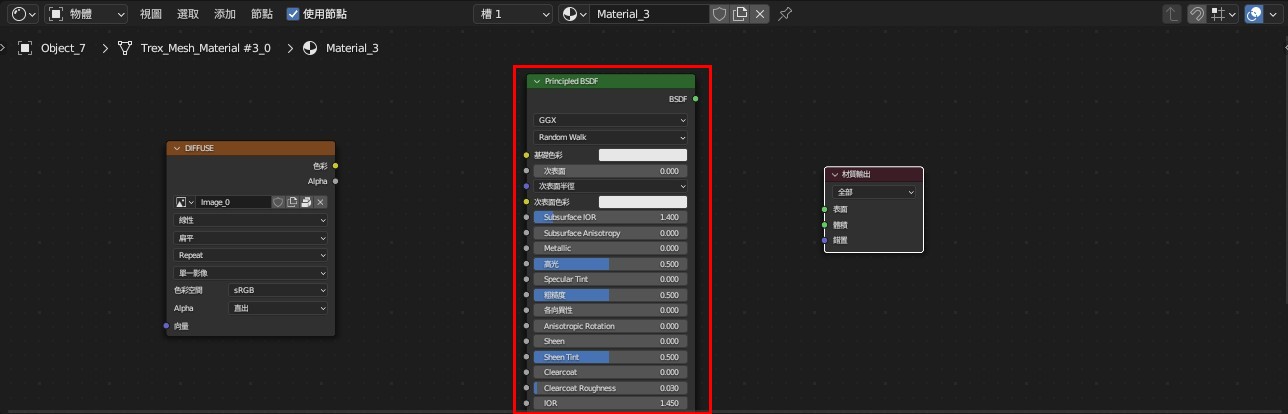
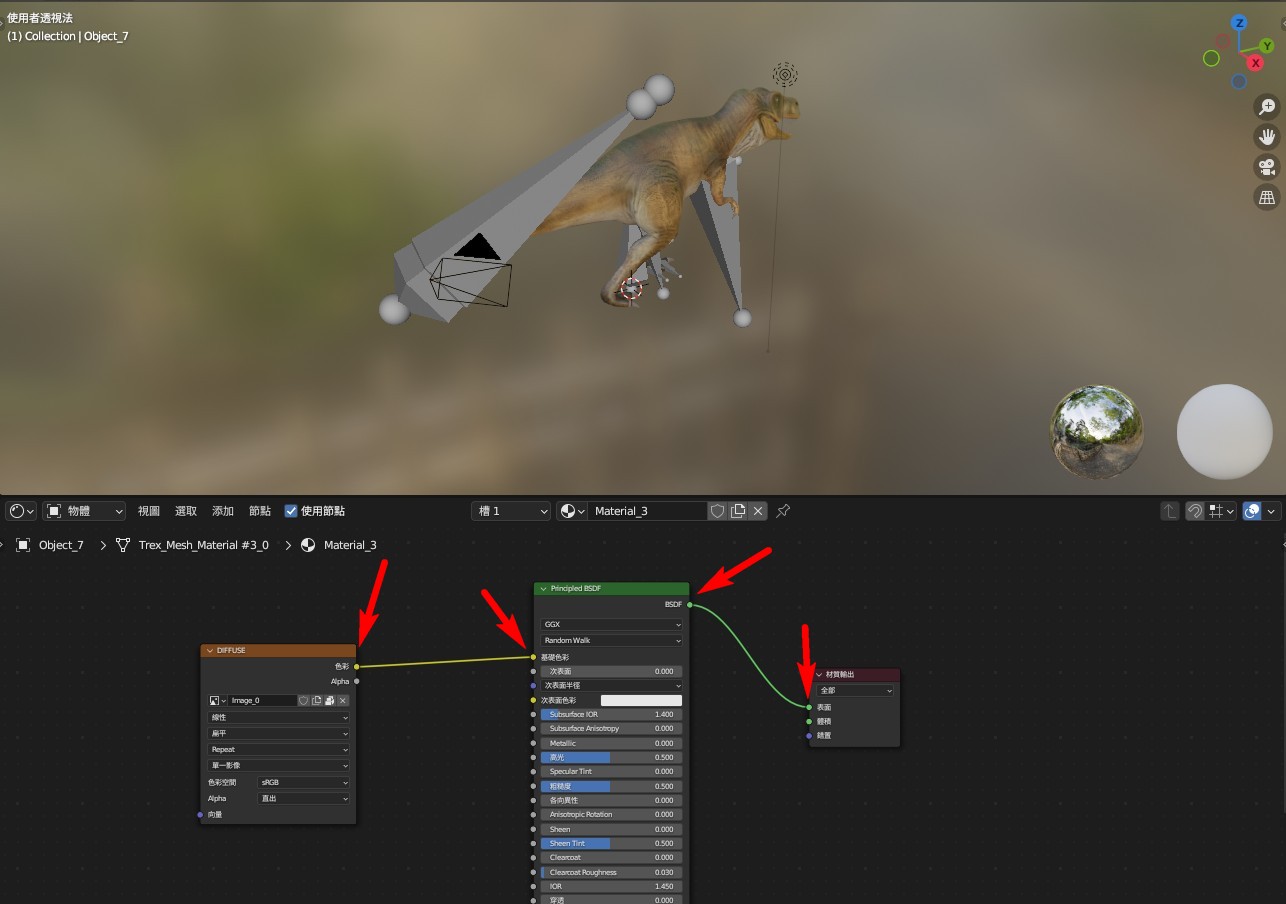
4. Connect "Image Texture/Image Texture" to "Base Color/Basic Color", and "BSDF" to "Surface/Surface" of "Material/Material Output".
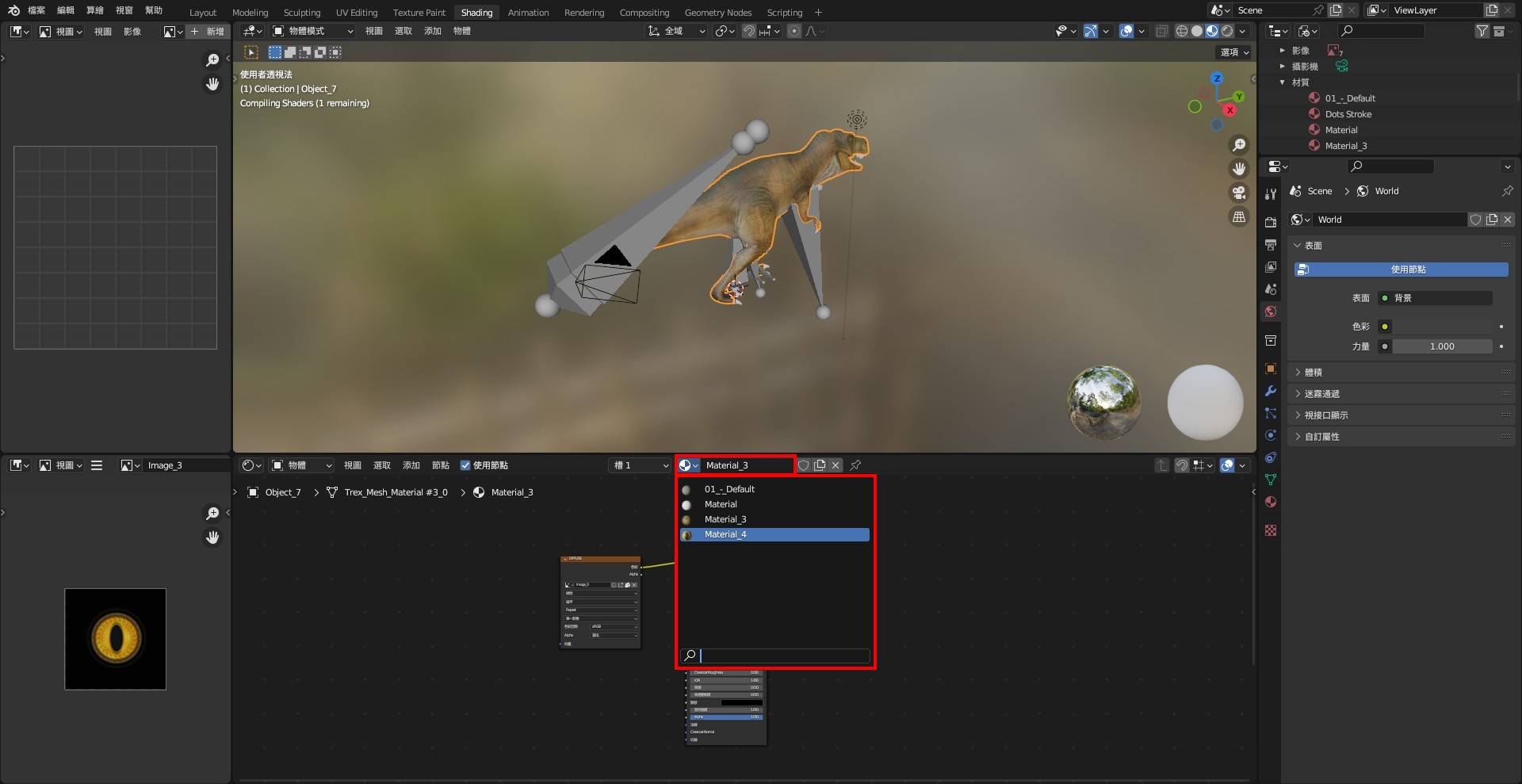
5. The block within the red frame contains various material balls in the model, which will switch to different sequences. Perform the above reordering action on each valid material ball.
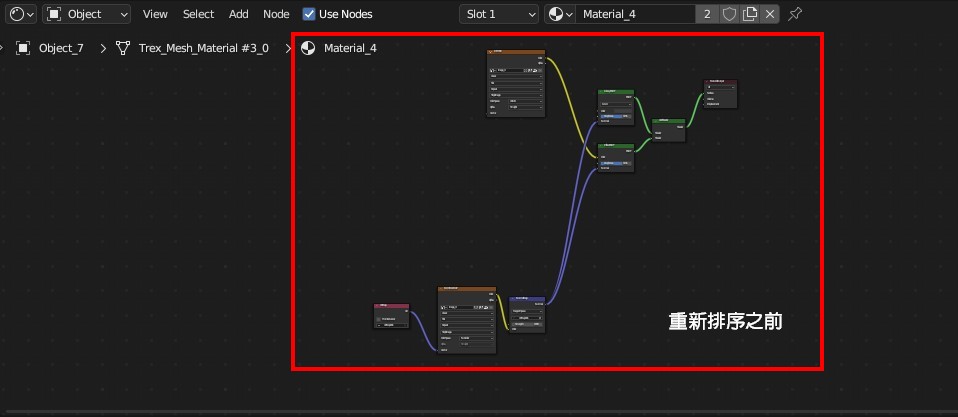
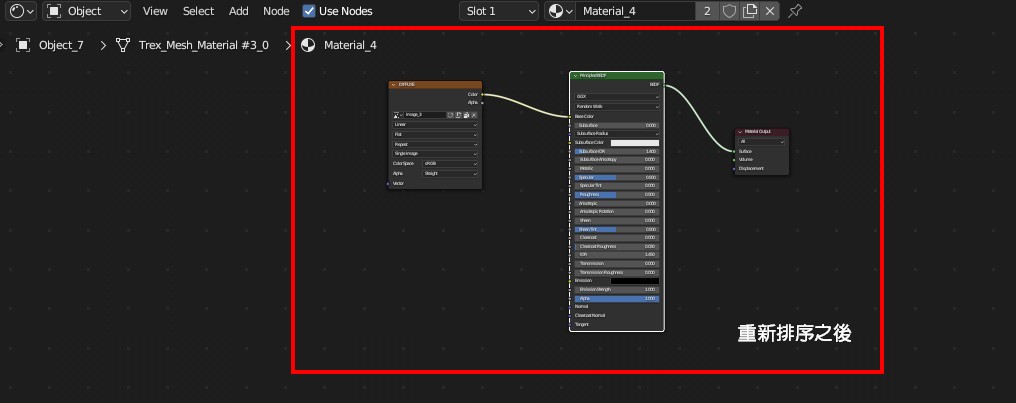
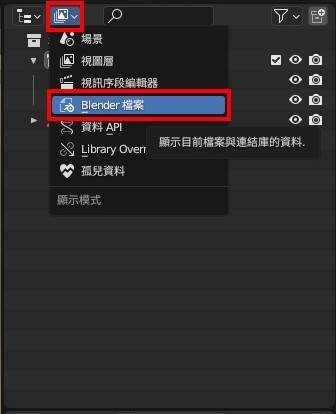
6. If the texture displayed by the material ball is unnecessary, it should be deleted for organization. Click the red frame icon in the upper right corner, then select "Blender File" ➔ "Materials" to find all the material balls in the model. Right-click to delete the unnecessary material balls.
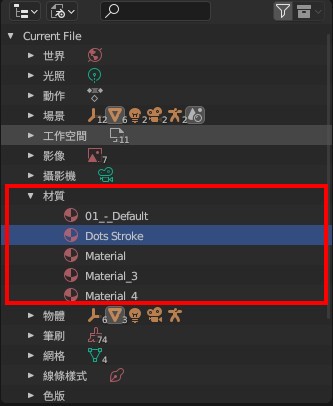
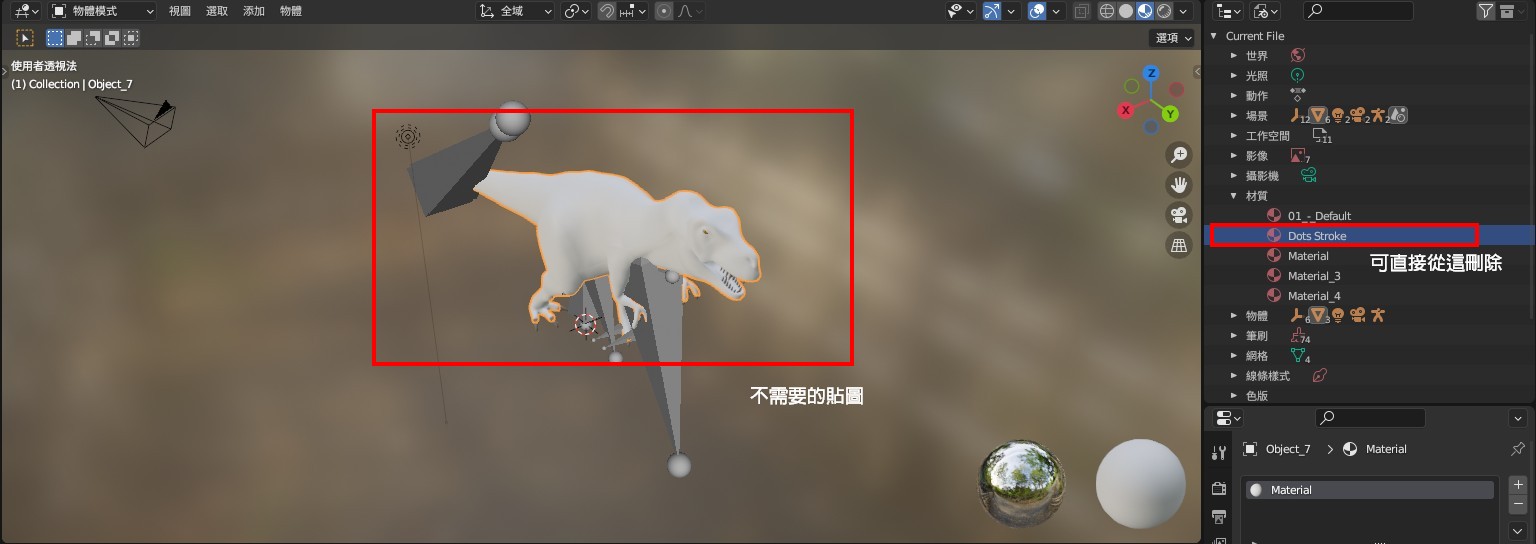
7. You can also rename the material balls here for better organization.
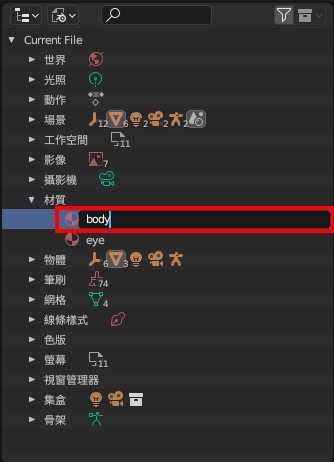
▌ Packing Texture Images
When downloading 3D models from external sources, there is a high possibility that textures might be missing. Therefore, it is recommended to "pack texture images" when handling 3D models to ensure that the models display the correct textures. Here’s how to pack the texture images for your models.
1. The area within the red box indicates the texture images. First, determine if the images are suitable for packing. In this example, you should save the images for the dinosaur's skin and eyes.
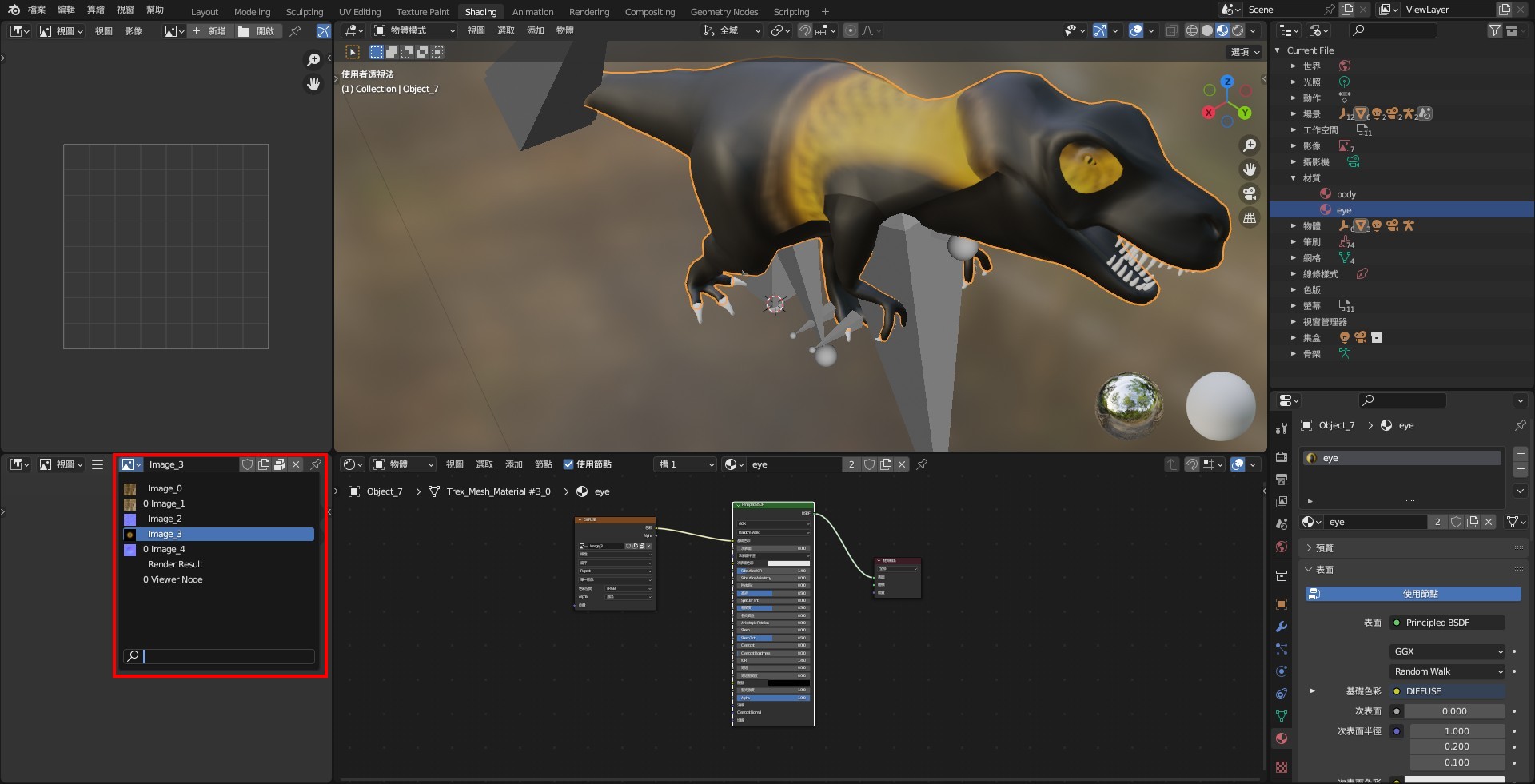
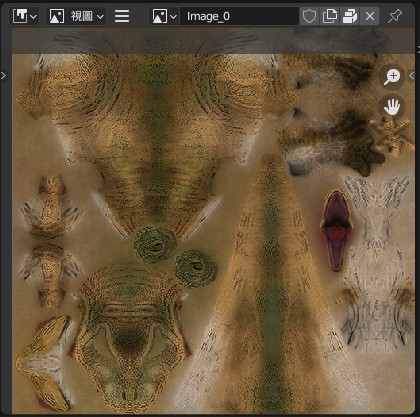
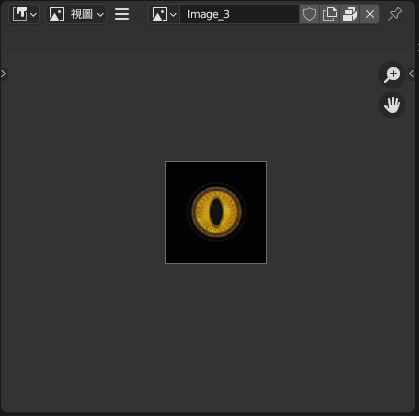
2. Click on the icon within the red box, then select "Image" ➔ "Save As".
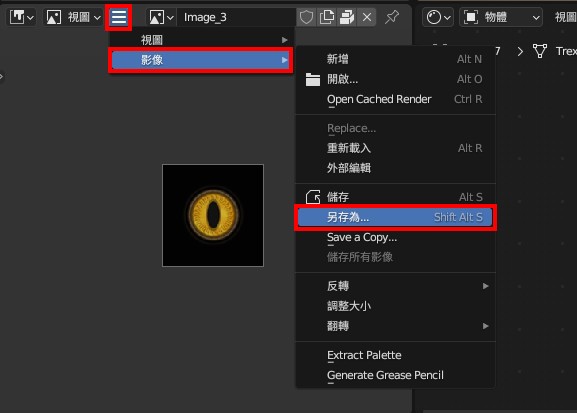
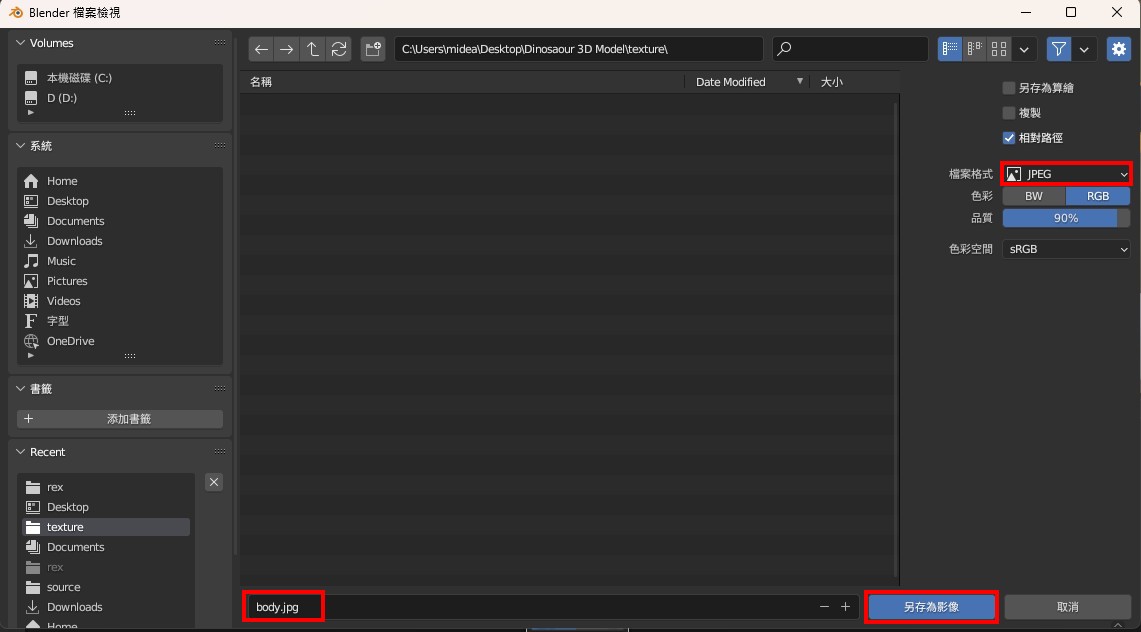
3. Choose the JPEG format, rename the images appropriately, and save them. Save each suitable image as described above.
※ Please use English filenames for naming.
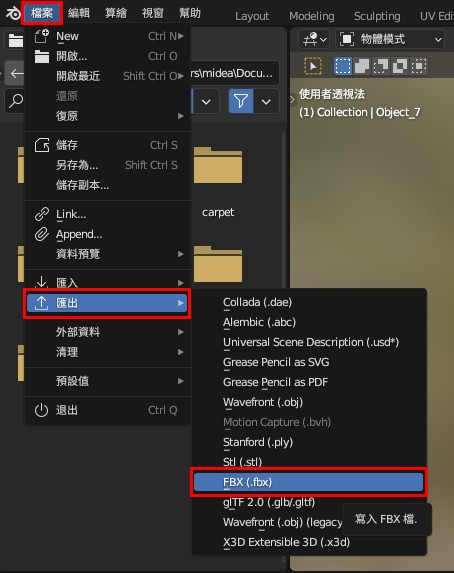
▌ Exporting FBX Files
1. Once the above steps are completed, you can export the file. Click "File" ➔ "Export" ➔ "FBX".
2. In the Path Mode, select "Copy" and open the adjacent box to ensure all data is properly packed.
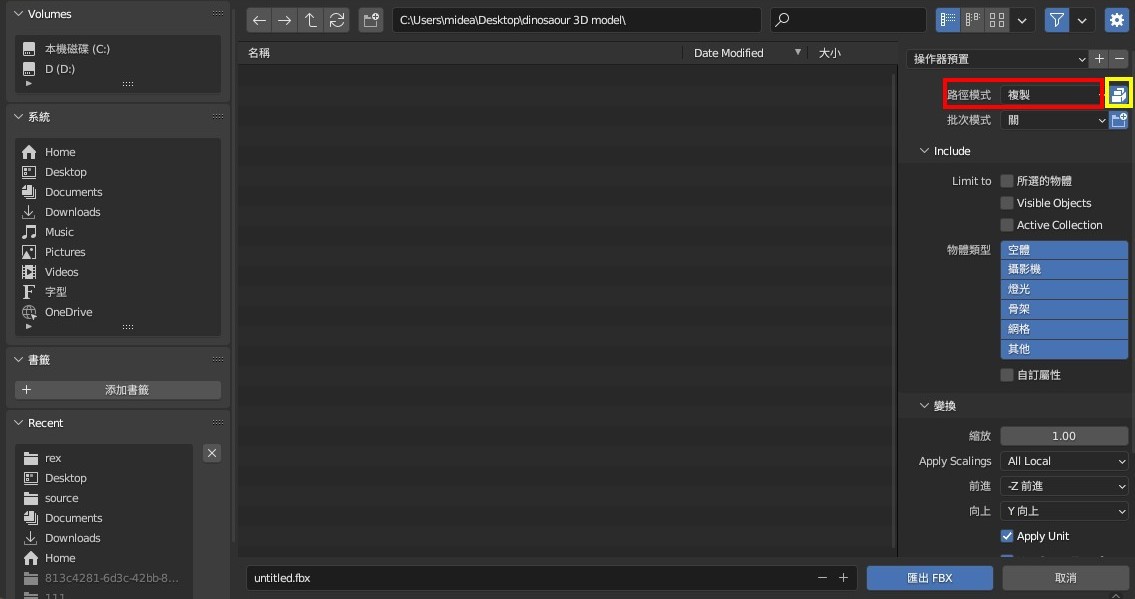
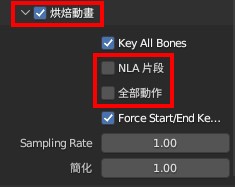
3. If the object has animations, expand the "Bake Animation" section, then uncheck "NLA Strips" and "All Actions".
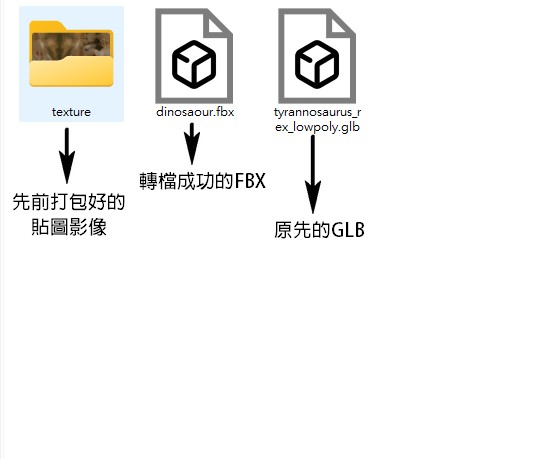
4. Save the file in the main folder (which contains the packed texture images), and finally, click "Export FBX".

5. Successfully convert GLB to FBX!
【 Converting FBX to GLB 】
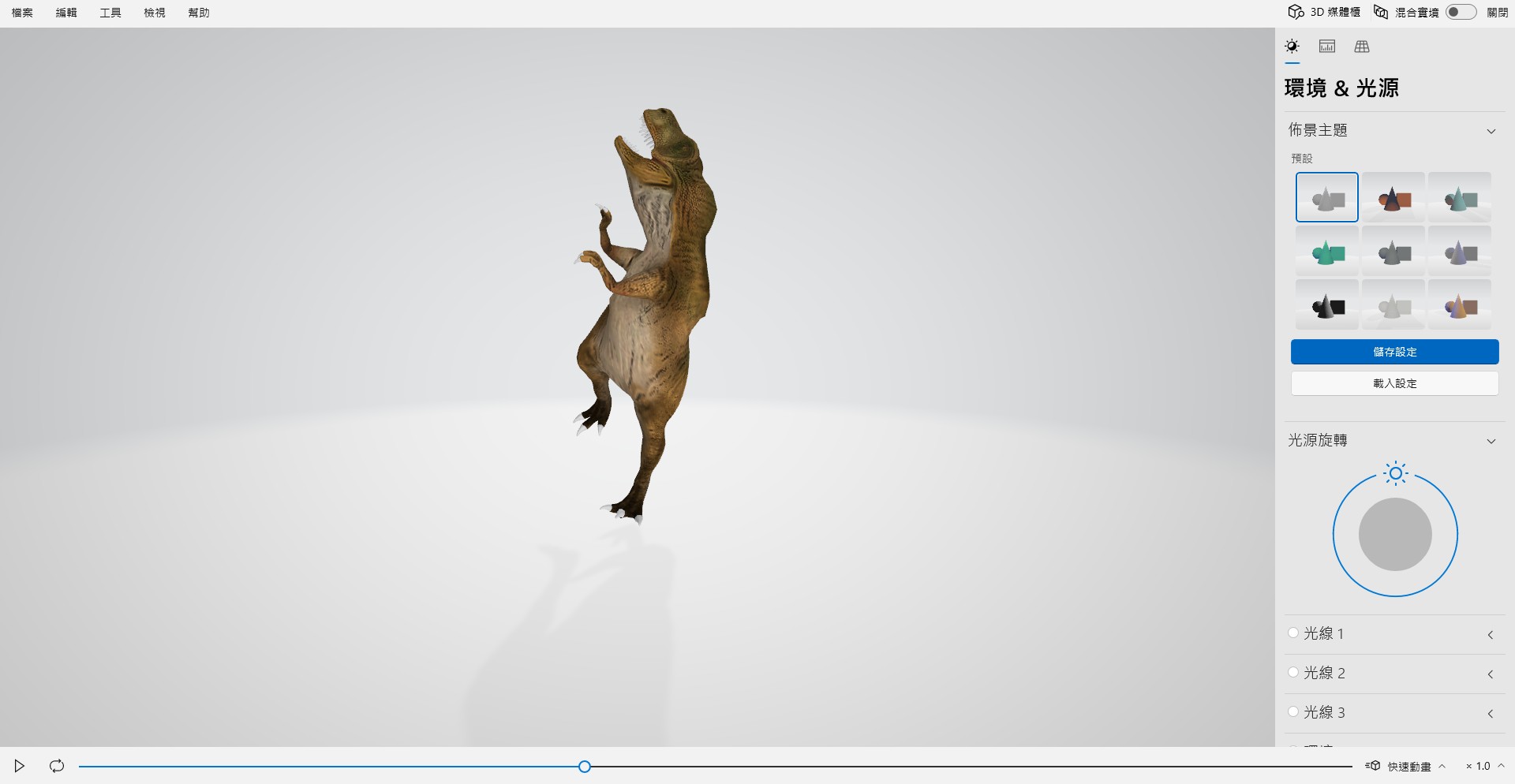
1. Click on "Viewport Shading" to check if the texture is displayed correctly; if the texture is visible, it is working correctly. Click the play button below to check if the animation is functioning properly.
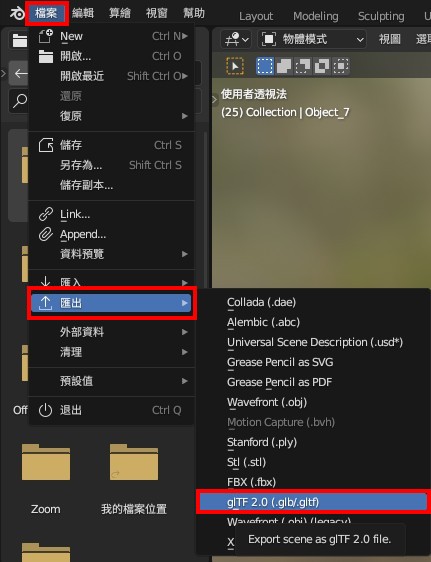
2. Click "File" → "Export" → "glTF2.0".
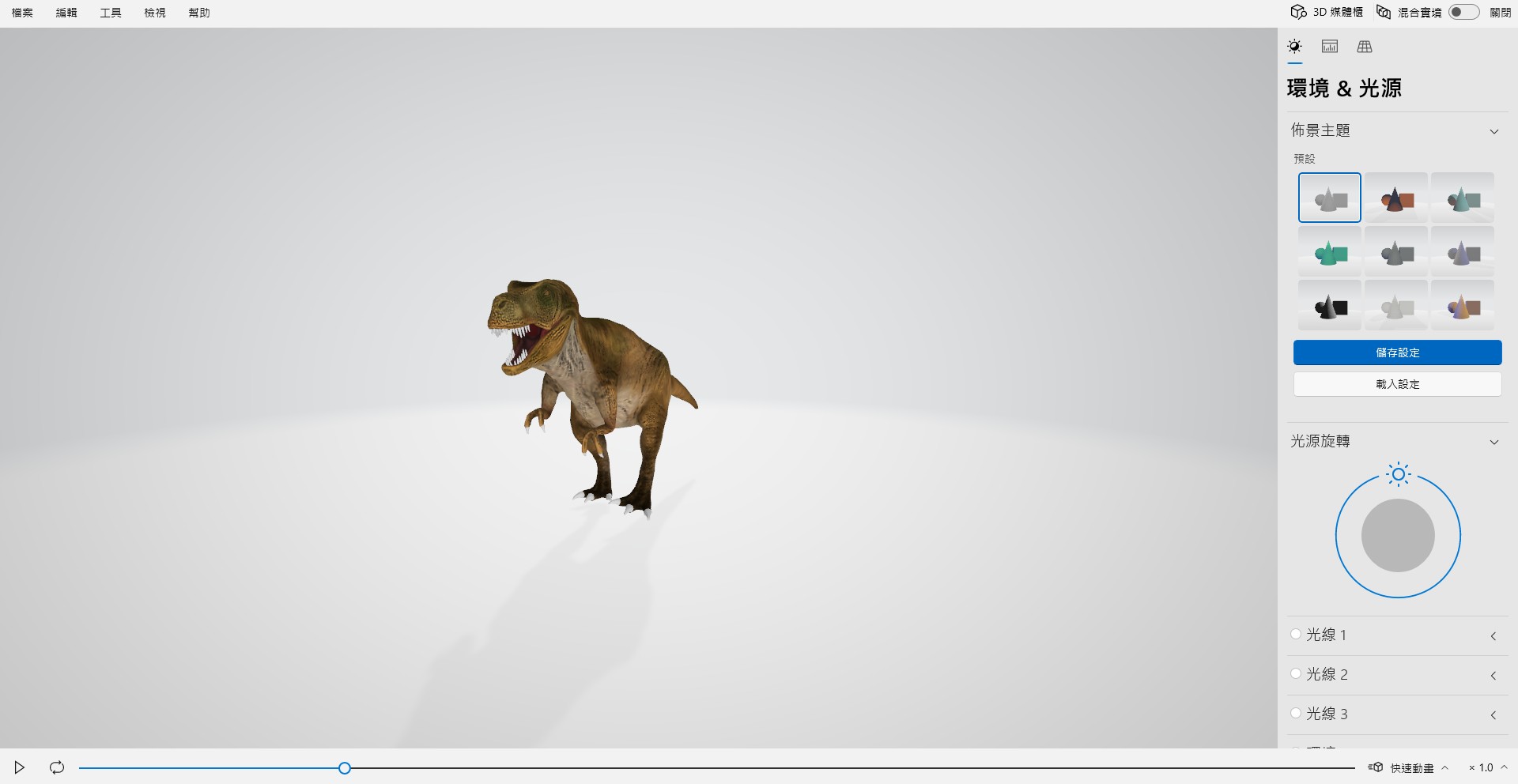
3. Successfully convert FBX to GLB!
MAC Version MAKAR 3D Scan User Guide
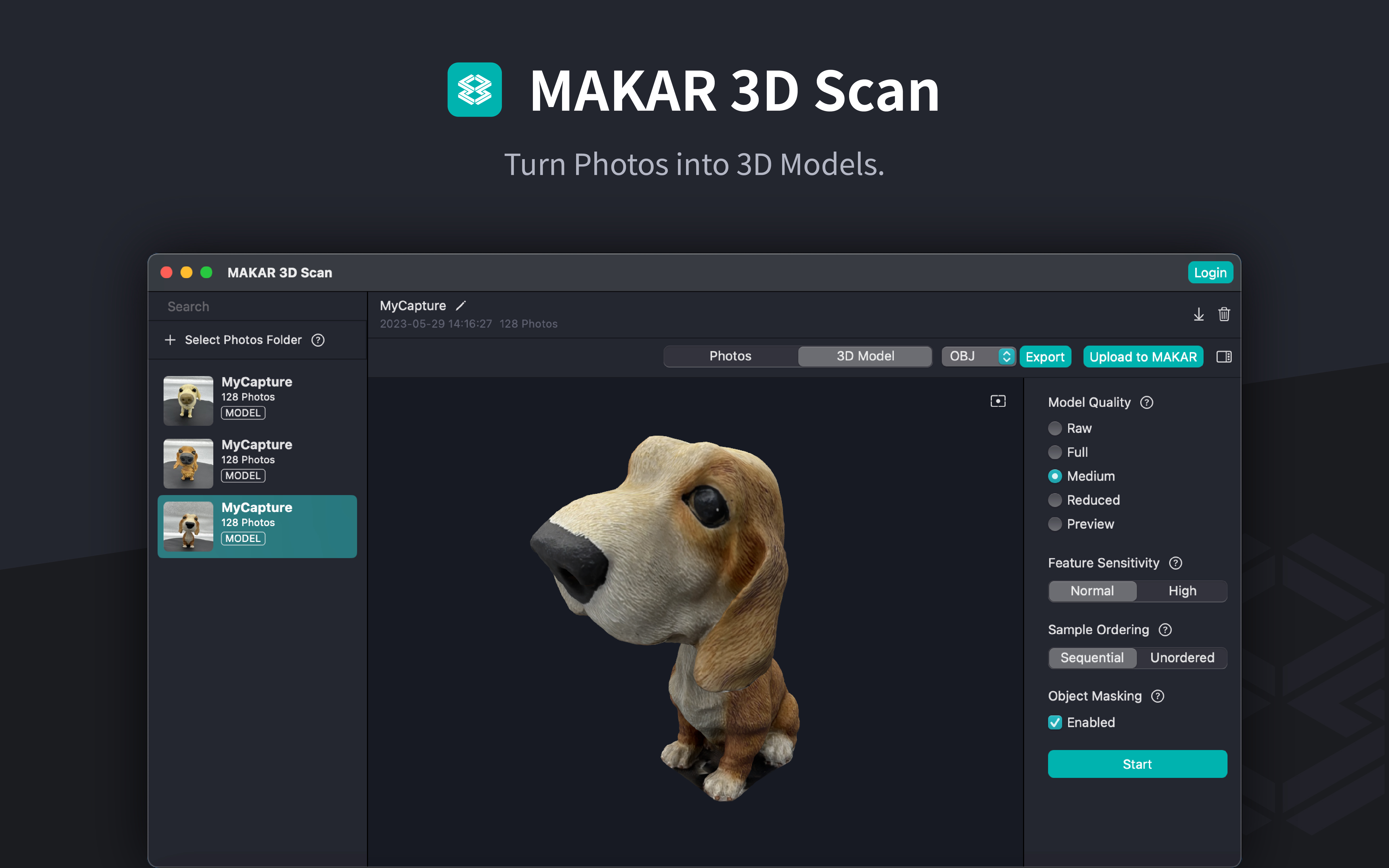
MAKAR has released the computer version of "MAKAR 3D Scan" software, making it easy to create 3D models using a MAC! Simply by photographing objects and importing the photos into the software, you can quickly generate 3D models. This guide will detail how to use the MAC version of MAKAR 3D Scan software.
Table of Contents |
|---|
Introduction to MAC Version MAKAR 3D Scan Features
-
Scan Everything with Phone and Computer: Simply take photos of the object you want to convert into a 3D model, rotate it 360 degrees, and import the photos into MAKAR 3D Scan. Through a simple process on both your phone and computer, you can quickly scan and generate a 3D model.
-
Customizable Scan Precision: Worried that your 3D model is too large or lacks detail? MAKAR 3D Scan offers customizable options for model precision and background removal, allowing you to scan and create 3D models according to your specific needs.
-
Supports Multiple 3D Format Exports: 3D models created with MAKAR 3D Scan can be exported in formats such as USDZ, OBJ, GLB, and STL, enabling seamless integration across various platforms.
-
Direct Integration with MAKAR Editor Resource: Log into your MAKAR account, and 3D models scanned with MAKAR 3D Scan will automatically be imported into your MAKAR Editor asset library, requiring no additional steps, and allowing you to quickly explore XR editing in the Metaverse.
-
Unlocking the Boundaries of XR Metaverse: Easily enter the infinite world of XR. MAKAR 3D Scan bridges the gap between reality and virtuality, unleashing your creativity in an immersive, expansive augmented reality world.
Minimum Hardware Requirements and Download for MAC Version MAKAR 3D Scan
【Software Name】: MAC Version MAKAR 3D Scan
【Software Language】: Traditional Chinese, English
【Minimum Requirements】: macOS Monterey or above, M1 chip, 16GB, 16GB RAM, 4GB VRAM
【Download Location】: Download from the MAC App Store
MAC Version MAKAR 3D Scan User Guide
【Taking Photos with iPhone/iPad and Importing into the Software】
-
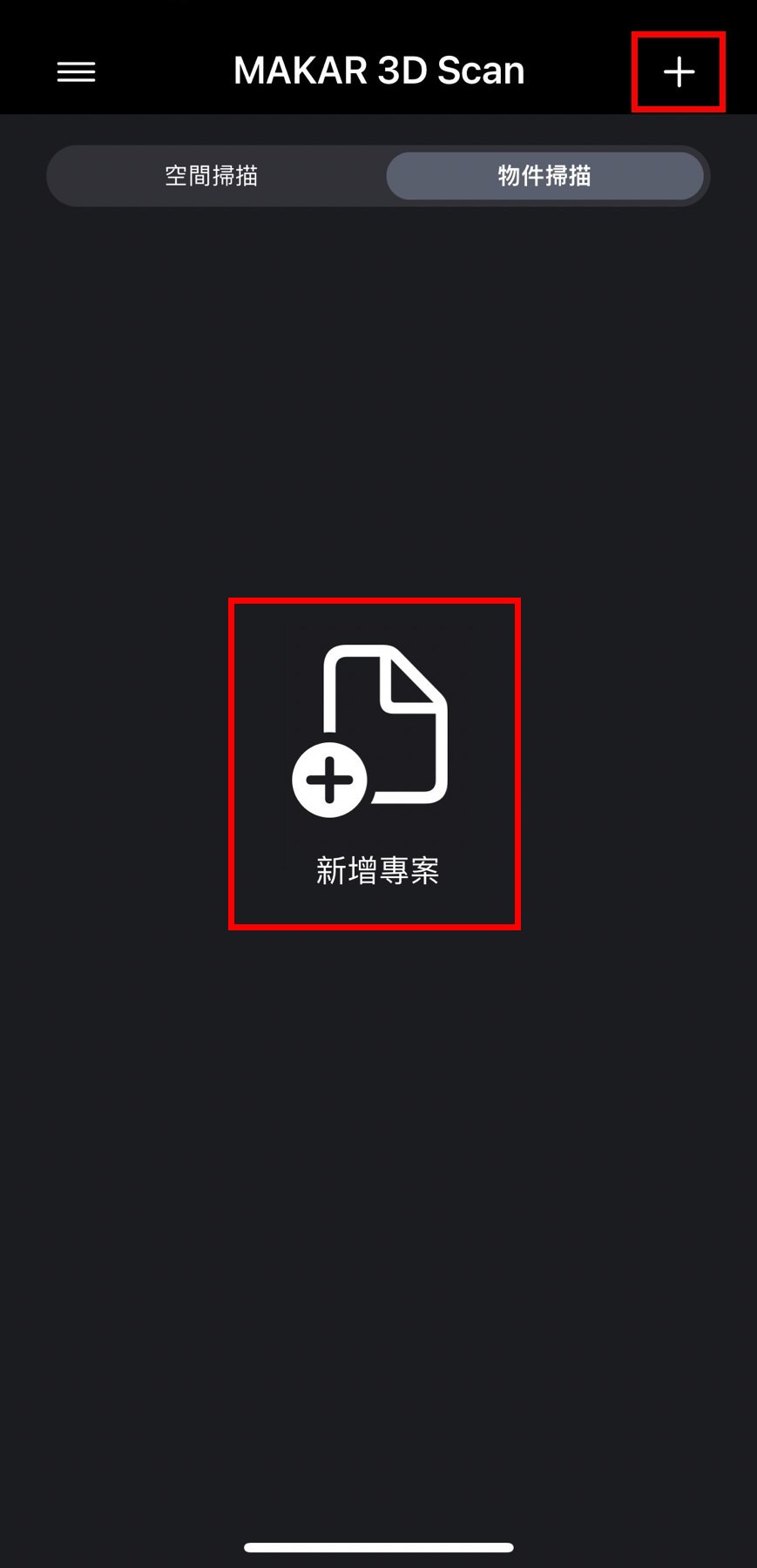
Open the mobile version of MAKAR 3D Scan on your iPhone or iPad, and select "New Project" in the middle or the "+" in the top right corner.
-
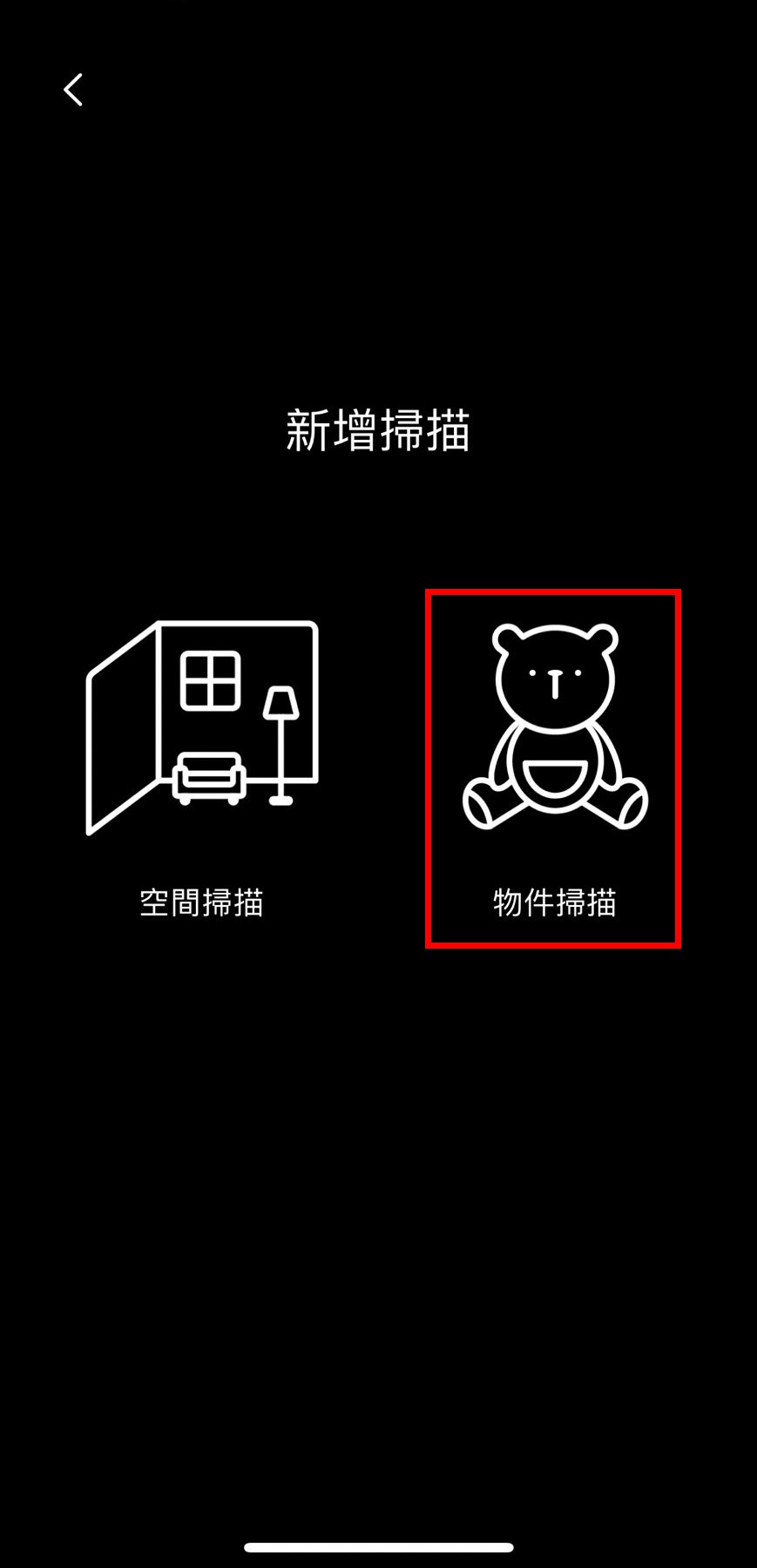
Select "Object Scan" on the right side.
-
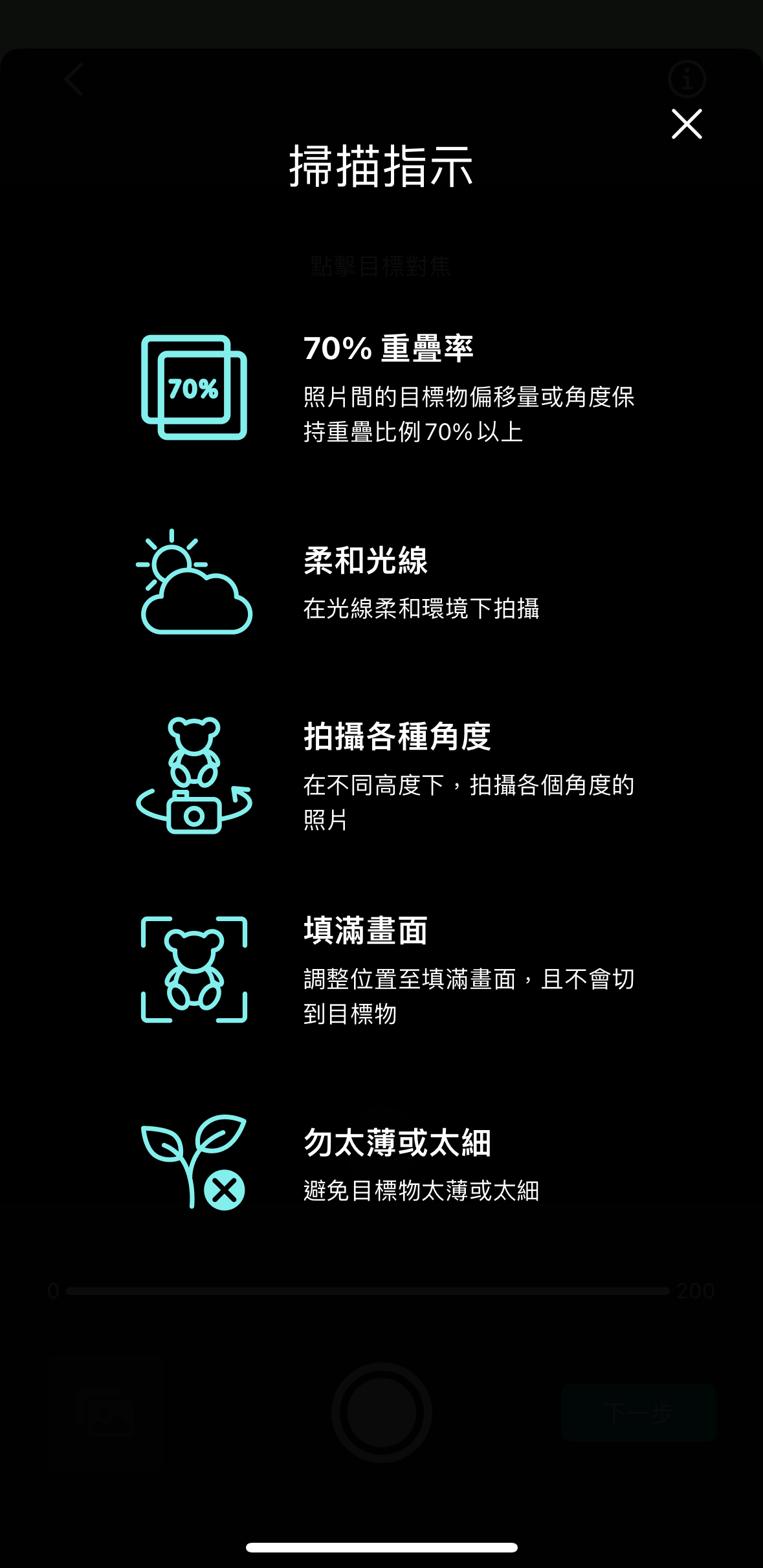
A notice will pop up with scanning tips, aiming for clear shots, maintaining 70% overlap, and filling the frame.
-
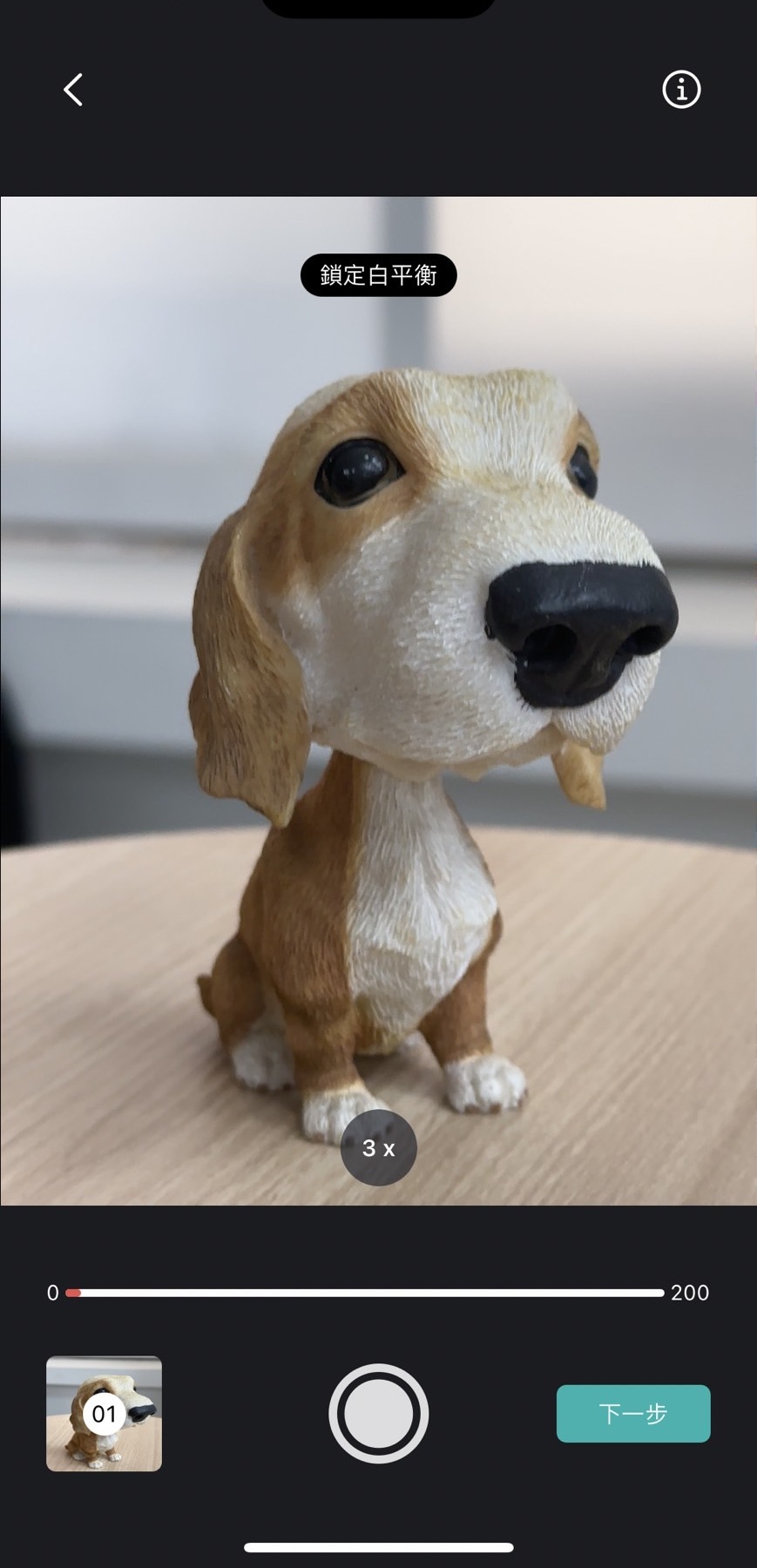
Enter the shooting page and start taking photos of the object.
Focus on the object by tapping on the screen, and zoom up to 3X. Capture the object from different heights, rotating 360 degrees, taking at least 40 photos to meet the conditions for the next step.
-
After taking the photos, select "Next" on the right side.
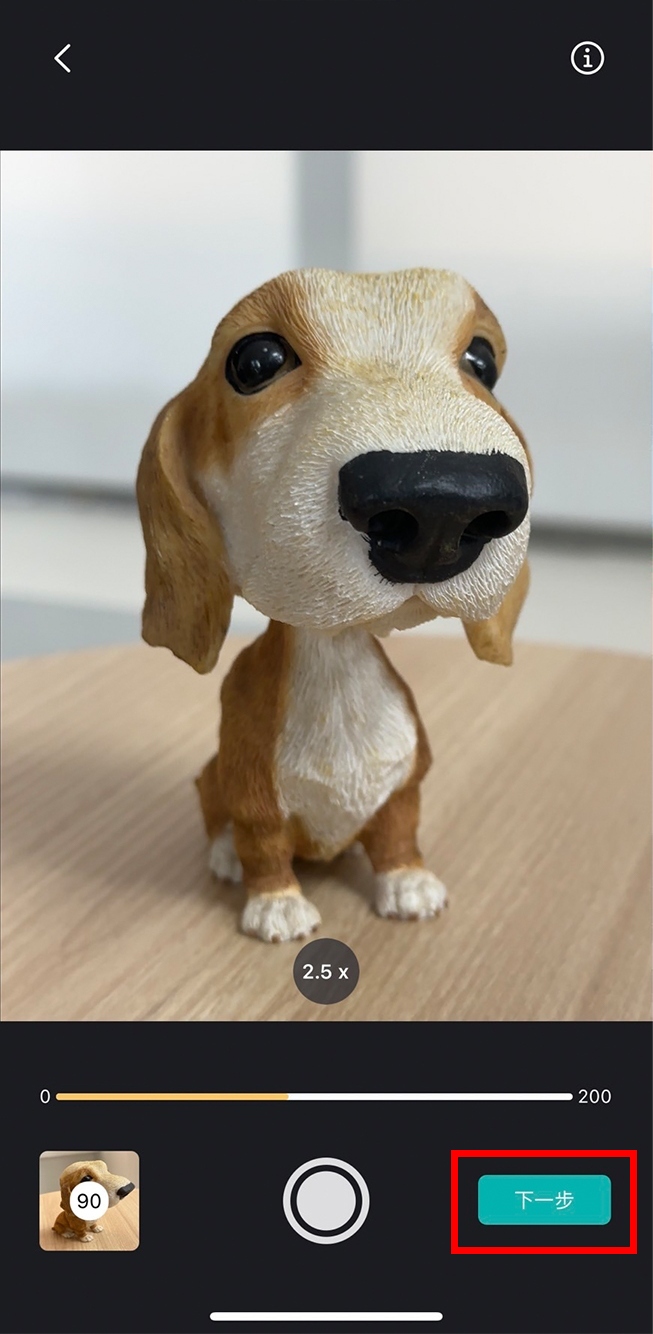
-
Then, open MAKAR 3D Scan on your MAC, and return to your iPhone/iPad to select "Wi-Fi Transfer" to start transferring files to the MAC version of MAKAR 3D Scan.
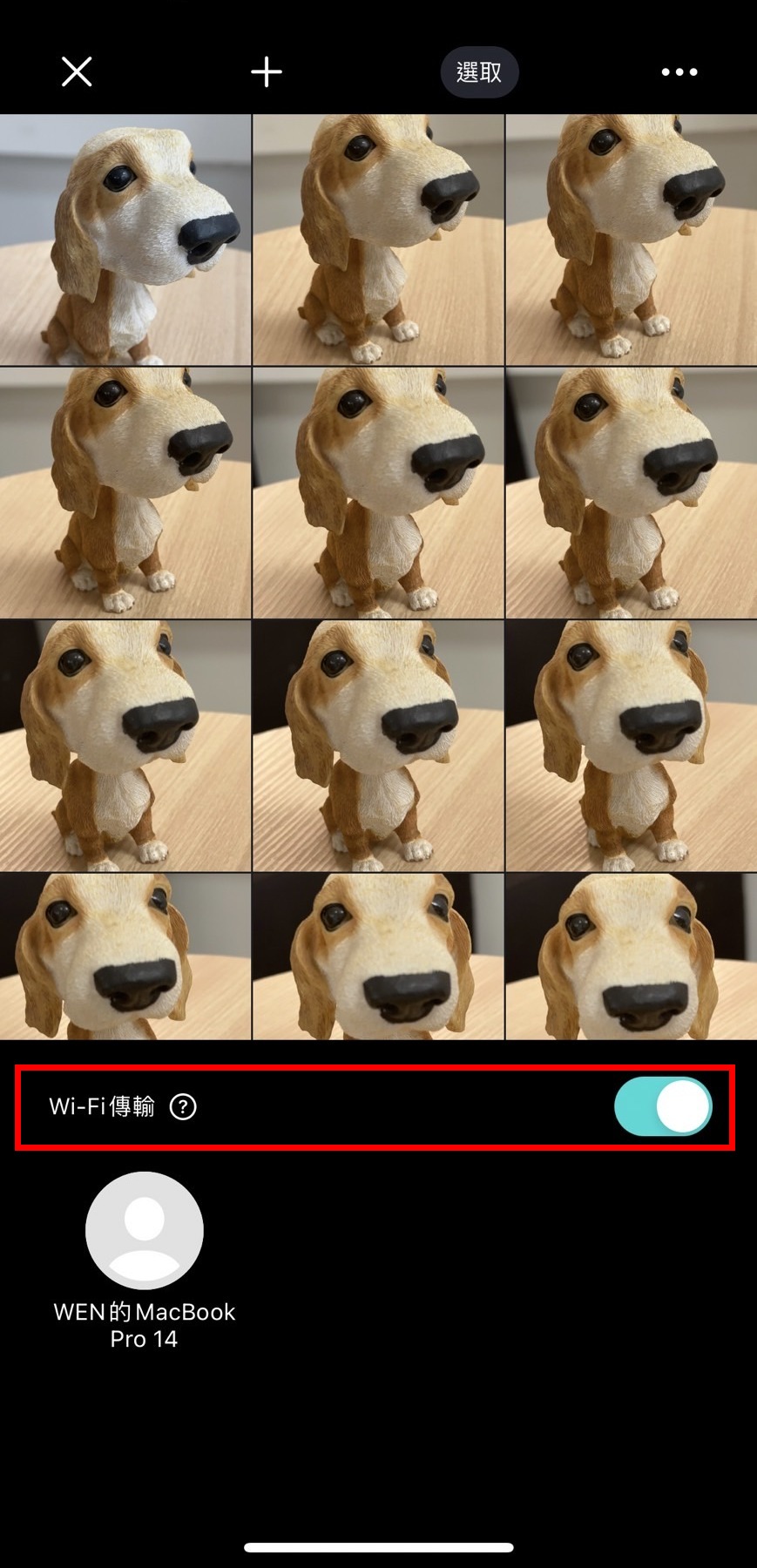
【Creating 3D Models Using the Software】
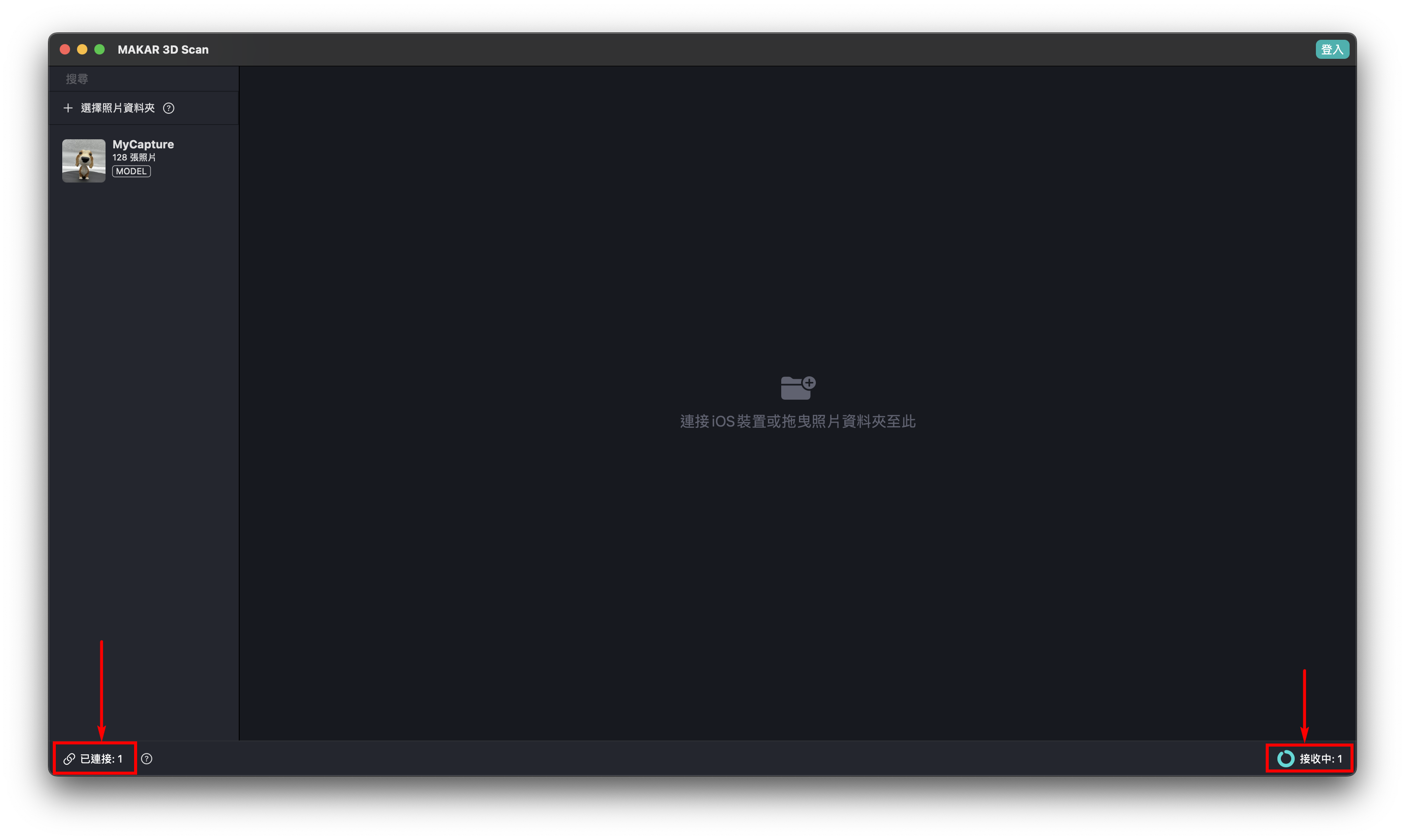
- Upload via "Wi-Fi Transfer," and you can see the transfer progress in the status bar below.
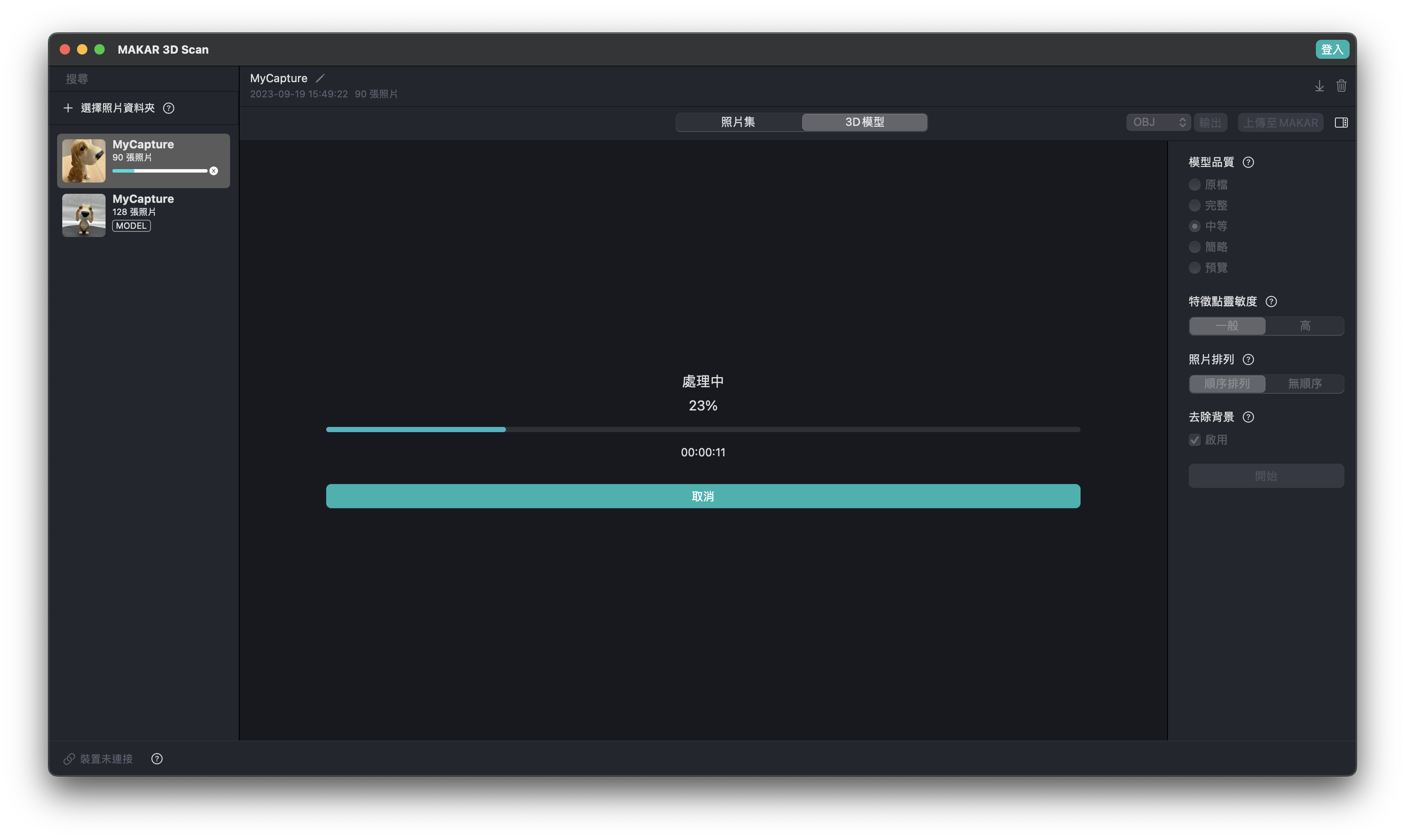
- After uploading, the automatic modeling process begins. You can check the progress from the main screen or the Dock.

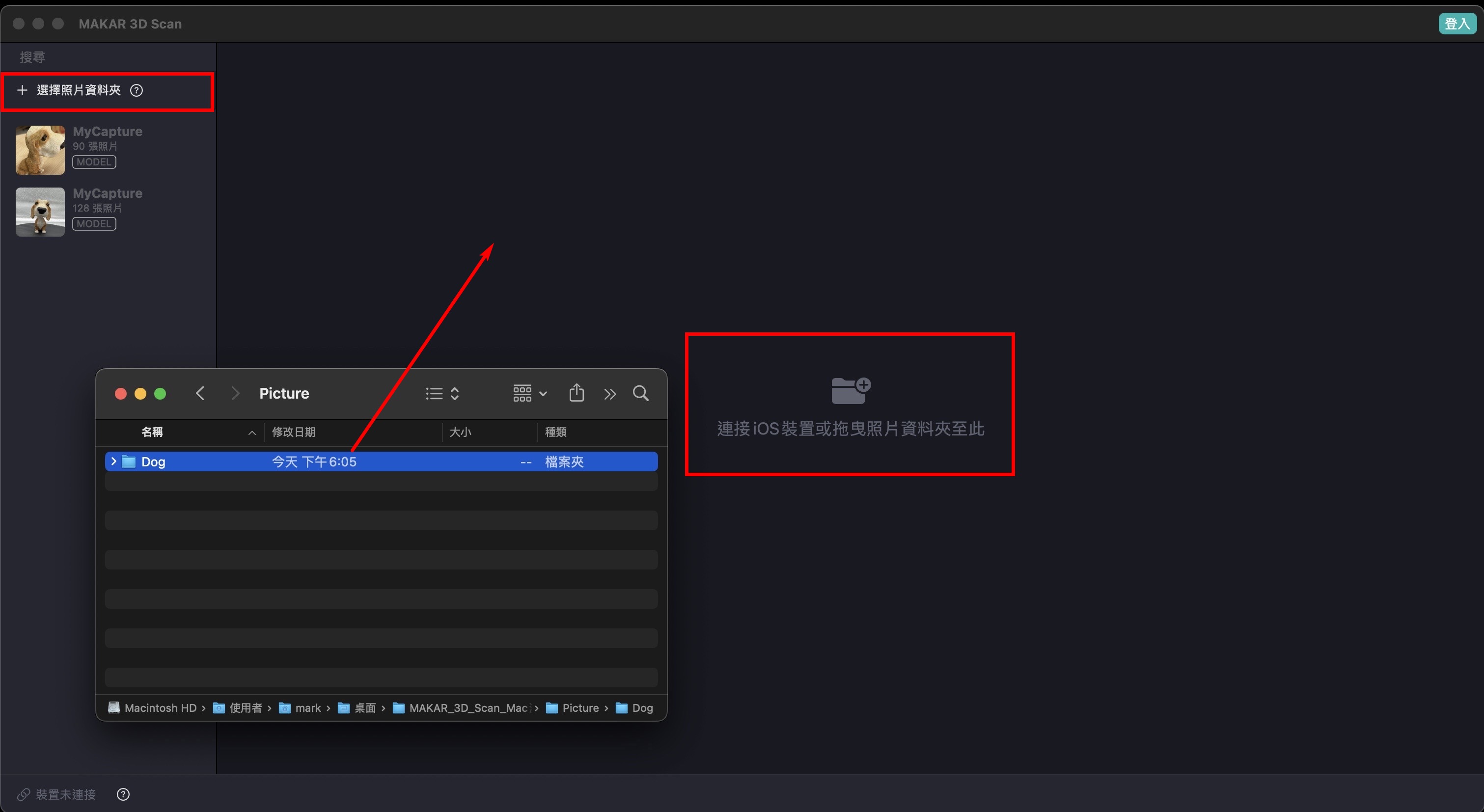
-
Once the modeling is complete, as shown below, you can modify the default name.
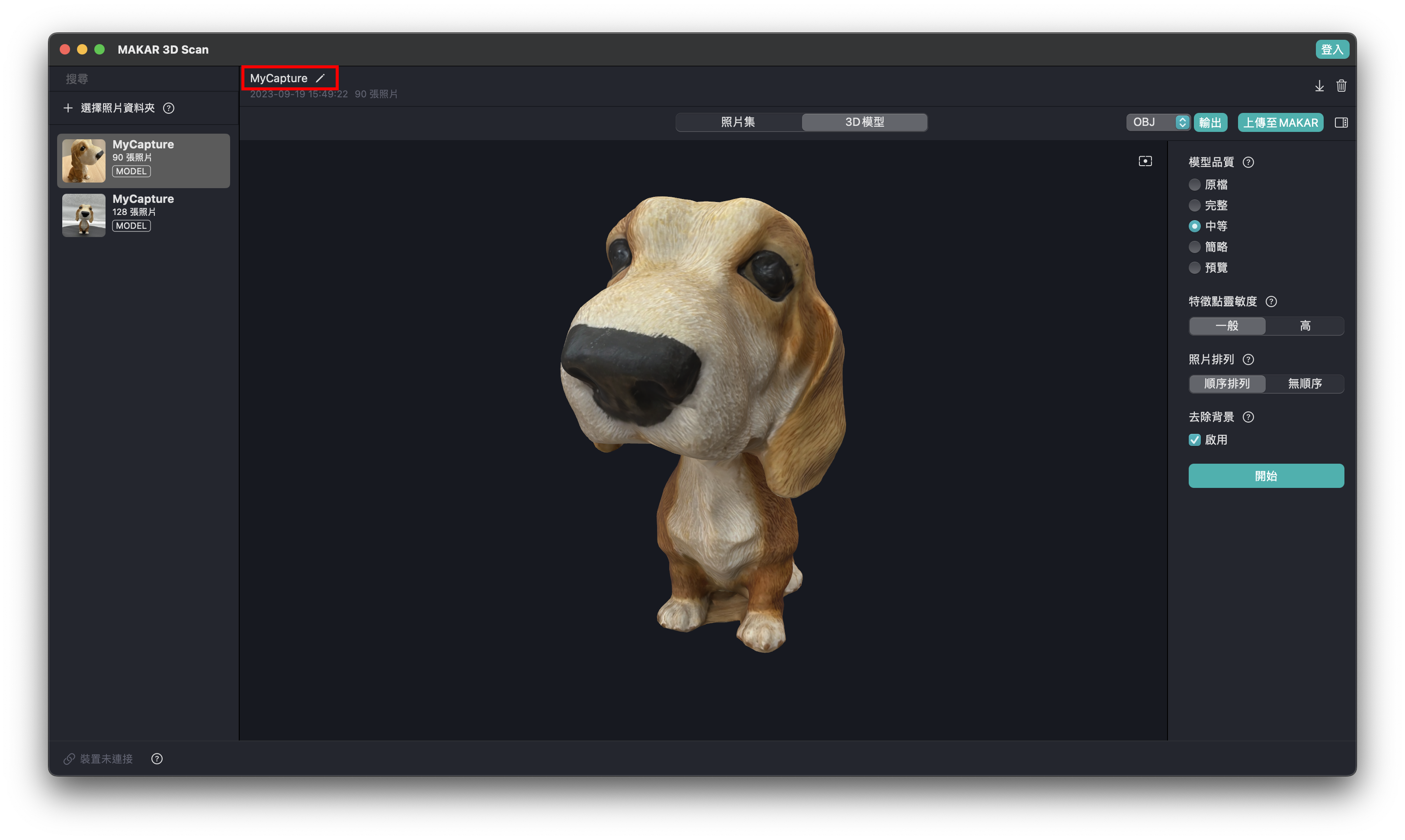
-
Adjust details and remesh according to your needs using the options on the right.
Item Descriptions:
-
Quality Scale: Five qualities are available from high to low. The higher the quality, the longer the modeling time. For a quick model preview, select "Preview."
-
Feature Point Sensitivity: Options are "Normal" and "High." If the target object lacks details, select "High" for more detailed processing, which takes more time.
-
Photo Order: Options are "Sequential" and "No Order." If taking photos around the target object, select "Sequential" to speed up the modeling process.
-
Background Removal: Select "Enable" to automatically remove the background.
※ Click the question mark in the red box for more detailed explanations.
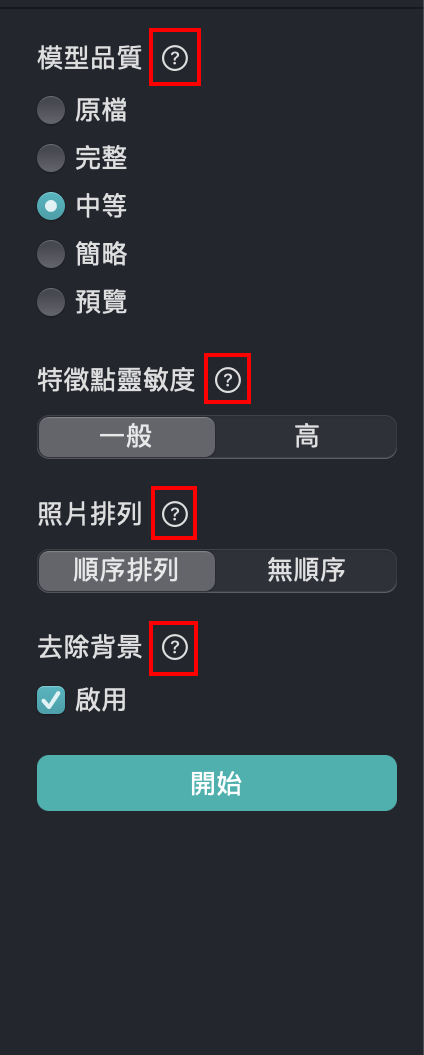
-
Select "Start" to begin modeling.
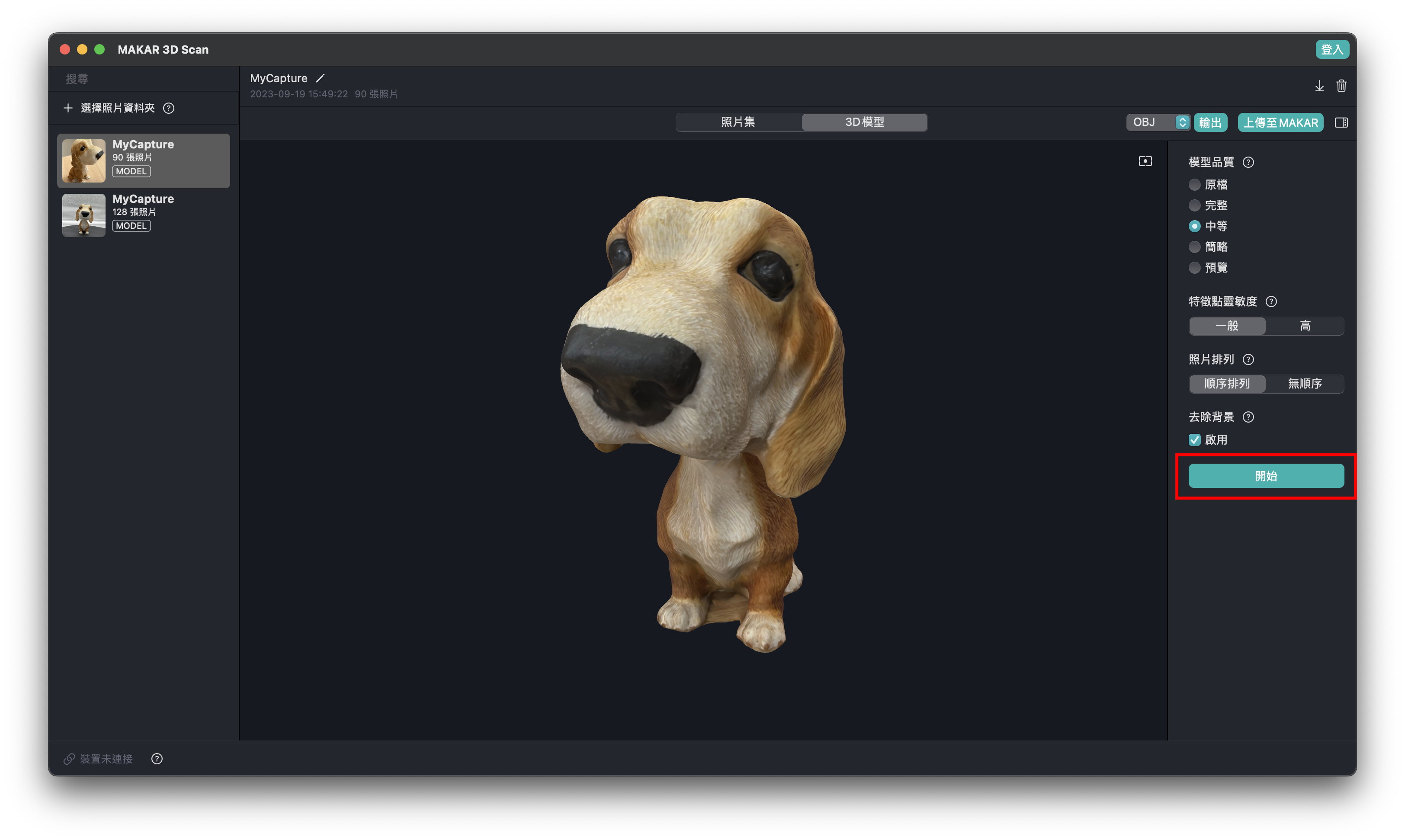
【Uploading 3D Models to MAKAR Editor】
-
Once modeling is complete, select "Upload to MAKAR" in the top right, log in, and upload to MAKAR Editor.
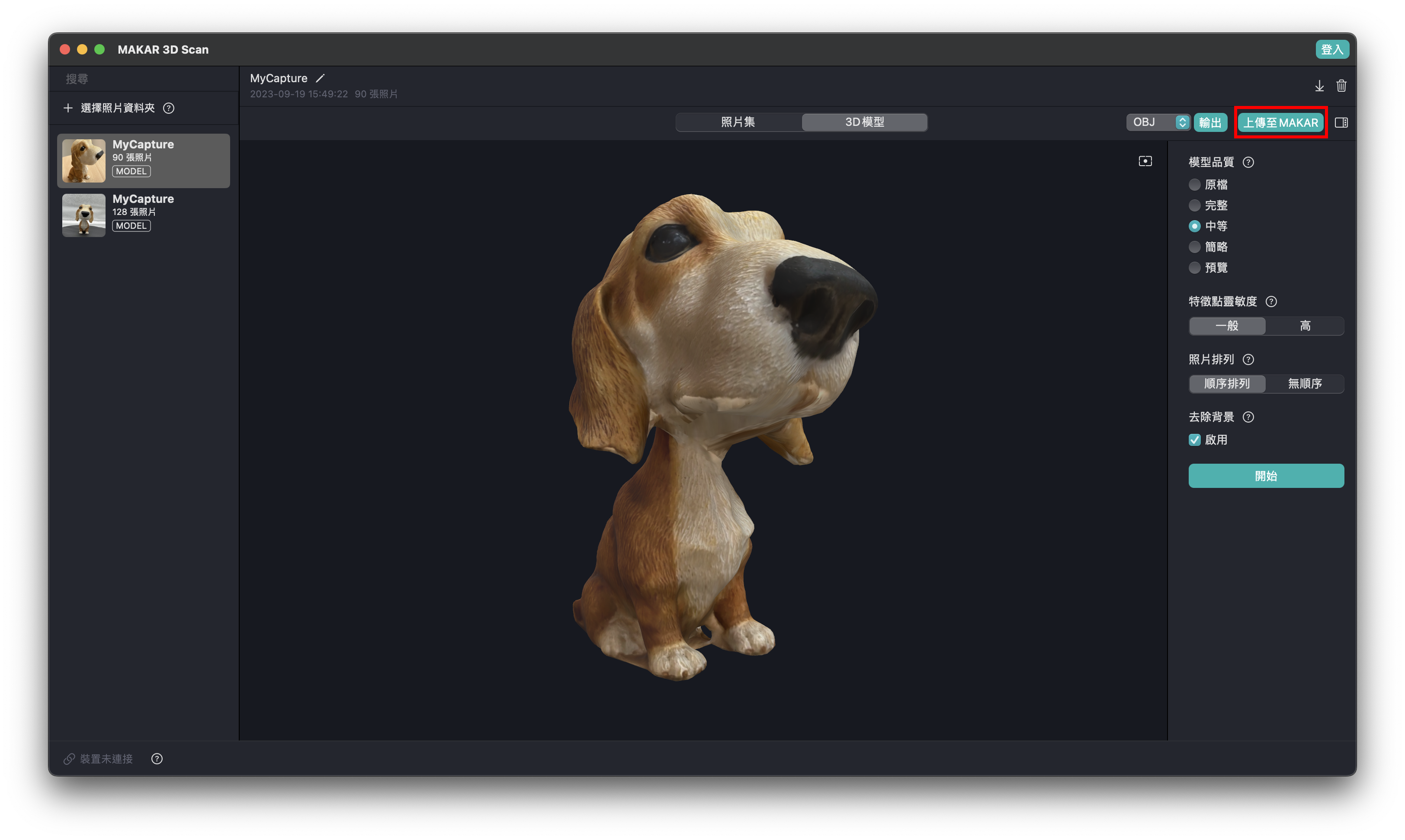
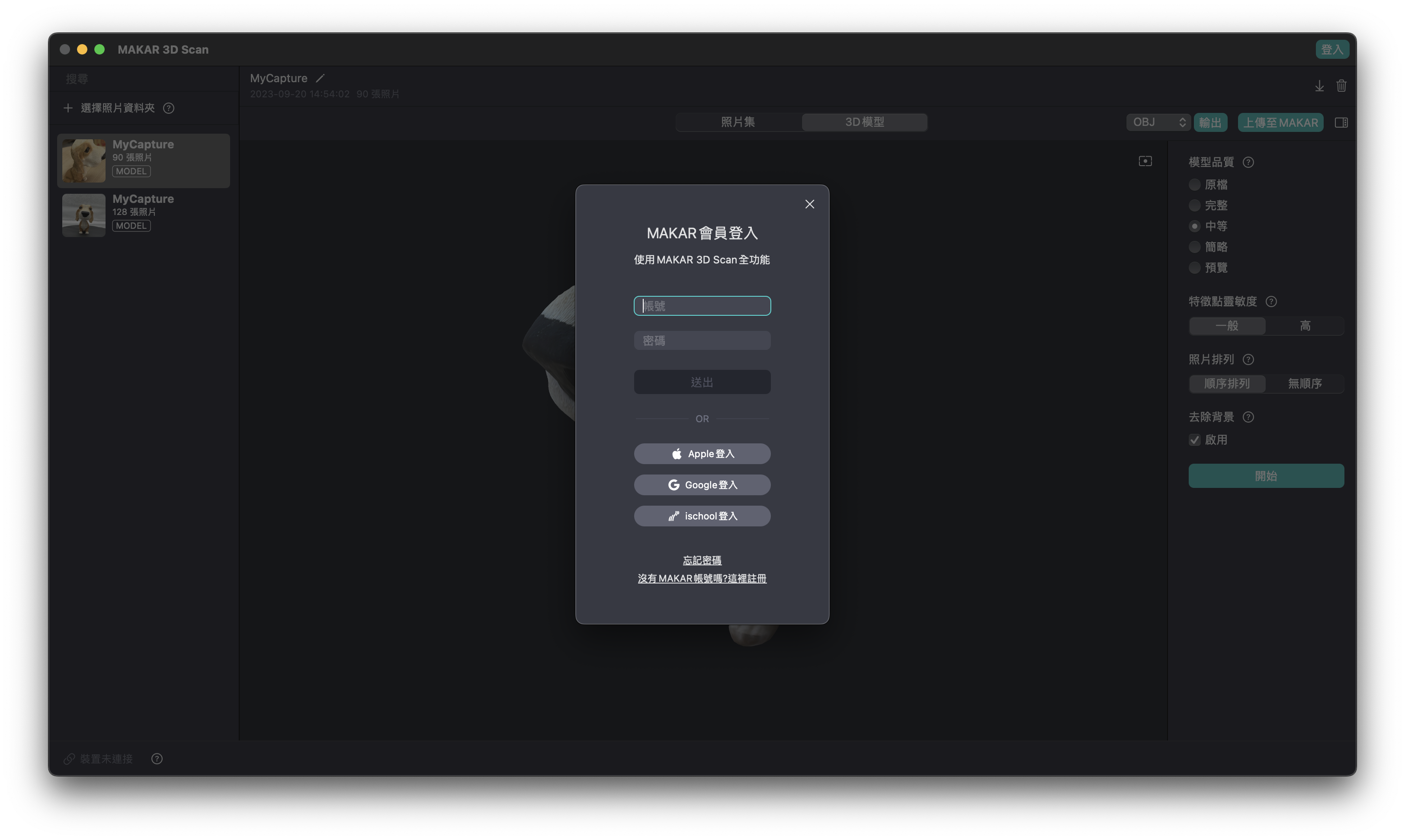
-
After uploading to MAKAR software, the model will appear in the Resources.
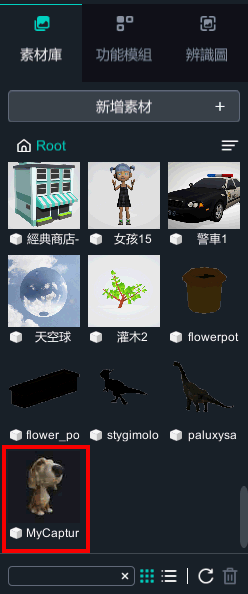
【Exporting 3D Model Files】
-
Select "Export" in the top right to support exporting 3D formats: OBJ, GLB, STL, USDZ.
※ Exporting models is a feature exclusive to MAKAR Professional Edition accounts.
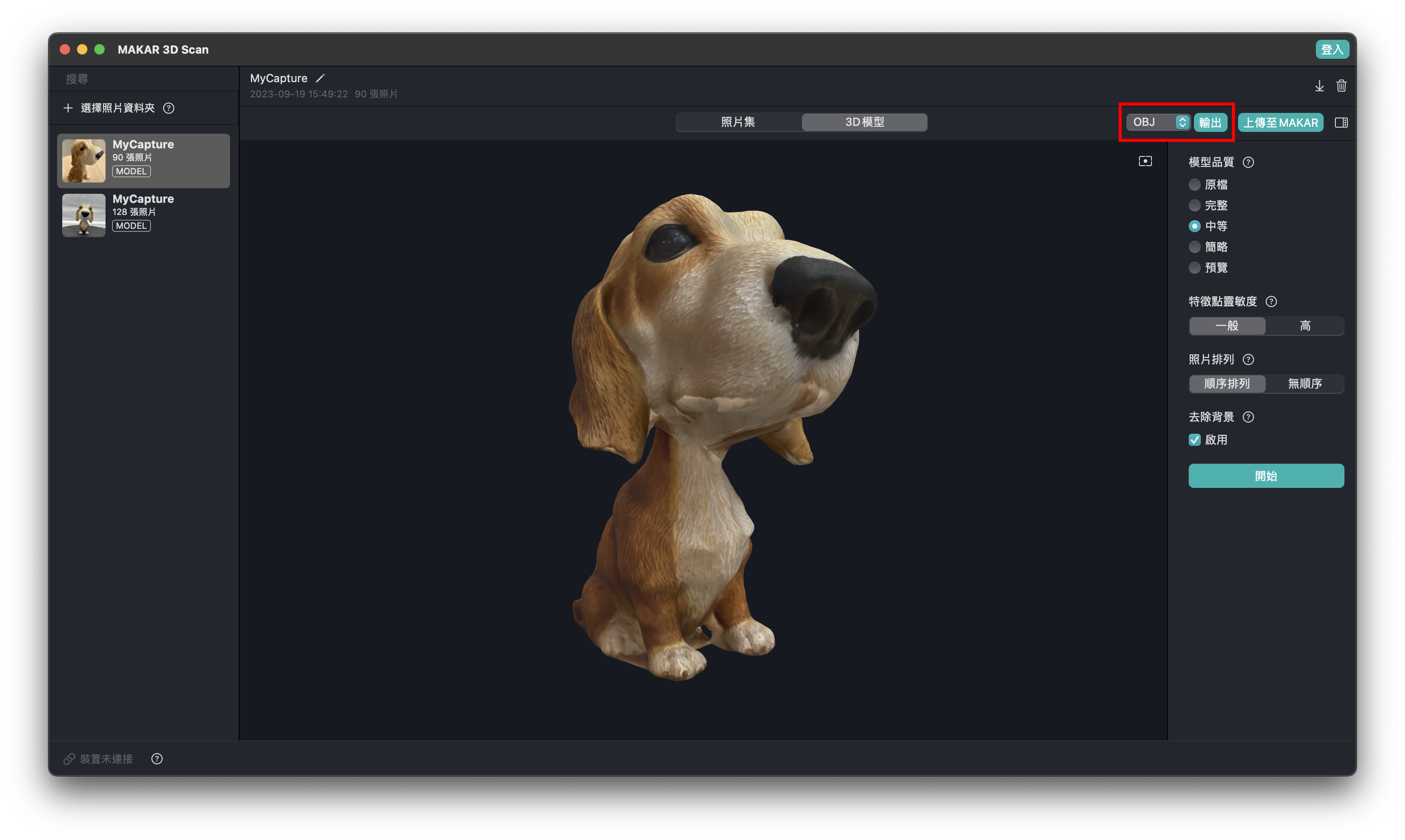
-
The appearance after export.
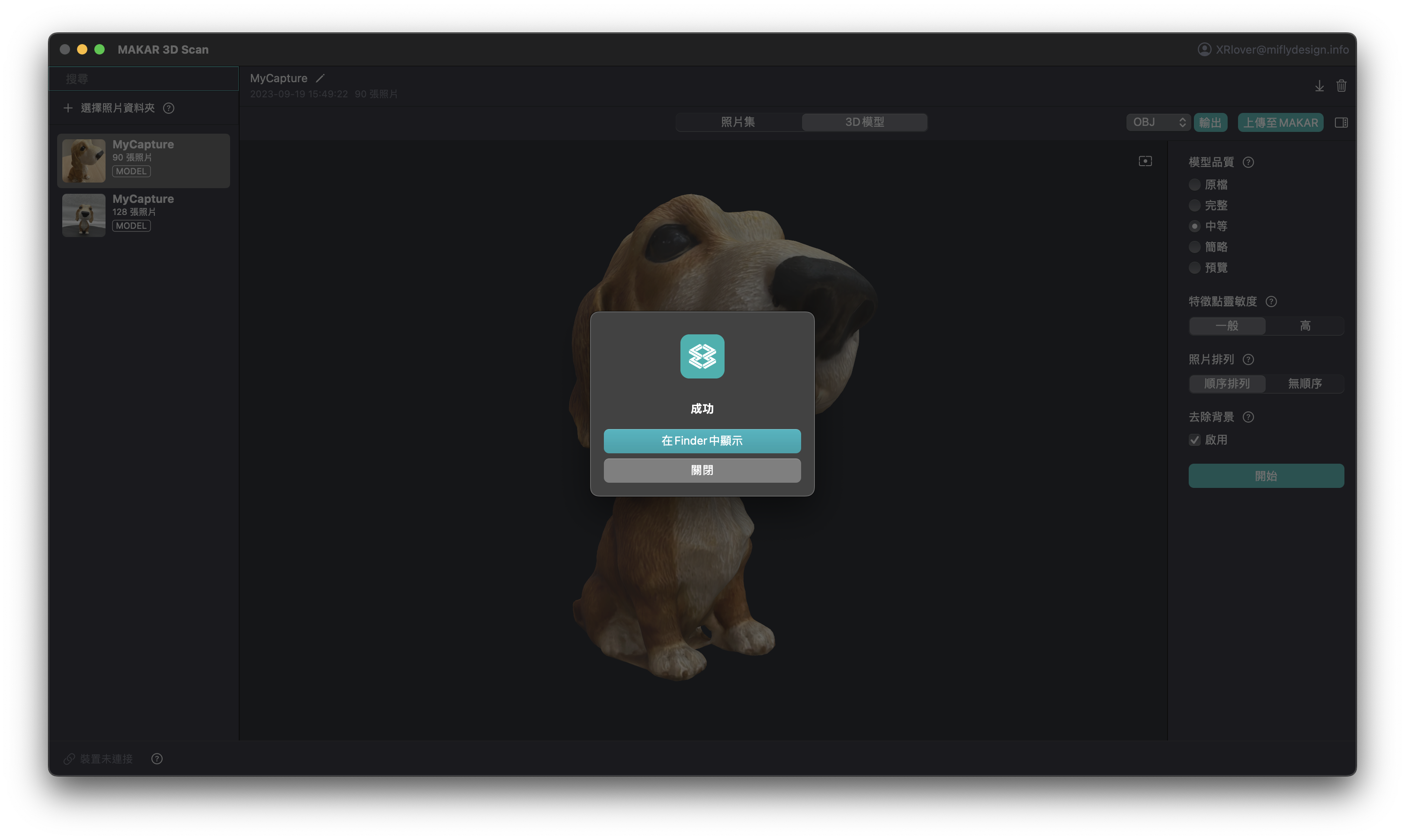
Spring Festival AR Animation Tutorial
Spring Festival AR AnimationAs the year of the Rabbit arrives in 2023, MAKAR has produced an AR interactive experience for Spring Festival.
The process is very simple and does not require complex animation techniques.
By using PPT and MAKAR's new masking function, you can create animation effects for setting off firecrackers and pulling Spring Festival couplets.
You can even change the text on the couplets and send unique New Year's greetings through AR!
Download materials:https://drive.google.com/drive/folders/1njYx6aOkR5U1D6cbf5LfMikc6Gt3IZ6r?usp=sharing
【Creating Animation with PPT】
- After importing the 2D firecracker into PPT, use the built-in "crop" function to cut it into six pieces and then reassemble it.
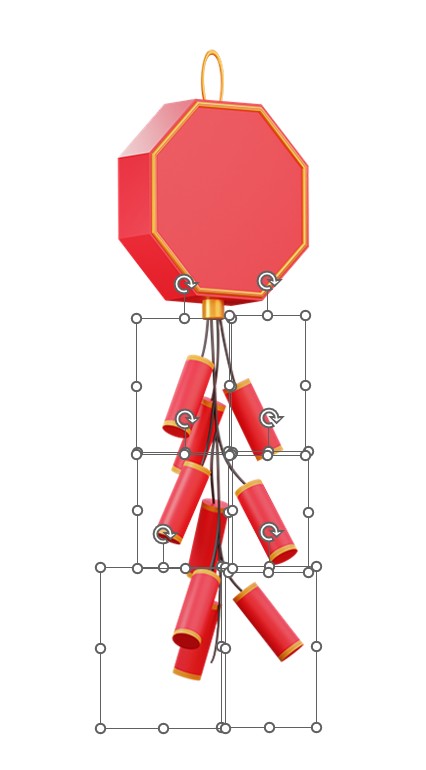
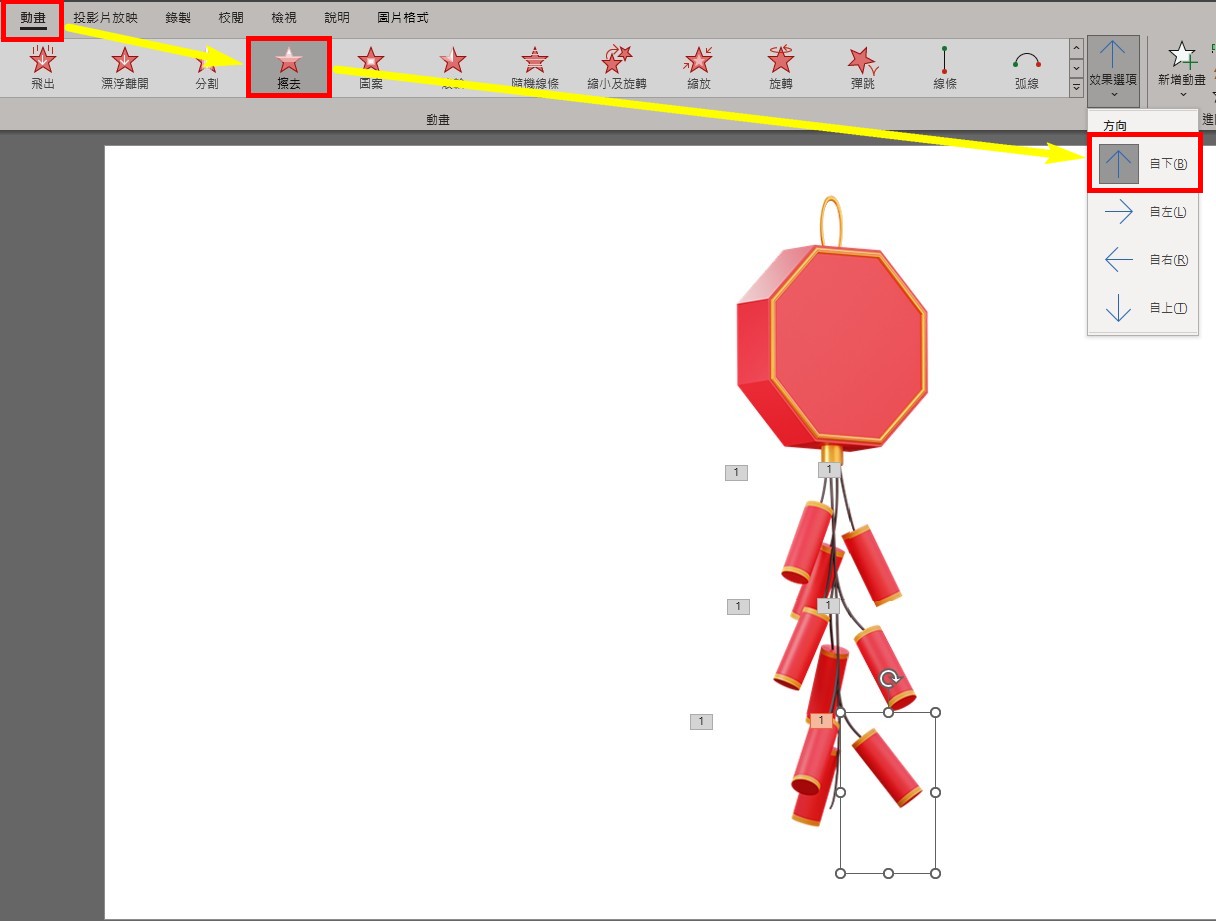
-
Go to "Animation" > "Wipe" and set the effect option to "From Bottom".
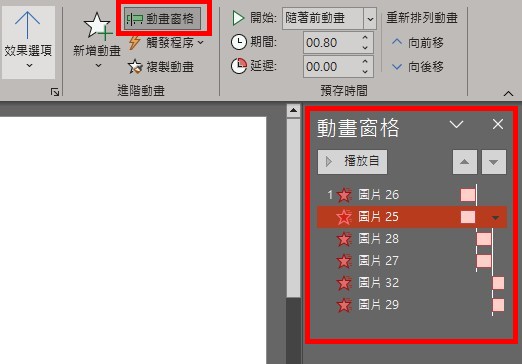
- If you need to adjust the timing of the animation, you can click on the "Animation Pane" to make adjustments.
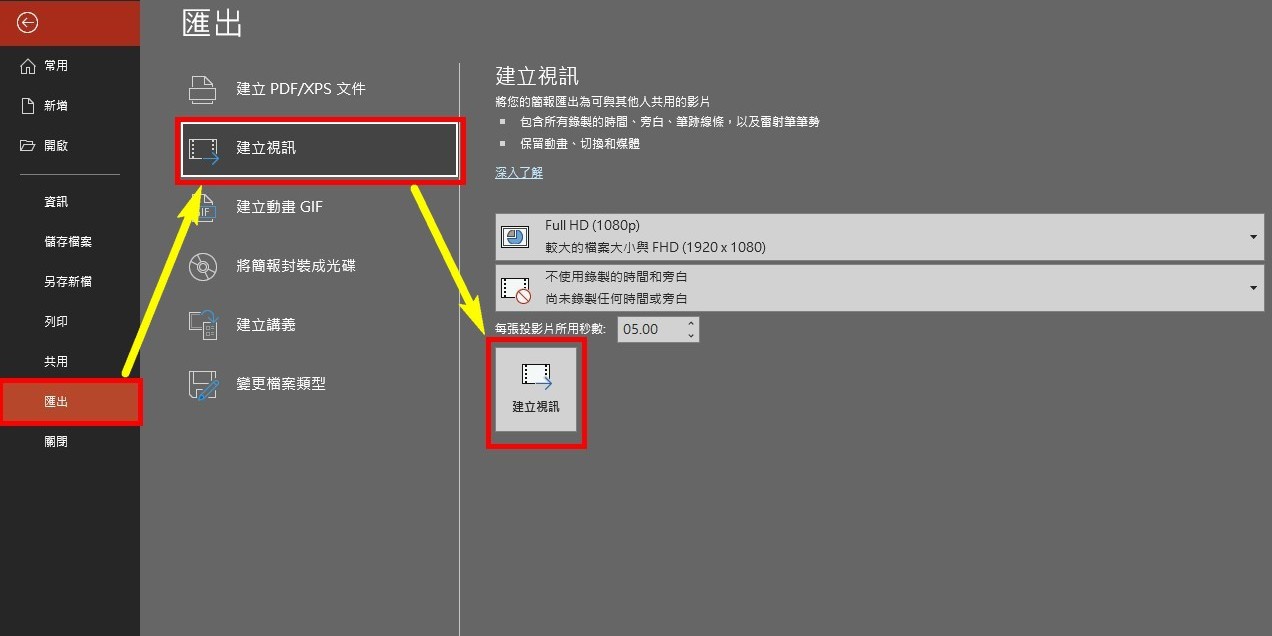
- After completing the process, click on "Export" > "Create a Video" to export the animation as a video file.
【Creating Spring Festival Couplets with PPT】
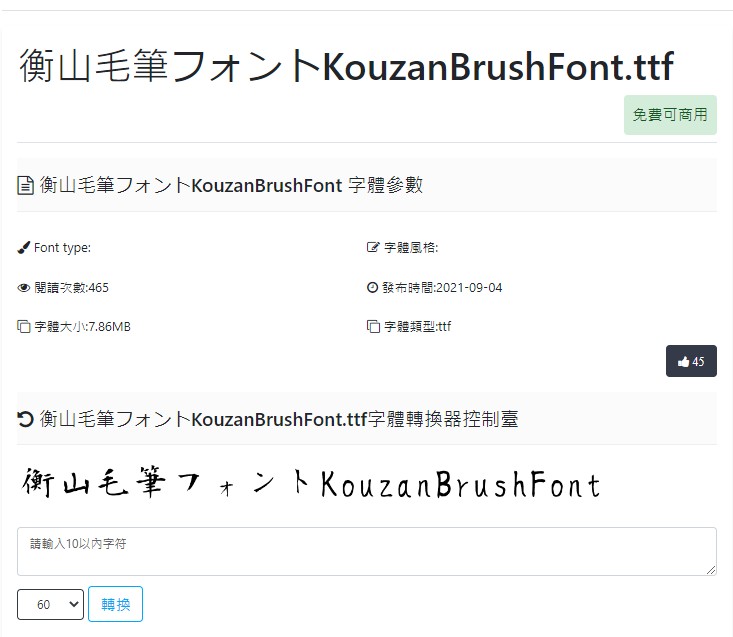
- To make the font look like calligraphy, you can download free commercial fonts from this website:http://www.ziti.net.cn/mianfeiziti/
After downloading, install into your computer.
For this example, we will use "KouzanBrushFont.ttf" font from "Hengshan Brush Font"."
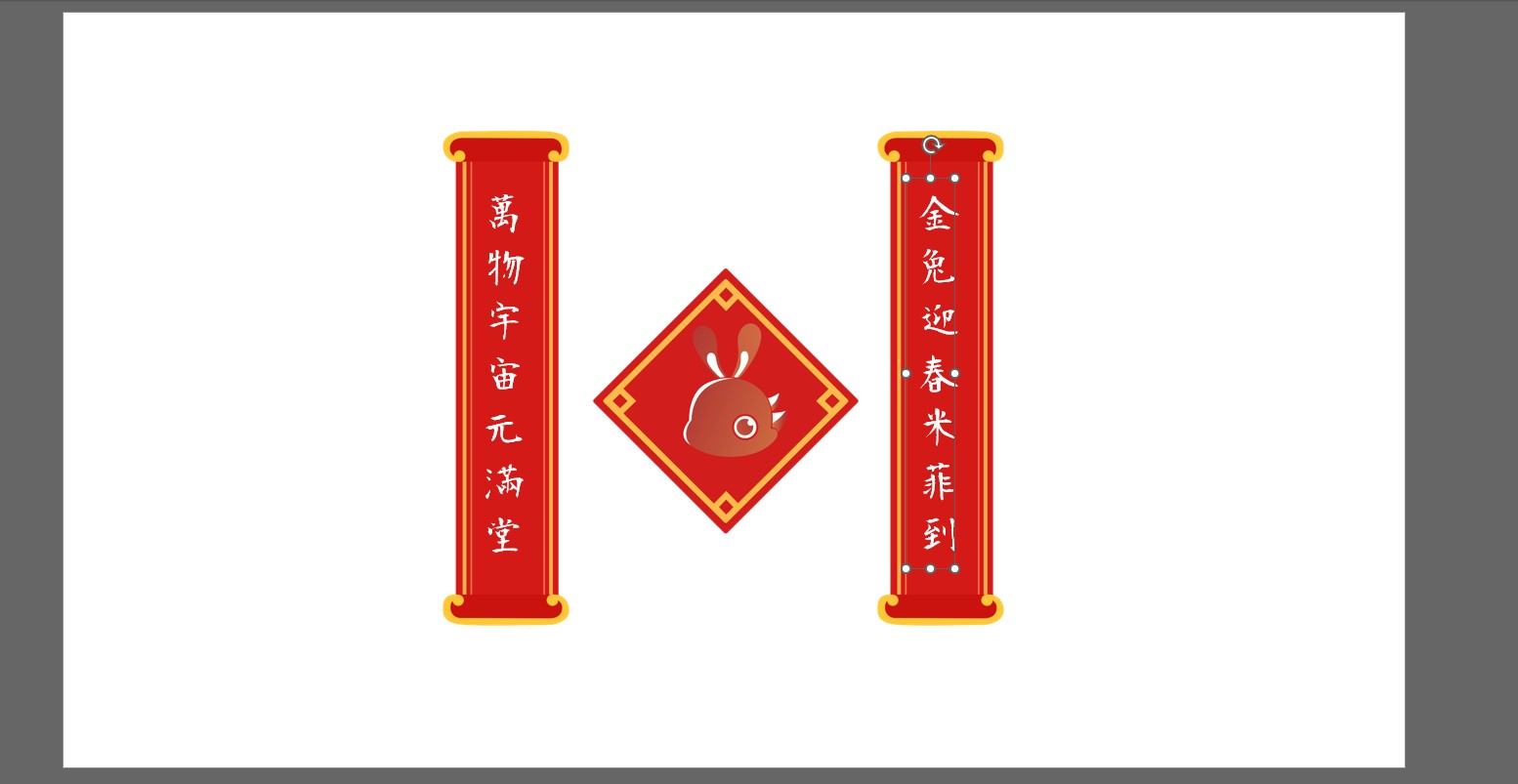
- Import couplet materials into PPT, use downloaded font to add the couplet, and export it as a complete PNG image.
【Enter MAKAR】
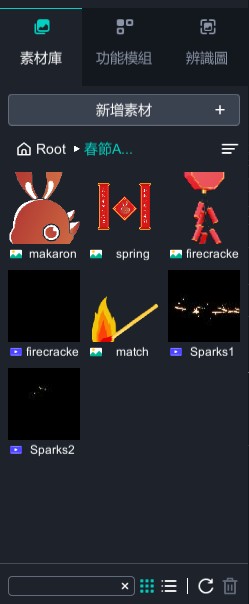
- Import all the materials into MAKAR.
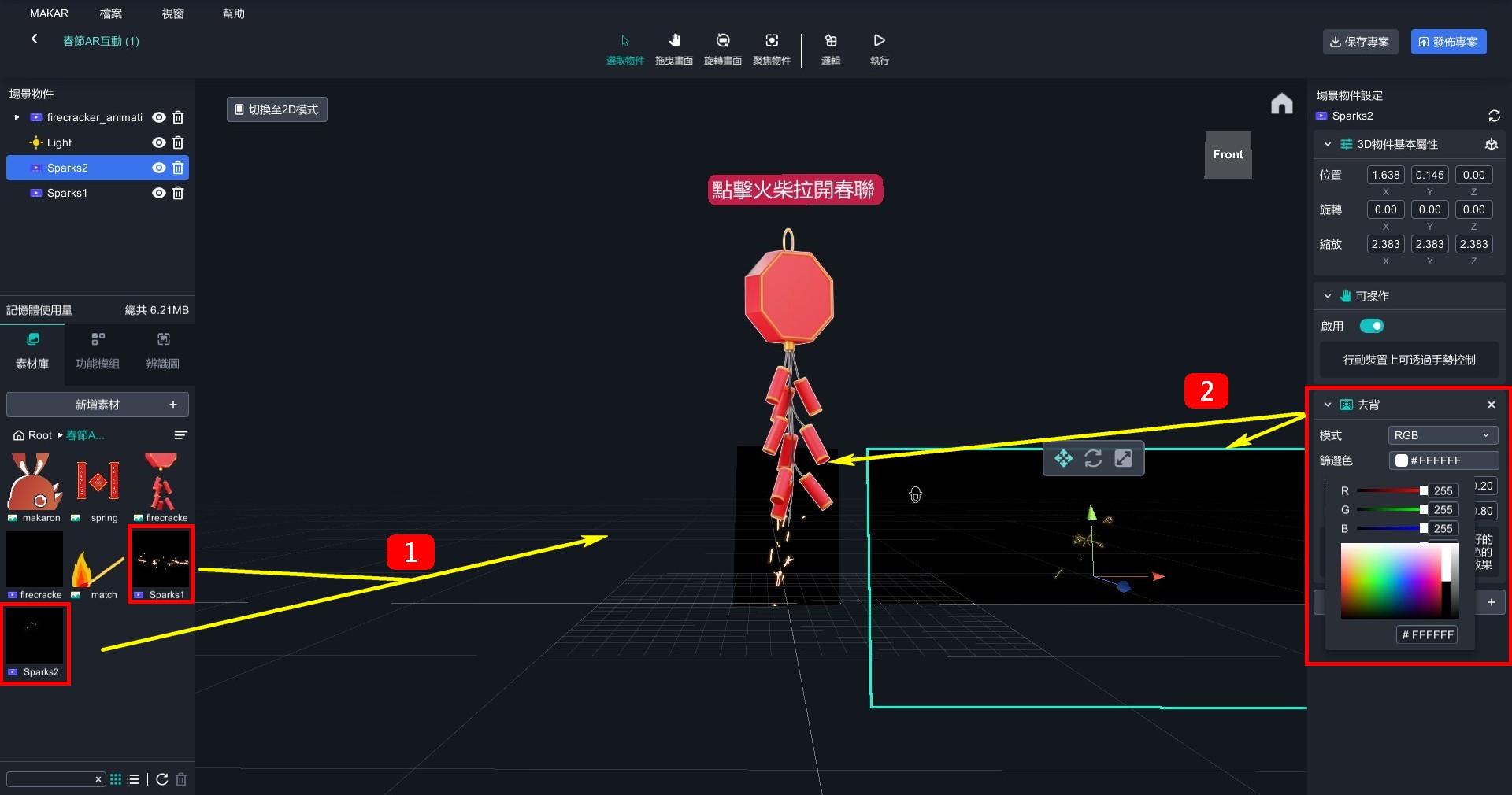
- Drag the firecracker animation into the editor. The background of the video is the white color of the PPT and needs to be removed.
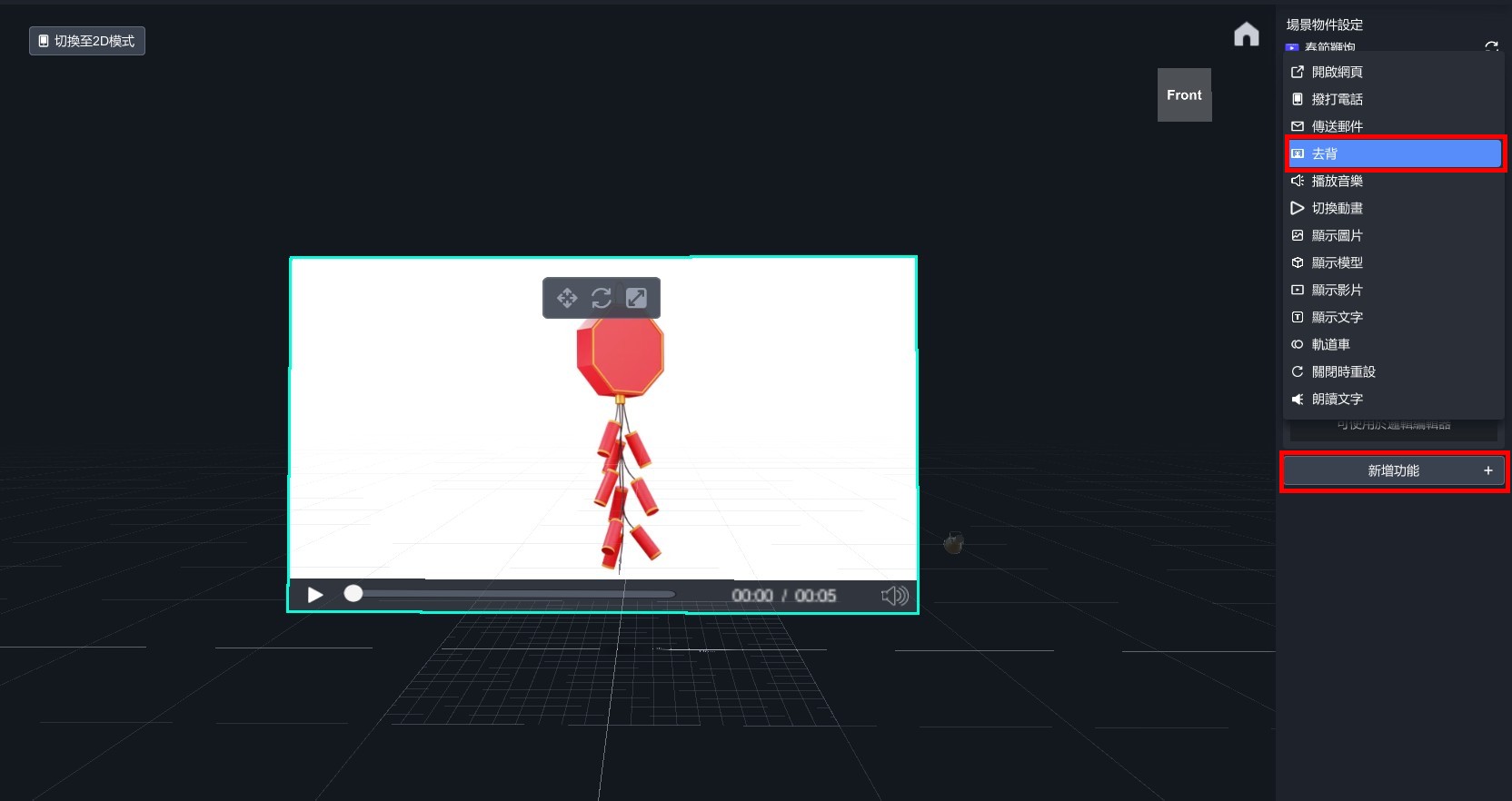
- Use a dropper to pick up the white background.
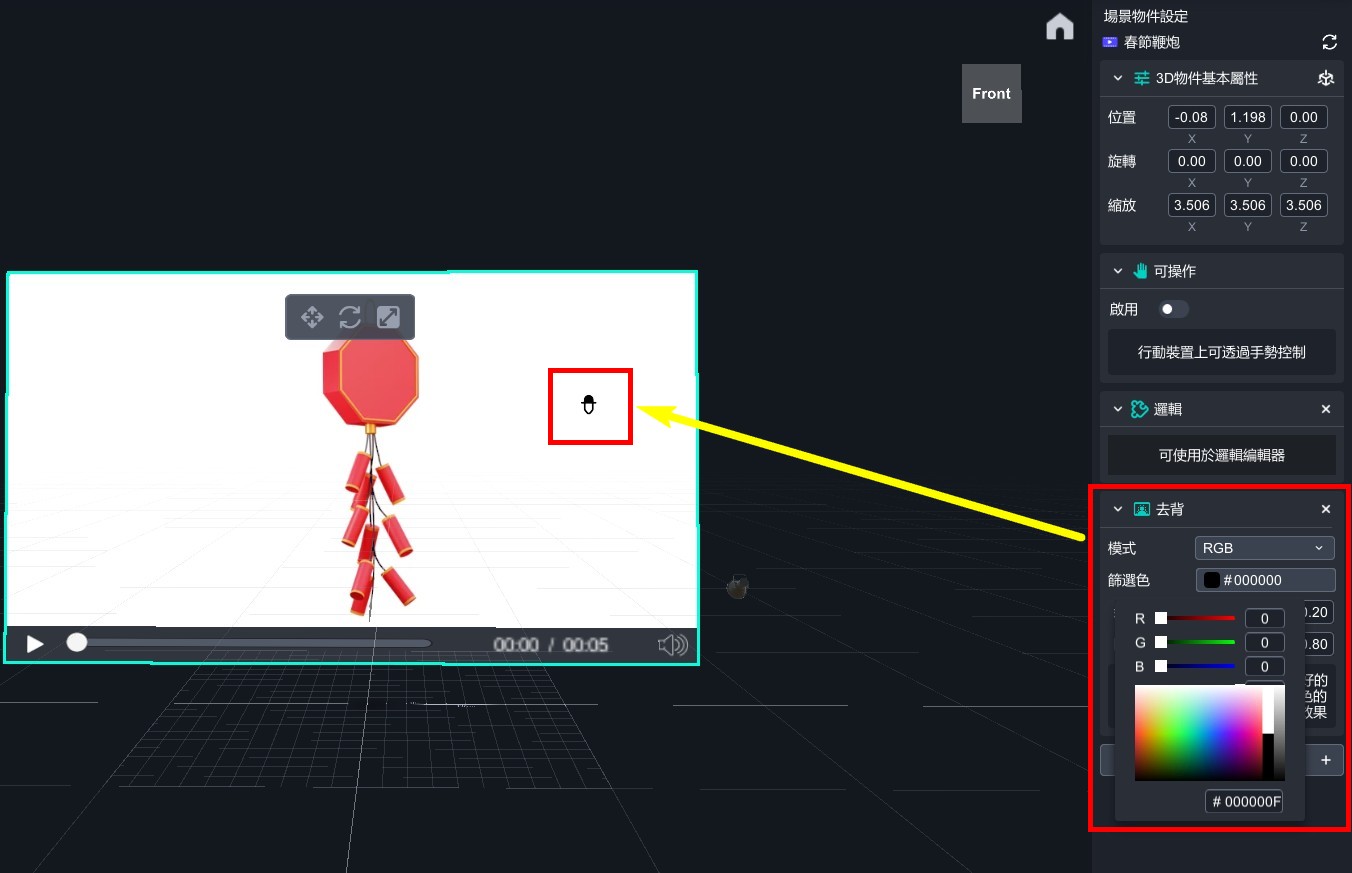
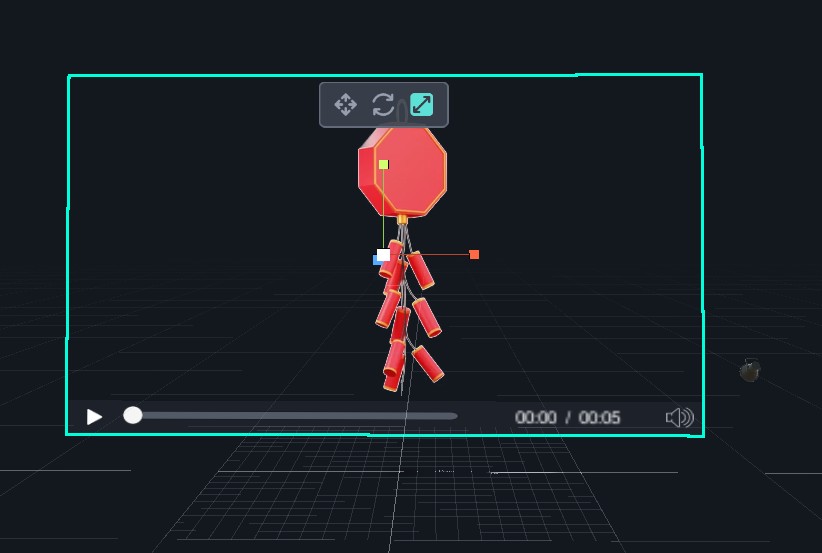
- Background removal is complete.
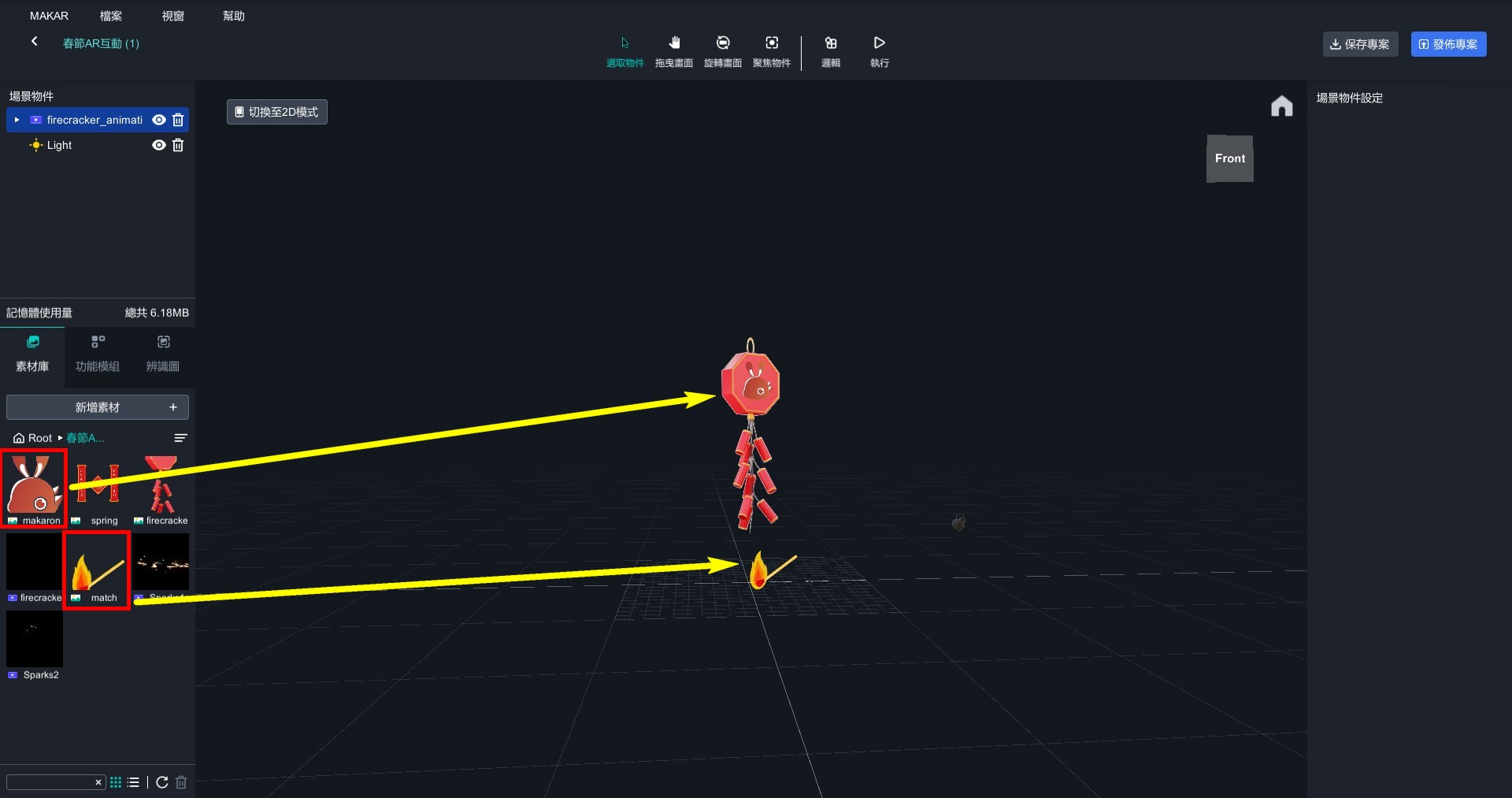
- Put icon and matchstick into the editor and arrange them in the order shown in the image.
- Add a text editor and put it above the firecracker.
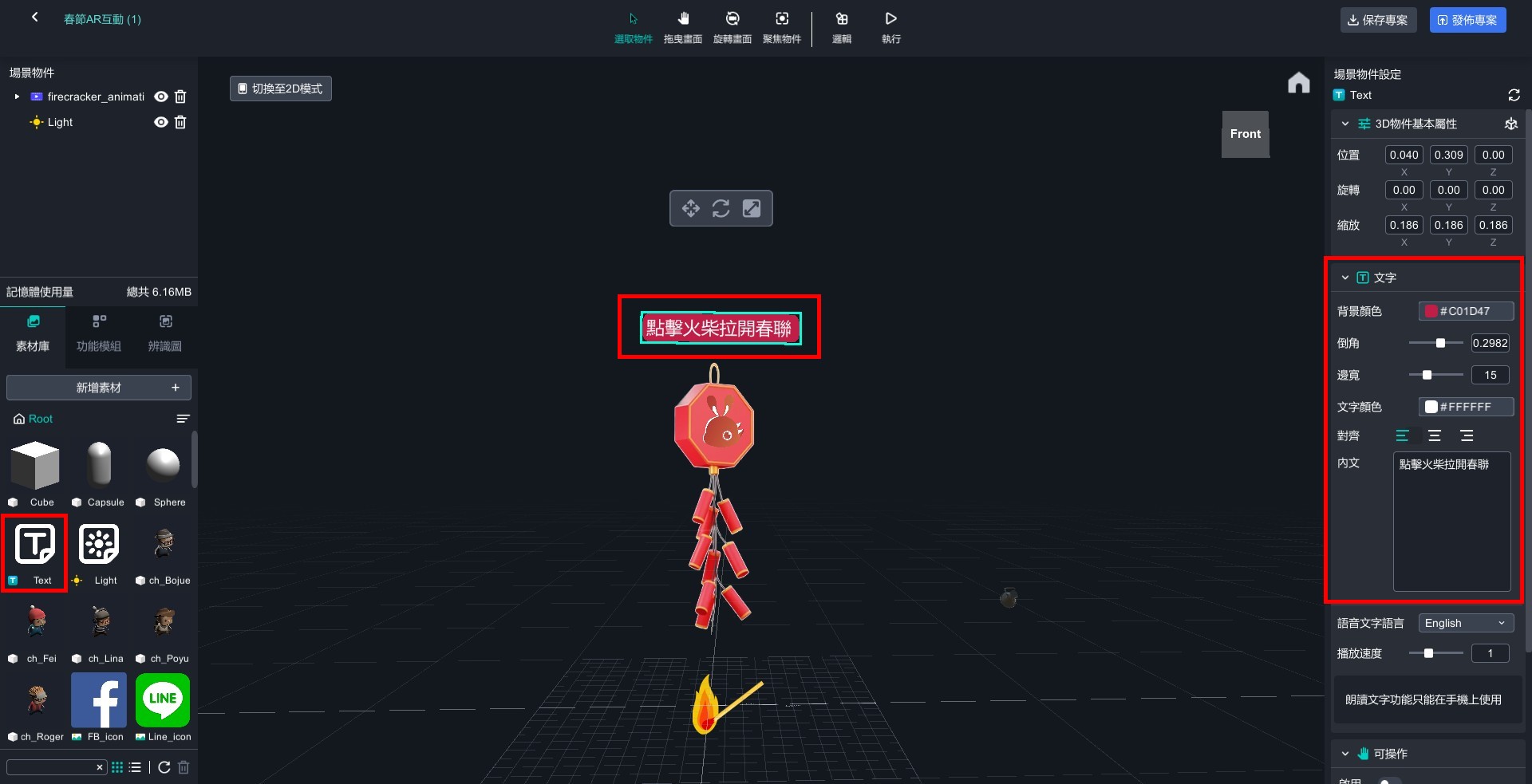
- Drag two fireworks videos into editor, adjust them to the appropriate positions, and remove their backgrounds in the same way.
- Except for icon, matchstick, firecracker, and text, turn off other objects' visibility by clicking eye icon.
【Set up firecracker ignition】
- Drag a cube, compress it into a line, and put it under firecracker to disguise it as part of object itself.
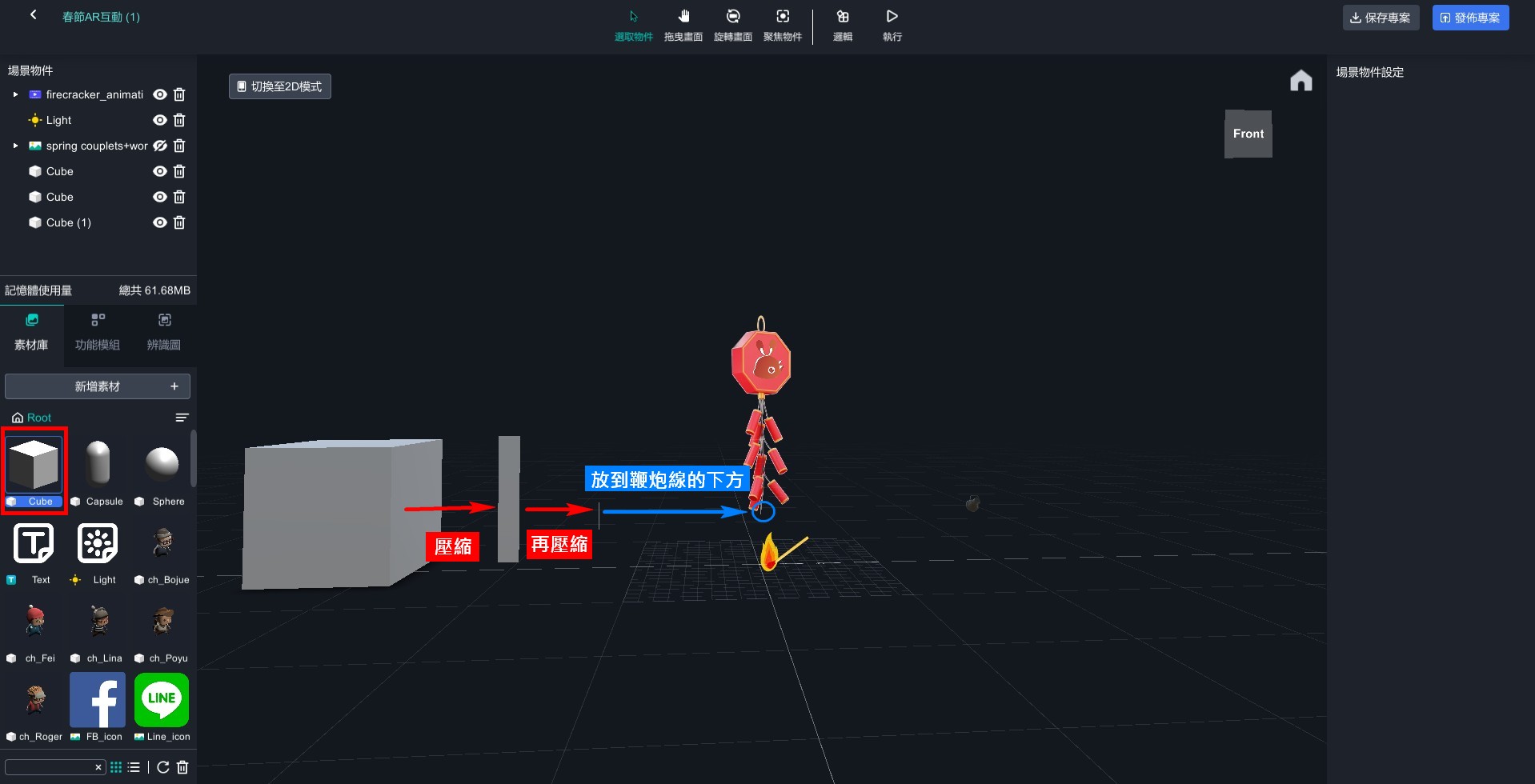
- Set a cube, matchstick, text, and firecracker animation video as individual logic objects.
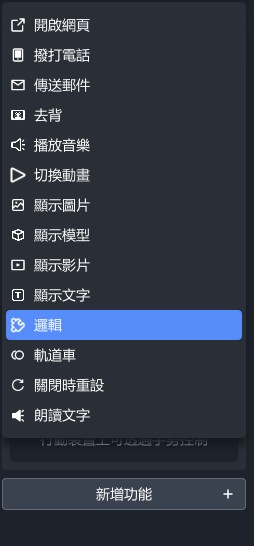
- Open logic editor and add controls such as visibility, click execution, movement, etc., and adjust them as shown in the figure.
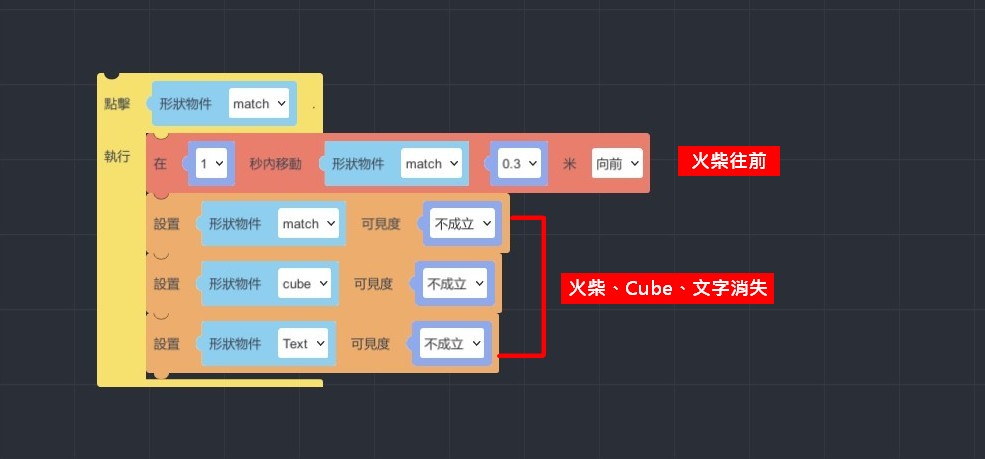
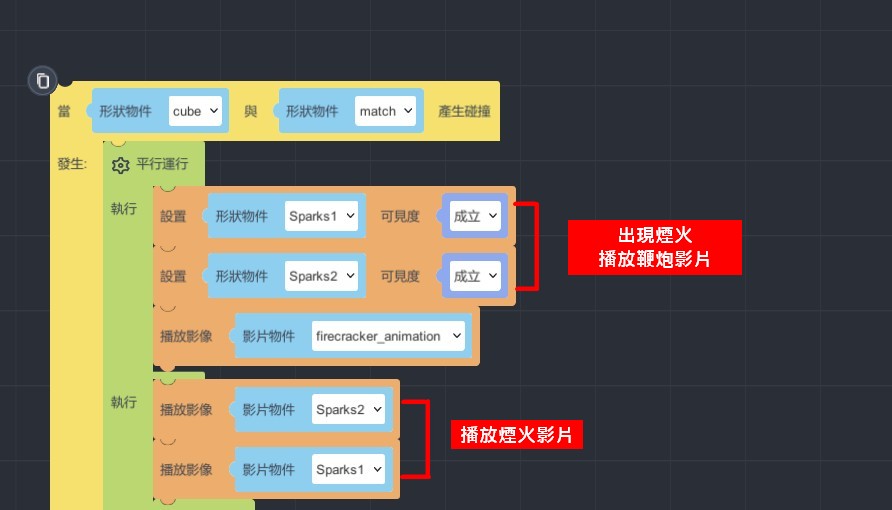
【Set up firecracker】
- Add "when...collides with..., enter..." and "run parallel do... and do..." and set up a dynamic video of two fireworks when matchstick and cube collide.
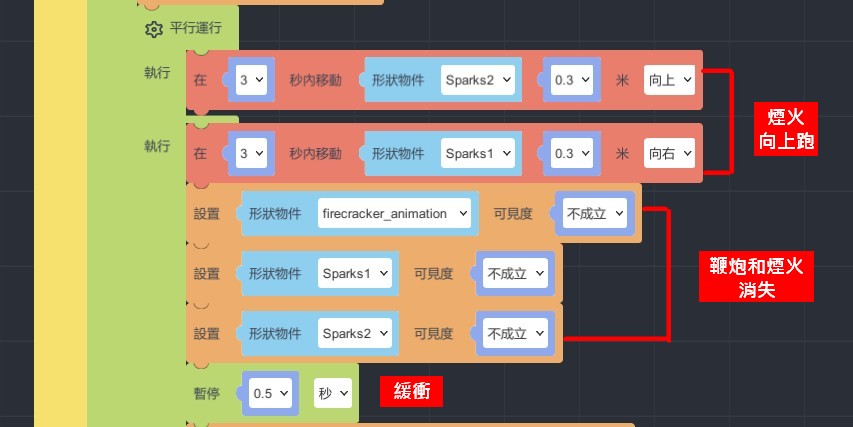
- Drag one more "run parallel do... and do...". Set the video of the fireworks to run upwards, and make both the fireworks and firecrackers disappear immediately after the firecrackers have finished. To prevent the upcoming couplets from appearing too abruptly, add a "wait for...second" control.
【Set up couplets】
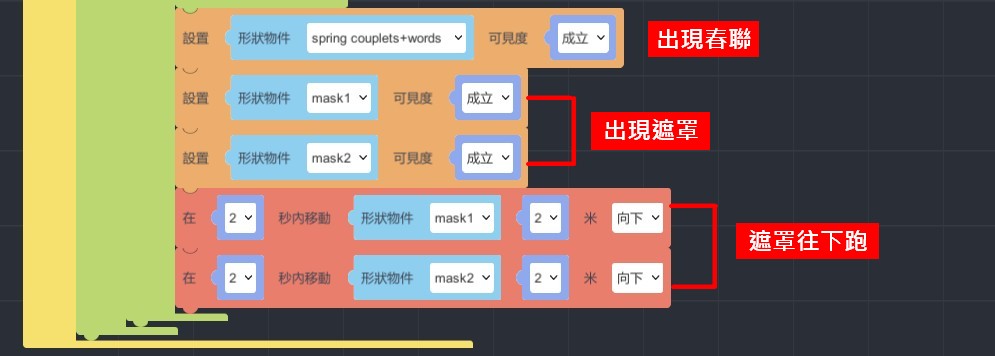
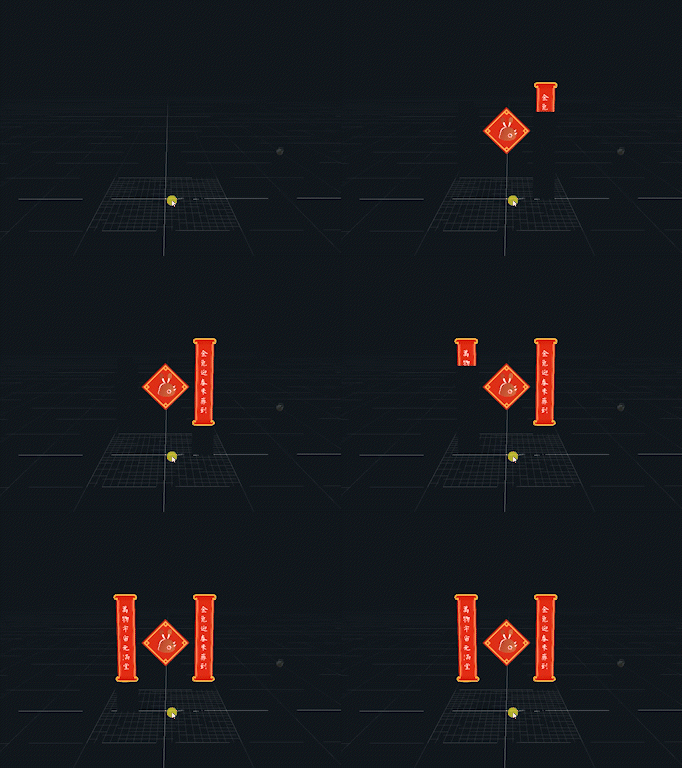
- Set up controls to display Spring Festival couplets and masks, and set the mask to run downwards to create the effect of opening the couplets.
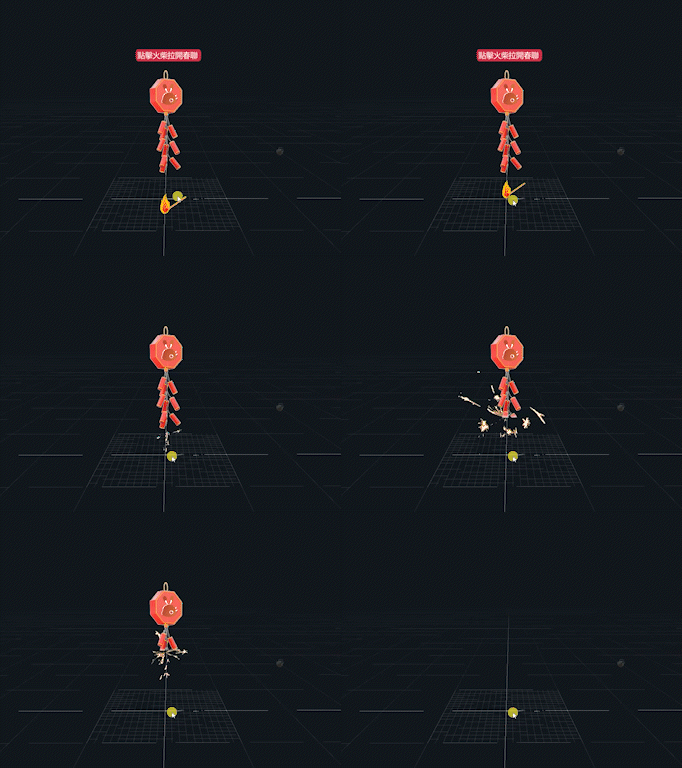
How to experience?
Pick up your phone and enter the ID, then start the experience~
1.Install the MAKAR APP
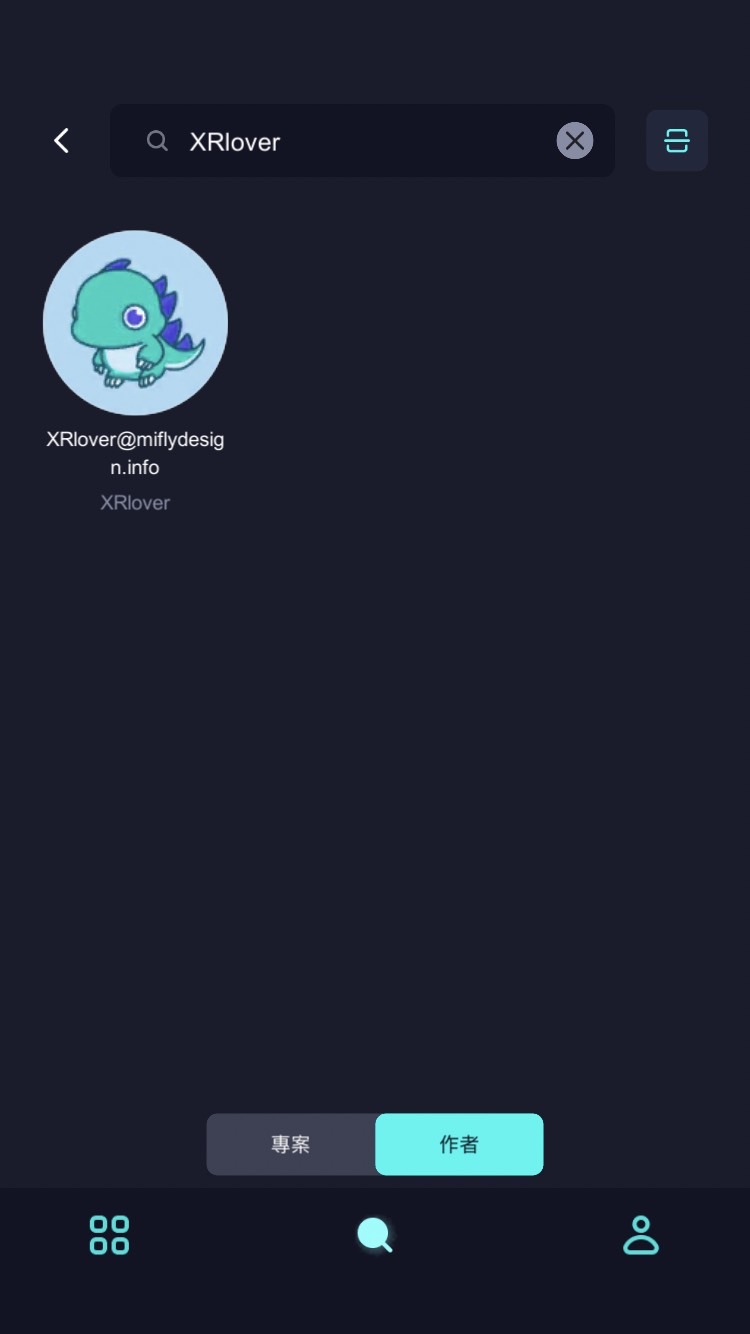
2.Scan QR code or search for ID:XRlover to select the author.

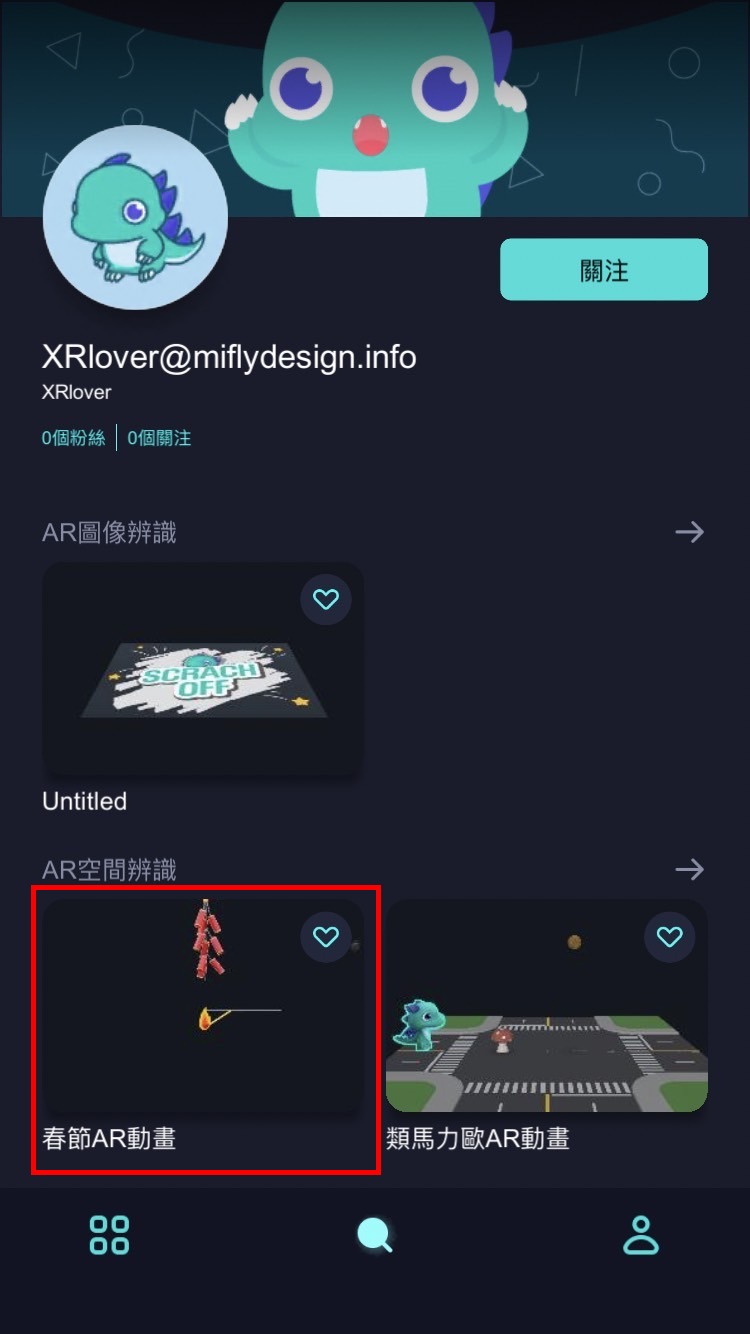
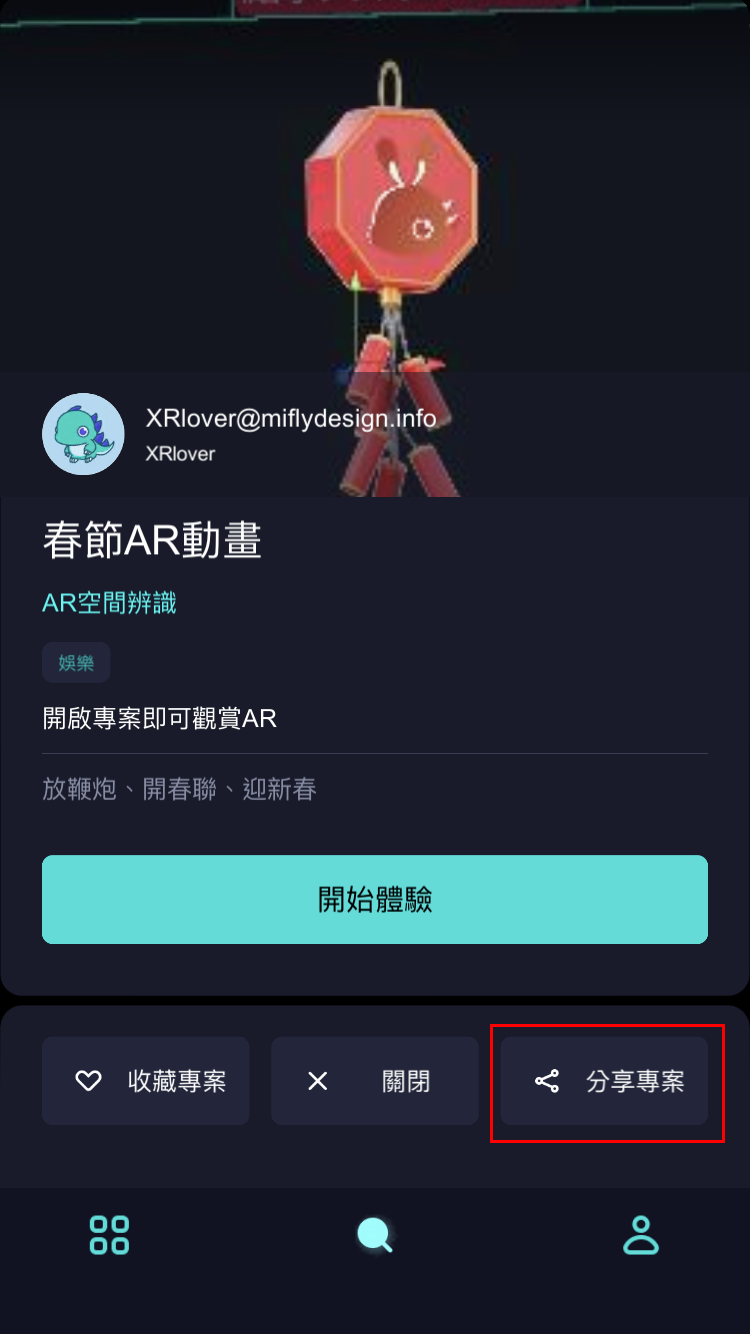
- Click on the AR space recognition "春節AR動畫" project to launch it, and then click "Start Experience".
4. After entering the project, clicking on "Share Project" allows you to obtain a project link, which you can quickly share with others.
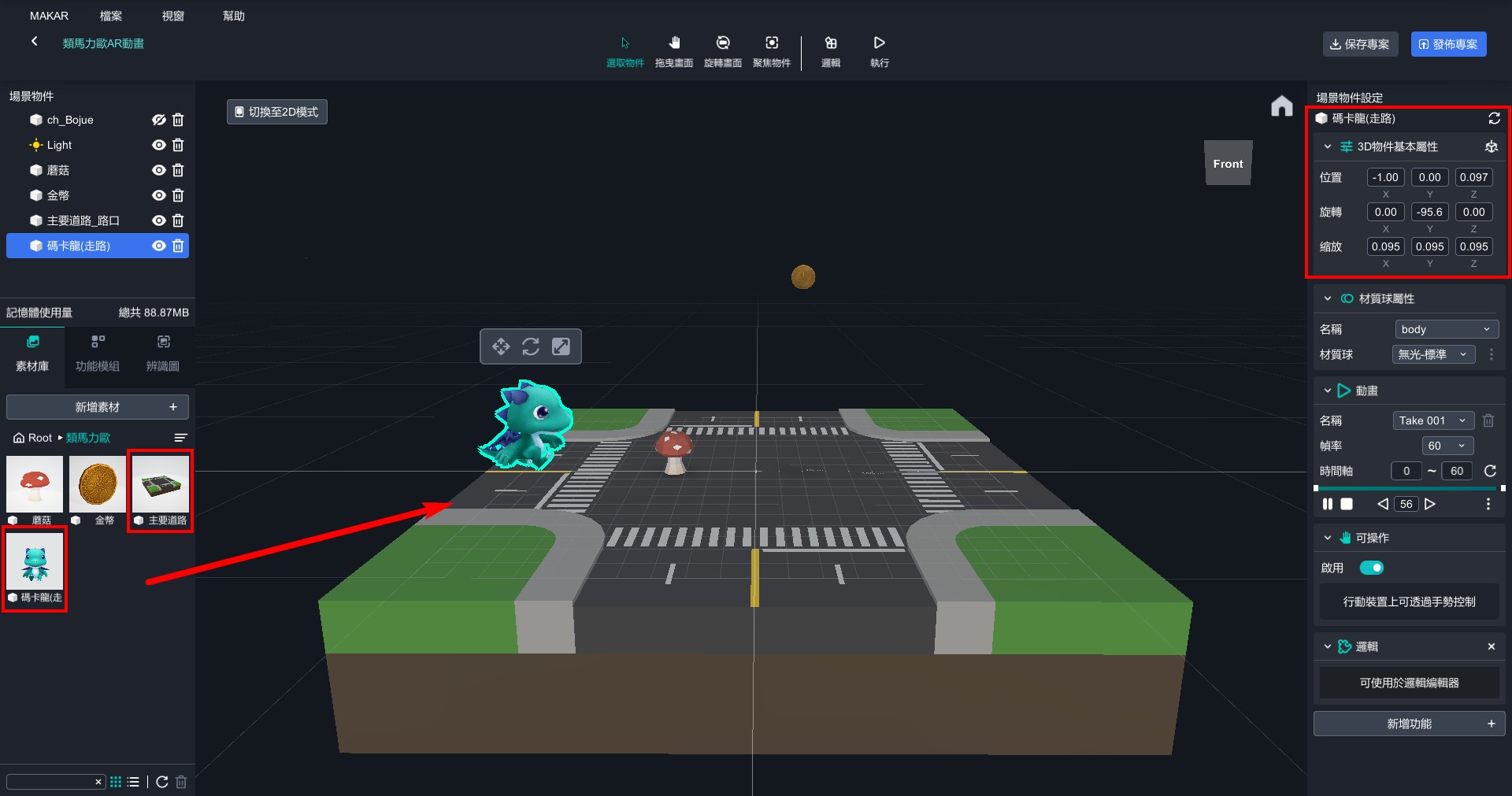
Logic-Macaron AR Animation
▲ Animation:rotation、scale、moving and jumping、collides、visibility
▲ Object:coin、mashroom、Macaron(walking)、street(you can all download on MAKAR resources)
- Drag the road and Macaron into the editor, and rotate Macaron.
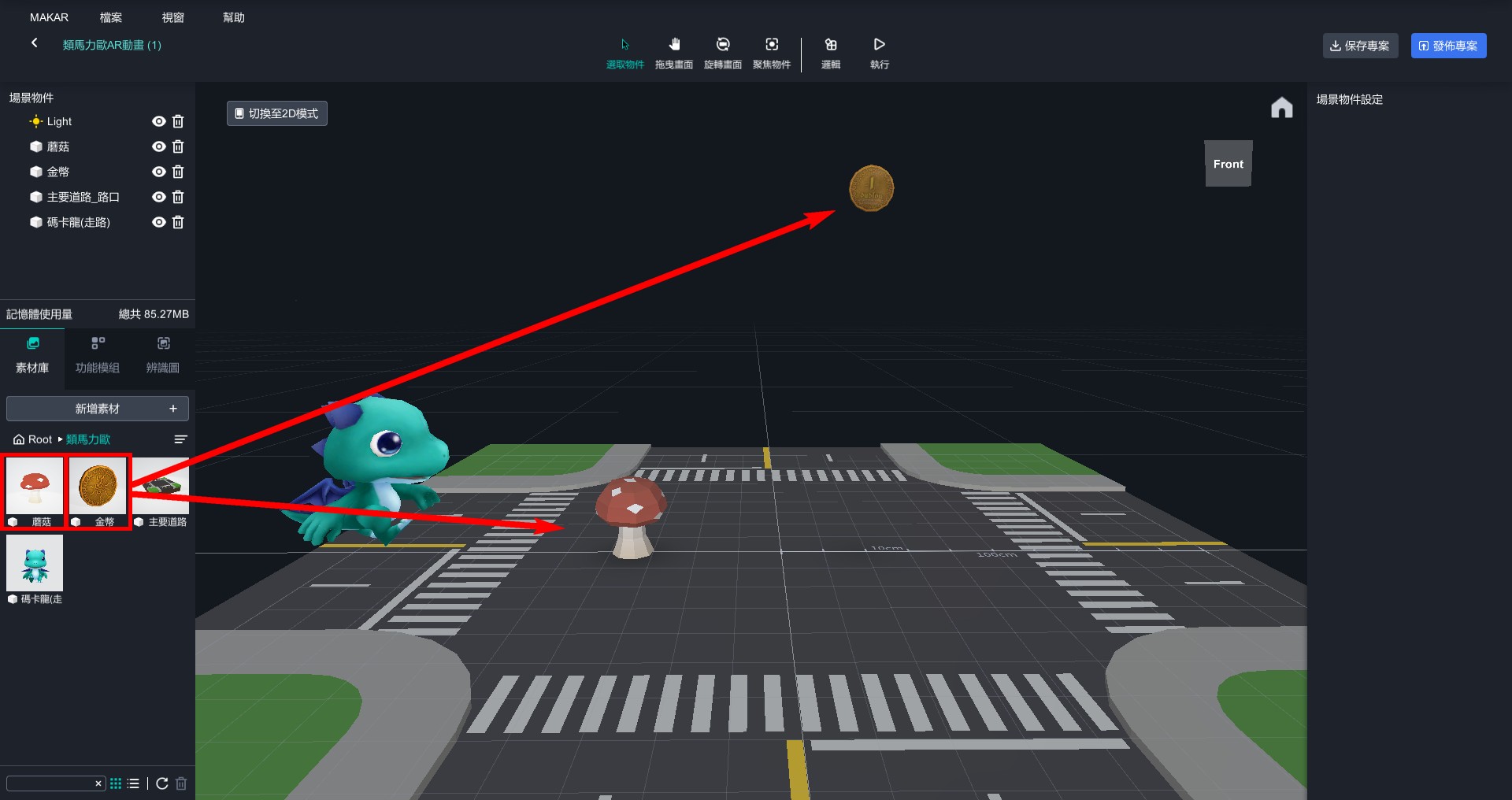
- Drag mushroom and coin into the editor and position them at appropriate distances.
- Set Macaron, coin, and mushroom as logical object.
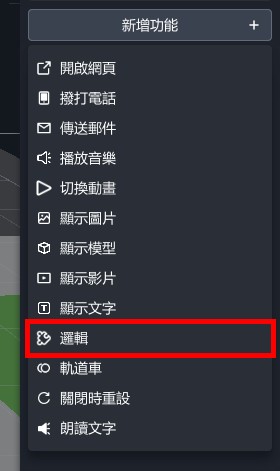
- Open the logic editor and start editing.
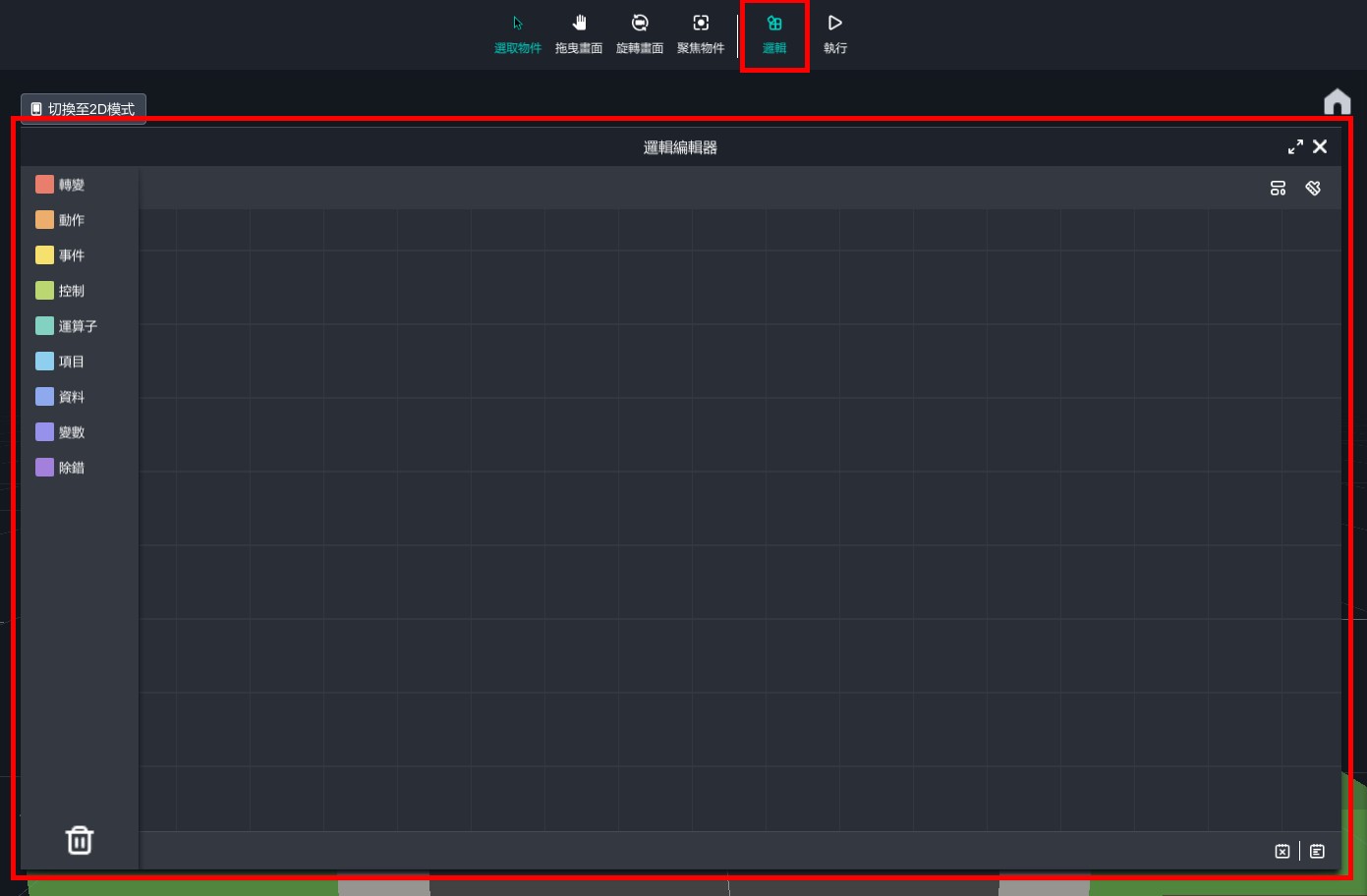
【Macaron Moving and Jumping】
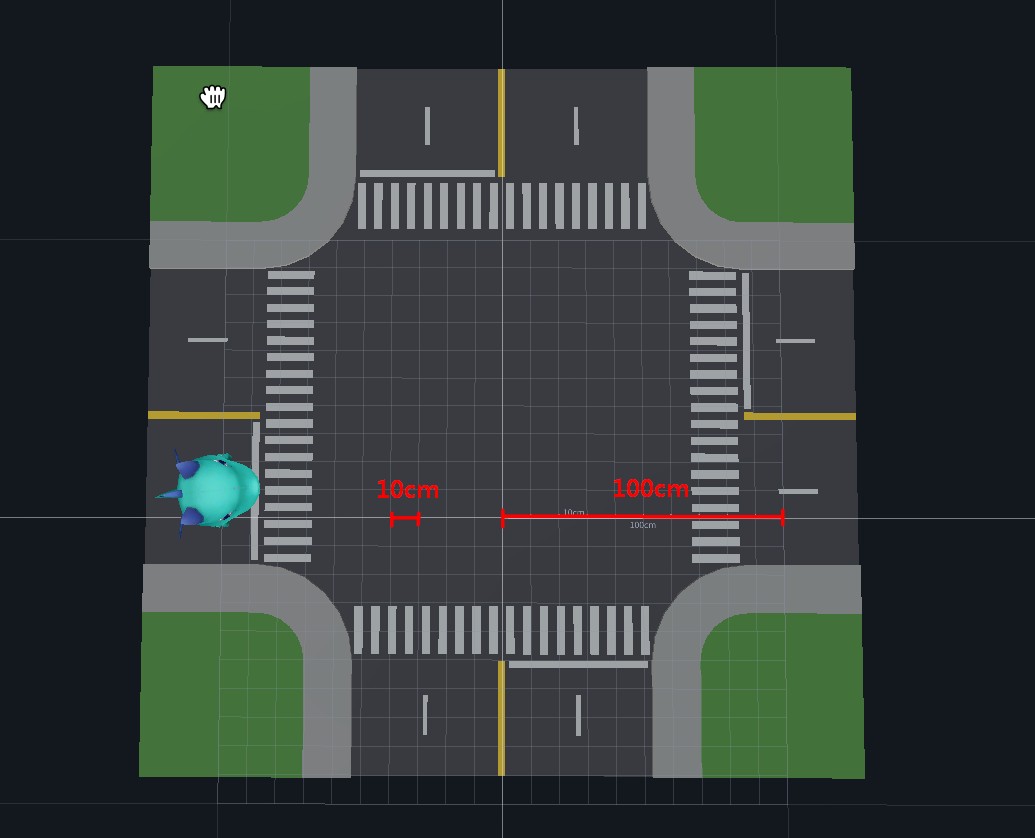
- In the scene, one small square represents 10 centimeters and one big square represents 1 meter. Set the walking distance of Macaron based on this standard.
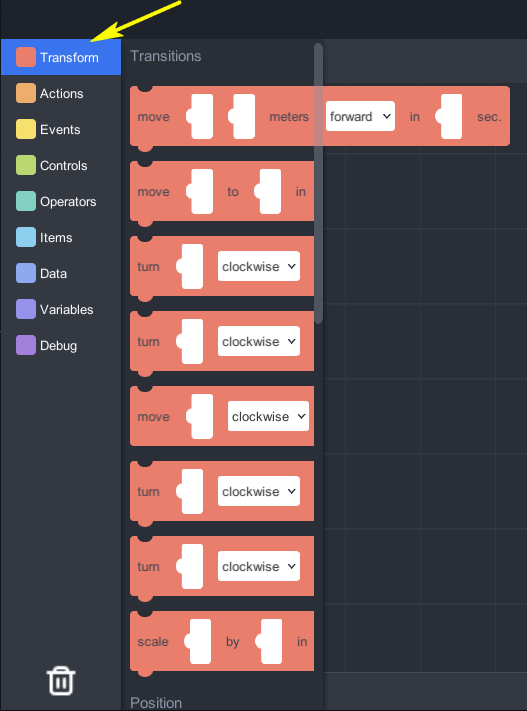
- From "Transform" > "Transitions", drag out "move...object...meters...in...seconds", and all subsequent actions will be executed based on this block.
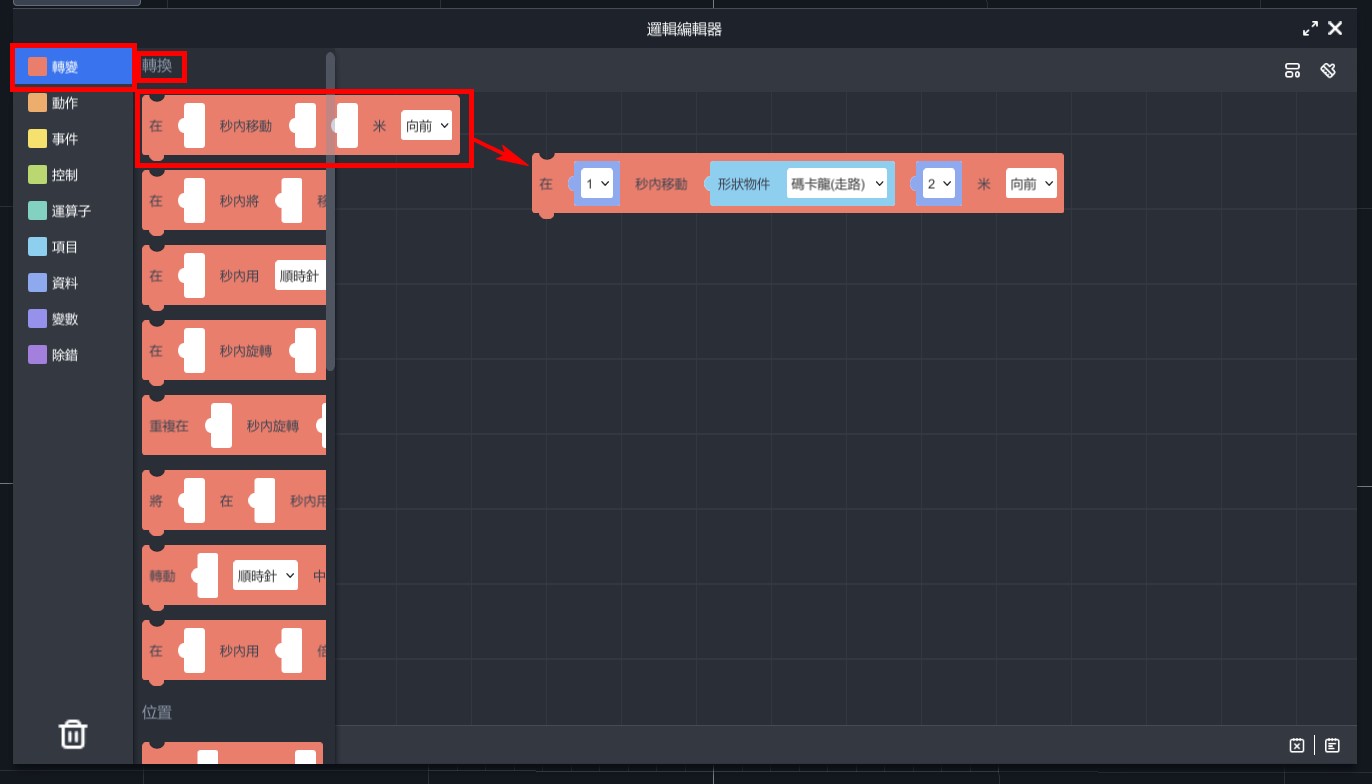
STEP(1)Walk a certain distance
Set block to "move Macaron (walking) 1 meter backward in 1 second". Although the coin is located 1.3 meters from the starting point, adjusting the distance to 1 meter and having Macaron jump forward can make it look more natural due to its larger size. You can adjust the distance according to the actual situation as needed.
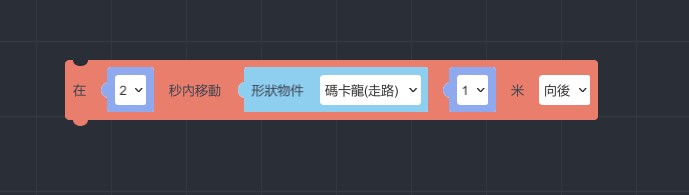
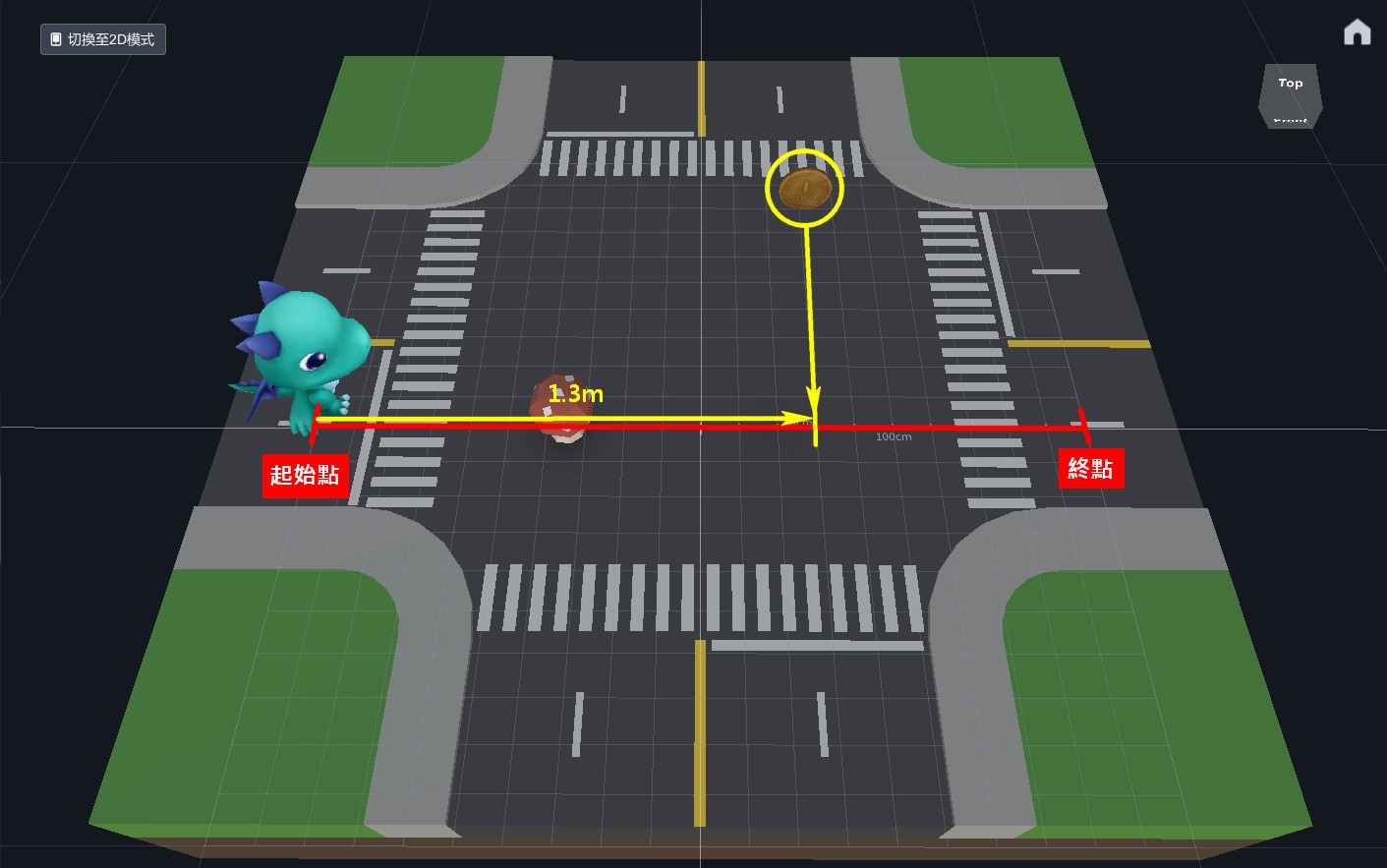
※ The object movement direction is set to "backwards", but the object appears to be moving towards the right. This is because the object's properties is not X=0, Y=0, Z=0 after rotating. Therefore, adjustments must be made based on the actual situation.
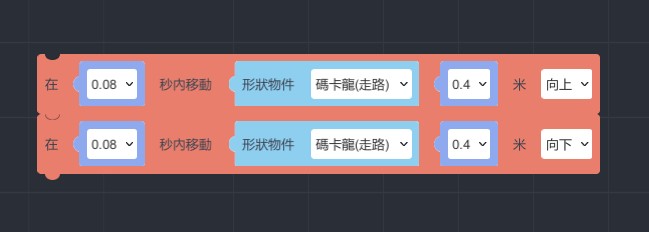
STEP(2)Jumping
Set the block to "move Macaron(walking) 0.4 meters up in 0.08 seconds" and duplicate it to set it to move downwards. You can adjust the distance and speed as needed.
STEP(3)Continue walking a certain distance
Set the block to "move Macaron(walking) 1 meter backwards in 1 second" to allow Macaron to continue moving forward naturally after eating the coin.
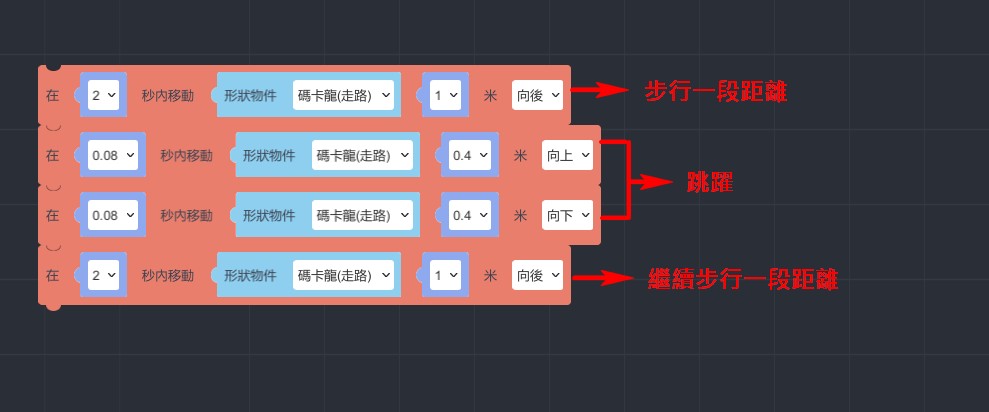
※ The blocks will execute the animations in the order they are arranged.
.gif)
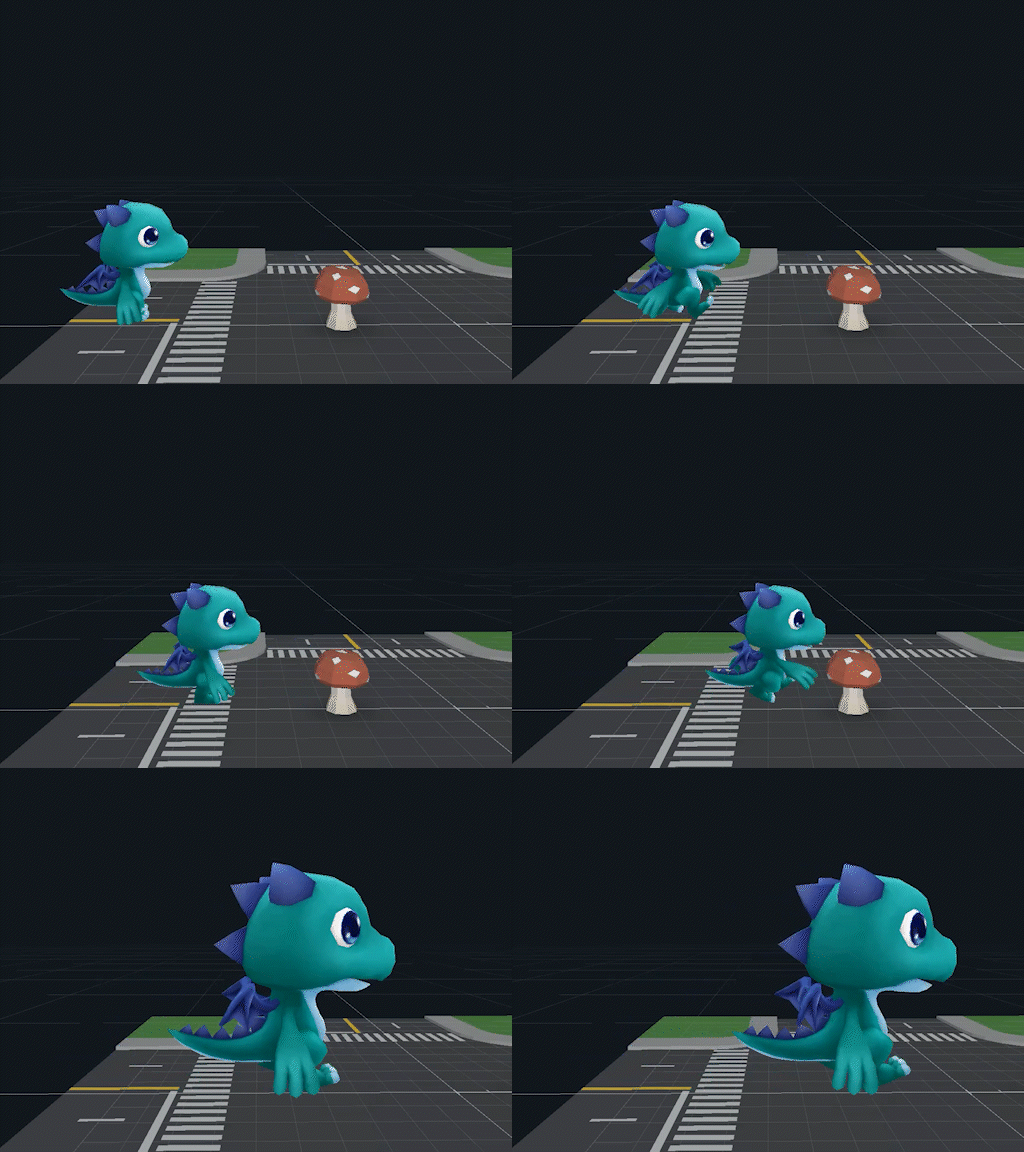
【After eating the mushroom, Macaron grows in size and the mushroom disappears.】
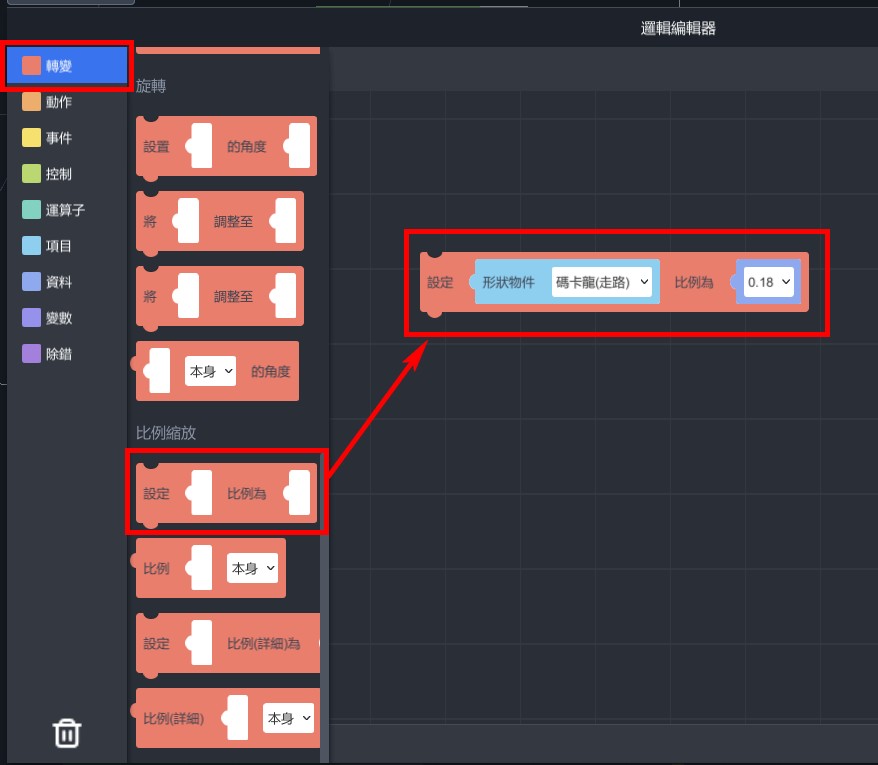
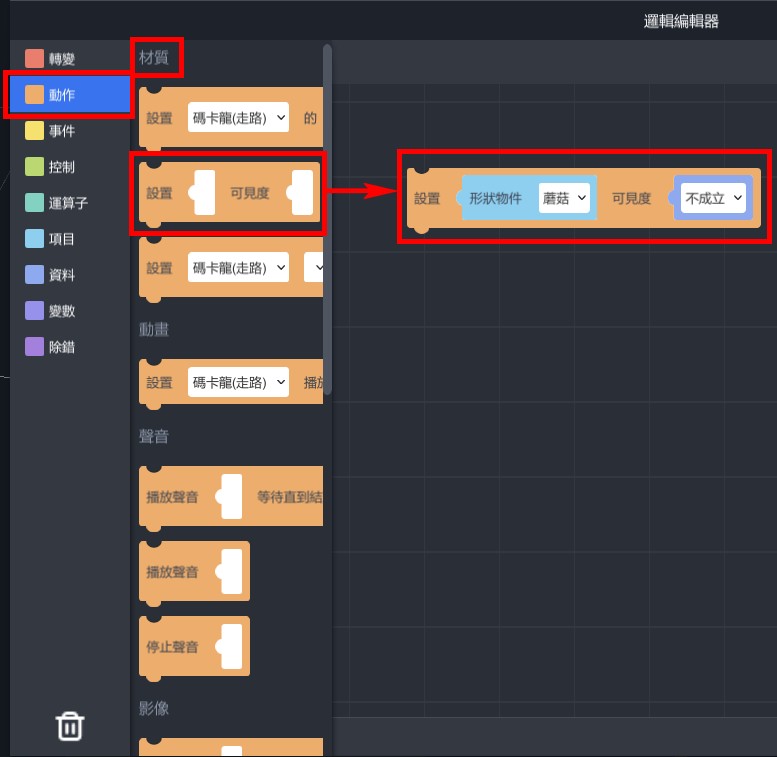
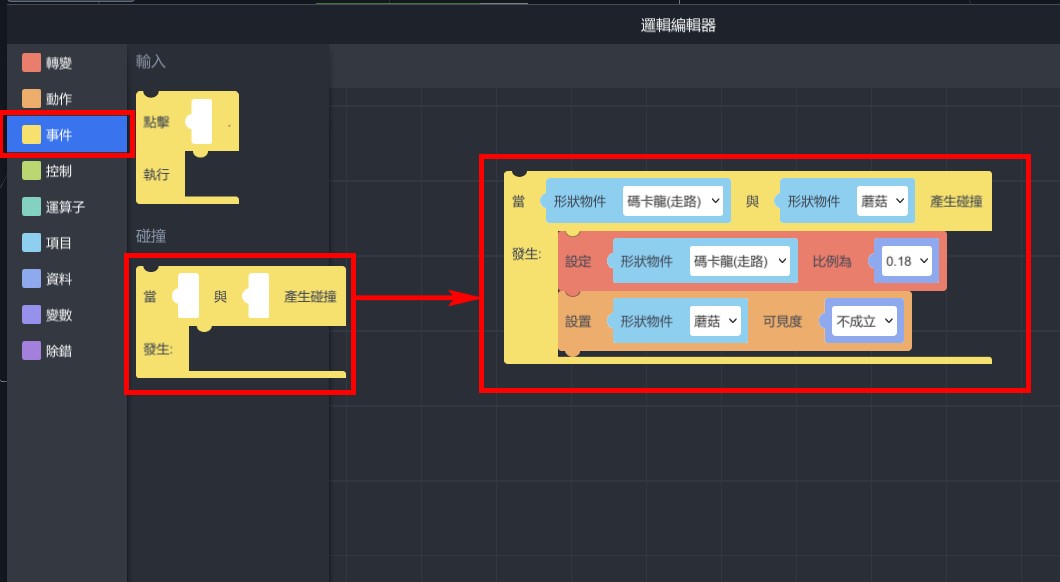
- From "Transform" > "Scale", pull out "Set scale of...to..." and set Macaron scale to 0.18.
- From "Actions" > "Material", pull out "Set visibility of...to..." and set mushroom's visibility to false.
- From "Events" > "Collisions", drag out "When...collides with..., enter..." and place the previous two blocks inside it, and set the collision between Macaron and mushroom.
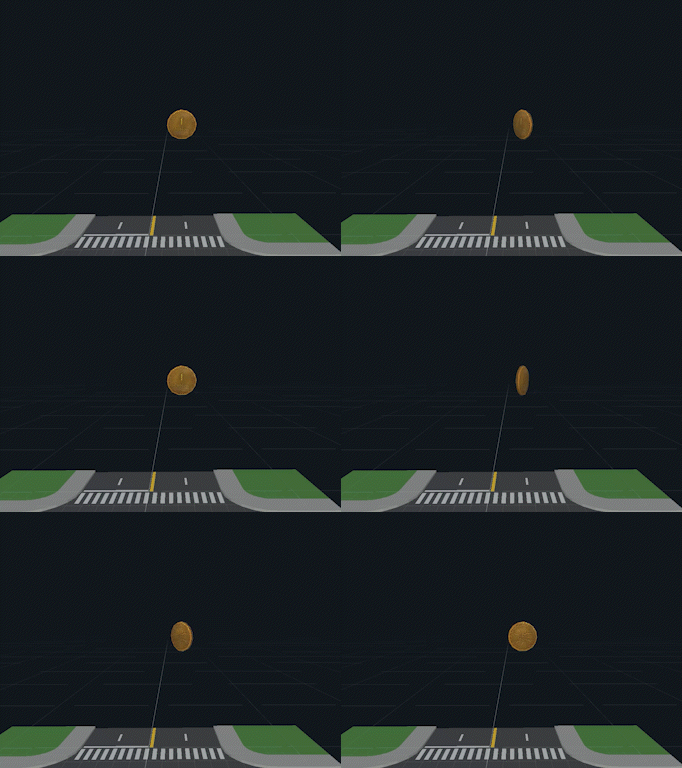
【The coin rotates on its own】
- From "Transform" > "Rotation", drag out "turn...object...clockwise by degree...in...sec", and set "turn coin clockwise by degree360 in 1 sec".
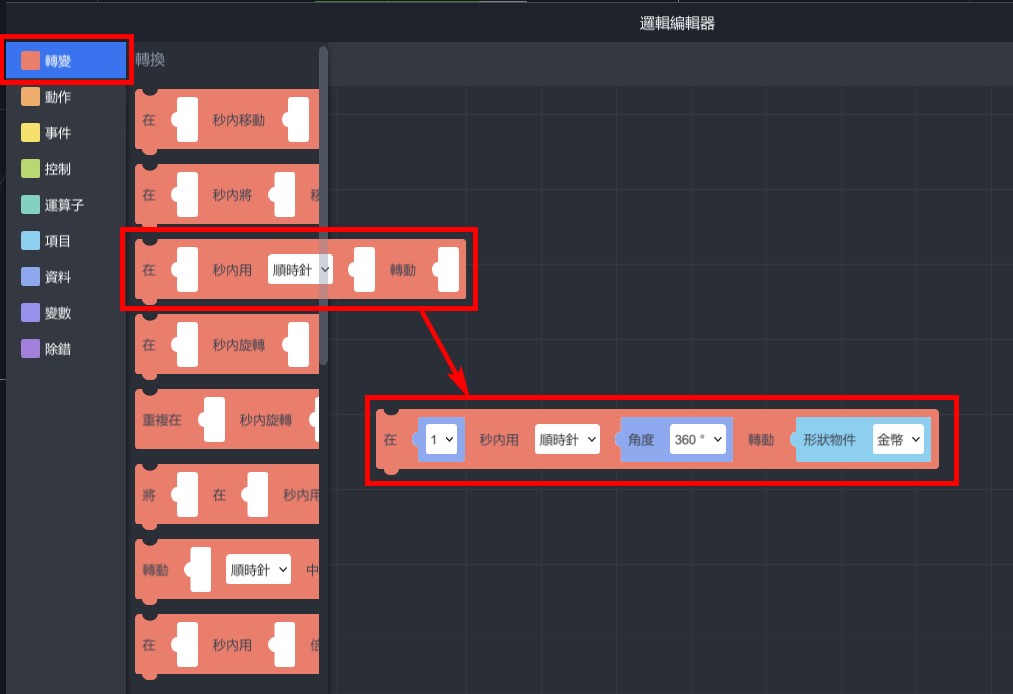
- From "Control" > "Loops," drag out "forever do..." and place the previous block inside.
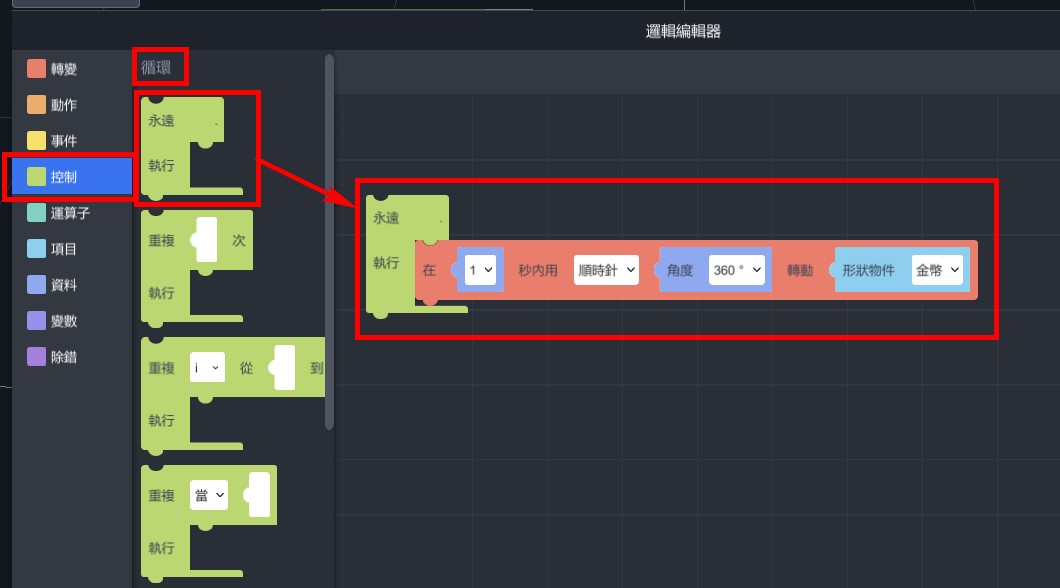
- The coin will keep rotating automatically.
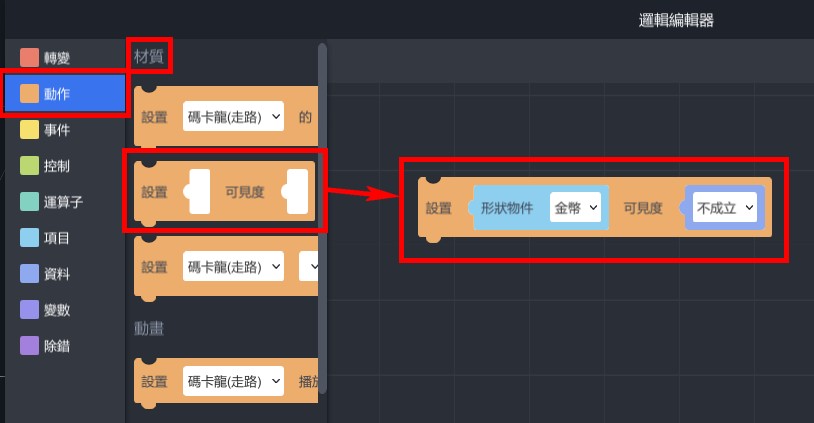
【After eating the coin, it disappears.】
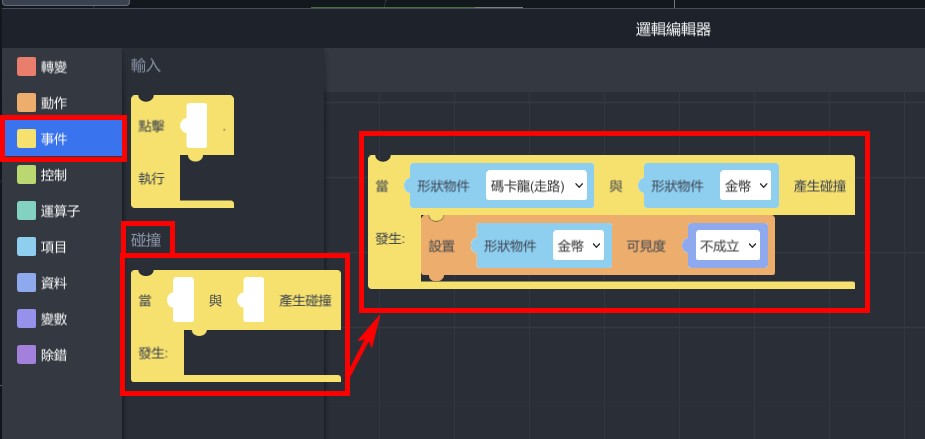
- From "Actions" > "Materials", drag out "Set visibility of...to..." and set the visibility of the coin to false.
- From "Events" > "Collisions", drag out "When... collides with..., enter..." and place the previous block inside it. Set it to detect collisions between the dragon and the coin.
How to experience?
Pick up your phone, enter ID, and scan the recognition image to start the experience!
1. Install MAKAR APP
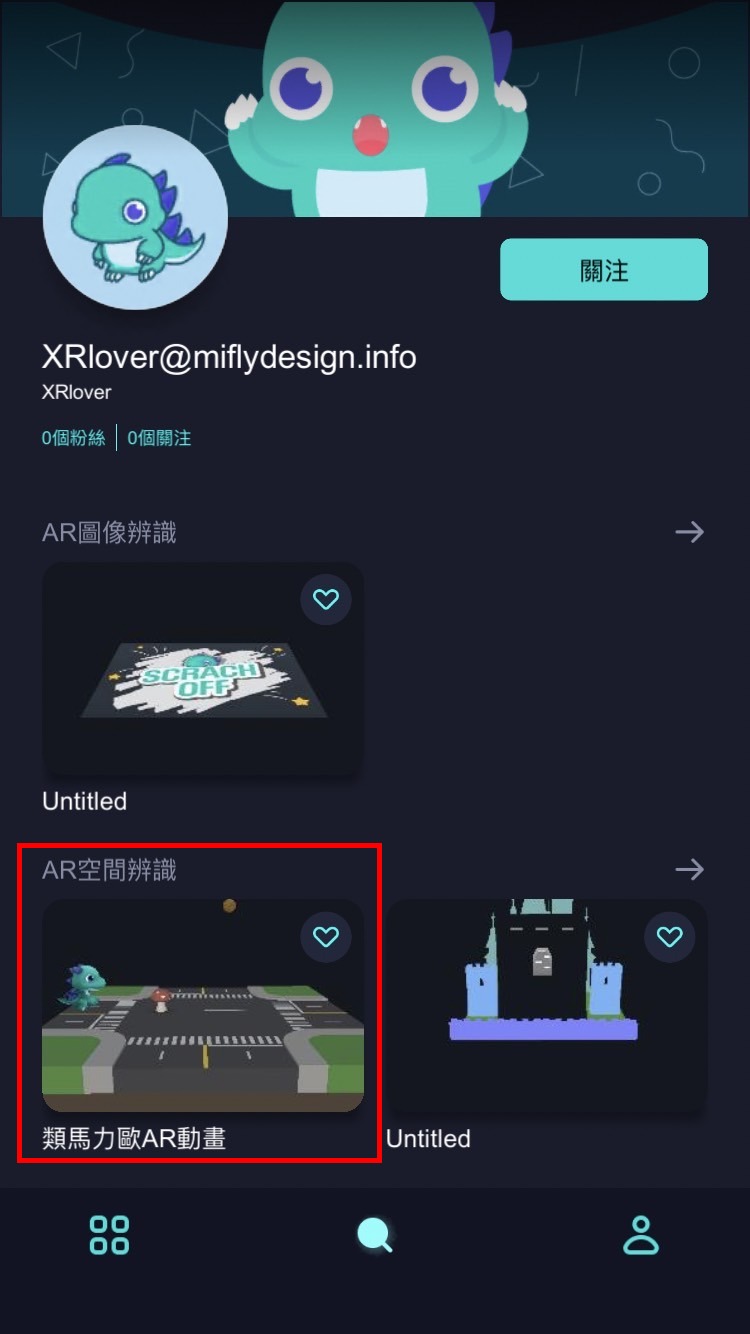
2. Scan QR code search ID:XRlover

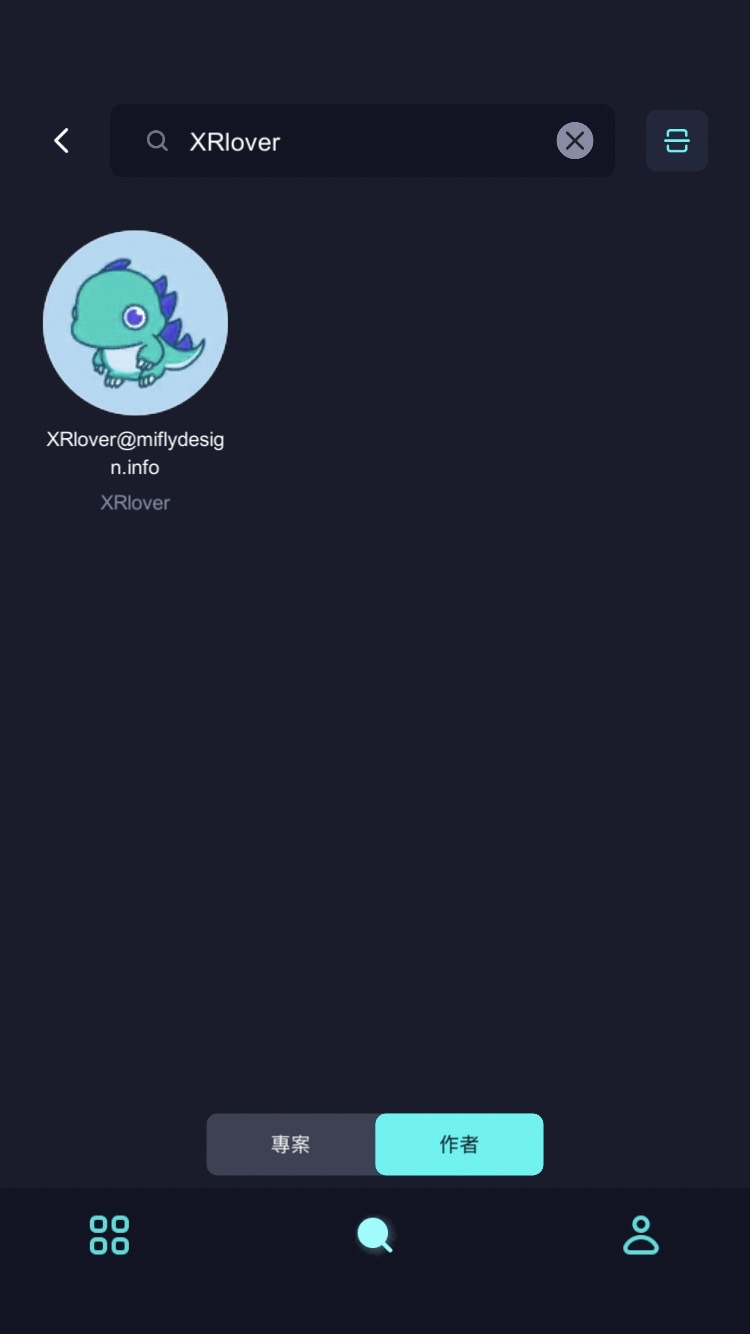
3. Click on "Macaron AR Animation" project in the AR space recognition and click on "Start Experience".
MAKAR Mask project
Abstract:
In this lecture, there is going to demonstrate how to use Mask function in MAKAR editor v3.4 to create a project.
Introduction:
Mask is one of the new function in MAKAR editor, it’s similar to invisible cotton in Harry Potter. You will learn how to make a room invisible in this lesson.
1. Material: https://skfb.ly/6CGo8 license: CC Attribution
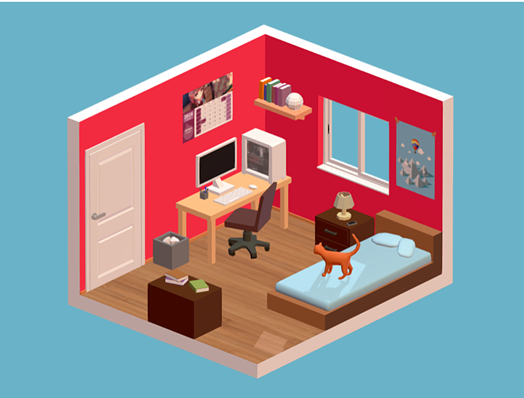
This is a kind of isometric scene material.
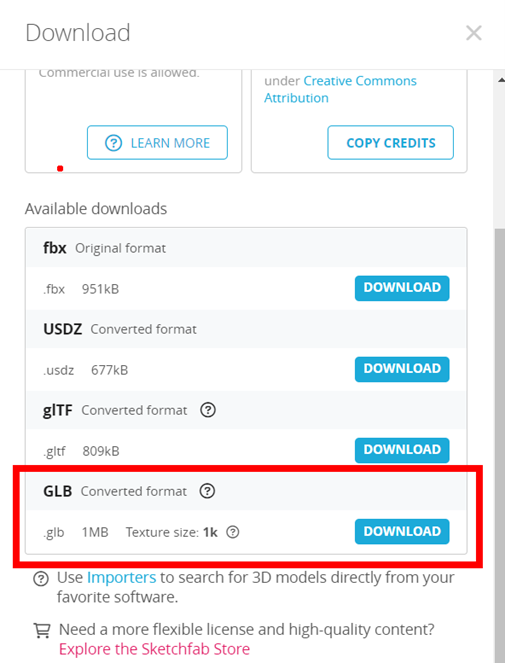
2. Download the file
We are going to download GLB file for this lesson, though the FBX file looks smaller, it need to conduct extra-process after you download it.
3. MAKAR editor
Make sure your MAKAR editor upgrade to at least version v3.4 or above.
Create a AR Target project. It’s necessary to select a category in latest editor.
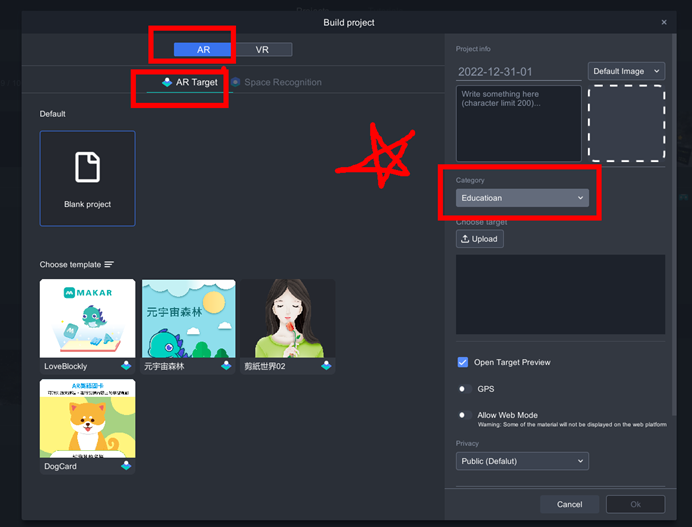
Extra: How to create a fire-star recognition target?
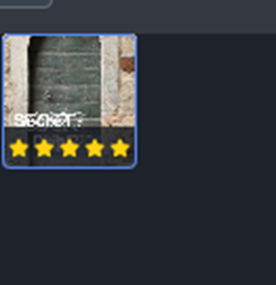
The star number in MAKAR represents the recognitive ability. There is a tutorial for AR recognition by Lina, you can check it out. https://becutelina.com/2022/03/24/ar/
In this lesson, I’m going to use the popular AI tool, DALL-E, to generate a unique image target, and use Zalgo text transformation for complicity.
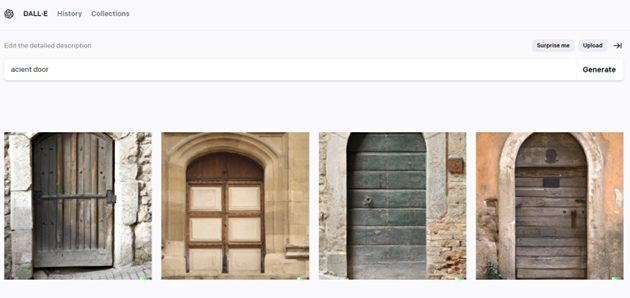
DALL.E (https://openai.com/dall-e-2/ )
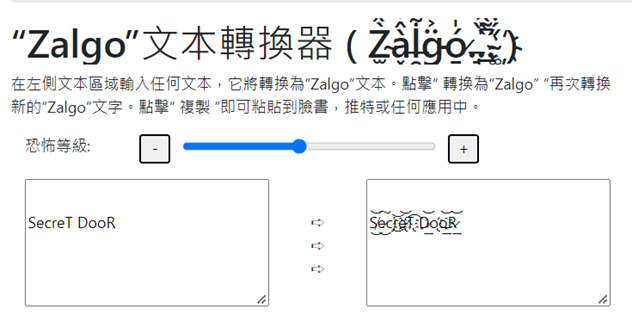
Zalgo text generator (https://tw.piliapp.com/cool-text/zalgo-text/)
4. Mask
You can change the 3D model’s material into Mask.
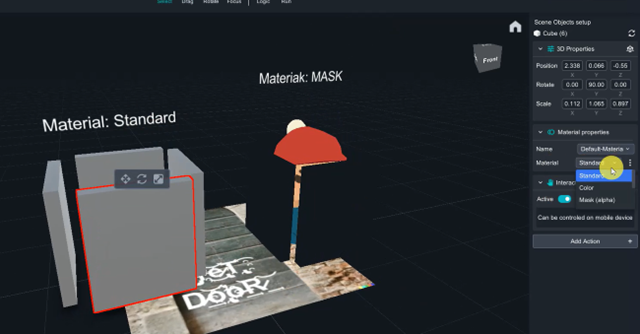
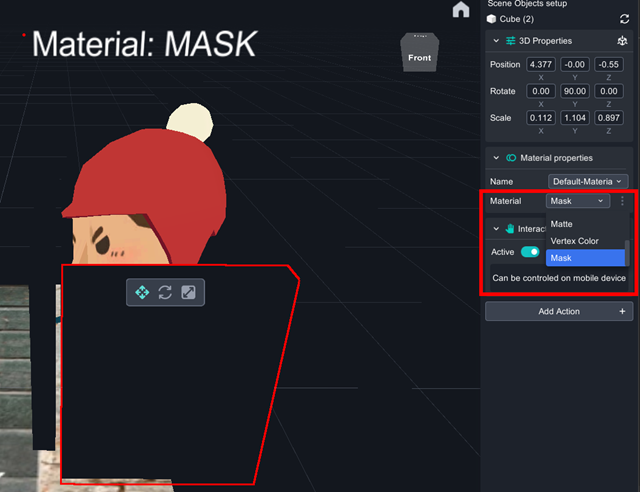
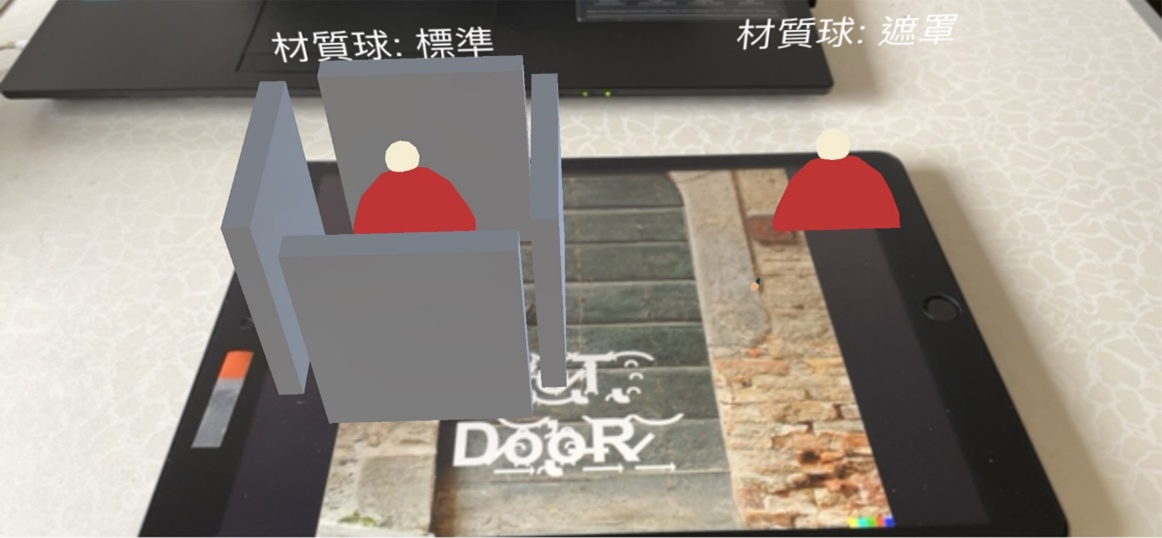
In reality, Mask can cover the object, make it become transparent, such as invisible.
5. Create an invisible room
Import the low_poly_room and drag it in to the scene.
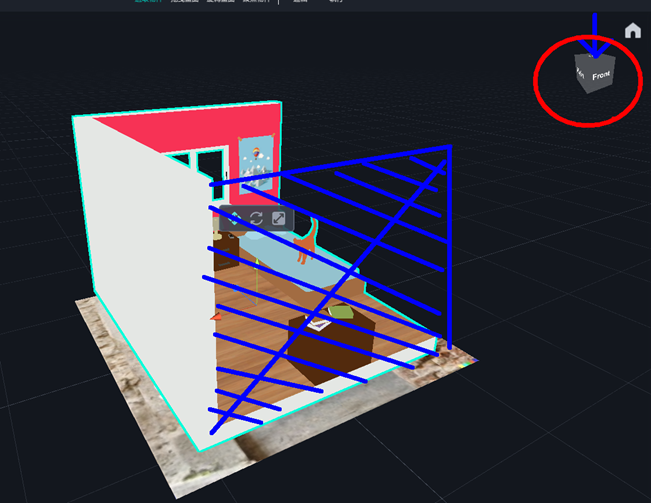
Adjust the Blue face to Top aspect.
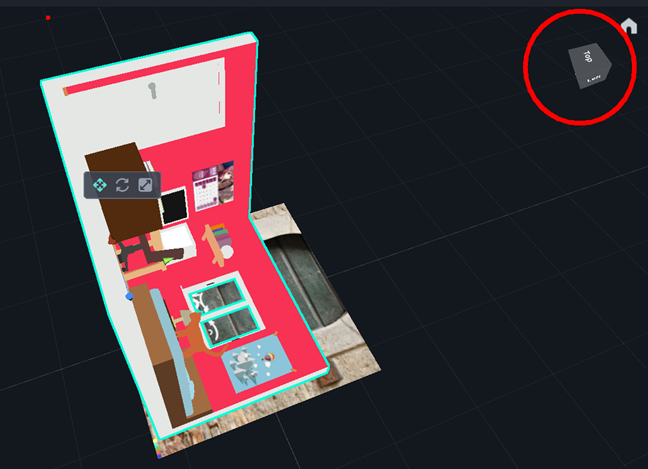
As above.
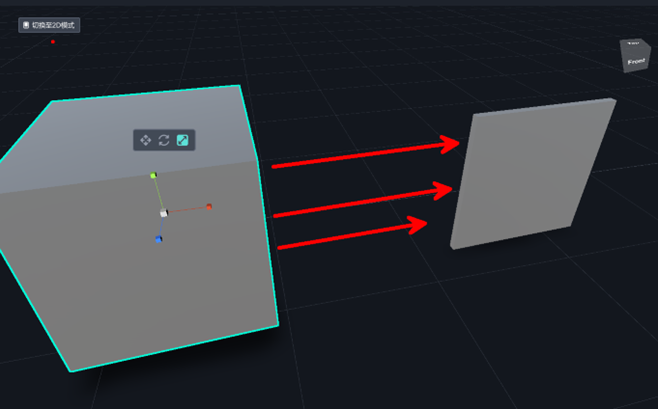
Transform the cube into flat square.
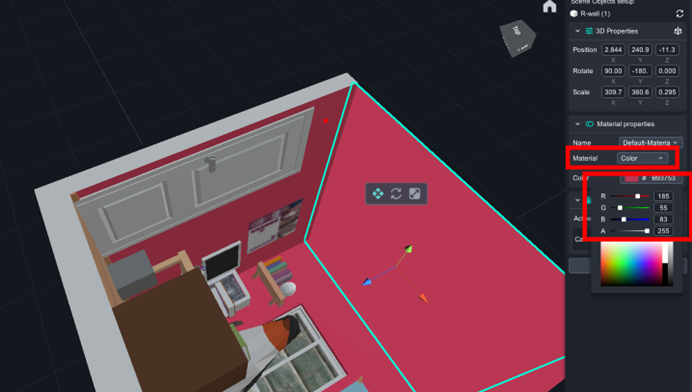
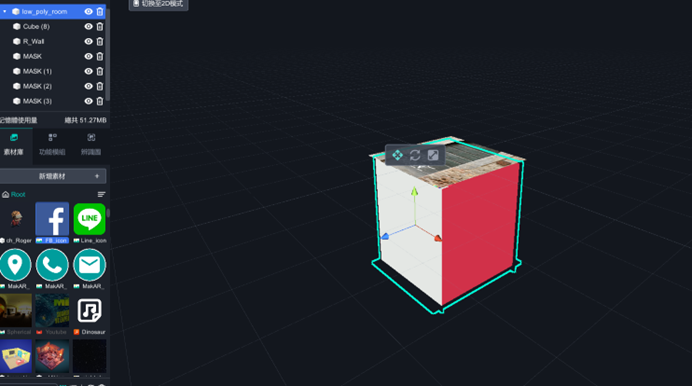
Set flat square as wall of the room, change its material into【color】, RGB=(185, 55, 83).
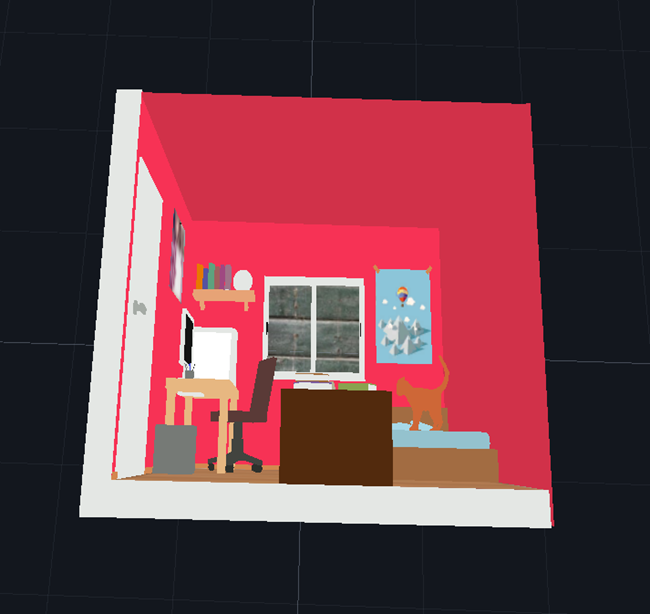
And set the ceiling as the same.
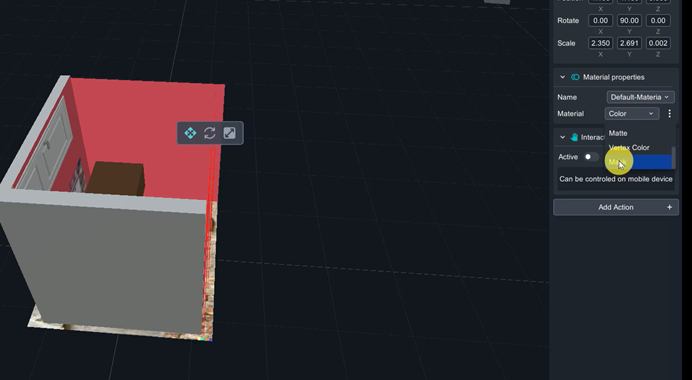
Add another walls as Mask material to cover whole room, so that it can make the room invisible.
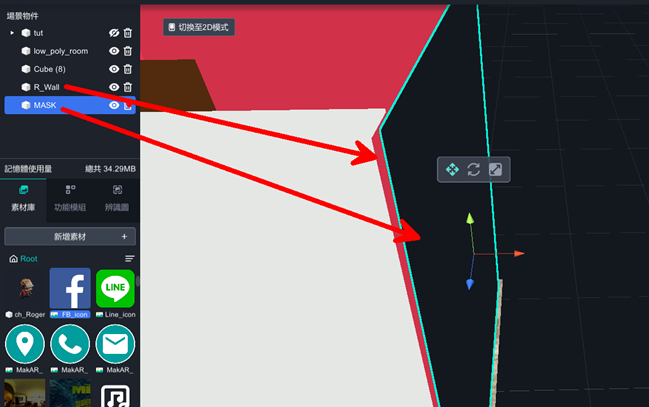
Mask should be a little bigger than walls, and be care for the gap between the wall and mask.
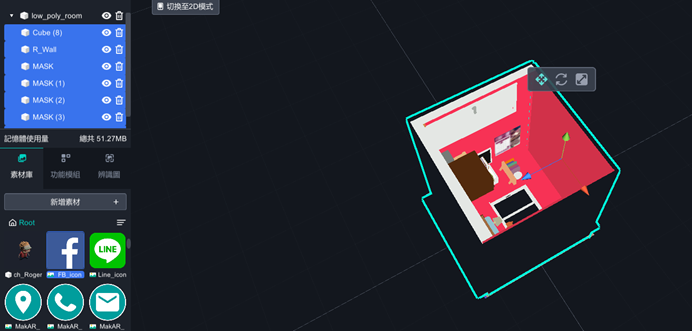
After cover the whole room except the Top aspect, select all elements and drag them into low_poly_room to group them, so that you can move all elements all together.
Select the room model, which is the group leader, move it down behind the Target
image. You will see the mask become transparent during the path, and you should not be worried. Adjust your viewpoint down to the ground(press the right button), you will find out it still invisible underground. And Well done!
6. Advance
There is a feature in MAKAR app. The camera scanned the target image, the room will show up, and if you move away from target, the room will still show up in the middle of your screen. Here is going to show you how to make the room appear only if you scanned the target.
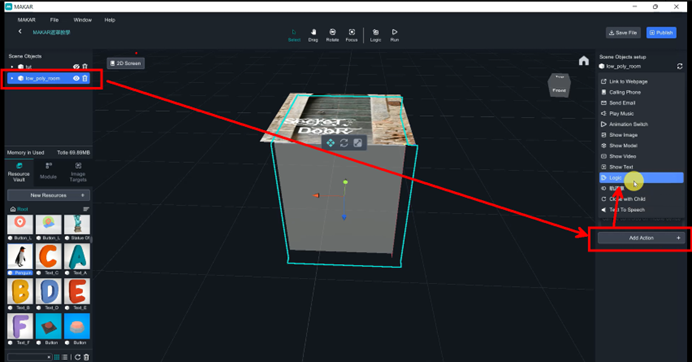
Select the room and add action, and add Logic function on it,
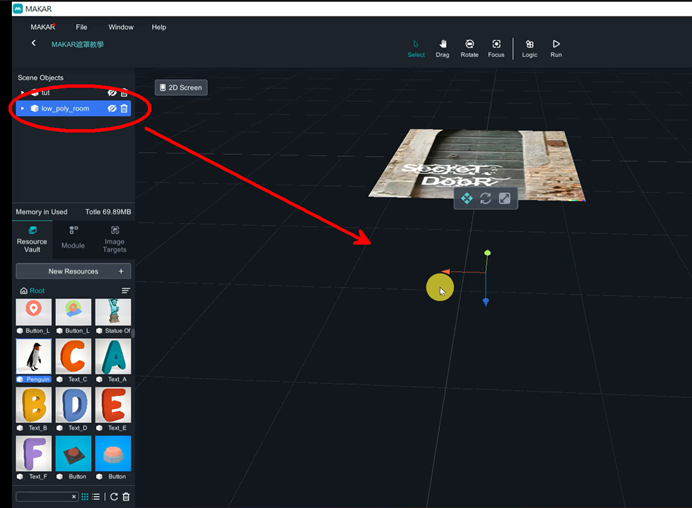
Close the room’s eye to make it disappear.

Click the logic on the top banner, you can turn on logic editor, select 【Action/ set visibility of ______to _____ 】, drag the blockly to the scene, and you just solve it.
Metaverse Draw Lots-Using Variable and Lists of MR Project
This tutorial includes logic of "Transform, Actions, Controls, Events, Events and List".We will learn about:
Keep from simultaneous click,
Come up draw lots after setting visibility to false
Randomly come up lot after clicking the box
- Open PowerPoint, edit image and export it.
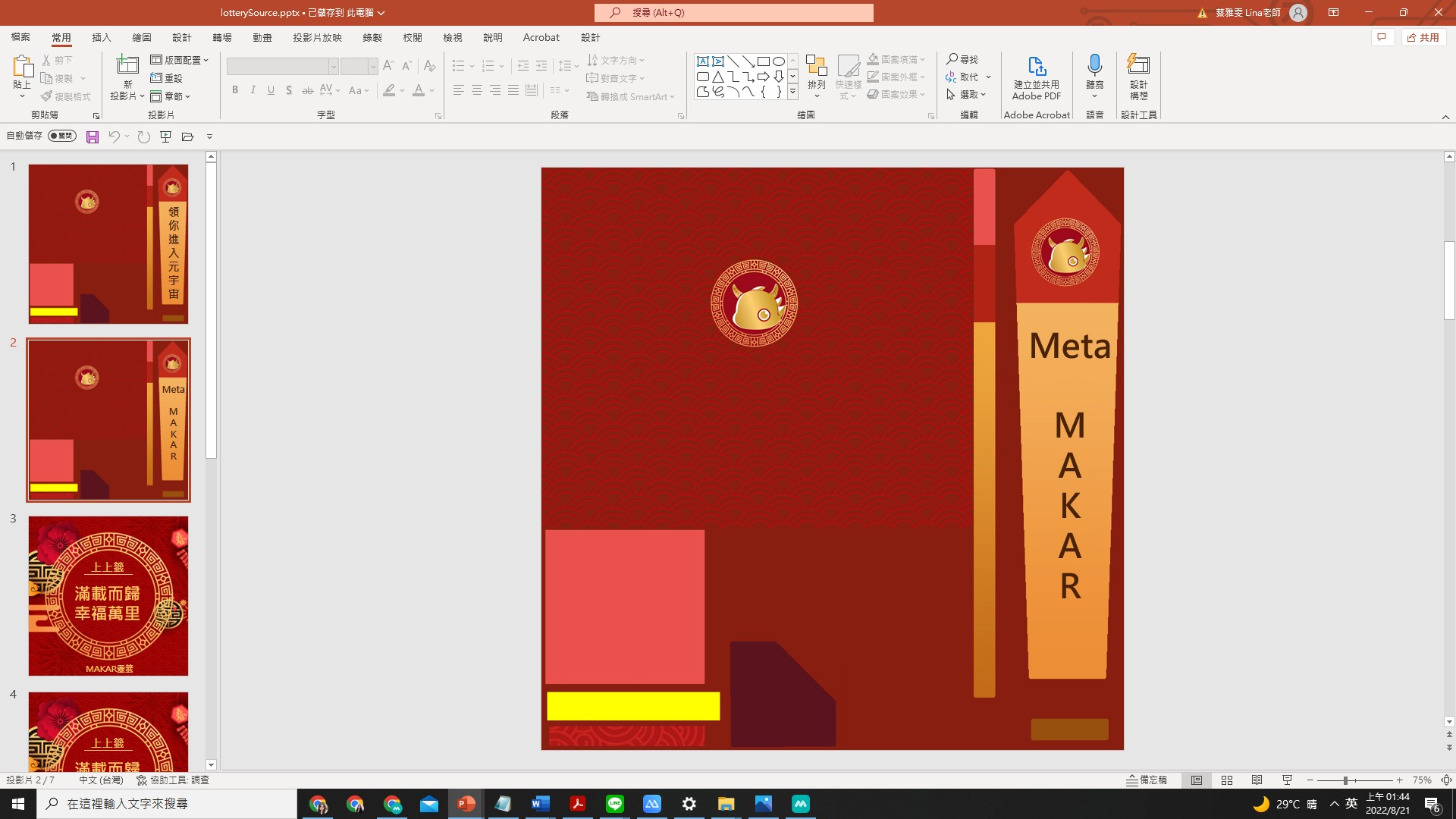
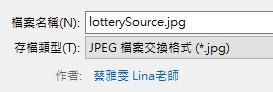
- file>save it to jpg
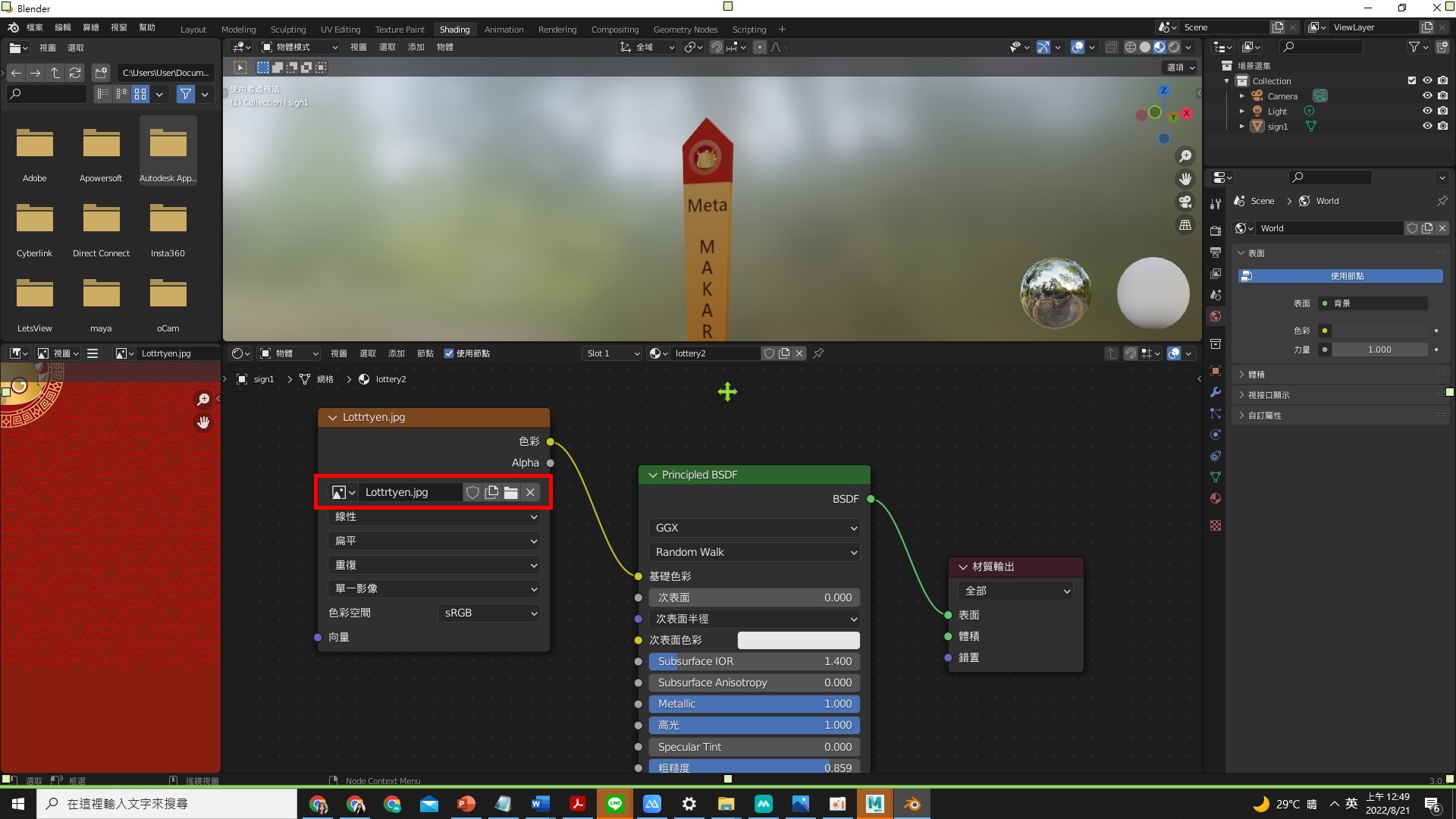
- open Blender>import FBX>shift to Shading>change the image
Object's basic setting
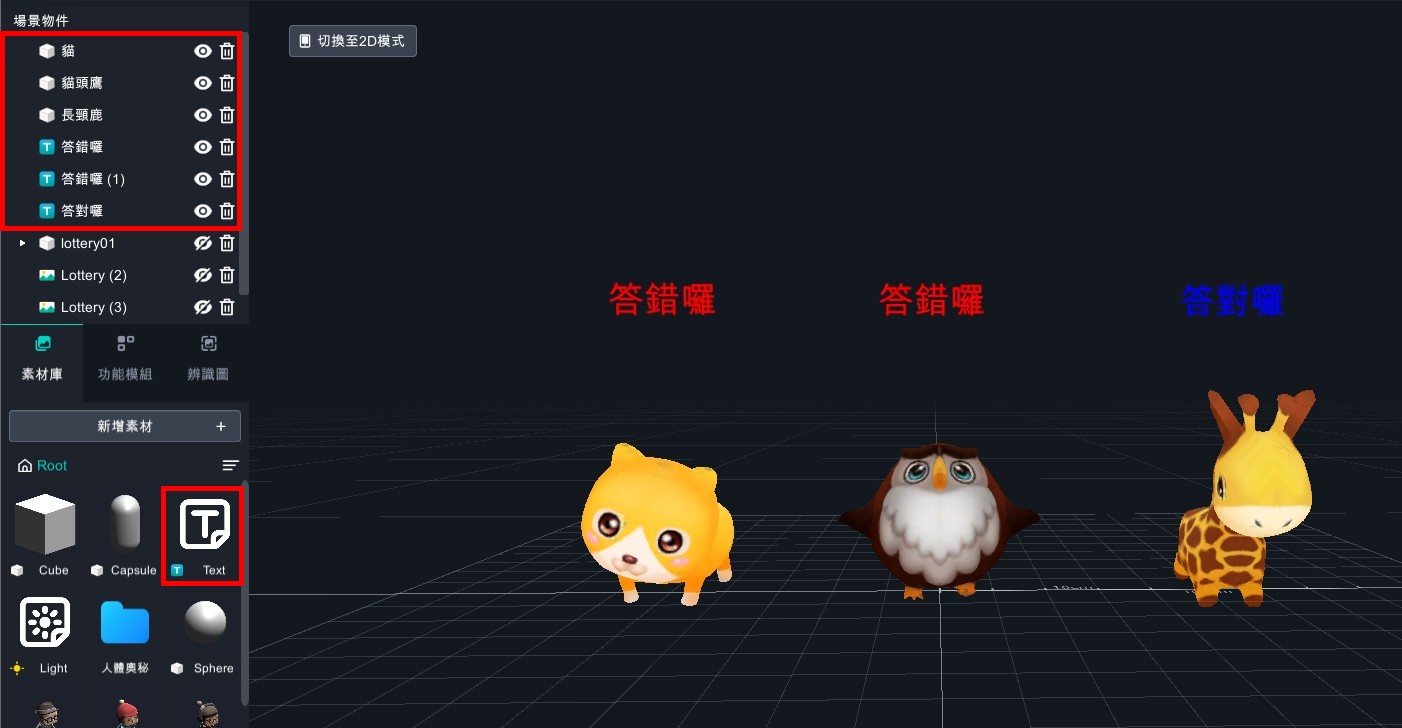
- Drag 3 model to the scene.
Add text of "correct " and "wrong".
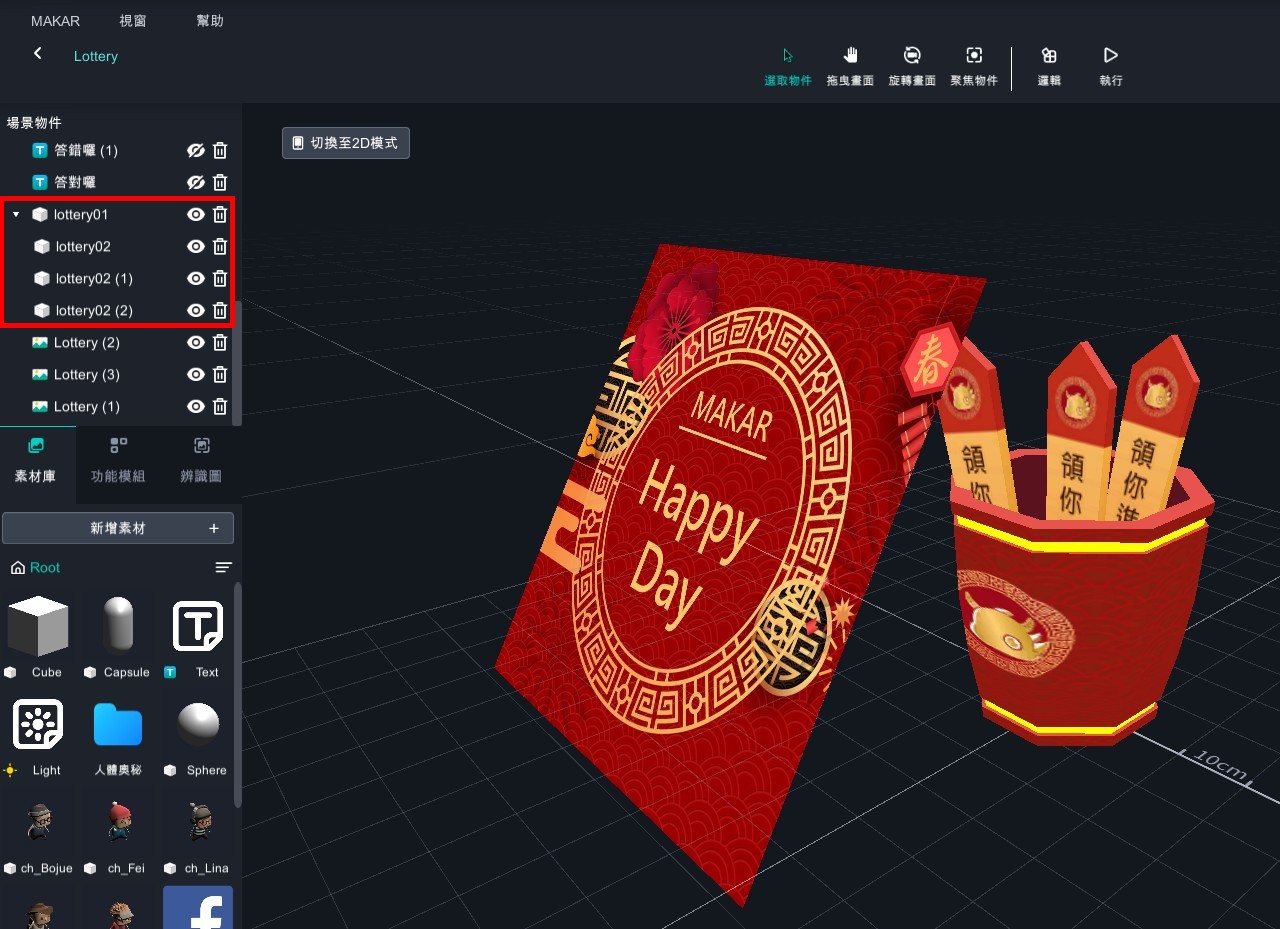
- Drag box to the scene, and put "lottery02、lottery02(1)、lottery02(2)" to lottery01.
- Put lots to the box and adjust the angle in needs.
- Close the objects besides 3 models.
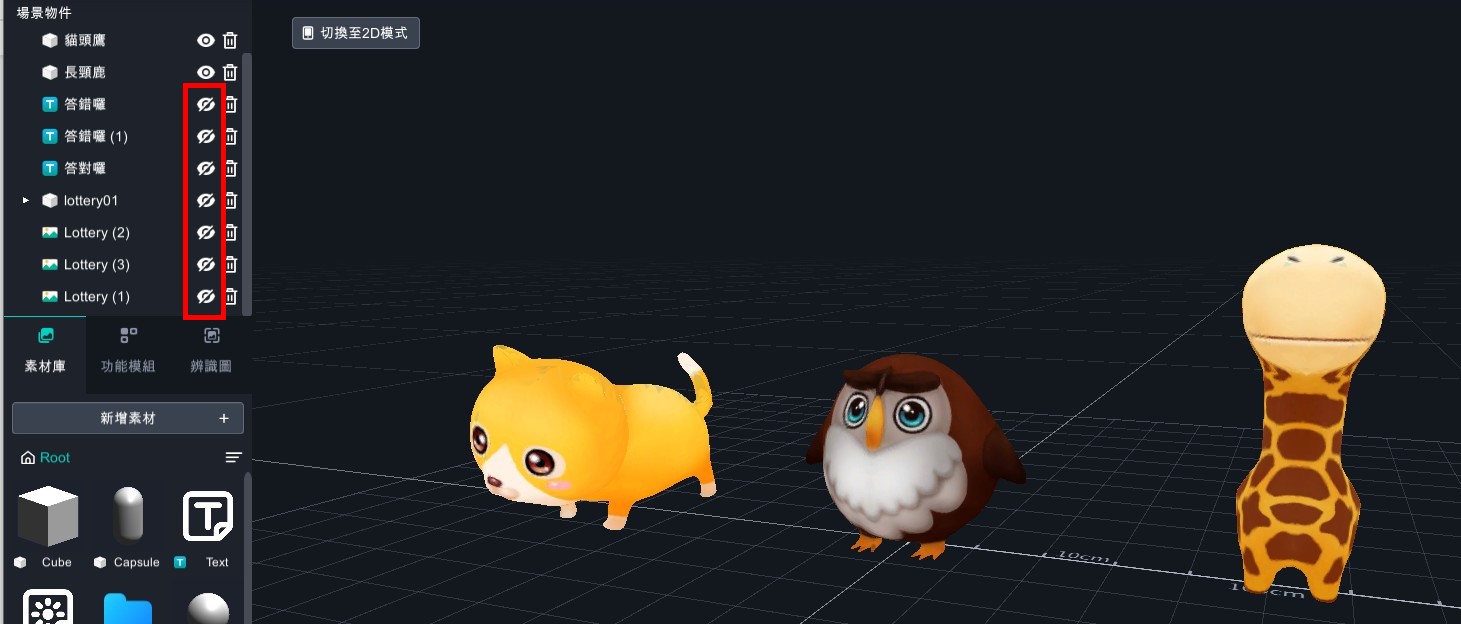
- Add all of object logic.
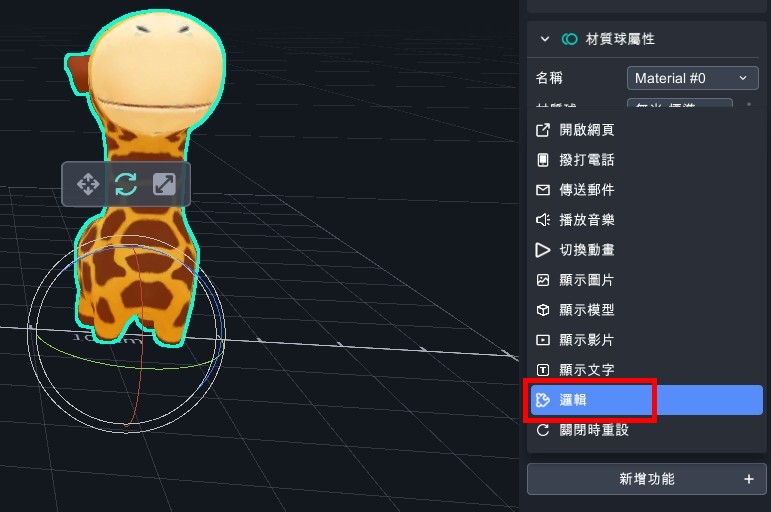
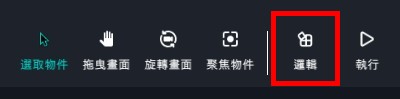
- Open the logic.
- Set the object's visibility to true.
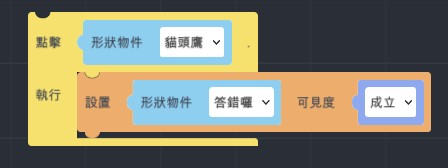
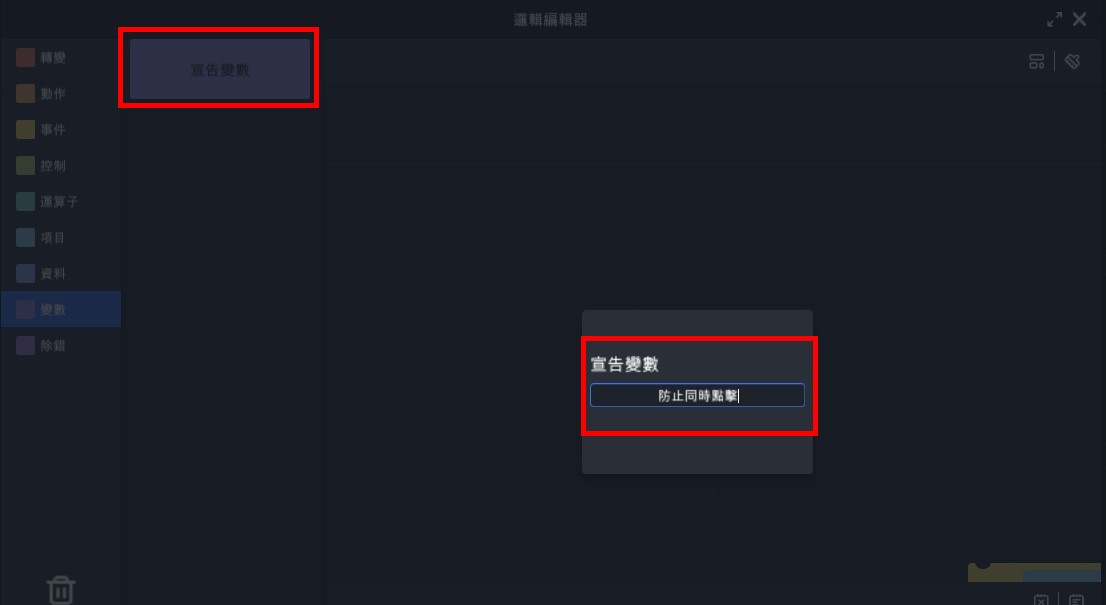
- Add variable>keep from simultaneous click and set the visibility to false.
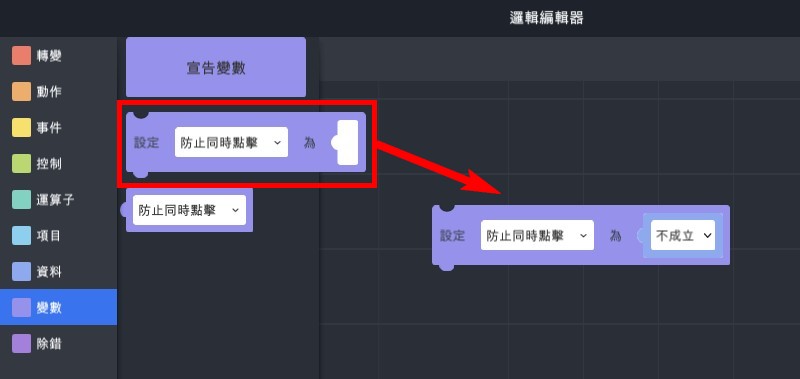
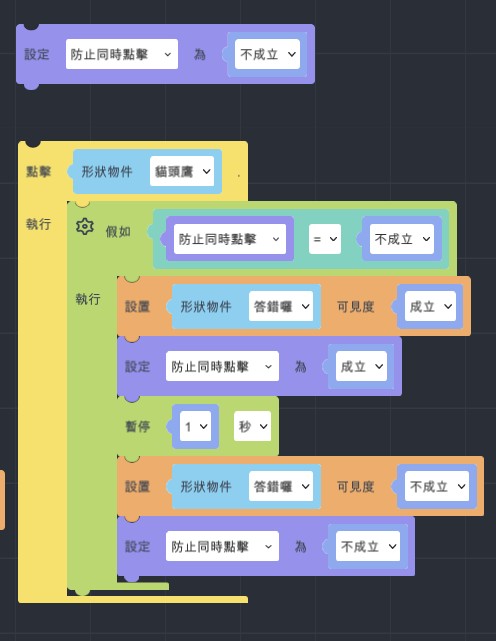
- Add "If…do" logic.
(2). Set object's visibility to true.
Note: add text of "wrong".
(3). Add variable "keep from simultaneous click=false".
Note: you can not click the objects before step4.
(4). Wait for 1 second.
(5). Set object's visibility to false.
Note: close the text of "wrong".
(6). Set "keep from simultaneous click=false".
Note: close the situation that can not click objects.
(7). Copy 2 and adjust the other object's trigger situation.
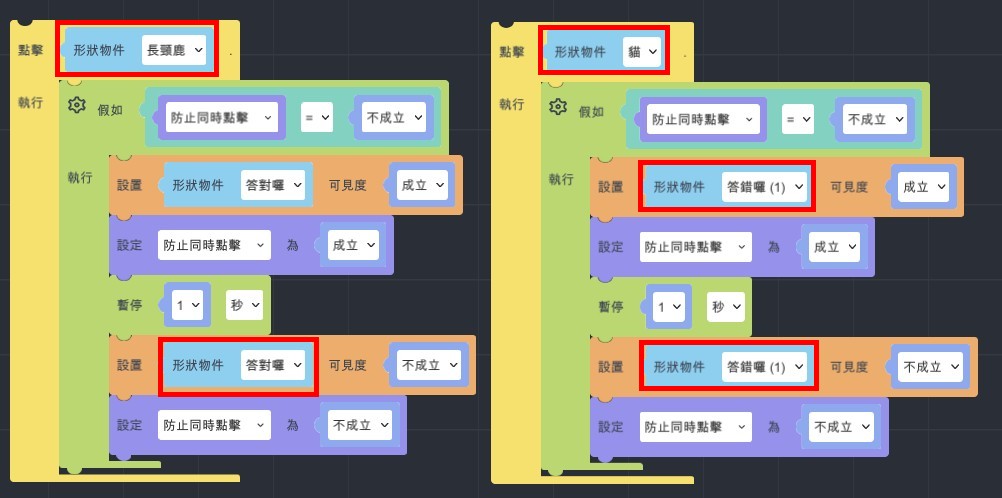
- Take the model of giraffe for example.
- Copy three model and set their visibility to false.
- Set lottery01 visibility to true.
- Add variables>start to draw lots >true.
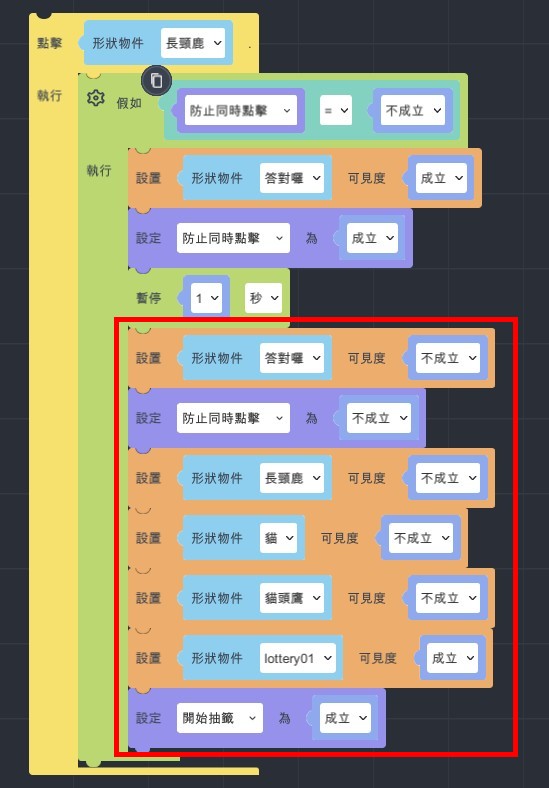
Draw Lots Setting
- Add "When…is clicked" >set the up moving animation.
- Add "If…do">set variable of start to draw lots to true. You can repeatedly click.
- Set click for once, add variable to false and put it on the animation's top.
- Add variable : lot result.
- Set lot result: operators>random number from …to…
- Set random number from 0 to 5.
- Set random number from 0 to 5 (01234) in logic.
- EX1: set 0~5, it will be 01234.
- EX2: set1~6, it will be 12345.
- EX3: set6~9, it will be 678.
- When setting lot’s visibility, you could know that the coming up of animation and lot is too close, so add wait for 1 sec.
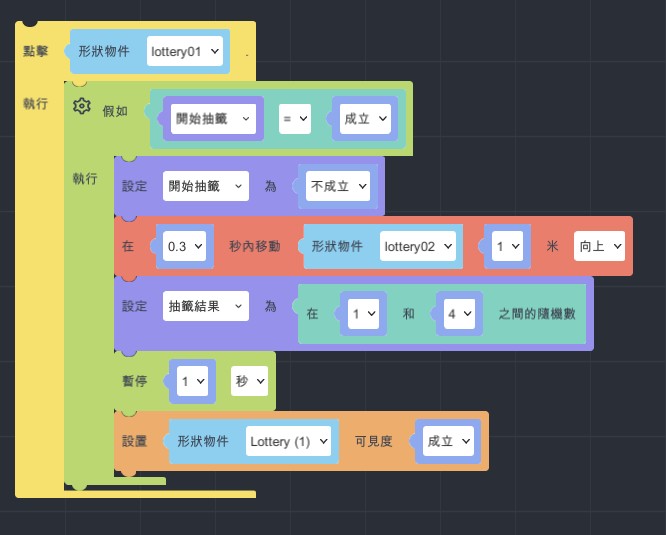
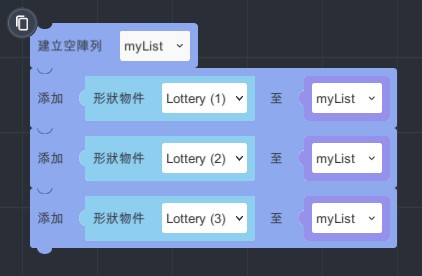
- Add "create empty list" and add "MyList" to variable.
- Add data>lists> add transform item to MyList.
- Copy 3 and put them behind create empty list.
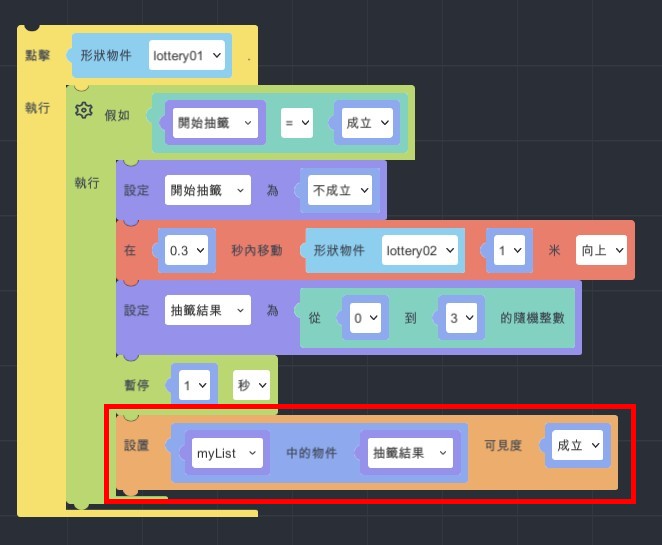
- Data>list>set set "add my list to lot result" visibility to true.
- Repeatedly click setting
- Event>when…is clicked.
- Set Lottery (1) visibility to false.
- Copy animation and change it to moving down.
- Set "start to draw lots" to true.
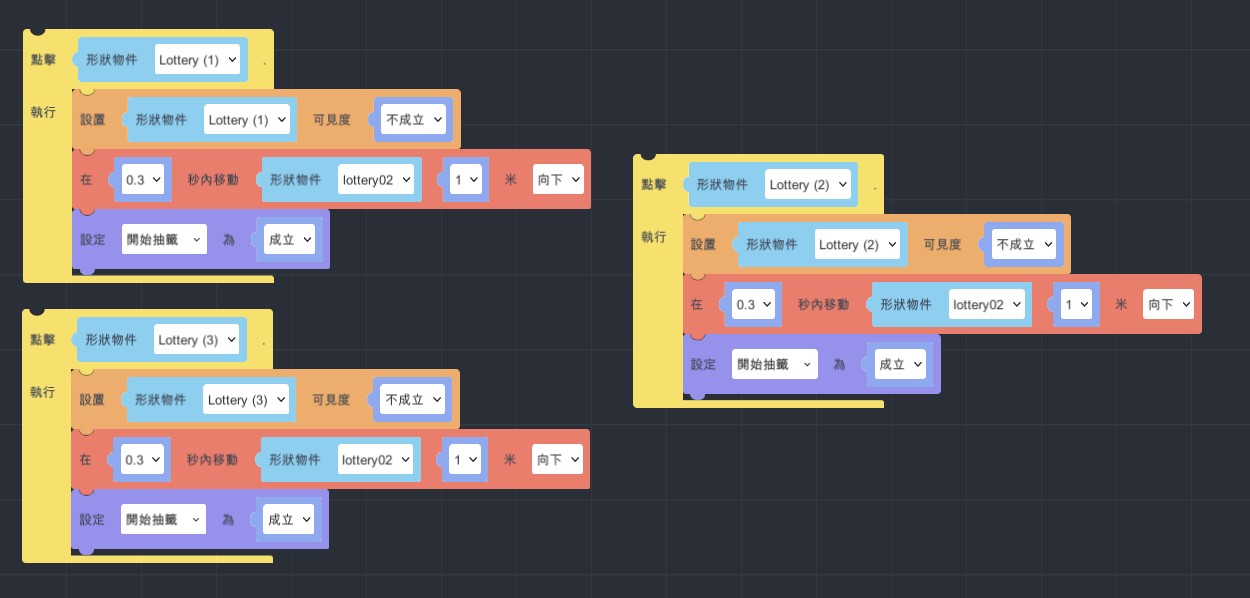
- Finish and start to experience!
Use MAKAR to learn physics-Let's make an AR cannon!
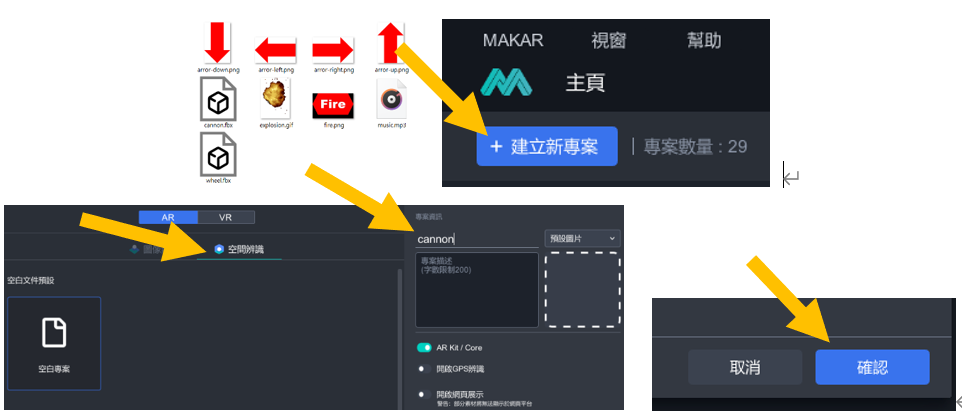
1. Please download the file of cannon.zip and decompress it, import them to MAKAR.
https://drive.google.com/file/d/1HdJHrGcdfRRikf1zViDViWFNuRBjVmCz/view?usp=sharing
Click "New Project"> "Space Recognition", and enter the project name.
Click "OK".
2. To the left side find and click "New Resources" > "3D Model"
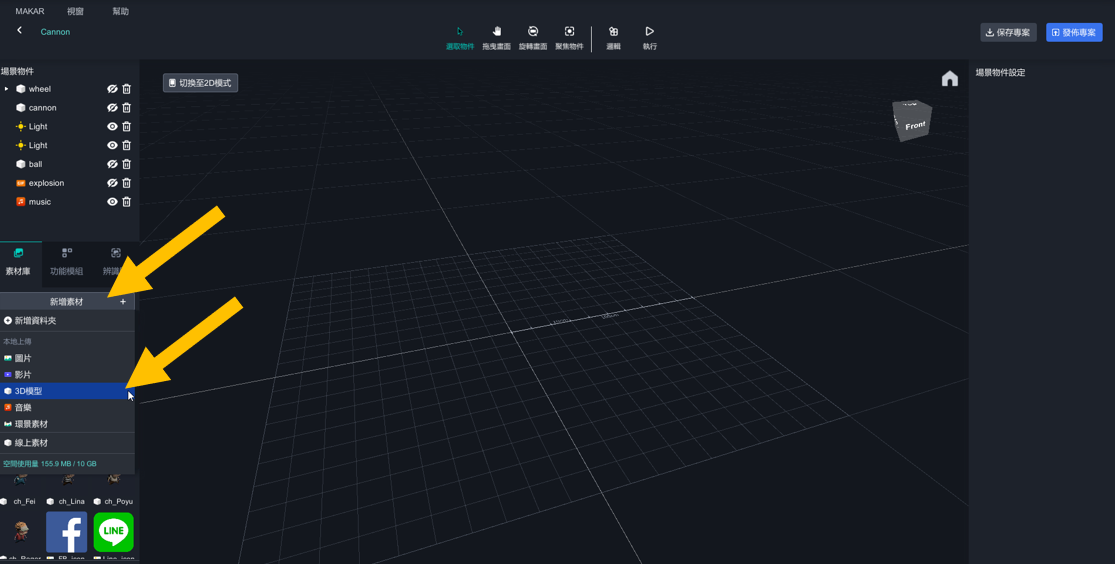
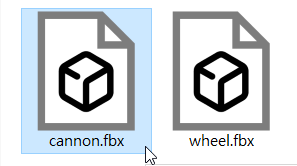
3. Find these two files and import them to the resources.
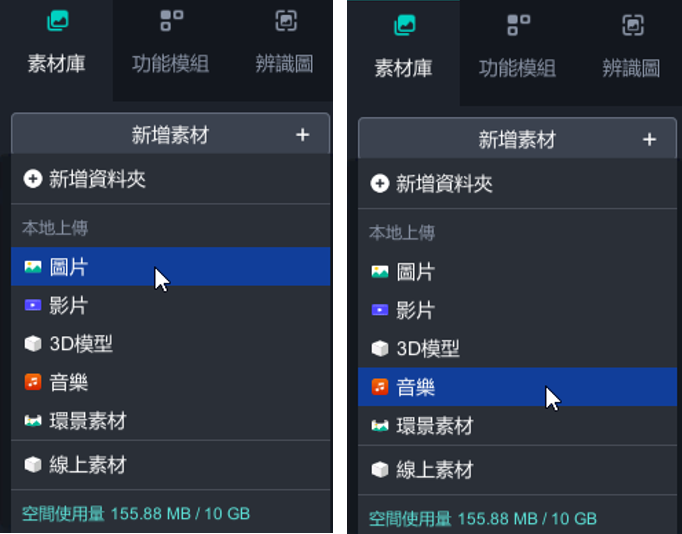
4. Import image and audio to the resources, Click "New Resources" > "image" and "New Resources" > "Audio".

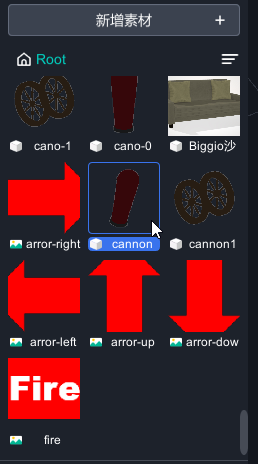
5. All of the resources were done, drag them to the scene and start to edit objects and arrange logic.
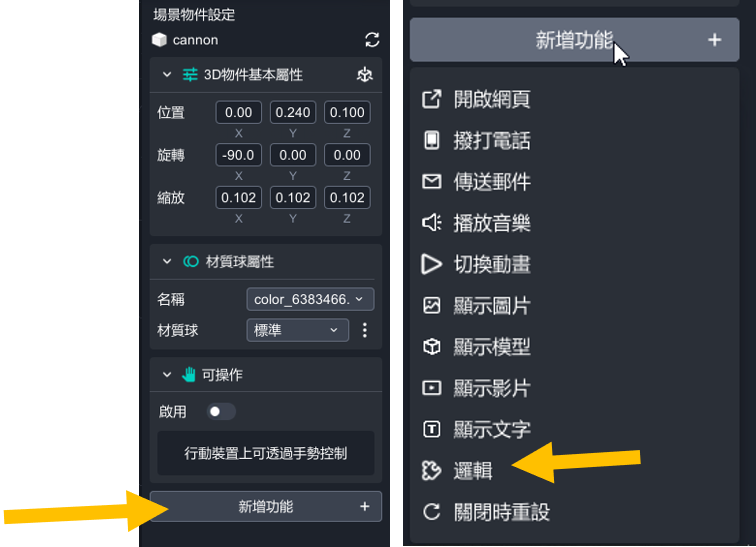
Drag the object of the cannon to the scene and edit position, rotate, scale. Cancel interactable and add action logic.
drag cannon to the scene.
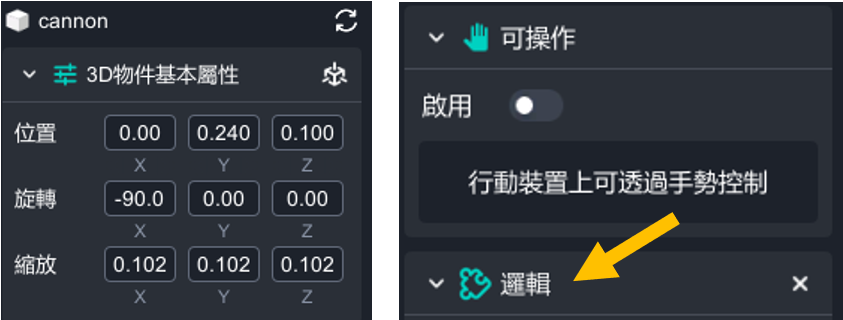
6. Set the position, rotate, scale on the right side. And turn off the interactable.
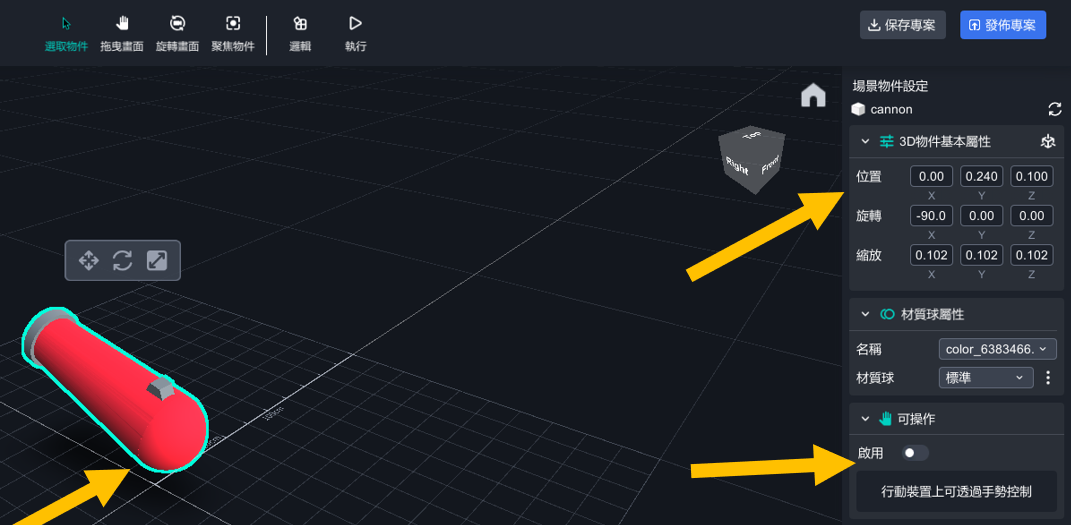
7. Click "Add Action">"Logic"
It's how it looked when you were done every steps.
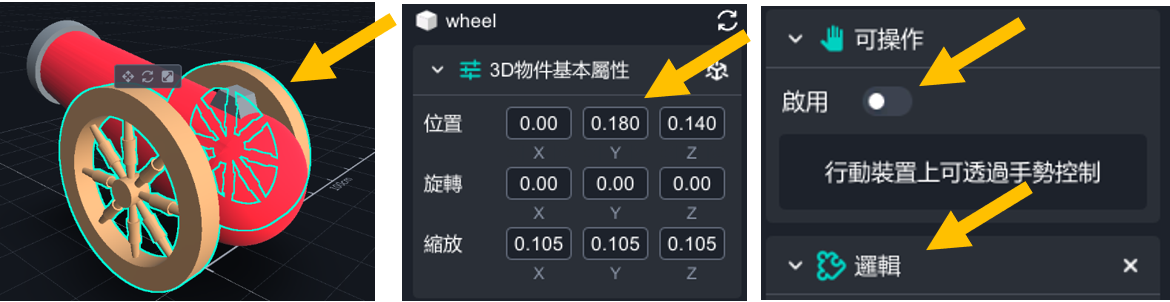
8. Drag the object of wheel to the scene and edit position, rotate, scale. Cancel interactable and add action logic.
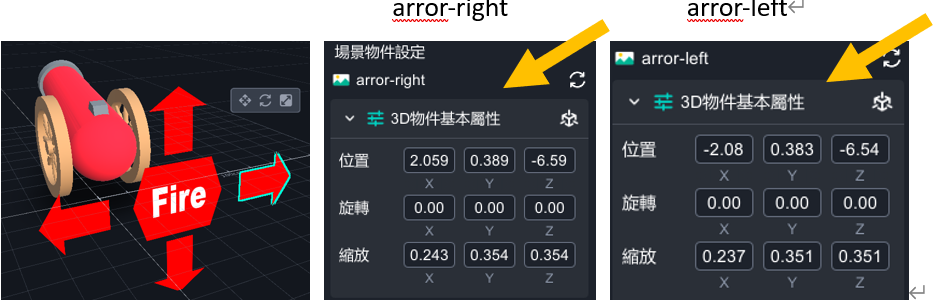
9. Next on, drag the image of arror-right,arror-left,arror-up,arror-down,fire to the scene, and edit position, rotate, scale.
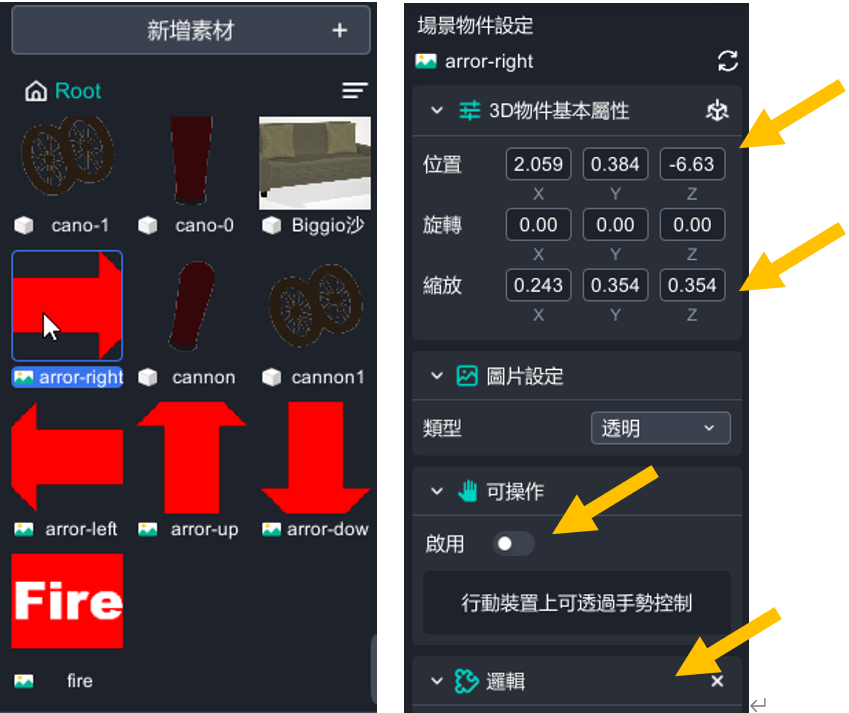
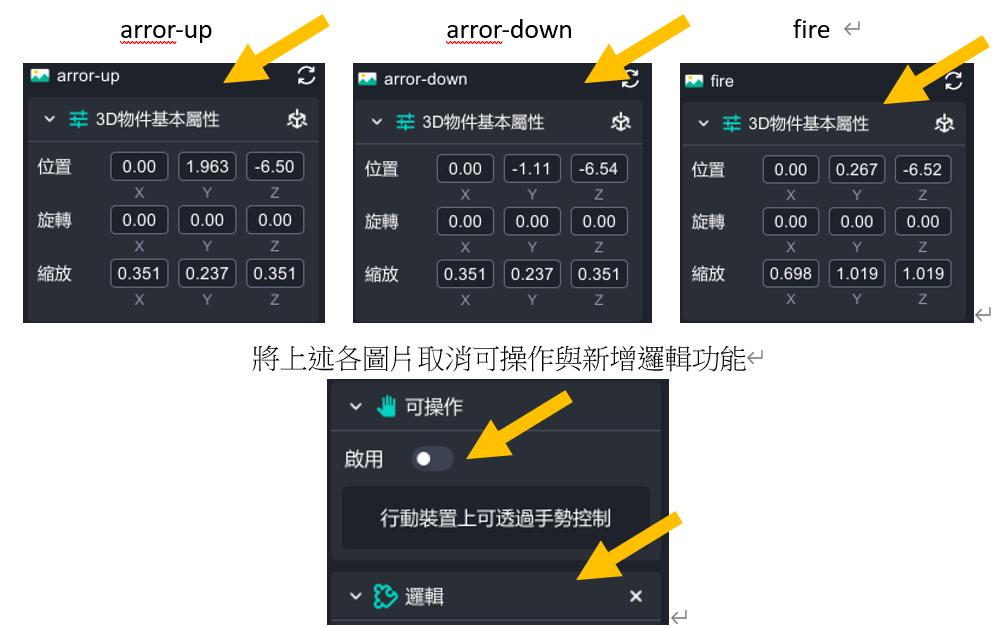
10. Cancel interactable and add action logic.
11. Drag the video of explosion to the scene, and edit position, rotate, scale. Cancel interactable and add action logic.
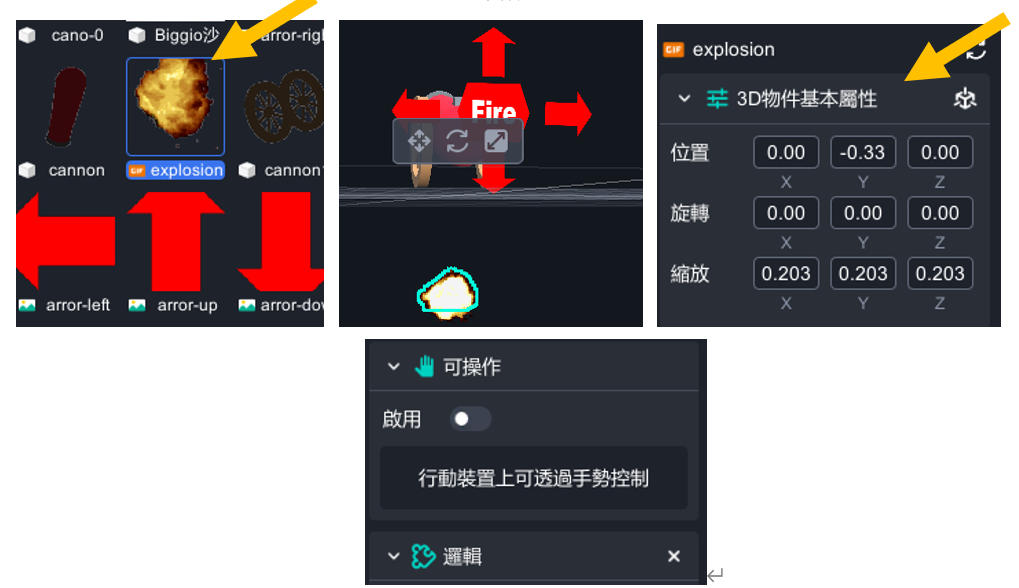
12. Drag the video of explosion to the scene, and edit position, rotate, scale. Cancel interactable and add action logic.
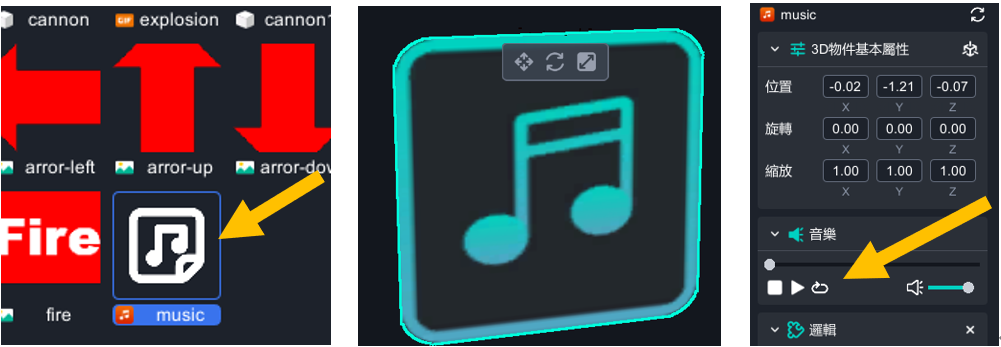
13. Drag the music to the scene and edit its position. Cancel interactable and add action logic.
14. Add the light and drag it to the scene.
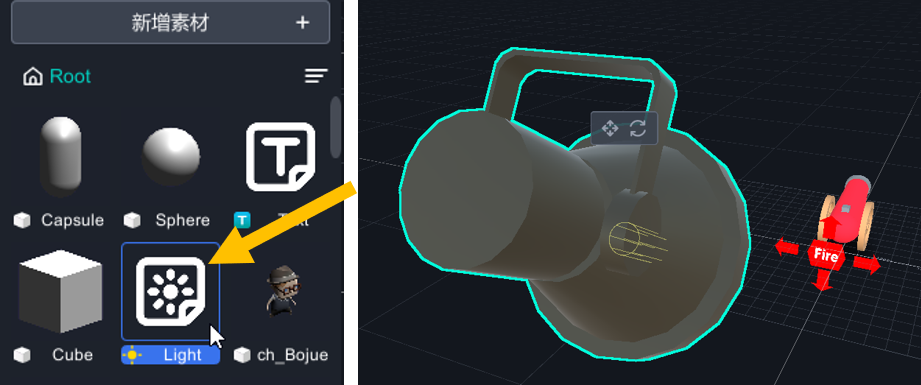
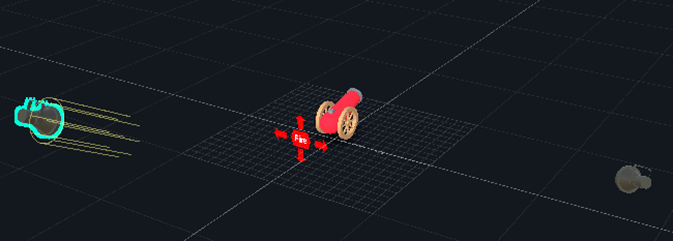
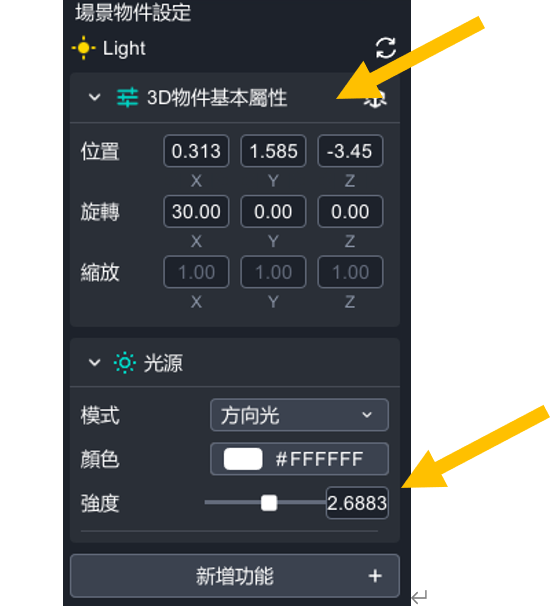
Edit the light’s position, rotate, and lighting strength.
【Group】
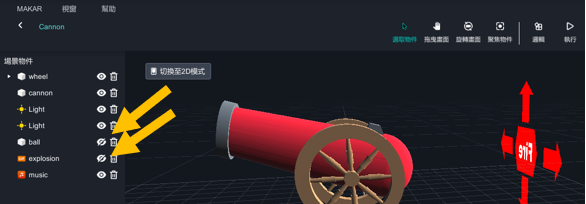
arror-rightt, arror-left, arror-up, arror-down, fire, drag these five objects to the "wheel" object to make them become a group. Being a group is the most convenient way in MAKAR. So that there would be a triangle icon on the left top. You can open and close these objects easily.
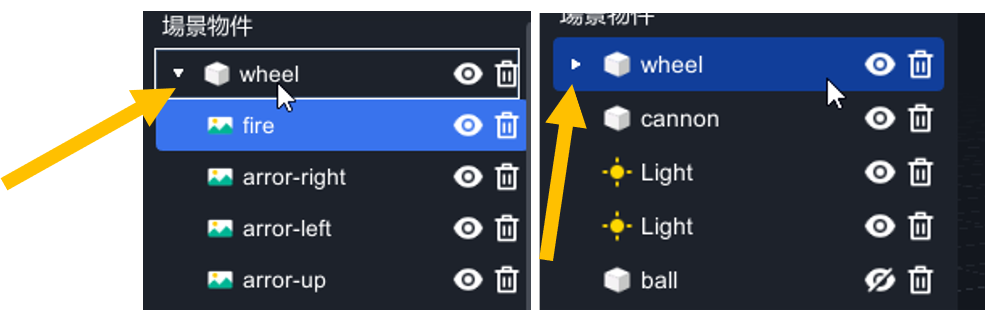
15. Drag Sphere to the scene, and edit the position and size. Cancel interactable and add action logic.
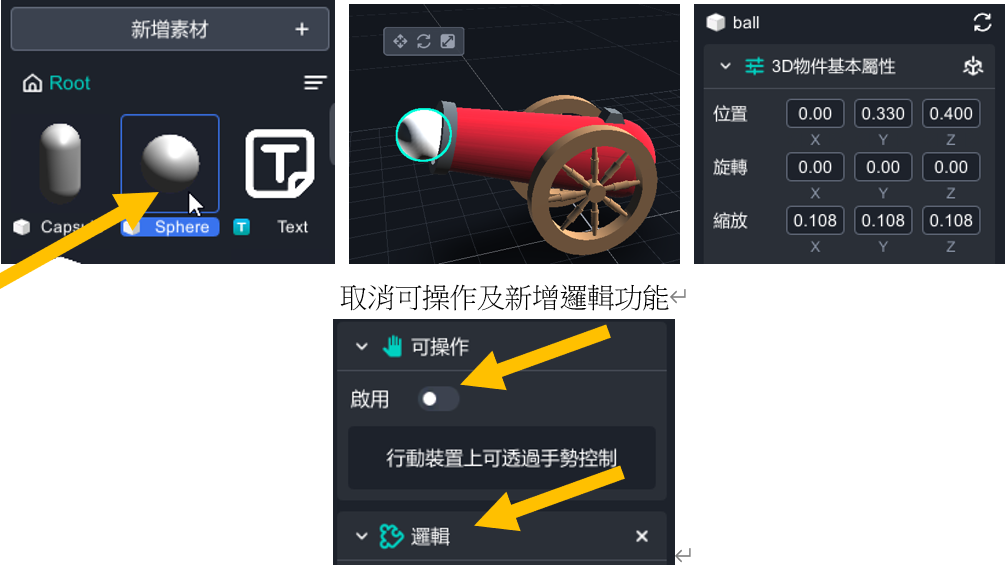
16. Click two times on the Sphere to edit the name into "ball”
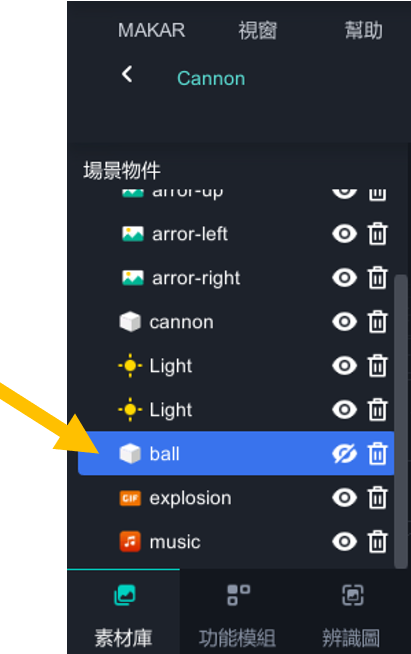
17. Click logic to arrange logic.
Logic:
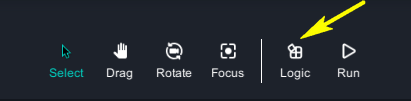
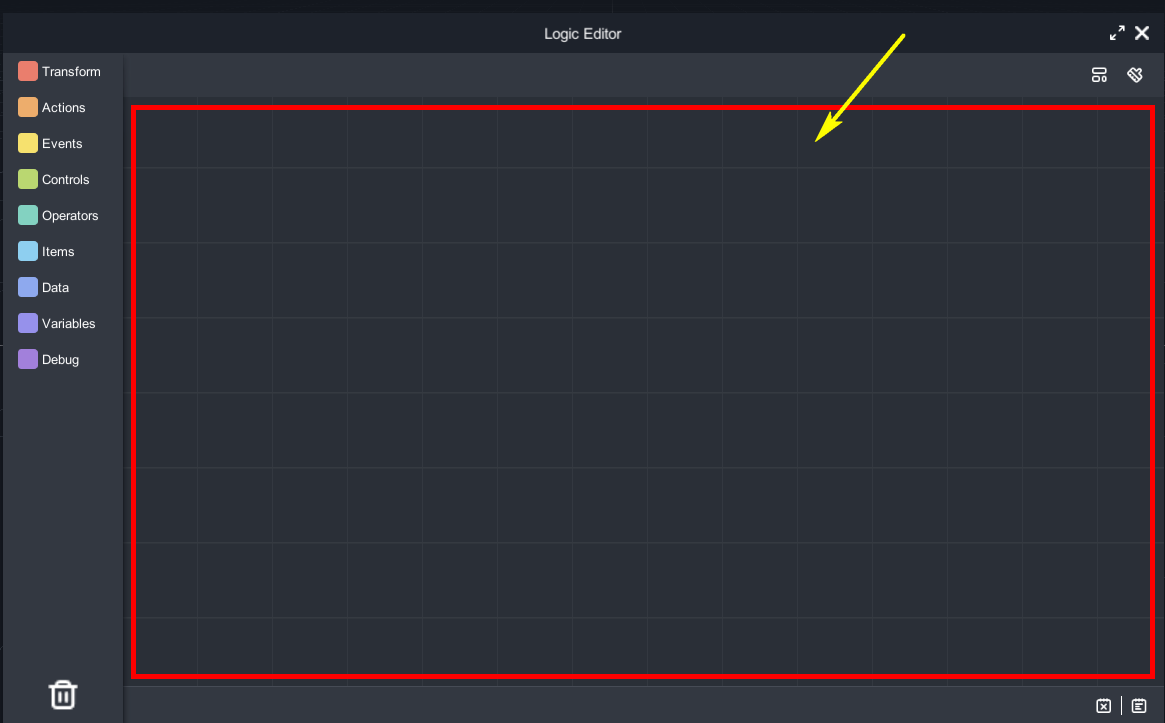
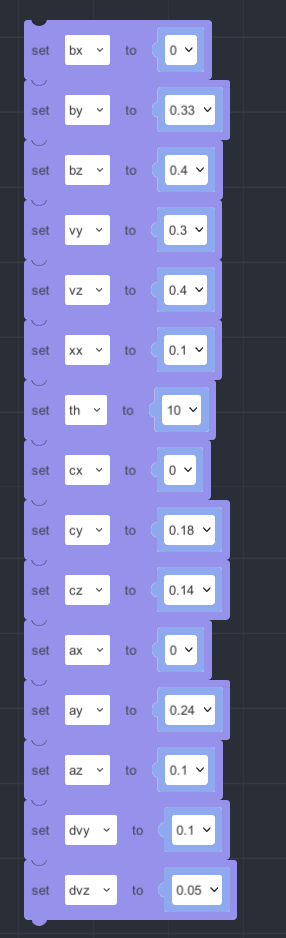
1. There are different blocklies on the left. Please drag one blockly into the blank space to start.
Use variables to design every deta.
| variables name |
|
value | variables name | project | value | |
| ax | cannon-x coordinates | 0 | vx | ball-x direction velocity | 0 | |
| ay | cannon-y coordinates | 0.24 | vy | ball-y direction velocity | 0.3 | |
| az | Cannon-z coordinates | 0.1 | vz | ball-z direction velocity | 0.4 | |
| bx | ball-x coordinates | 0 | dvy | ball-y direction velocity effected by carron's height | 0.1 | |
| by | ball-y coordinates | 0.33 | dvz |
|
0.05 | |
| bz | ball-z coordinates | 0.4 | xx | canoon right left moving distance | 0.1 | |
| cx | wheel-x coordinates | 0 | th | setting the angle of cannon's up and down | 10 | |
| cy | wheel-y coordinates | 0.18 | bx1 | ball-x coordinates staging value |
||
| cz | wheel-z coordinates | 0.14 | by1 | ball-y coordinates staging value |
||
| bz1 | ball-z coordinates staging value |
【About variables】
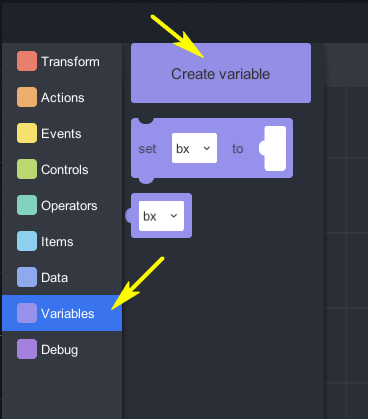
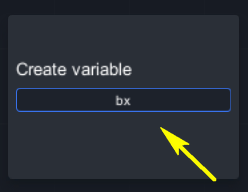
1. Drag the blockly of variables, and drop it to create a variable. Arrange every value according to this sheet.
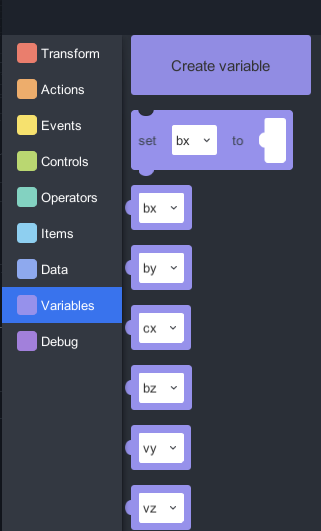
It is how it looked after creating variables.
2. Drag bx blocky to the right.
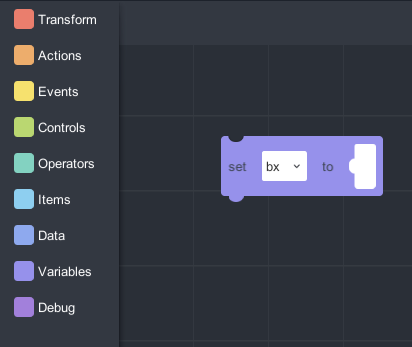
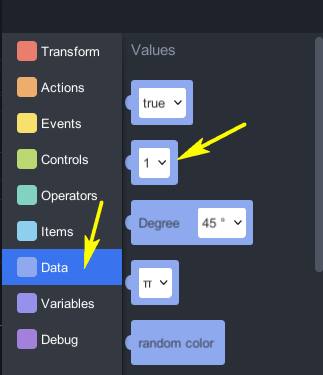
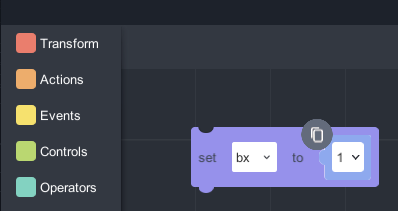
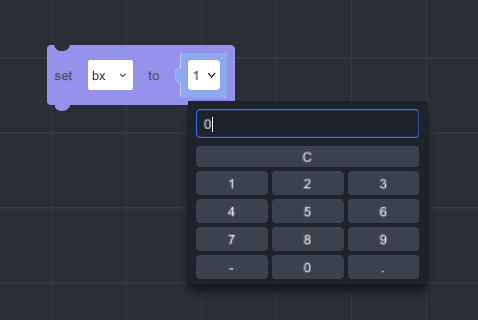
3. Click ”Data” > “1”, and drag it to the bx blockly’s right side. Edit value to 0.
【Editting Variables】
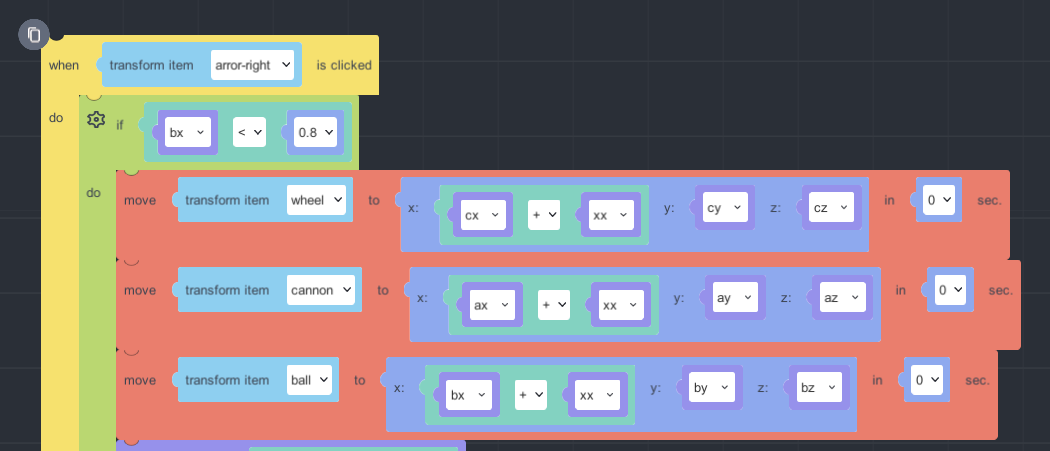
〔Click the right arrow and the cannon will be moved right.〕
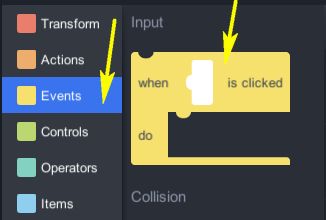
1. Click and drag “Events” > "when…is clicked". Choose “arror-rijgt”for the transform item.
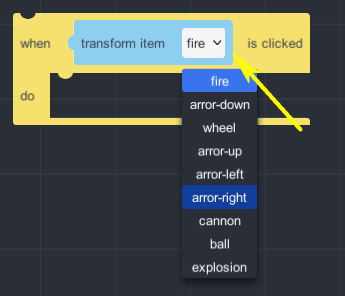
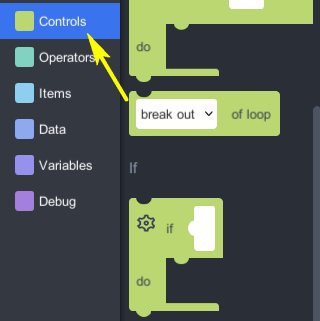
2. Click and drag “Controls” > “If…” to the editing space.
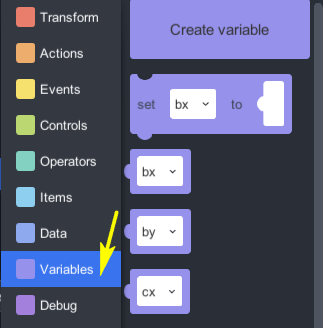
3. Click and drag “Variables” > “bx blockly” like this.
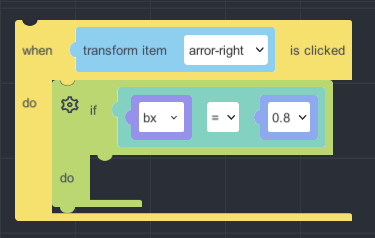
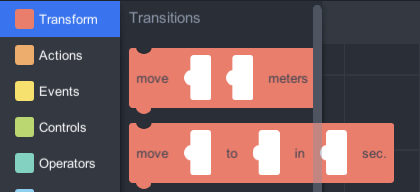
4. Click and drag “Transform” > “move…to…in…sec” to the editing space
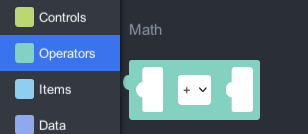
5. Click and drag “Operators” > “...+...” to the editing space.
6. Click and drag “Variables” > "set…to…", and edit its different variables.
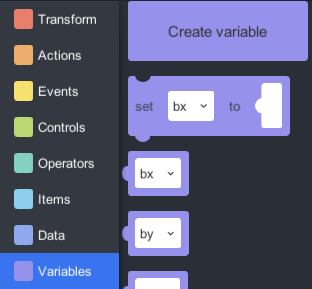
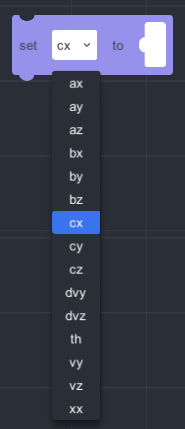
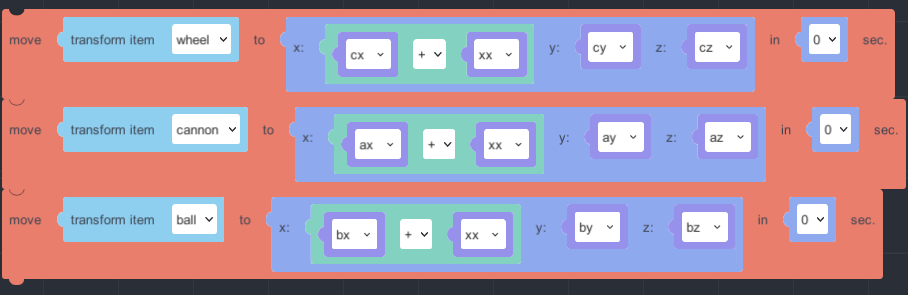
7. Please edit the last variables to finish moving right.
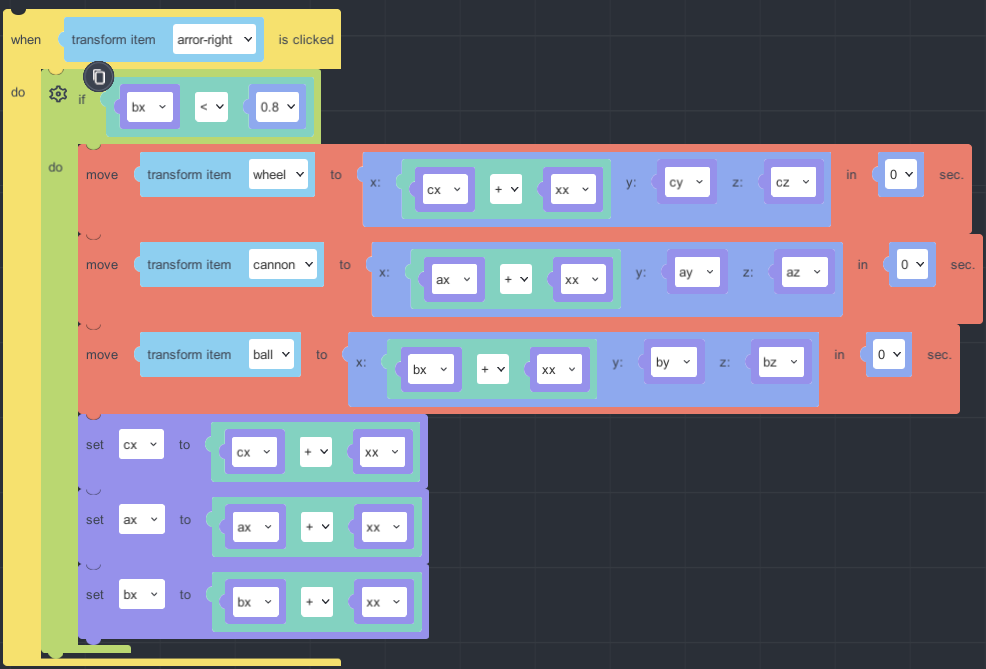
8. Click the copy icon on the left up side. So that it will come up a whole blockly.
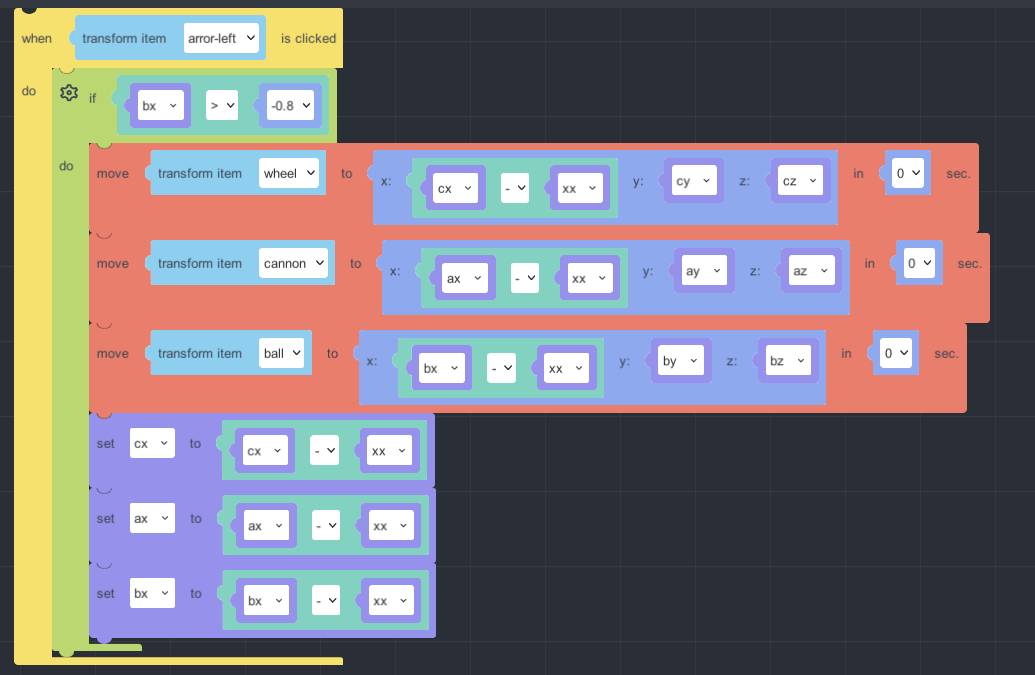
【Click the left arrow and the cannon will be moved left.】
Coped blockly can be edited for moving left.
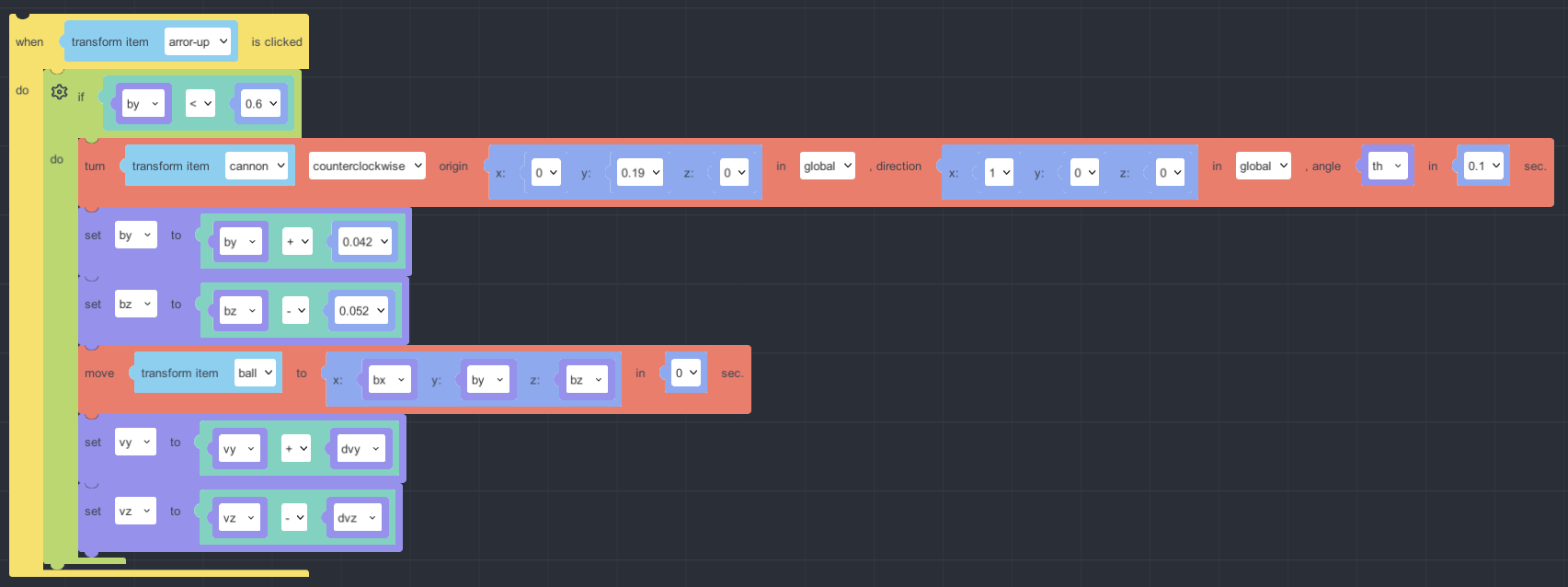
【Click the up arrow and the cannon will be upped.】
When by value is bigger than 0.6, it will be stopped.
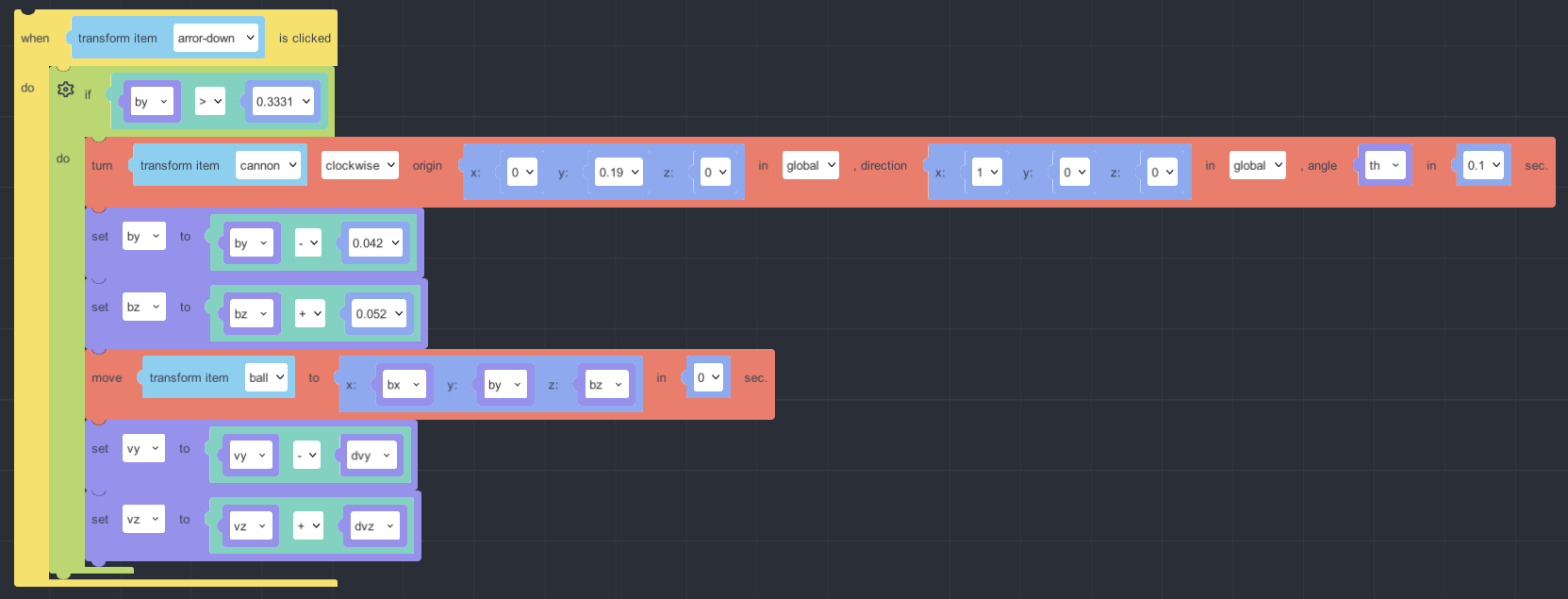
【Click the down arrow and the cannon will be raised.】
When by value is smaller than 0.331, it will be stopped.
【Trajectory of a cannon】
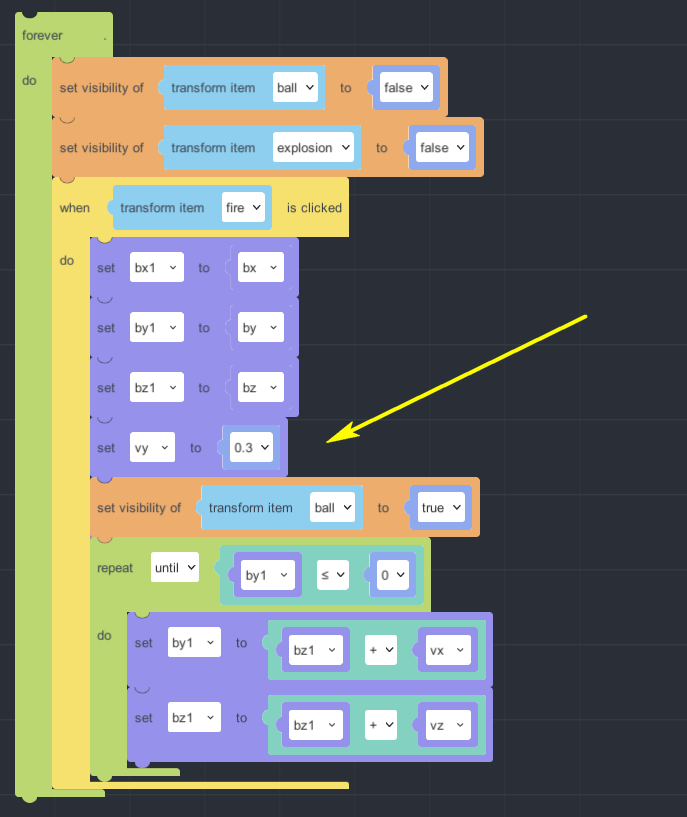
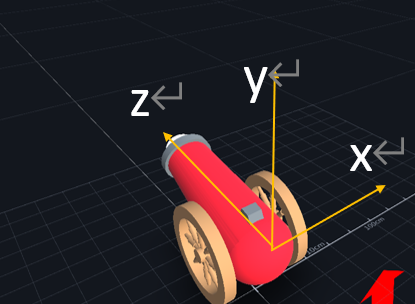
※ vy value is the same as the variables of vy value.
1. vx value could be 0 because there is no speed of x direction for cannon.
vz is the z direction, when vz is bigger speed will faster.
Therefore every loop will go straight regulately.
z direction is motion with constant velocity.
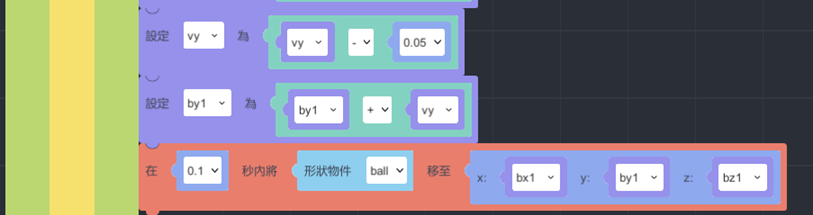
2.
y direction, after the cannon is shooted, it will be affected by gravity.
Up speed will be more and more small unitil achieving the max. And starts to go down.
vy value, it is original speed of going up, so that the more vy value it goes, the far height is.
And the vy value is going small by getting higher. It will decrease by 0.05 each time it is looped.
by1, it is y direction of updating staging value,the more by value increases, the less vy value decreases.
When height is going to max, vy value will go to minus, and then the cannon will go down.
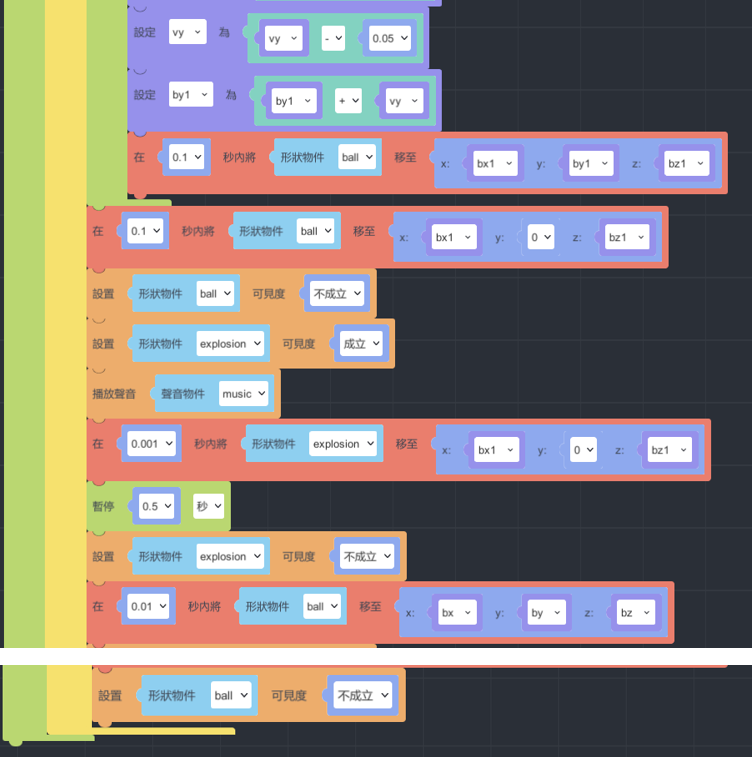
3. Finish all of canonn design.
Finally, close the eye of “ball” and “explosion” to not show them.
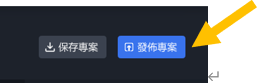
4. Click “Publish”.
Multimedia Applications in the Metaverse Format Analysis
In this era of digital content, how can you apply a variety of software combined with AR/VR editing to achieve a more complete effect?Today, let’s discuss the diverse formats of digital multimedia and explore the application methods of Windows 3D Viewer and 3D Paint. Next, we will challenge the Metaverse AR/VR/MR remote control platform and learn about digital content creation! When creating AR/VR applications, digital content is the most important aspect, but which software can be used to create these digital contents?
File Conversion Tips
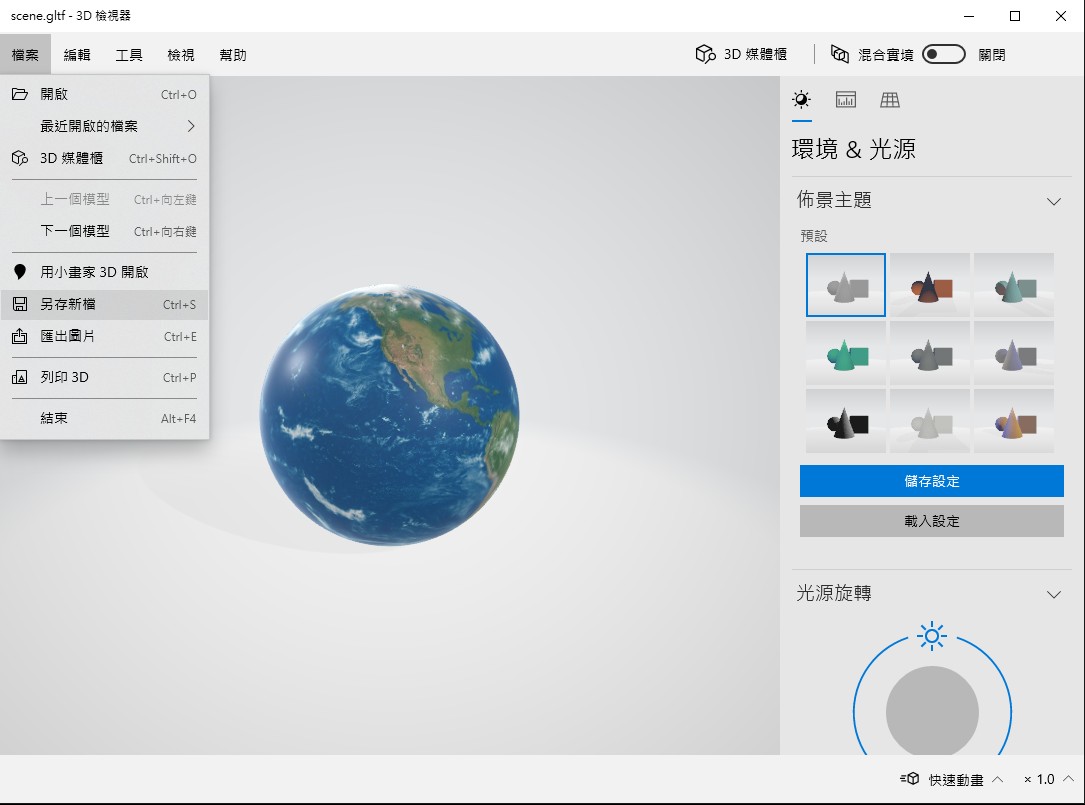
Use Windows 3D to launch 3D models, and choose "Save As" to obtain the GLB format, which can be applied in MAKAR.
● MAKAR AR/VR/MR editing tools, import GLB for project application, and publish in real-time for experience.
The application of 2D software is very diverse, and we briefly introduce Adobe and Pixlr online.
● Pixlr is an online editing software that can edit various graphic formats.
https://pixlr.com/tw
● Adobe offers a variety of services, including 2D, 3D, and animation editing software, which can output and build complete designs.
https://www.adobe.com/tw
.JPG)
There are many rules in multimedia formats, which vary depending on the software chosen, resulting in different corresponding output formats.
In 2D flat graphic file formats, it can include Alpha or animation formats.
● JPG: JPEG, also known as JPG, is a lossy compression method and does not support transparency.
● PNG: Portable Network Graphics, a lossless compressed bitmap graphic format, supports indexed, grayscale, and Alpha channel (supports transparency).
● GIF: Graphics Interchange Format, a lossless compression technique, maintains image quality with fewer than 256 colors, supports multi-frame animation effects and transparent backgrounds.
.JPG)
The application of 3D software is usually focused on model construction. After creating the model, the next steps include material texture mapping and animation setting based on needs. Creators will provide corresponding design plans depending on various requirements, such as animation, physical effects, cloth simulation, deformers, particle effects, etc. These applications may require different output formats, including universal formats like FBX, OBJ, GLB, GLTF, etc.
● Blender https://www.blender.org
● Autodesk https://www.autodesk.com.tw
● REALLSION https://www.reallusion.com/tw
● C4D https://www.maxon.net/zh/cinema-4d
(1).JPG)
There are many rules in multimedia formats, which vary depending on the software chosen, resulting in different corresponding output formats.
In 3D model formats, it can include animation, material textures, etc.
● FBX: Contains animation and materials, suitable for support in various development software, including model, motion, and material texture output.
● GLTF: Contains animation and materials, supports a wide variety of frameworks, including development software, cross-platform web support formats. It's an OpenGL-loaded format, consisting of JSON, images, graphics, textures, etc.
● OBJ: Contains materials, suitable for mutual import and file conversion between software, with OBJ containing jpg textures.
.JPG)
In recent years, video editing software has become increasingly diversified, with more mobile app editing options available. However, many professional users still prefer to use the computer version for editing. Therefore, depending on the need, one can choose to use the mobile version or the computer version of the editing method. Most video software can output various formats, such as mp4, mov, wav, avi, etc., with the most common being the .mp4 format. Of course, depending on the different needs, the format chosen may vary. If original files or uncompressed formats are required, one might choose avi or mov formats.
● PowerDirector https://tw.cyberlink.com
● Adobe offers a variety of services, including 2D, 3D, and animation editing software, which can output and build complete designs. https://www.adobe.com/tw
● Reallusion Cartoon Animator https://www.reallusion.com/tw/cartoon-animator/default.html
(1).JPG)
109 Changhua Pinghe AR Graduation Ceremony AR Shows Teaching Achievements
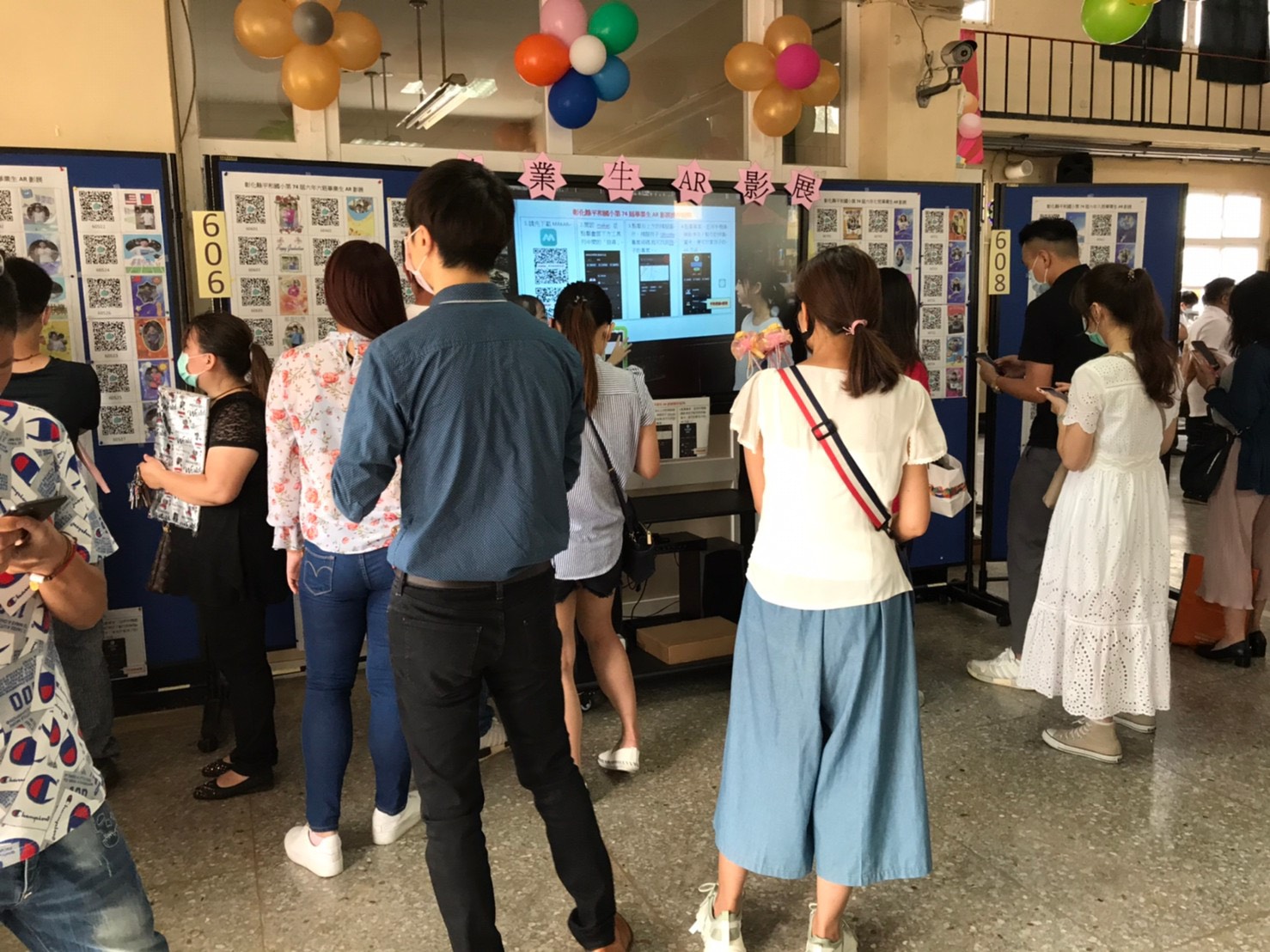
[✨]Graduation ceremony , dreams take off
Changhua Pinghe Elementary School Graduation Ceremony, hoping to break the dream and set off. The school especially hopes that children can display their graduation works with the latest technology AR.
 Students can use the MAKAR editor to make digital works. You can use the MAKAR APP to scan QR CODE to Watch and display the digital works of all graduates on the bulletin board, so that parents who participate in the child's graduation ceremony can also experience technology AR, and feel happy for the child's technology learning. Parents have expressed that they are very happy to experience with their children The sense of accomplishment and parent-child interaction brought by the MAKAR editor's AR has become closer.
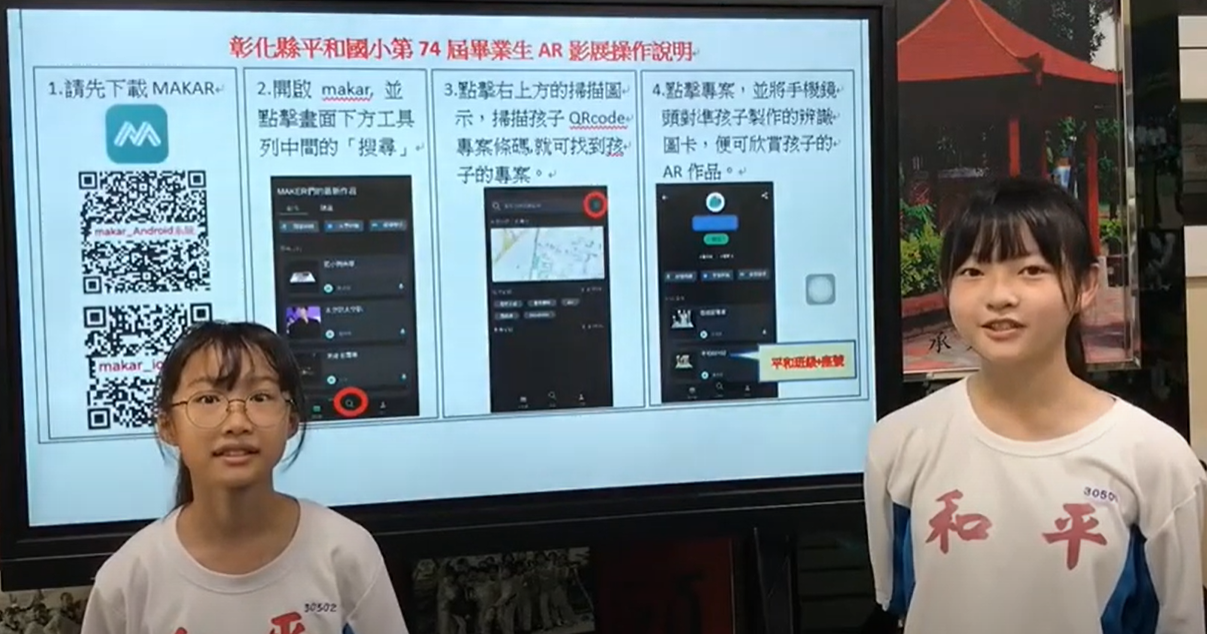
The graduates of Changhua Elementary School not only made their own, but even acted as an instructor. They did not hesitate to explain how to use MAKAR to watch AR's clear explanation and make a film to show! Spontaneous and creative performance to Taiwan education Bring more hope!

3131922-5G New Technology Learning Demonstration School Series Study
- #Research
- #AR
- #VR
- #NationalTeacherResearchCenter
- #XR
- #RealityEducation
- #Teachers
- #VRCourses
- #ARCourses
- #TeacherResearch
- #MAKAR
| Course Information |
|
||||||||||||||||||||||||||||||||

| Registration Information |
|
||||||||||||||||
| Course unit |
|
||||||||
| other |
|
3088204- XR Practice Application (Advanced)
- #Research
- #AR
- #VR
- #NationalTeacherResearchCenter
- #XR
- #RealityEducation
- #Teachers
- #VRCourses
- #ARCourses
- #TeacherResearch
- #MAKAR
| Course Information |
|
||||||||||||||||||||||||||||||||
| Registration Information |
|
||||||||||||||||
| Course unit |
|
||||||||
| other |
|
3088200- XR Practice Application (Beginner)
- #Research
- #AR
- #VR
- #NationalTeacherResearchCenter
- #XR
- #RealityEducation
- #Teachers
- #VRCourses
- #ARCourses
- #TeacherResearch
- #MAKAR
| Course Information |
|
||||||||||||||||||||||||||||||||
| Registration Information |
|
||||||||||||||||
| Course unit |
|
||||||||
| other |
|
3124796-VR reality design practical application course (online course)
- #Research
- #AR
- #VR
- #NationalTeacherResearchCenter
- #XR
- #RealityEducation
- #Teachers
- #VRCourses
- #ARCourses
- #TeacherResearch
- #MAKAR
| Course Information |
|
||||||||||||||||||||||||||||||||
| Registration Information |
|
||||||||||||||||
| Course unit |
|
||||||||
| other |
|
Link :Course code 3124796
XR Practical Applications Course (Basic)
XR practical applications course (Basic)
Approval Number:Taipei City seminar No. 1100129033
Seminar:XR practical applications course (Basic)
Organizer:Taipei Municipal Nanmen Junior High School
Date:2021/4/23~2021/4/23
This course is designed to learn how to make VR campus digital tours through VR 360 photography, VR storyboard, and by making 2D materials. After finishing materials making, import MAKAR to create AR,VR learning plans or contents. Teachers can edit VR campus tours by themselves, and promote VR campus popularization in Taipei City effectively.
Learning Goals:
1.AR/VR experience
2.VR360 making
3.VR photoes taking
4.VR project planning
5.Basic VR project making
Visit Taipei City Teachers’ In-Service Information
Select Unit Of Issued and search:Taipei Municipal Nanmen Junior High School
XR Practical Applications Course (Advanced)
XR practical applications course (advanced)
Approval Number:Taipei City seminar No. 1100129034
Seminar:XR practical applications course (Advanced)
Organizer:Taipei Municipal Nanmen Junior High School
Date:2021/4/30~2021/4/30
Targets of seminar: 20 teachers enrolled by recommendation from their schools
-----This course is designed to learn how to make VR campus digital tours through VR 360 photography, VR storyboard, and by making 2D materials. After finishing materials making, import MAKAR to create AR,VR learning plans or contents. Teachers can edit VR campus tours by themselves, and promote VR campus popularization in Taipei City effectively.
Learning Goals:
1.Advanced VR production
2.Scene-to-scene transition and setting
3.VR Q&A production
4.Project experience and display
Visit Taipei City Teachers’ In-Service Information (Mandarin only)
Select Unit Of Issued and search "Taipei Municipal Nanmen Junior High School"