
-
- The first AR coloring card in Taiwan- Bring 3DMommy's image into to life
- Bayer integrates MIFLY AR Technology , teach you how to help your dog relax
- Halloween combines with AR, shining New Taipei City
- Mei hao dahu
- Taiwan Railway celebrates 132nd anniversary exhibition, create immersive AR interactive APP together with MIFLY
- Zhu Ming Art Museum X MAKAR launches WEB AR painting experience
- CTV celebrates its 50th anniversary, especially using WebAR technology to add joy!
-
- AR Envelope for Beginner –New Year Rabbit
- AR Envelope for Advancedr –Lucky Rabbit
- 【XR Project Tutorial】How to Create the Keelung Harbor Whale Shark AR Experience? Use MAKAR to Create an AR Experience with Whales Soaring in the Sky!
- MAKAR Magic index
- Spring Festival AR Animation Tutorial
- Logic-Macaron AR Animation
- MAKAR Mask project
- MAKAR Santa Claus - boning
- Metaverse Draw Lots-Using Variable and Lists of MR Project
- Use MAKAR to learn physics-Let's make an AR cannon!
- Cooperative Learning in MAKAR_Portal
-
- [3A Emerging Technology Center] Lantern Festival sky lantern wishing pool, MR virtual world is at your disposal
- 3131922-5G New Technology Learning Demonstration School Series Study
- 3088204- XR Practice Application (Advanced)
- 3088200- XR Practice Application (Beginner)
- 3124796-VR reality design practical application course (online course)
- Beishi Yanxizi No. 1100712009
-
- MAKAR Flash - Brain and Speed Challenge! When MR Paper Sumo Meets NPC Battle Mechanism
- MAKAR Flash - 3D Creation Made Easy: Animal Music Box Quick Workshop
- MAKAR Flash-Dragon Boat Festival XR Game Creation Crash Course: Mastering MAKAR's Latest Features with AI-Assisted Extended Reality
- MAKAR Flash -One-hour 3D Material Specialization Class, the philosophy that must be grasped for XR creation
- MAKAR Flash-How to integrate AR/VR into teaching with 5G? Quickly build your exclusive XR teaching materials!
- MAKAR Flash-Creating Your Own 3D Material Library with Your Phone? MAKAR 3D Scan New Application Analysis!
- MAKAR Flash-How Can Beginners Quickly Recreate Unity AR/VR Projects?
Manage Your Image Targets
- 2024-03-22
- by MAKAR
Manage Your Image Targets
If you want to manage image targets, click "Window" → "Image Target" on the home page of the MAKAR Editor to open the Image Targets.
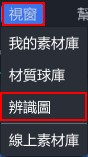
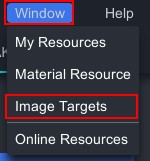
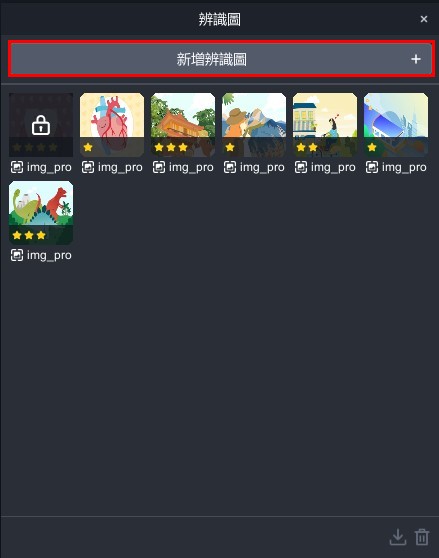
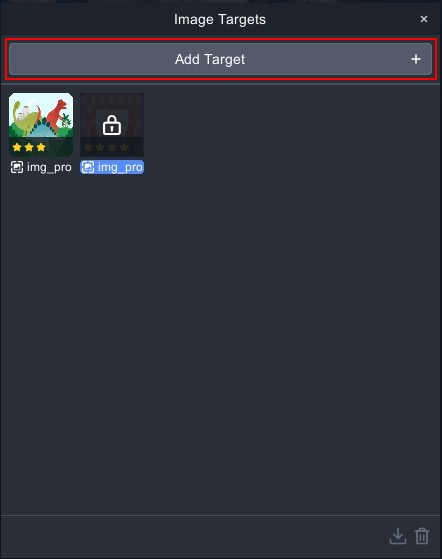
Add Image Target
Click「 」to add an image target.
Delete Image Target
Select one of the image targets and click 「 」 to delete the image target.
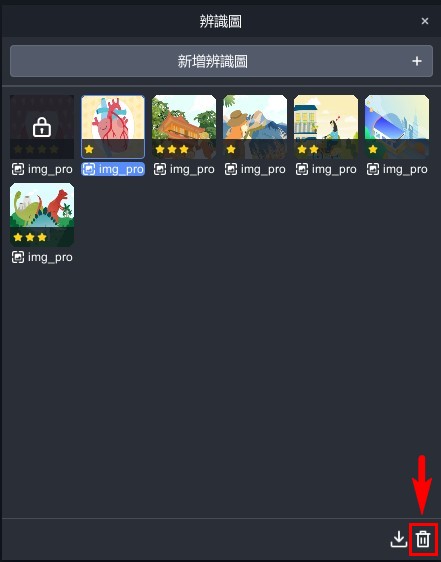
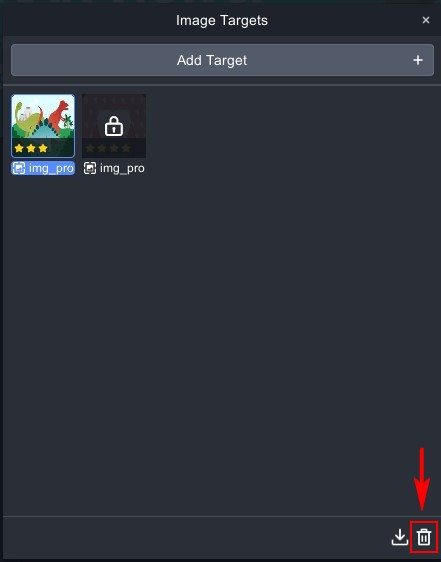
Download Image Target
Select one of the image targets and click 「 」 to download the image target.
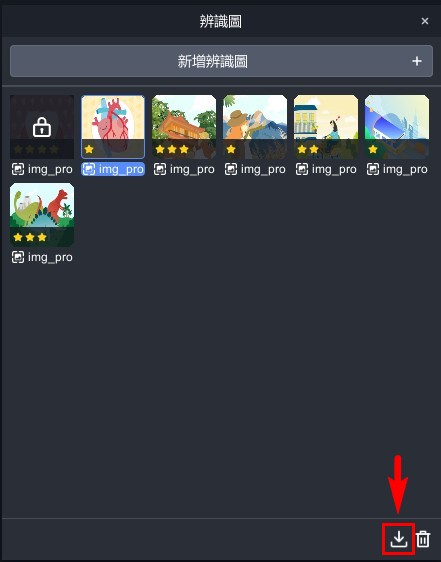
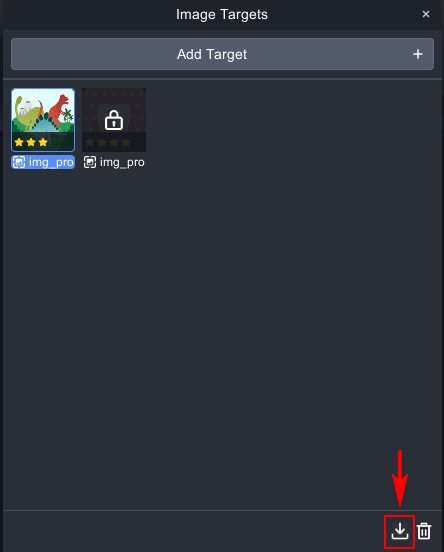
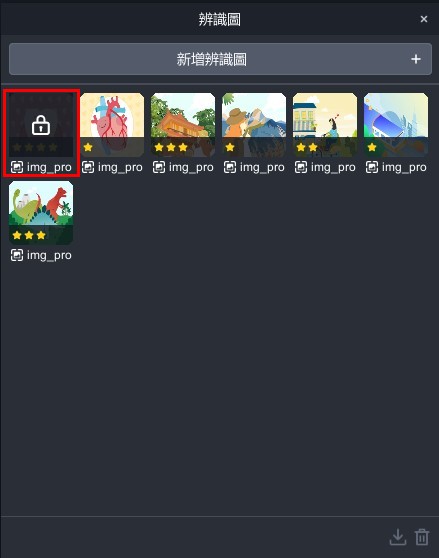
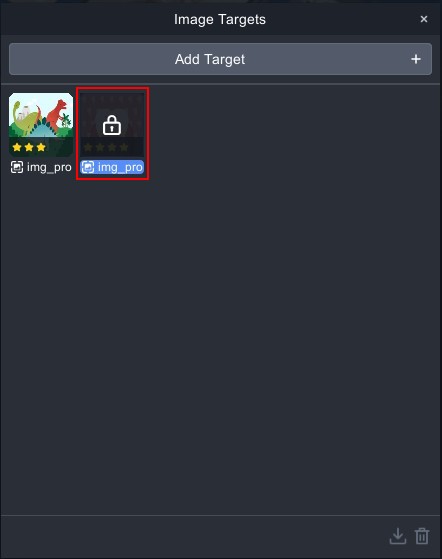
Image Target Locked
If the image target is locked, it means that a project is currently using this image target and it cannot be deleted. To delete the image target, please remove the project first and then proceed with the deletion.
Related Posts: